
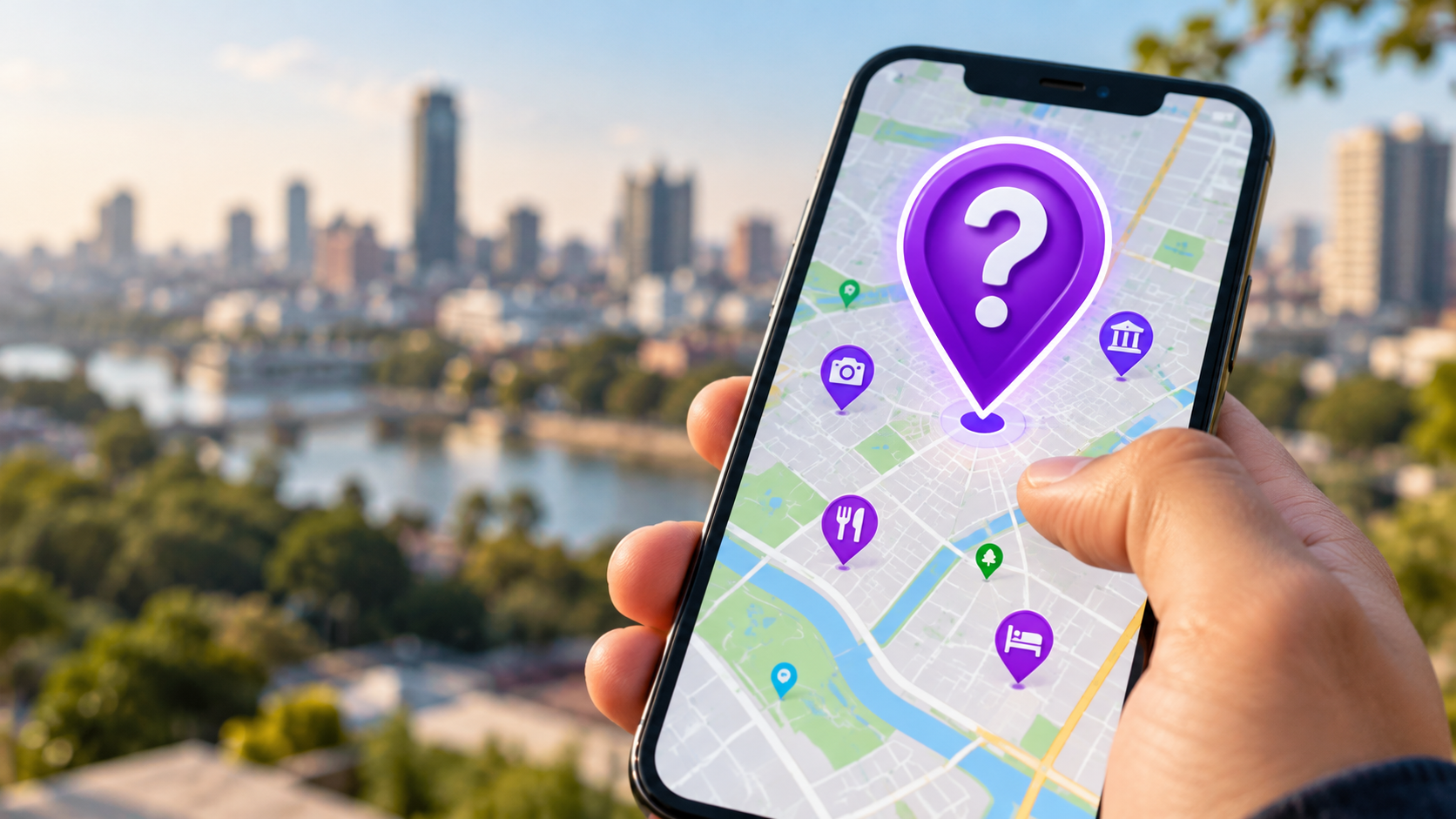
What Do Purple Icons on Google Maps Mean?
Purple icons on Google Maps can be confusing when they suddenly appear on your screen. You may wonder whether a purple pin represents a saved place, business, attraction, route, or another map feature. The answer depends on the type of icon and where it appears.
Google Maps uses different colors, icons, and symbols to organize information. These visual markers help users identify businesses, landmarks, transportation features, saved locations, and geographic areas. Google has also changed its map design several times, which can make familiar colors look different after an update.
Not every purple marker has the same meaning. Its purpose depends on the icon, map layer, location, and current Maps interface.
In this guide, we explain purple icons on Google Maps and the situations where you may see them. We will also explain saved places, route colors, map colors, and recent visual changes.

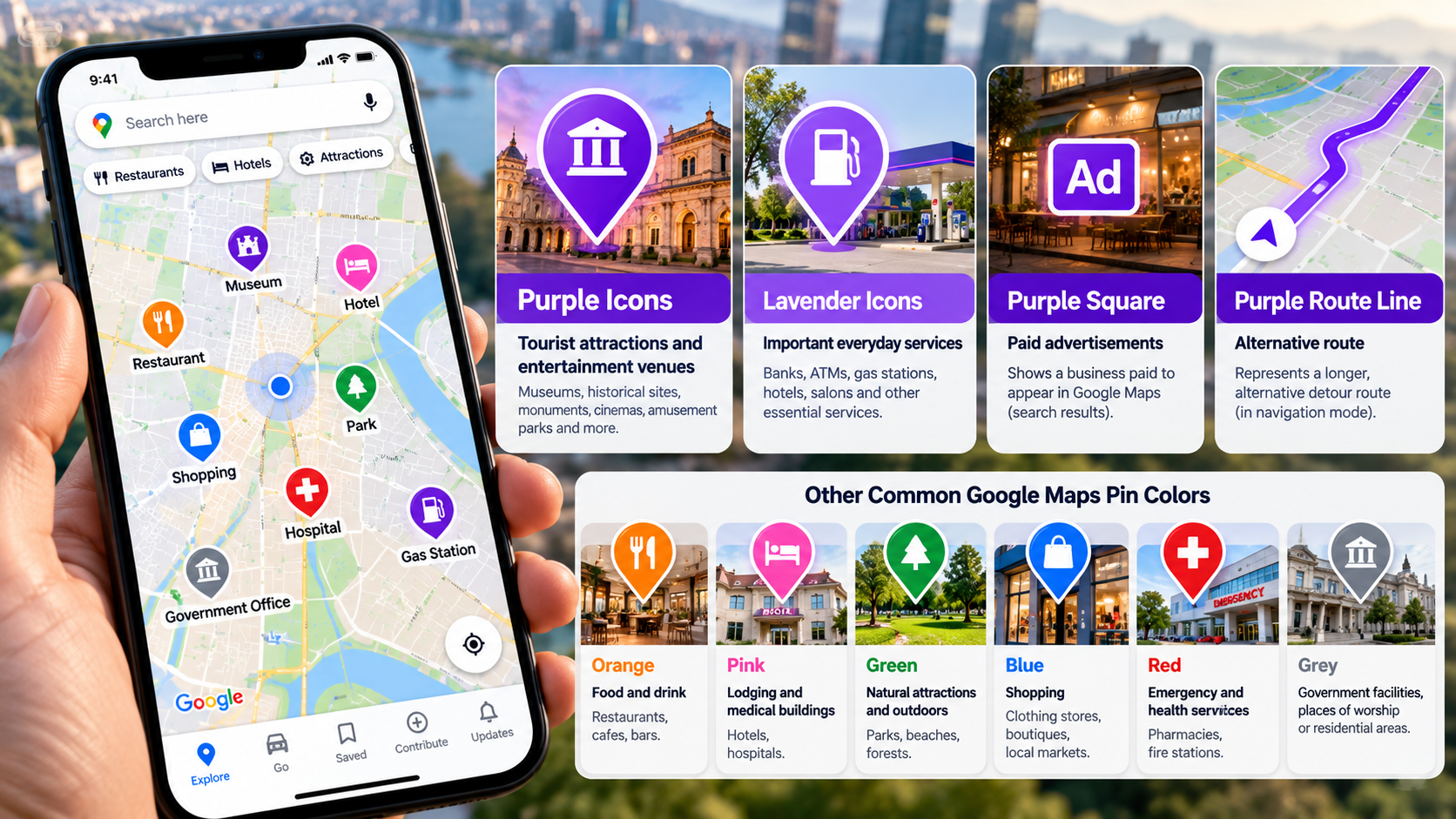
What Are the Purple Icons on Google Maps?
The meaning of purple icons on Google Maps depends on the specific marker you see. Google Maps does not use purple as one universal label for every location or feature. Instead, colors work together with icons, labels, and map layers to help users understand the map.
A purple-looking marker may be connected to a saved location, a particular point of interest, or another map feature. If the marker belongs to a business, you may also notice information about how busy that location is, which can help you understand what the place represents. The exact appearance can also vary between mobile devices, desktop browsers, zoom levels, and different versions of Google Maps.
If you notice a purple pin, the easiest way to identify it is to tap it. Google Maps will open information about the selected location. This usually provides more useful information than trying to identify the marker by color alone.
You should also check whether the location appears inside your Saved section. Custom lists can make saved locations easier to recognize while browsing the map.
Identifying Custom Saved Place Markers
Google Maps allows you to create custom lists for places you want to remember. You can use lists for restaurants, travel destinations, favorite locations, or places you plan to visit. Google also lets you choose an emoji icon for custom lists. If you regularly use Maps to save and explore locations, you may also want to understand how Google Maps differs from Google Earth.
This means a saved location can look different from an ordinary business marker. However, you should not assume that every purple marker represents a saved place.
To check, open Google Maps and select the Saved tab. Review your custom lists and look for the location you marked earlier. You can also tap the marker directly and inspect the information card.
If the location belongs to a saved list, the card can help confirm that connection. If it does not, check the icon, label, and surrounding map features.
This approach is more reliable than using color alone. Google can change the appearance of saved locations as its interface develops.
What Does Purple Mean on Maps?
There is no single answer to what purple means across every part of Google Maps. The platform uses different colors for points of interest, roads, routes, transportation, and geographic features. The meaning therefore depends on where the purple color appears.
A purple pin and a purple route line should not automatically be interpreted in the same way. They may represent completely different map elements. If you regularly compare navigation options, it can also help to understand the differences between major mapping apps, including Google Maps and Waze. The same principle applies to purple areas or boundaries shown on the map.
Google has updated its Maps color system over time. These redesigns have changed the appearance of roads, landmarks, natural areas, and other features.
If you see a purple feature, first identify its shape. Then check whether it is a pin, line, shaded area, or another symbol. Tapping the feature can provide additional information.
This prevents a common mistake: assuming that one color always has one fixed meaning.
How Alternate Navigation Routes Use Purple
Google Maps can show several route options when you search for directions. The selected route is usually emphasized, while other available routes appear less prominently. If you are comparing navigation apps, it can also be useful to see how Apple Maps compares with Google Maps. However, it is not accurate to say that every alternate route is always purple.
Route colors can vary based on the navigation mode, current interface, traffic information, and Google Maps updates. Different transportation modes can also display routes differently.
If you see a purple-looking route, compare it with the other routes displayed on your screen. Look at the estimated arrival time, distance, traffic conditions, and route details.
You can then select the route that best fits your journey. Google Maps will update the navigation instructions after you make your choice.
The important point is that purple does not automatically mean alternate route. The line’s appearance can change as Google updates its navigation interface.
For that reason, use the route information shown on your screen instead of relying only on its color. This is especially important when driving in unfamiliar areas.
What Do the Colors Mean on Google Maps?
Google Maps uses a color system to make locations and geographic features easier to recognize. However, these colors are not necessarily permanent. Google can change the design as it improves the Maps interface.
Different colors can help distinguish categories such as food and drink, healthcare, shopping, recreation, transportation, and other points of interest. These visual differences make it easier to identify locations while browsing the map.
Roads, water, vegetation, buildings, and other geographic features also use different shades. These background colors provide context while you explore an area.
This is why you should not rely on a single color chart to identify every Google Maps marker. The appearance can change based on the current interface, zoom level, map type, and location.
When identifying purple icons on Google Maps, combine the color with the icon, label, and location information. That gives you a much more reliable answer.
Deciphering Background Environmental Tones
Some colors on Google Maps describe the environment rather than individual businesses. These background tones help you recognize geographic features before you zoom closer.
Water commonly appears in blue shades, while vegetation and parks use green tones. Developed areas, roads, and buildings can use different neutral or muted shades. Google has also introduced more detailed and colorful representations of natural features in recent map updates.
A purple or violet appearance does not automatically identify a specific environmental feature. Several map elements can overlap, creating a different visual effect.
Your device settings can also affect how these colors appear. Dark mode, display filters, and color adjustments can change the way neutral colors look.
If a background area appears purple, zoom in and examine the labels and surrounding features. You can also change the map layer to compare the appearance.
This helps you determine whether the color represents geography, a map overlay, or another interface element.
Why Is Google Maps Purple Now?
If Google Maps suddenly looks more purple, the change may be related to a map design update, display setting, or specific map feature. Google regularly updates Maps to improve navigation, visual clarity, and location discovery.
Google has introduced several redesigns that changed road colors, icons, landmarks, and other visual elements. These changes can make familiar areas look noticeably different after an update.
However, Google Maps has not simply changed the entire application to purple. The appearance depends on the feature you are viewing, your navigation mode, map layer, device, and current version of the app.
If only certain markers look purple, tap one to identify the feature. If the entire map looks different, check whether the application recently received an update.
You should also consider your device’s display settings. Dark mode, blue-light filters, and color adjustments can affect how map colors appear.
So, if you notice purple icons on Google Maps, do not assume the app is malfunctioning. First identify which map element has changed.
Managing Dark Mode and Contrast Settings
If Google Maps suddenly looks unusually purple, check your device and application display settings. Dark mode can change how roads, labels, and other map elements appear on your screen.
You should also check whether your phone has a blue-light filter or color adjustment enabled. These features can change the appearance of neutral colors and make some shades look warmer, cooler, or more violet.
Common settings to check include:
- Dark mode or light mode
- Night Light or blue-light filters
- Color correction
- Color inversion
- Display contrast settings
You can also compare Google Maps on another device. If the colors look normal there, the difference may come from your original device settings.
Keeping Google Maps updated is also useful. Google regularly changes its interface, navigation visuals, and map styling.
Most importantly, do not change your display settings just because one marker looks purple. Tap the marker first and check what it represents.
Purple icons on Google Maps can have different meanings. The icon, location, and surrounding information are more reliable than color alone.
Conclusion
Understanding purple icons on Google Maps is easier when you look beyond the color itself. A purple marker can represent different map features depending on where it appears and how Google Maps currently displays information.
If you see a purple pin, tap it to view its details. You can also check your saved places and lists to see whether the marker is connected to a location you saved. For a deeper explanation of Google Maps markers, colors, and map layers, see Google Maps Help: Map colors, symbols, and layers.
If the appearance seems unusual, check your map layers and display settings. You can learn more about changing map views and layers in Google Maps Help: Using map layers.
The key takeaway is simple: purple does not have one universal meaning on Google Maps. Always check the icon, label, and location details before deciding what a purple marker represents.