What Is Two Factor Authentication and Why Do You Need It?
Online security threats are increasing every year, making two factor authentication an essential security measure for protecting your digital accounts. Passwords alone are no longer enough to defend against data breaches, phishing attacks, and credential theft. As cybercriminals use more advanced techniques to steal login information, adding an extra verification step helps reduce the risk of unauthorized access.
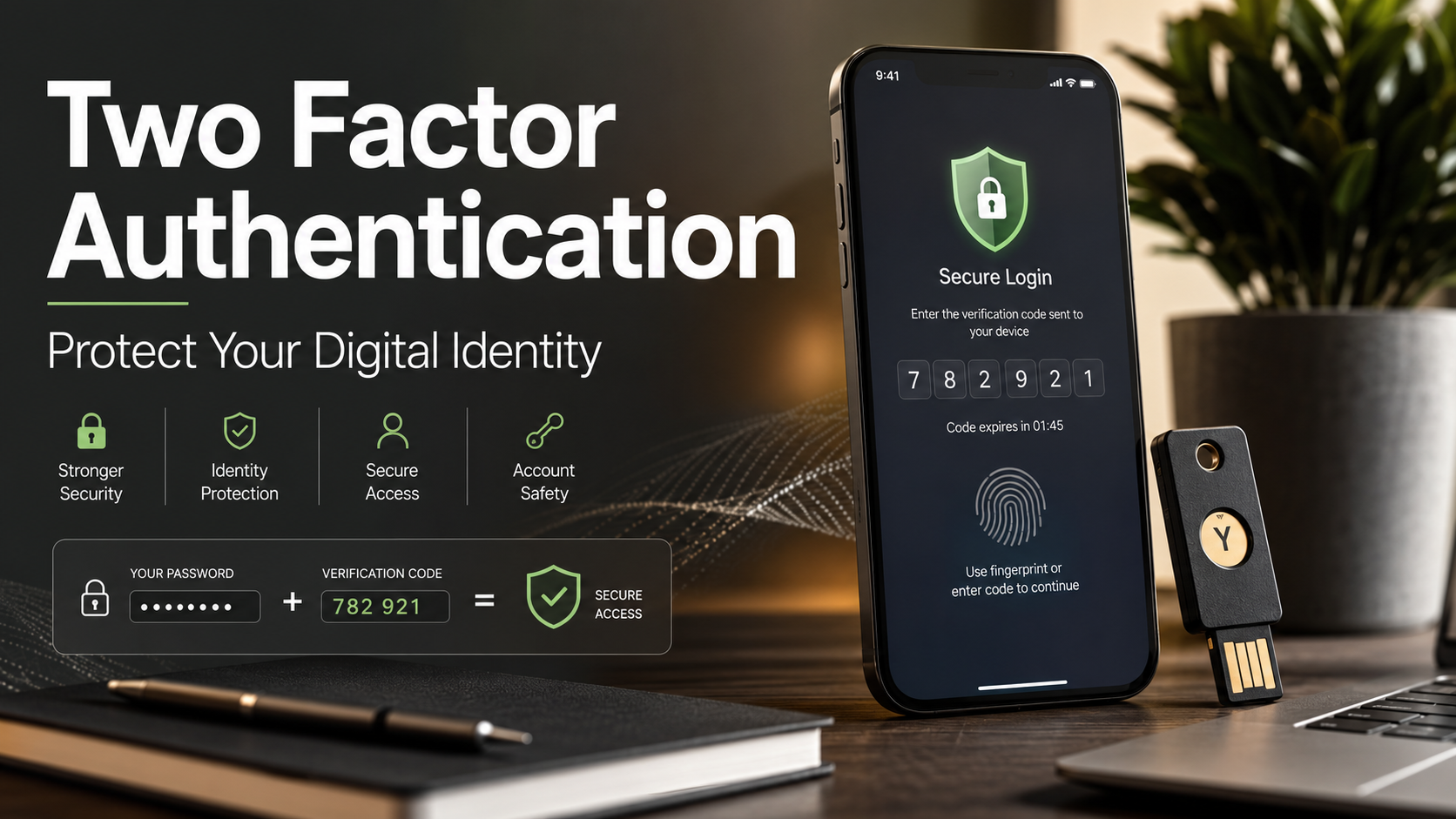
Two factor authentication (2FA) adds an extra security layer by requiring users to verify their identity in two different ways. Instead of depending only on a password, it combines multiple authentication methods to confirm that the person signing in is the legitimate account owner.
Leading cybersecurity organizations, including the Cybersecurity and Infrastructure Security Agency, recommend using multi-step verification methods to reduce unauthorized access risks.
With 2FA enabled, attackers may still steal your password. However, they usually cannot access your account without the second verification factor. This makes two factor authentication one of the simplest and most effective ways to improve online security.
In this guide, you will learn how two factor authentication works, the different verification methods available, how to set it up, and the best practices for keeping your accounts protected.
How Two Factor Authentication Protects Your Digital Accounts
Passwords have protected online accounts for decades. However, modern cyber threats have made password-only security unreliable. Attackers use automated tools, leaked databases, and phishing techniques to discover login details.
Many users also reuse passwords across multiple websites. If one service experiences a data breach, criminals may attempt those same credentials on other platforms.
Two factor authentication solves this problem by adding a second verification step. It requires two separate forms of proof before allowing account access.
The basic security model works like this:
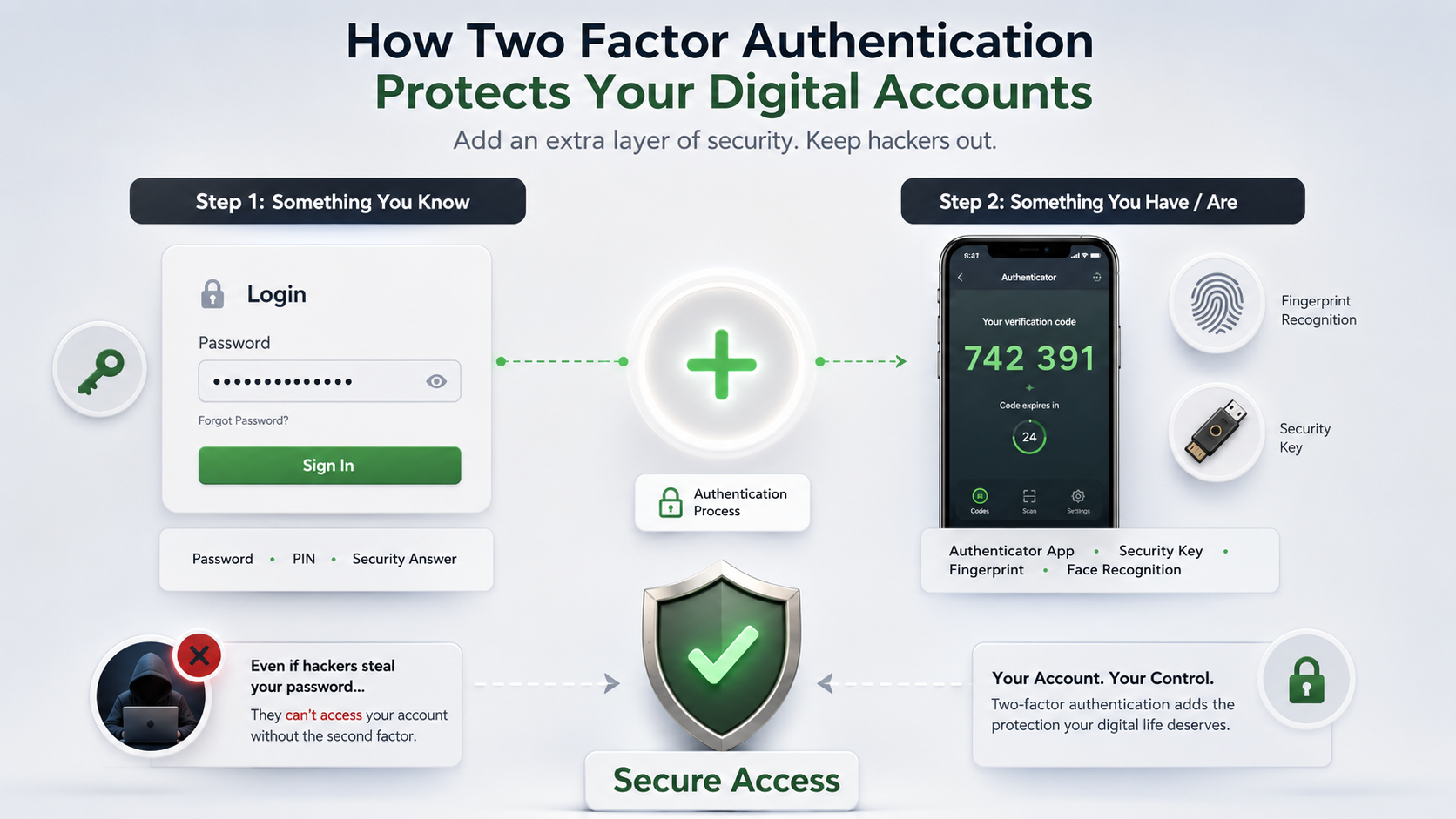
The first factor usually includes information only you know. Examples include passwords, PINs, or security answers.
The second factor requires something you physically possess or something unique to your identity. Examples include a smartphone, security key, fingerprint, or facial recognition.
Even if attackers obtain your password through phishing or a data leak, they still need the second factor. This additional barrier prevents many common account takeover attempts.
The Three Authentication Factors Explained
Authentication systems rely on three main categories of identity verification. These categories help security providers confirm whether a person should receive account access.
The first category is knowledge factors. These are details that only the user should know. Common examples include passwords, PIN codes, and answers to security questions.
The second category is possession factors. These involve something the user physically owns. Examples include a smartphone with an authenticator app, a hardware security key, or a device receiving a verification code.
The third category is inherence factors. These rely on biological characteristics that belong to the individual. Examples include fingerprints, facial recognition, and voice identification.
For true two factor authentication, the system must combine two different categories. Using a password and another password does not provide meaningful additional protection.
A password combined with an authenticator app code is a common example. The password proves knowledge, while the generated code proves possession of the registered device.
Using multiple authentication factors creates a stronger defense against unauthorized access. It reduces dependence on a single security measure and makes accounts harder to compromise.
Common Types of Identity Verification Methods
Not every two factor authentication method provides the same level of protection. Different options offer different balances between security, convenience, and availability.
The best choice depends on your personal needs and the type of account you want to protect. For example, a financial account may require stronger protection than a casual online service.
Here are the most common authentication methods:
| Method | Security Level | Convenience |
|---|---|---|
| Hardware Security Keys | Extremely High | Moderate |
| Authenticator Apps | High | High |
| Push Notifications | High | Very High |
| SMS / Text Messages | Low to Moderate | High |
Hardware security keys provide the strongest protection because they use physical devices that verify legitimate websites before allowing authentication.
Authenticator apps are also highly recommended. They generate temporary security codes directly on your device and do not depend on mobile networks.
Push notifications offer a simple approval-based login process. They are convenient but require users to avoid approving unfamiliar requests.
SMS verification remains widely available but provides weaker protection. Attackers can sometimes bypass it through SIM-swapping attacks or phone number manipulation.
Choosing a stronger authentication method can significantly improve your overall account security.
Authenticator Applications
Authenticator applications are among the most popular two factor authentication methods available today. They generate temporary security codes directly on your smartphone.
These apps typically use Time-based One-Time Password (TOTP) technology. A new six-digit code is generated approximately every 30 seconds. The code works even when your device does not have an internet connection.
Popular authenticator applications include:
Authenticator apps provide stronger protection than SMS verification because they do not rely on your phone number. This makes them resistant to many SIM-swapping attacks.
They are also easy to set up. Most websites provide a QR code that you scan using your authentication app. After setup, the app generates verification codes whenever you sign in.
For everyday users, authenticator applications offer an excellent balance between security and convenience. They are suitable for protecting email accounts, social media profiles, cloud services, and financial platforms.
Hardware Security Keys
Hardware security keys are considered one of the strongest forms of two factor authentication available today. These small physical devices provide an additional layer of protection by confirming that the user has possession of a registered security key.
Unlike passwords or text message codes, hardware keys are designed to prevent phishing attacks. They use advanced security standards such as FIDO2 and WebAuthn to verify the website requesting access before approving authentication.
Common examples include:
- YubiKey devices
- Google Titan Security Key devices
- FIDO2-compatible security keys
Hardware security keys connect through USB, NFC, or wireless technology. During login, the user simply inserts the key or taps it against a compatible device.
The major advantage of physical security keys is their resistance to remote attacks. Even if an attacker steals your password, they cannot complete the login without the physical key.
For high-value accounts, such as business systems, financial services, and administrator accounts, hardware security keys provide the highest level of account protection.
SMS Text Messages and Email Verification
SMS and email verification are common forms of two factor authentication because they are simple and widely supported. When a user signs in, the service sends a temporary code through a text message or email.
This method provides better protection than using only a password. However, security experts consider SMS-based authentication weaker than authenticator apps or hardware security keys.
The main concern is that phone numbers can be targeted through SIM-swapping attacks. In these attacks, criminals convince mobile providers to transfer a victim’s phone number to a different SIM card.
Once successful, attackers may receive verification codes intended for the account owner.
Email verification also has limitations. If an attacker gains access to your email account, they may bypass verification codes sent to that inbox.
For better protection, users should choose stronger options whenever possible, such as authenticator applications or physical security keys. SMS and email verification are still useful as backup methods when stronger options are unavailable.
Push Notifications for Account Verification
Push notification authentication provides a convenient way to approve login attempts. Instead of entering a code manually, users receive a notification on a trusted device.
The notification usually displays information about the login attempt. Users can then approve or deny access with a single tap.
This method offers a strong balance between security and convenience. It is faster than entering verification codes and easier for many users to manage.
However, push notifications have a potential weakness called push fatigue attacks. In these attacks, criminals repeatedly send login approval requests until a user accidentally accepts one.
To stay protected:
- Approve only login requests you personally started.
- Reject unfamiliar authentication prompts.
- Report suspicious login attempts when possible.
- Review account activity regularly.
Modern push authentication systems may include additional protections, such as number matching. This requires users to confirm a specific number shown on the login screen.
When used carefully, push notifications provide an effective and user-friendly two factor authentication solution.
Step-by-Step Guide: Setting Up Two Factor Authentication
Setting up two factor authentication usually takes only a few minutes. Most major online services, including email providers, social networks, banking platforms, and cloud applications, offer built-in security settings for enabling 2FA.
Before starting, choose your preferred authentication method. An authenticator app is generally recommended for most users because it provides strong security without requiring additional hardware.
Follow these steps to activate extra account protection:
1. Download a Trusted Authenticator App
Install a reliable authenticator application from your official mobile app store. Avoid downloading unknown security apps from unofficial websites.
Popular options include Google Authenticator, Microsoft Authenticator, Authy, and password manager-based authenticators.
After installation, complete any required setup steps before connecting your accounts.
2. Open Your Account Security Settings
Sign in to the account you want to protect. Navigate to the security, privacy, or account protection section.
Look for options labeled:
- Two factor authentication
- Two-step verification
- Multi-factor authentication
- Login verification
Select the option to begin setup.
3. Connect Your Authenticator App
The service will usually display a QR code during setup. Open your authenticator app and choose the option to add a new account.
Scan the QR code using your phone camera. The app will then begin generating temporary verification codes.
Enter the current code shown in your app to complete the connection.
4. Save Your Backup Recovery Codes
After enabling two factor authentication, most services provide emergency recovery codes.
These codes allow account access if you lose your phone or cannot use your primary verification method.
Store recovery codes securely. Recommended locations include:
- A trusted password manager
- An encrypted storage location
- A secure offline document
Avoid storing backup codes in screenshots or unprotected notes because anyone with access to those files may compromise your account.
Best Practices for Maintaining Account Security
Enabling two factor authentication is an important security improvement, but it should be part of a complete account protection strategy.
Cybersecurity requires ongoing attention. Attackers continue developing new methods to steal passwords, manipulate users, and bypass weak security controls.
Follow these practices to maintain stronger protection:
Store Backup Codes Safely
Recovery codes provide access during emergencies. Keep them in a secure location and never share them with anyone.
Avoid saving them in regular note applications, screenshots, or unsecured cloud folders.
Use Strong Passwords With 2FA
Two factor authentication works best when combined with strong, unique passwords.
A password manager can help create and store complex passwords for every account. This prevents attackers from gaining access through reused credentials.
Avoid Suspicious Authentication Requests
Never approve a login request that you did not start.
Attackers may attempt to trick users into approving fake verification prompts or sharing temporary security codes.
Review Connected Devices Regularly
Check which devices and applications have access to your accounts.
Remove old phones, unused applications, or unfamiliar devices. Regular reviews help identify suspicious activity early.
Using these practices together with two factor authentication creates a stronger security foundation for your digital identity.