How to Stop Siri From Reading Notifications on AirPods
If you want to stop Siri from reading notifications, you can change a few settings on your iPhone. Apple’s Announce Notifications feature allows Siri to read incoming messages and app alerts through compatible AirPods. Although this feature helps you stay informed hands-free, frequent voice announcements can interrupt music, podcasts, calls, and important tasks.
Fortunately, you don’t need to disable Siri completely to enjoy uninterrupted listening. You can turn off all spoken notifications or adjust the settings for specific apps. These options help you control which alerts reach your ears without changing every notification preference on your device.
This guide explains how to stop Siri from reading notifications on AirPods, why announcements sometimes stop working, and how to troubleshoot alerts that continue unexpectedly. Follow the steps below to customize your iPhone settings and enjoy a quieter listening experience.
How Do I Stop Siri From Reading Messages When I Have AirPods In?
To stop Siri from reading messages through your AirPods, adjust the announcement settings on your iPhone. You can disable spoken alerts for Messages without affecting notifications from other applications. This option works well if you want to keep useful announcements but prefer reading text messages privately.
Follow these steps:
- Open the Settings app on your iPhone.
- Tap Notifications and select Announce Notifications.
- Find Messages in the available application list.
- Open its announcement settings.
- Turn off the relevant announcement option.
Depending on your iOS version, Announce Notifications may appear under Siri or Apple Intelligence & Siri instead.
After changing this setting, Siri should stop reading incoming text messages through your AirPods. Other supported applications may continue announcing alerts if their settings remain enabled.
If your goal is to stop Siri from reading notifications from every application, use the main announcement switch instead. This prevents spoken alerts across supported apps without requiring you to change each one individually.
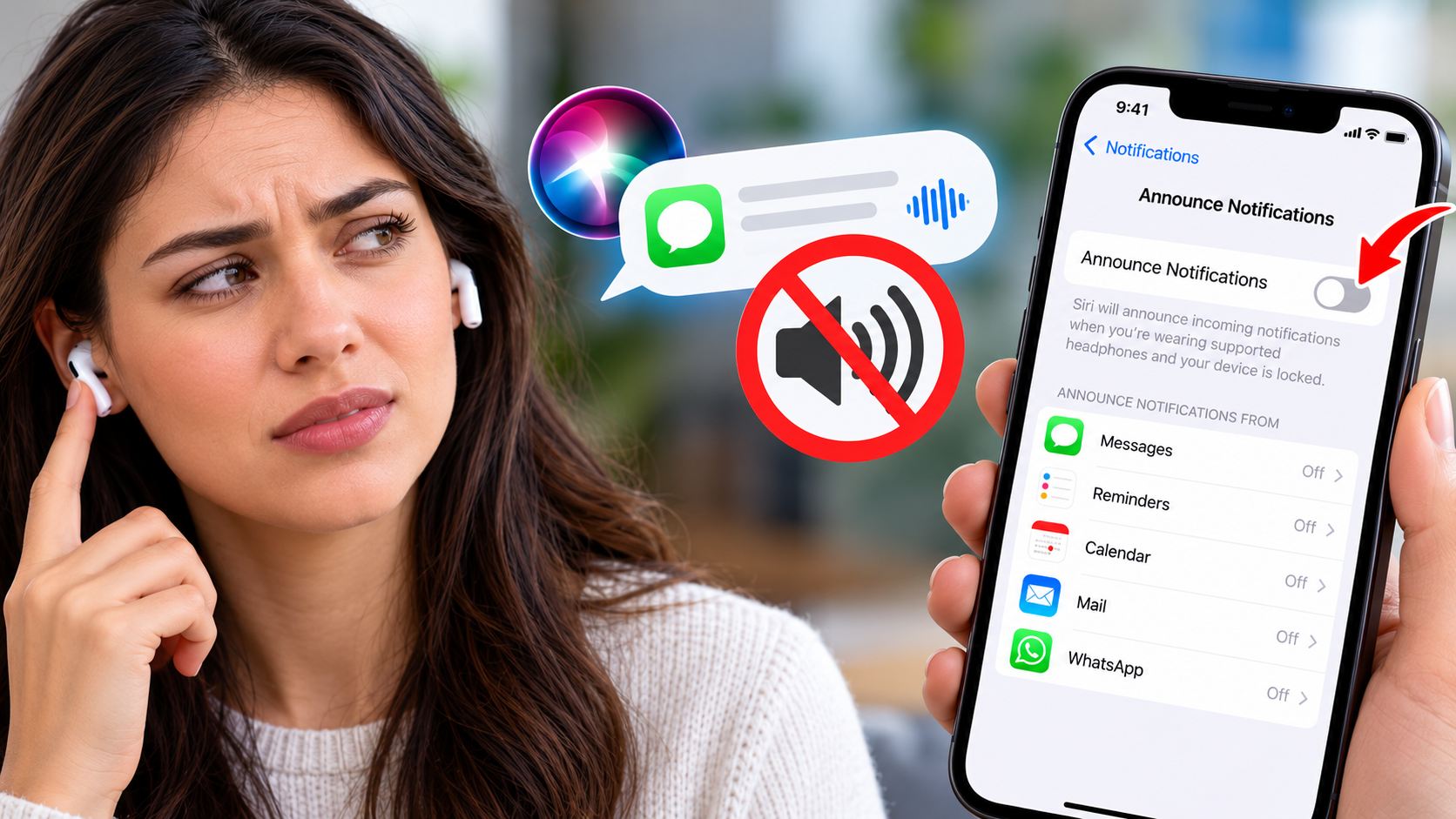
Accessing App-Specific Notification Controls
App-specific controls let you choose which notifications Siri announces through your AirPods. You can silence distracting applications while keeping useful alerts available.
For example, you might want Siri to announce reminders but remain silent when personal messages arrive. Adjusting individual app settings gives you greater control over your listening experience.
To manage these preferences, open Settings > Notifications > Announce Notifications. Select an available app and review its announcement options. The available choices depend on the application and your iOS version.
Some apps may offer options for announcing different notification types. Others provide fewer controls. Check the available settings rather than assuming every application supports the same features.
Remember that turning off spoken announcements doesn’t necessarily disable notifications themselves. Your iPhone can still display banners, show notification previews, and play sounds according to your existing preferences.
This approach is useful when you want to stop Siri from reading notifications from selected apps without losing important updates. Review your frequently used applications and adjust only the settings that cause unwanted interruptions.
How Do I Stop My AirPods From Reading Notifications?
If you want to stop Siri from reading notifications from every supported application, disable the main Announce Notifications feature. This setting controls spoken alerts through compatible headphones, including messages and supported third-party app notifications.
Follow these steps:
- Open Settings on your iPhone.
- Tap Notifications.
- Select Announce Notifications.
- Turn off the main announcement switch.
On some iOS versions, you may find this feature under Siri or Apple Intelligence & Siri. The exact menu location depends on your software version.
Disabling Announce Notifications prevents Siri from reading supported incoming alerts aloud through compatible headphones. Your regular notifications should continue appearing according to your other settings.
You don’t need to disable Siri entirely to achieve this result. You can still use voice commands, control music, and request information through your AirPods.
This method is useful when you want uninterrupted listening while working, studying, exercising, or relaxing. If you later want spoken alerts again, return to the same settings menu and enable the feature.
Managing Master Notification Toggles
The main Announce Notifications switch provides a quick way to silence spoken alerts across supported applications. However, understanding its purpose helps you avoid changing unrelated settings.
When you disable this feature, Siri stops announcing supported notifications through compatible headphones. Your iPhone may still display notification banners, play notification sounds, and show message previews.
If you only want to stop Siri from reading notifications while wearing AirPods, you don’t necessarily need to disable other iPhone notification settings. Keep your existing preferences unless you want to silence visual or audible alerts too.
You can also check whether your iPhone allows you to add an announcement control to Control Centre. Availability and customization options depend on your iOS version.
A convenient shortcut can help when switching between work, exercise, and leisure. However, the main Settings menu remains a reliable place to manage the feature.
After making changes, test the setting with a new incoming message. This confirms whether Siri has stopped announcing notifications without unnecessarily affecting your other preferences.
How Do I Get Siri to Stop Talking in My AirPods?
If Siri keeps speaking through your AirPods, first identify what it’s announcing. Spoken notifications, incoming calls, and responses to voice commands use different settings. Turning off one feature won’t necessarily silence the others.
To stop Siri from reading notifications, open Settings > Notifications > Announce Notifications and turn off the feature. Depending on your iOS version, you may find this option under Siri or Apple Intelligence & Siri.
If Siri announces incoming callers, open the relevant Siri settings and select Announce Calls. Choose an option that prevents unwanted spoken call announcements.
You can still use Siri manually without hearing every incoming notification. Disabling announcement features doesn’t necessarily prevent voice commands or other assistant functions from working.
If Siri activates unexpectedly, review your voice activation settings and AirPods controls. These determine how you activate the assistant rather than which notifications it announces.
Adjusting the correct settings helps eliminate unwanted interruptions while preserving useful functions. Test your changes with a new notification and an incoming call to confirm that each feature behaves as expected.
Disabling Voice Activation Triggers
If Siri activates unexpectedly while wearing your AirPods, review your voice activation and headphone controls. This issue differs from Siri reading notifications, so disabling Announce Notifications alone might not resolve it.
Start by opening Settings > Siri or Settings > Apple Intelligence & Siri. Review the available options for listening for Siri or responding to voice commands. Menu names vary across iOS versions and supported devices.
You can change the listening option if you don’t want Siri responding to a spoken activation phrase. However, doing so also affects hands-free access to the assistant. If you’re considering broader changes to Apple’s built-in AI features, see how to disable Apple Intelligence on your iPhone without confusing those settings with notification announcements.
Next, check your AirPods controls. Some models allow Siri activation through a configured press-and-hold action or another supported control. Review these settings if accidental touches trigger unwanted responses.
Keep in mind that disabling voice activation doesn’t necessarily disable spoken notifications or incoming call announcements. Those features have separate controls.
If your only concern is stopping Siri from reading notifications, leave voice activation enabled and turn off Announce Notifications instead. This targeted change preserves useful hands-free functions while reducing interruptions.
Why Did Siri Stop Reading My Messages Through My AirPods?
If Siri suddenly stops reading messages through your AirPods, several settings could explain the change. The Announce Notifications feature might be disabled, or Messages might no longer be configured to announce alerts.
First, check Settings > Notifications > Announce Notifications. Confirm that the main feature is enabled and review the settings for Messages. Depending on your iOS version, these controls may appear under the Siri settings menu.
Next, verify that your AirPods are connected to your iPhone. Open Bluetooth settings and confirm that your headphones show as connected.
Your iPhone’s current state also matters. Siri announces notifications through compatible headphones under supported conditions, including when the headphones are connected and worn and the device is locked. You might not hear announcements while actively using your iPhone.
Focus settings can also affect which notifications arrive or make sounds. However, don’t assume Focus is responsible without checking its configuration.
If the settings appear correct, restart your iPhone and reconnect your AirPods if necessary. These basic checks can help identify connection problems or incorrect preferences without requiring a factory reset.
Understanding Focus Modes and Notification Settings
Focus modes help reduce interruptions by filtering notifications according to your preferences. For example, Work Focus can silence alerts from selected apps or people while allowing others through.
If Siri stops announcing messages during certain periods, check whether a Focus mode is active. Open Control Centre and review the current Focus setting. You can also open Settings > Focus to inspect its allowed people, apps, and schedules.
Keep in mind that Focus doesn’t automatically explain every missing Siri announcement. The main announcement feature, app-specific preferences, headphone connection, and iPhone lock state can also affect the result.
To troubleshoot the issue, send yourself a test message while your AirPods are connected and your iPhone is locked. Then repeat the test with Focus disabled, if appropriate.
Compare the results to determine whether Focus is filtering the notification or another setting is responsible. If announcements remain unavailable, check the Messages announcement controls and confirm that your headphones support the feature.
This process helps isolate the cause instead of changing several unrelated settings at once. You can then restore your preferred Focus settings.
Why Is Siri Still Announcing Notifications?
If Siri continues announcing notifications after you’ve changed your settings, you might have disabled the wrong control. Turning off announcements for Messages, for example, doesn’t necessarily prevent other applications from speaking through your AirPods.
Start by checking the main Announce Notifications switch. If it remains enabled, review the announcement preferences for other supported apps. Some applications may continue announcing alerts even when you’ve restricted Messages.
Next, confirm that you’re changing settings on the iPhone connected to your AirPods. If your headphones switch between multiple Apple devices, check the device currently handling the notification.
Also, distinguish spoken notifications from incoming call announcements. If Siri announces callers rather than messages, review Announce Calls separately.
If the settings appear correct, disconnect and reconnect your AirPods. Restarting your iPhone can also help resolve temporary software issues.
Avoid resetting your AirPods immediately. A factory reset removes their existing pairing and configuration, so try simpler troubleshooting steps first. After each change, test a new notification to identify which adjustment solves the problem.
Troubleshooting Persistent Audio Glitches
When Siri continues announcing notifications despite correct settings, a temporary software or connection issue may be involved. Work through the simplest troubleshooting steps before attempting a complete reset.
Start with these checks:
- Verify your settings: Confirm that Announce Notifications is disabled globally or for the relevant app.
- Check the connection: Open Bluetooth settings and make sure your AirPods are connected to the intended iPhone.
- Restart your iPhone: Restarting can resolve temporary software problems affecting connected devices.
- Reconnect your AirPods: Disconnect and reconnect them, then test a new incoming notification.
- Check for updates: Install available iOS updates if appropriate for your device.
If Siri still announces alerts, review Announce Calls and the settings of other supported applications. This helps identify whether another feature is responsible.
As a last resort, you can forget your AirPods in Bluetooth settings and pair them again. If necessary, follow Apple’s instructions for resetting your specific AirPods model.
A reset isn’t guaranteed to resolve every problem. If announcements continue unexpectedly, consult Apple Support for device-specific troubleshooting.
Final Thoughts
You can stop Siri from reading notifications by changing the Announce Notifications settings on your iPhone. Disable the feature entirely if you want quiet listening, or adjust individual applications if you prefer selective announcements.
If Siri continues speaking, check Announce Calls, verify your AirPods connection, and review your notification preferences. Restarting your devices may help when the settings appear correct but the problem persists.
You don’t need to disable Siri completely to enjoy uninterrupted listening. Choose the settings that match your needs and test them with a new notification.
With the right configuration, you can listen to music, attend calls, and use your AirPods without unnecessary spoken alerts.