Why Your Smart TV Keeps Losing Its Wi-Fi Connection
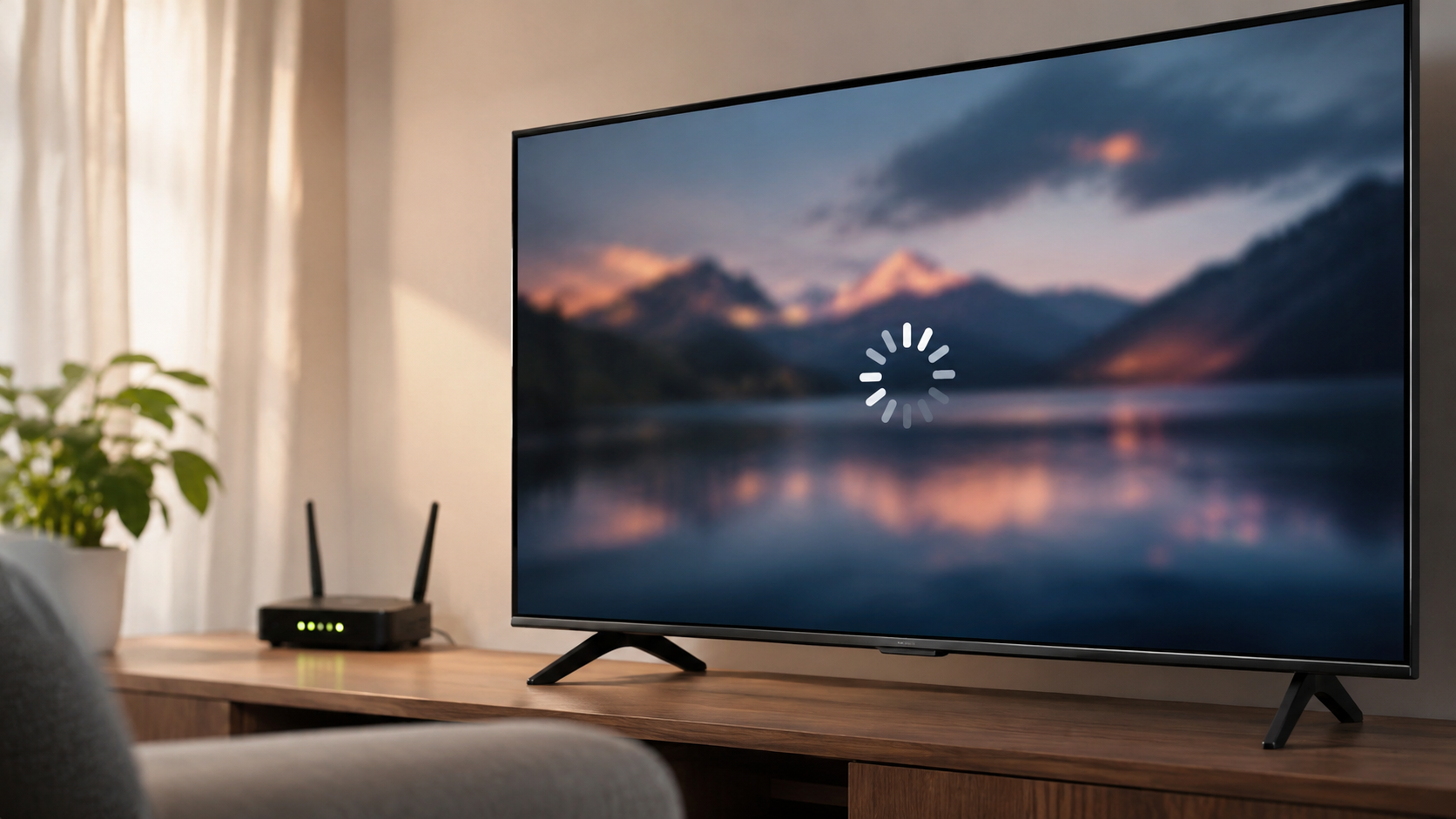
Nothing ruins a relaxing movie night faster than a buffering screen. When your smart TV keeps losing its Wi-Fi connection, streaming becomes frustrating. Even a brief network interruption can stop your favorite shows or disconnect streaming apps.
You might wonder why this happens when your router is only a few rooms away. Unlike smartphones and laptops, some televisions have less capable wireless antennas. Their internal components and physical placement can also affect signal reception.
Several factors can cause your television to disconnect unexpectedly. These include weak signals, outdated firmware, router settings, and wireless interference.
In this guide, we answer common questions about smart TV Wi-Fi problems. You will discover why your television keeps disconnecting and how to restore a stable connection. Let’s explore the causes and practical solutions.
Why Does My Smart TV Keep Dropping Wi-Fi?
Your smart TV keeps dropping Wi-Fi because of several possible network and hardware problems. The most common causes include weak signal strength, wireless interference, outdated firmware, and router configuration issues. Identifying the actual cause helps you choose the right solution instead of repeatedly restarting your television.
Your TV might receive an unstable signal even when your router works perfectly. Thick walls, furniture, and metal objects can weaken wireless signals. Nearby electronic devices can also interfere with certain Wi-Fi frequencies.
Another possibility is router congestion. When several devices stream videos, download files, or play online games, network performance can suffer. Your television might struggle to maintain a stable connection during busy periods.
Software problems can also interrupt wireless connectivity. Outdated television firmware or router software may cause unexpected disconnections. Checking these factors helps you understand why your smart TV keeps losing its Wi-Fi connection.
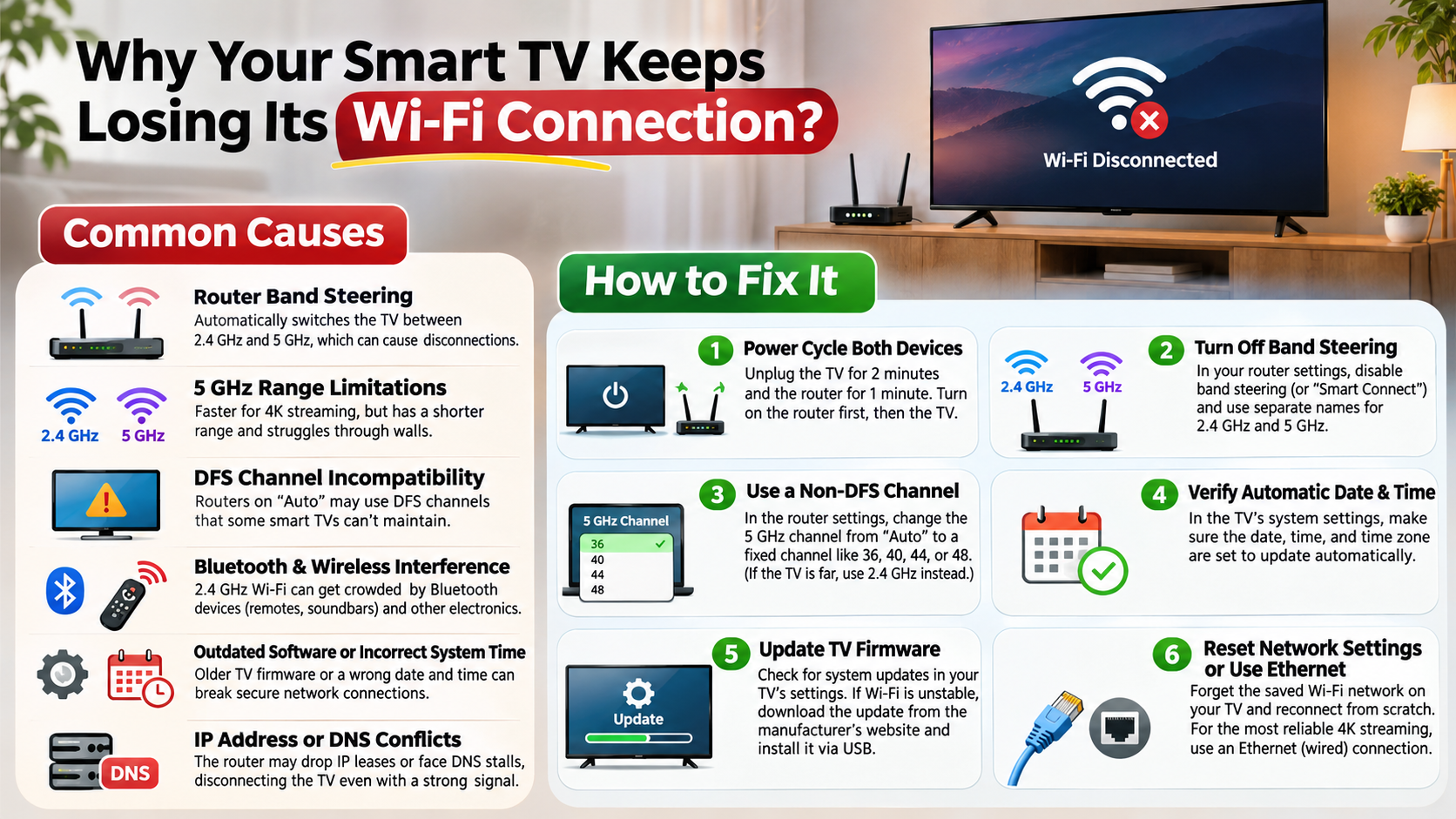
Router Band Congestion and Frequency Drops
Most modern routers support two wireless frequency bands: 2.4 GHz and 5 GHz. Each offers different advantages for smart TV connectivity.
The 2.4 GHz band generally provides better coverage and travels farther through walls. However, it can experience more interference from neighboring networks and household electronics.
The 5 GHz band offers faster speeds and often experiences less congestion. However, its signal usually has a shorter range. Thick walls and furniture can weaken it considerably. For better wireless coverage, consider where you should place your Wi-Fi router for the best speed to improve signal reception throughout your home.
If your television frequently disconnects, check which frequency it uses. Some routers automatically manage both bands through a feature called Smart Connect or band steering. This feature can occasionally cause compatibility problems with certain televisions.
Try connecting your TV to a dedicated 2.4 GHz network. If your router is nearby, test the 5 GHz connection instead. Compare the results to identify which frequency provides more reliable streaming.
How Do I Stop My Wi-Fi From Automatically Disconnecting?
You can reduce automatic Wi-Fi disconnections by checking your television settings, improving signal strength, and reviewing your router configuration. Start with simple troubleshooting before changing advanced network settings. This approach helps identify whether the problem comes from your television, router, or internet connection.
First, restart both devices properly. Disconnect your television and router from their power sources. Wait approximately 60 seconds before reconnecting them. Allow your router to establish an internet connection before turning on your TV.
Next, check your television’s power-saving settings. Some models include network standby or energy-saving options that affect connectivity. Their exact behavior depends on the manufacturer and model.
You should also check for available firmware updates. Manufacturers sometimes release updates that address wireless connectivity problems. If the connection remains unstable, try forgetting your Wi-Fi network and reconnecting with your password.
Finally, consider reserving an IP address through your router. This can help avoid certain address conflicts, although it will not fix weak signals or interference.
Disabling Television Power-Saving Features
Some smart televisions include energy-saving features that reduce electricity consumption. Depending on the model, these settings may affect standby behavior and network availability. They are worth checking when your television repeatedly disconnects or struggles to reconnect.
Open your television’s settings menu and look for power-management options. Their names and locations vary between manufacturers.
Check these settings:
- Eco Mode: Adjusts television power consumption.
- Auto Power Off: Automatically switches off the television after inactivity.
- Network Standby: Controls network availability while the TV is in standby mode.
- Wi-Fi Power Saving: May reduce wireless activity on supported models.
Try disabling relevant options temporarily. Then reconnect your television to the wireless network and monitor its performance.
Remember that not every energy-saving feature affects an active Wi-Fi connection. If disabling these settings makes no difference, investigate your router, signal strength, and television firmware instead.
Why Does My Wi-Fi Work Everywhere but My TV?
If your Wi-Fi works on your phone and laptop but not your television, the problem may involve TV-specific network compatibility. Your internet connection might be functioning normally, while the television struggles to receive or authenticate the wireless signal.
Smart TVs sometimes have different wireless hardware capabilities from newer smartphones and laptops. Their antennas, supported frequencies, and network drivers can vary considerably. Consequently, another device might maintain a connection where your television struggles.
Physical placement is another important factor. Your television may sit inside an entertainment cabinet or against a thick wall. Large mirrors, metal objects, and nearby electronic equipment can also affect wireless reception.
Router security settings may create additional problems. Older televisions might not support newer encryption standards or certain wireless configurations. This can prevent successful connections even when other devices work normally.
To identify the problem, connect your television to another Wi-Fi network or mobile hotspot. If it connects successfully, investigate your home router settings and wireless signal.
Physical Placement and Signal Blockage
Your television’s location can significantly affect Wi-Fi performance. Wireless signals weaken when they pass through certain building materials and household objects. A router that appears close to your television might still provide an unreliable connection. If your existing router cannot provide sufficient coverage, you can turn your old router into a Wi-Fi extender to improve wireless coverage in areas with weak signals.
Large metal surfaces, concrete walls, mirrors, and enclosed cabinets can interfere with wireless reception. Your television’s internal antenna placement may also affect how effectively it receives signals.
Try these practical adjustments:
- Move your router: Place it in an open, central location whenever possible.
- Avoid enclosed spaces: Keep your router away from cabinets and closed shelves.
- Reduce obstructions: Move large metal objects away from the wireless signal path.
- Adjust router placement: Position it at a suitable height rather than directly on the floor.
- Test another location: Temporarily move your television or router to compare signal performance.
You do not necessarily need a faster internet plan. Improving the wireless signal can sometimes solve repeated disconnections without additional expenses.
How to Solve Wi-Fi Connection Problems on a Smart TV?
You can solve most smart TV Wi-Fi connection problems by restarting your devices, resetting network settings, and updating television software. Regularly restarting your router can also help resolve temporary network problems. Find out what happens if you never restart your router and why occasional restarts can help maintain network performance. Start with basic troubleshooting before performing a factory reset. This prevents unnecessary changes to your television’s settings and installed applications.
Follow these steps in order:
- Restart your television: Unplug it from the electrical outlet for approximately 60 seconds. Reconnect the power afterward.
- Restart your router: Disconnect its power supply and wait around 60 seconds. Reconnect it and allow the internet connection to return.
- Forget the Wi-Fi network: Open your television’s network settings and remove the saved wireless connection.
- Reconnect to Wi-Fi: Select your network again and carefully enter the correct password.
- Update television software: Check for available firmware updates through the settings menu.
- Test another connection: Connect your TV to a mobile hotspot to identify possible router-related problems.
If these solutions fail, try connecting through an Ethernet cable. A wired connection can provide more consistent network performance.
Performing a Hard Power Reset
A hard power reset can resolve temporary software and connectivity problems. Modern televisions often enter standby mode when you press their remote control’s power button. Therefore, switching them off normally might not completely restart their internal systems.
Unplugging the television gives its internal components time to shut down. This can clear certain temporary glitches affecting network connectivity.
Follow these steps:
- Turn off your television using the remote.
- Disconnect its power cable from the electrical outlet.
- Wait approximately 60 seconds.
- Reconnect the power cable.
- Turn on your television.
- Open network settings and check the Wi-Fi connection.
Restart your router separately if the problem continues. Allow it to reconnect to the internet before testing your television again.
A power reset will not repair damaged hardware or permanently resolve weak signals. However, it is a simple troubleshooting step worth trying before considering more complicated solutions.
Why Is My TV Not Connecting to Wi-Fi but Everything Else Is?
When your TV cannot connect to Wi-Fi but other devices work normally, the problem may involve compatibility, authentication, or television network settings. A working smartphone connection does not necessarily mean every device supports the same wireless configuration.
One possible cause is router encryption. Some older televisions have limited support for newer security standards, including certain WPA3 configurations. Check whether your router offers a compatible WPA2 or mixed-security mode. Avoid leaving your network without password protection.
Another possibility is incorrect date and time settings. Certain smart TV applications and online services require accurate system time to validate security certificates. Incorrect settings can prevent some online services from working properly.
Router features can also restrict television access. MAC address filtering, parental controls, and device-blocking settings may prevent your TV from connecting.
Start by restarting your television and checking its network configuration. Then review your router’s security settings and connected-device restrictions. Testing another wireless network can help identify whether the issue originates from your television or router.
Checking Television Date and Time Settings
Incorrect date and time settings can cause problems with certain smart TV applications and online services. Secure internet connections often depend on accurate system clocks. If your television displays an incorrect date, some security certificates might fail validation.
This issue can occur after a power interruption or when automatic time synchronization fails. Older televisions may also struggle to maintain accurate settings when their internal clock loses power.
Follow these steps to check your television’s clock:
- Open your television’s Settings menu.
- Navigate to General, System, or Date and Time.
- Enable automatic date and time synchronization if available.
- Select the correct time zone.
- If automatic synchronization fails, enter the correct date and time manually.
- Restart your television and test its internet connection again.
Keep in mind that incorrect time settings do not usually explain every Wi-Fi disconnection. If the problem continues, check router security, wireless compatibility, and television firmware.
Conclusion
A smart TV that keeps losing its Wi-Fi connection can turn a relaxing streaming experience into a frustrating problem. Fortunately, most connectivity issues can be resolved without replacing your television or purchasing new equipment.
Start by restarting your TV and router, checking your Wi-Fi signal strength, and updating your television’s firmware. If the problem continues, review your router settings, test different frequency bands, and reconnect your television to the network. For additional wireless troubleshooting guidance, visit the Wi-Fi Alliance website. You can also use an Ethernet cable for a more stable connection.
The key is to identify the actual cause before trying advanced fixes. With the right troubleshooting steps, you can reduce unexpected disconnections and enjoy smoother streaming without constant interruptions.