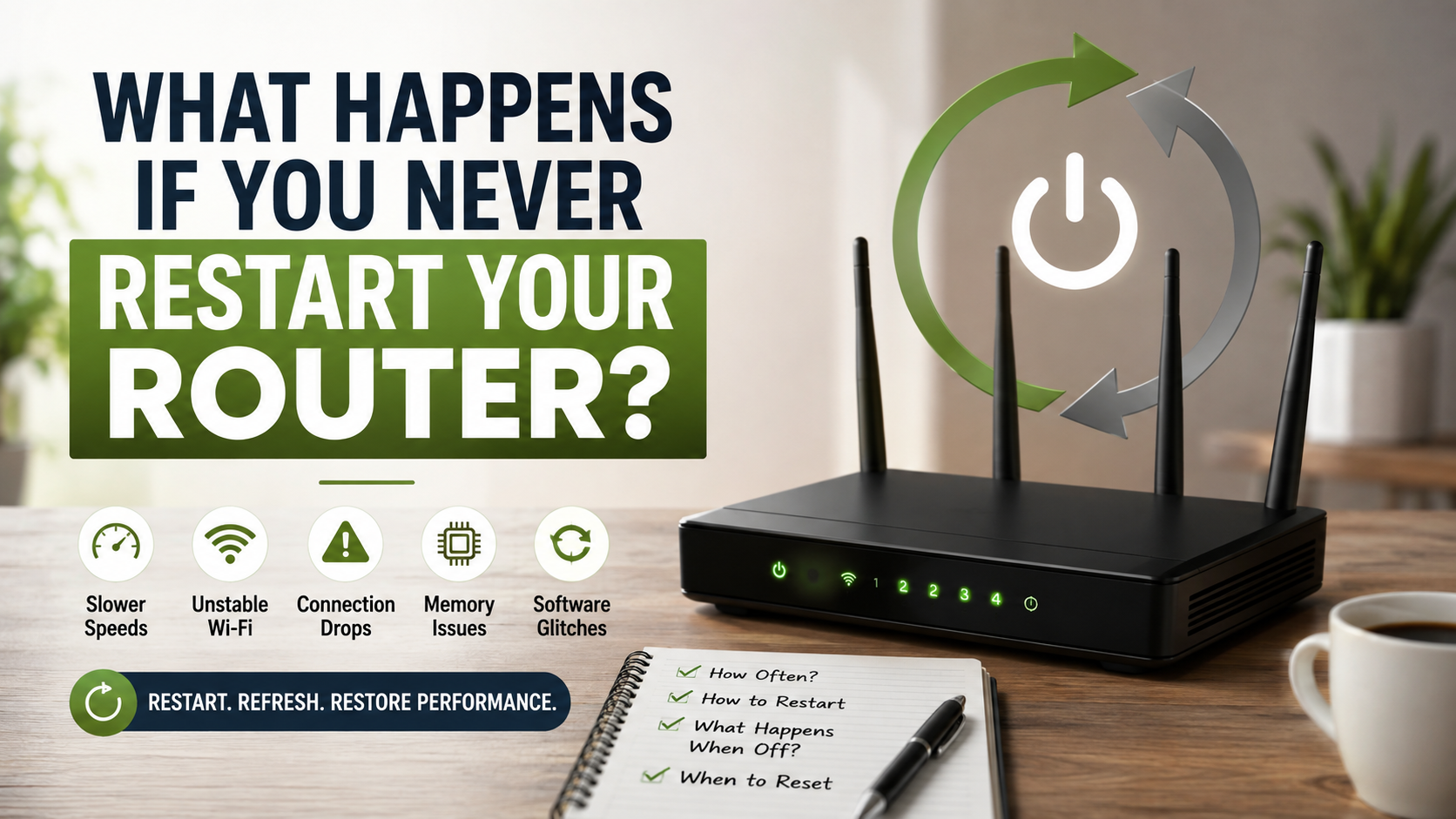
What Happens If You Never Restart Your Router?
Have you ever wondered what happens if you never restart your router? Most households connect their internet equipment and forget about it until the Wi-Fi stops working. However, networking hardware can develop temporary software issues after running continuously for long periods.
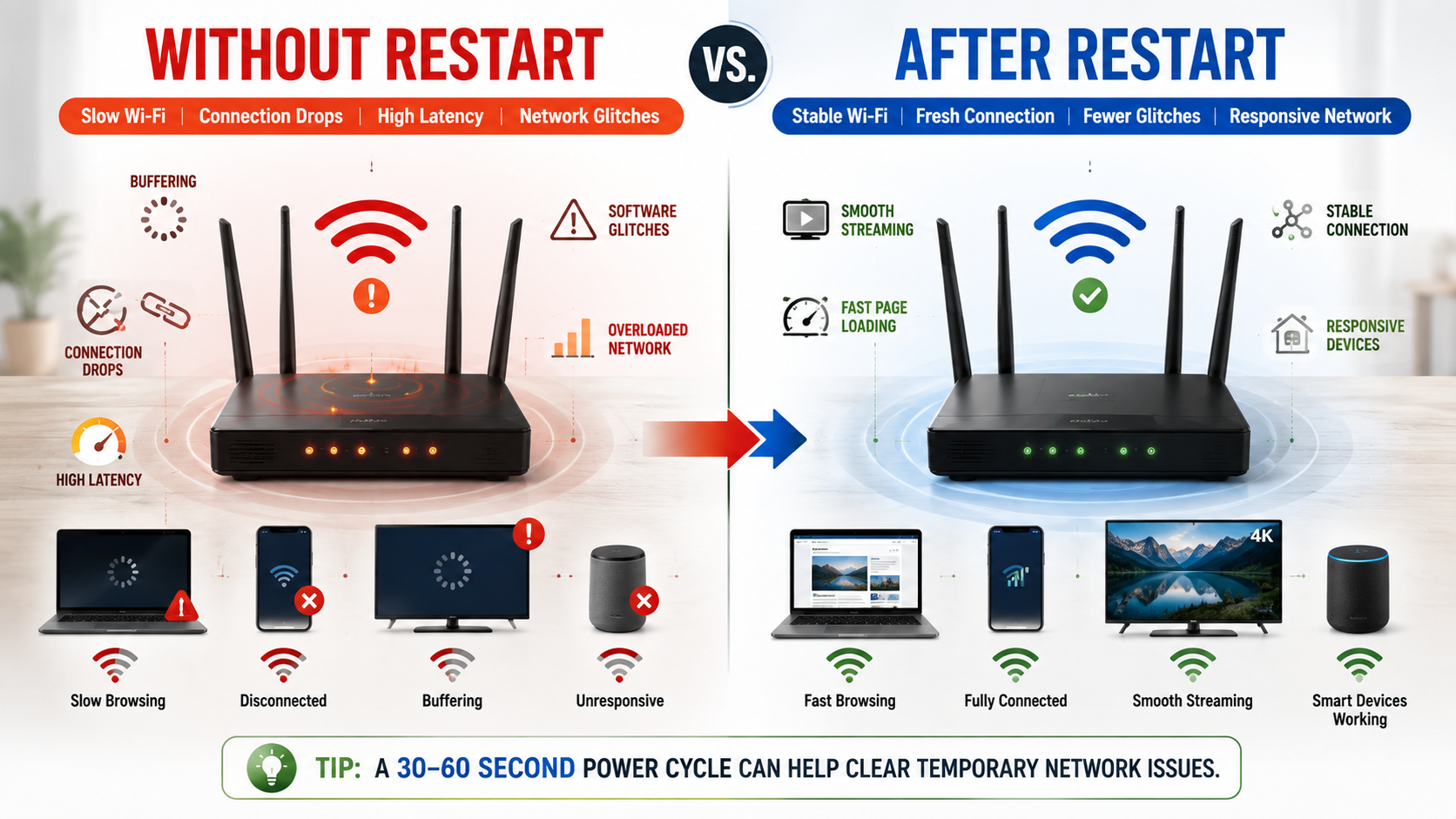
A router manages data traffic, connected devices, wireless connections, and network requests every day. Modern Wi-Fi routers can do much more than simply provide internet access, including managing connected devices and network traffic. Over time, temporary memory issues, software errors, or connection problems can affect performance. You may notice slower browsing, unstable Wi-Fi, or devices dropping offline.
Restarting your router gives the hardware a fresh start. It can clear temporary memory, rebuild network connections, and resolve minor software glitches. It will not increase your internet plan’s maximum speed, but it can restore normal performance when problems are temporary.
According to Federal Communications Commission guidelines on broadband management, regular device maintenance helps preserve optimal data throughput
This guide explains how to restart your router, how often you should reboot it, and what happens when you turn it off. You will also learn how long to leave it powered down and when a reset may be necessary.
Should You Ever Restart Your Router?
Yes, you should restart your router when you experience connection problems or as occasional routine maintenance. A reboot can clear temporary software issues, refresh active network connections, and restore normal performance. It is one of the simplest troubleshooting steps for common home Wi-Fi problems.
Routers use internal memory to manage connected devices and network traffic. Software processes can sometimes become stuck or consume resources incorrectly. Restarting the equipment clears temporary memory and starts those processes again.
A reboot can help when you experience:
- Slow or unstable Wi-Fi
- Devices repeatedly disconnecting
- Web pages loading unusually slowly
- High latency during gaming or video calls
- Smart devices losing their connection
You do not need to restart your router every day. Use a reboot when problems appear or follow a simple maintenance schedule. If problems return frequently, the router, modem, cables, firmware, or internet service may need further attention.
Clearing Background Memory Issues
Your router uses RAM to manage connections, routing tasks, and other network processes. Like other computers, its software can occasionally encounter bugs or processes that fail to release resources properly.
These problems may become noticeable after the router has operated continuously for an extended period. Performance can decline, or certain devices may behave unpredictably. However, not every router experiences memory problems, and modern equipment may run reliably for months.
A power cycle clears the router’s volatile memory and restarts its operating system. This process can remove temporary errors and stuck processes. It also gives connected devices a chance to establish fresh network sessions.
For that reason, restarting your router can be an effective first troubleshooting step. If the same issue returns frequently, though, repeated reboots are only a temporary solution.
In that situation, check for firmware updates, inspect your cables, and consider whether your router is outdated. Persistent problems may also originate with your internet service provider.
How Many Times Should I Restart My Router?
There is no universal schedule for restarting a router. Most modern routers are designed to operate continuously, so you do not need to reboot yours every day or even every week.
For many households, an occasional restart is enough. Some people choose to reboot their router once a month as simple maintenance. Others only restart it when they notice slow speeds, dropped connections, or unusual network behavior.
The best approach depends on your equipment and network. A newer, reliable router may run for months without requiring a reboot. Older equipment may benefit from more frequent restarts, especially when it develops performance issues.
Avoid restarting the router unnecessarily during important activities. A reboot disconnects every device from the network. It can interrupt:
- Video calls and online meetings
- Streaming sessions
- Downloads and uploads
- Online gaming
- Smart home routines
If your router needs frequent reboots to remain usable, investigate the underlying problem. Frequent restarting is not a substitute for fixing faulty hardware or network issues.
Avoiding Excessive Hardware Strain
Restarting your router occasionally should not cause meaningful hardware wear. However, repeatedly switching the device off and on several times each day provides little benefit and can unnecessarily stress its power components.
A router is generally designed for continuous operation. You do not need to give it a daily break simply because it stays warm or remains powered overnight.
Instead, restart the equipment when troubleshooting calls for it. You can also use a monthly reboot schedule if it helps prevent minor connection problems.
Avoid unnecessary power cycling during firmware updates. Interrupting an update can sometimes cause software problems. Always allow the router to finish updating before disconnecting its power.
If the equipment regularly overheats, check its placement. Keep it in an open, well-ventilated area. Do not cover the router with clothing, papers, or other objects.
A sensible maintenance routine focuses on stable operation rather than frequent reboots. Occasional restarting is useful, but constant power cycling is rarely necessary.
Is It Good to Reboot a Router Every Month?
Restarting your router every month can be a reasonable maintenance habit, but it is not essential for every network. Modern routers are built to remain powered continuously. Many can operate for long periods without requiring a scheduled reboot.
A monthly restart may still help clear temporary software problems and refresh network connections. It also gives you a simple opportunity to check the equipment for warning signs, unusual heat, loose cables, or outdated firmware.
If your connection works perfectly, there is no strong technical requirement to reboot the router every month. You can simply restart it when problems occur.
However, a monthly schedule can be useful for households that experience occasional connectivity issues. Setting a calendar reminder makes the process easy to remember.
Most importantly, do not expect a scheduled reboot to solve persistent problems. A restart can fix temporary glitches, but it cannot repair failing hardware or increase your subscribed internet speed.
If your Wi-Fi repeatedly slows down after each reboot, investigate the underlying cause instead of relying on frequent power cycles.
Improving Long-Term Device Stability
Regularly restarting a router can help clear temporary software problems. It may also restore normal operation when background processes become stuck or network connections behave unexpectedly.
However, a reboot does not directly improve the physical lifespan of your router. Hardware longevity depends more on factors such as temperature, power quality, ventilation, and overall component quality.
A monthly reboot can still support reliable network operation when temporary issues occur. It gives the router a fresh software state and allows connected devices to establish new sessions.
For households that depend on stable internet for remote work, gaming, streaming, or smart home equipment, occasional maintenance can be worthwhile. You should also keep the router’s firmware updated when updates are available.
Watch for signs that suggest a larger problem, including:
- Repeated overheating
- Frequent disconnections
- Reboots without warning
- Very slow Wi-Fi despite strong service
- Problems that return immediately after restarting
These symptoms may indicate outdated hardware, firmware problems, interference, or an issue with your internet service.
What Happens If I Turn Off My Router?
When you turn off your router, every device using its Wi-Fi connection loses network access. Smartphones, computers, smart TVs, cameras, and other connected devices may disconnect immediately.
The router also stops performing its normal networking tasks. Its volatile memory loses temporary information when the device powers down. This includes active connection states and other short-term operating data.
When you turn the router back on, it starts its operating system again. It then initializes its networking functions and begins broadcasting the wireless network. Your devices can reconnect once the router is ready.
If your setup includes a separate modem or fiber ONT, that equipment may remain powered unless you restart it too. In some cases, restarting both devices can help restore an internet connection.
A reboot can resolve temporary software or connection problems. However, it does not guarantee faster internet. Your connection speed still depends on your service plan, equipment, network conditions, and Wi-Fi environment.
A simple power cycle is therefore a troubleshooting step, not a permanent performance upgrade.
Resetting Local IP Address Assignments
Restarting networking equipment can cause devices to establish fresh connections with the router. Your router’s DHCP service may also renew or reassign local IP addresses as devices reconnect.
This can help resolve certain IP-related problems. For example, a device may fail to communicate correctly because of a temporary network configuration issue.
However, restarting the router does not always clear every DHCP lease or guarantee a completely new IP address. The result depends on the router’s configuration and how its DHCP service handles existing leases.
A reboot can still be useful when devices report duplicate addresses, fail to connect, or suddenly lose access to local network resources.
If the problem continues after restarting, check the affected device’s network settings. You may also need to restart that device or renew its network connection.
Remember that your local IP address and public internet IP address are different. Restarting your router may affect local network assignments, but it does not guarantee a new public IP address.
Persistent IP conflicts can require more specific troubleshooting, especially on larger home networks.
How Long Should I Turn Off My Router?
For a normal router restart, you usually only need to leave the device powered off for about 30 to 60 seconds. This gives the hardware enough time to shut down completely before you start it again.
You do not need to wait several minutes or deliberately drain every capacitor inside the router. Modern networking equipment handles shutdown and startup through its own power and software systems.
To restart your router safely, unplug its power cable or use its power switch if one is provided. Wait around 60 seconds, then reconnect the power.
Afterward, give the router time to boot fully. This can take two to several minutes, depending on the model and your internet setup. Wait until its normal status lights appear before testing the connection.
If your network uses a separate modem or ONT, follow the manufacturer’s recommended restart sequence. Some setups work best when the modem or ONT starts before the router.
The goal is a complete power cycle, not a long shutdown. A short, controlled restart is normally all you need.
Allowing Complete Hardware Power Discharge
Routers contain electronic components that can temporarily retain electrical charge after power is removed. However, you do not need to wait until every capacitor completely discharges to perform a normal restart.
A 30- to 60-second shutdown is generally sufficient for routine troubleshooting. It gives the router time to power down and clear volatile operating memory.
Some manufacturers may recommend a specific waiting period for their equipment. Always follow the instructions provided for your router model when they differ from general guidance.
The most important step is disconnecting the router from its power source. Simply restarting the device through a software menu may not always produce the same result as a full power cycle.
After reconnecting the power, allow the router to complete its startup process. Avoid repeatedly unplugging it while the indicator lights are still initializing.
If a restart does not resolve the problem, investigate other causes. These can include weak Wi-Fi coverage, wireless interference, faulty cables, outdated firmware, overloaded hardware, or an issue with your internet provider.
FAQ About Restarting Your Router
How do I properly restart my router?
Unplug the power cord from the back of the device, wait for approximately sixty seconds, and then plug it back in securely. Allow two to three minutes for all indicator lights to turn solid before attempting to connect your devices to the Wi-Fi network.
Does restarting a router improve internet speed?
Yes, a reboot can significantly improve your speeds if the hardware is bogged down by accumulated cache data or memory leaks. However, it cannot exceed the maximum speed tier provided in your active subscription plan from your internet provider.
Should I press the physical reset button instead?
You should avoid pressing the small recessed reset button unless you want to erase all your custom network names and passwords. A standard power cycle by unplugging the device is all you need for routine maintenance and fixing temporary slowdowns.
Can an old router slow down my internet connection?
Older hardware using outdated Wi-Fi standards struggles to keep up with modern broadband speeds and heavy smart home demands. If your equipment is more than five years old, comparing Wi-Fi 6 and Wi-Fi 7 can help you decide whether it is time to upgrade. If your equipment is more than five years old, upgrading to a newer model will dramatically improve your wireless performance.
Conclusion
Taking care of your home network requires very little effort. Understanding what happens if you never restart your router can help you troubleshoot common connection problems more effectively.
Routers are designed to run continuously, so you do not need to restart yours every day. However, an occasional reboot can clear temporary software issues and refresh network connections.
A 30- to 60-second power cycle is usually enough. Allow several minutes afterward for the router to complete its startup process and restore your network.
A monthly reboot can work as a simple maintenance habit, but it is not mandatory. If your router requires frequent restarts, look for the underlying problem instead.
Check your firmware, cables, Wi-Fi coverage, and public Wi-Fi security risks when issues keep returning. You may also need help from your internet provider.
Most importantly, avoid confusing a restart with a factory reset. Restarting preserves your settings, while a reset can erase them.
When your Wi-Fi becomes slow or unstable, restart your router first. It is a quick troubleshooting step that can often restore normal network performance.