4 Common Issues With Scanning QR Codes: How to Fix Every QR Code Scanning Problem
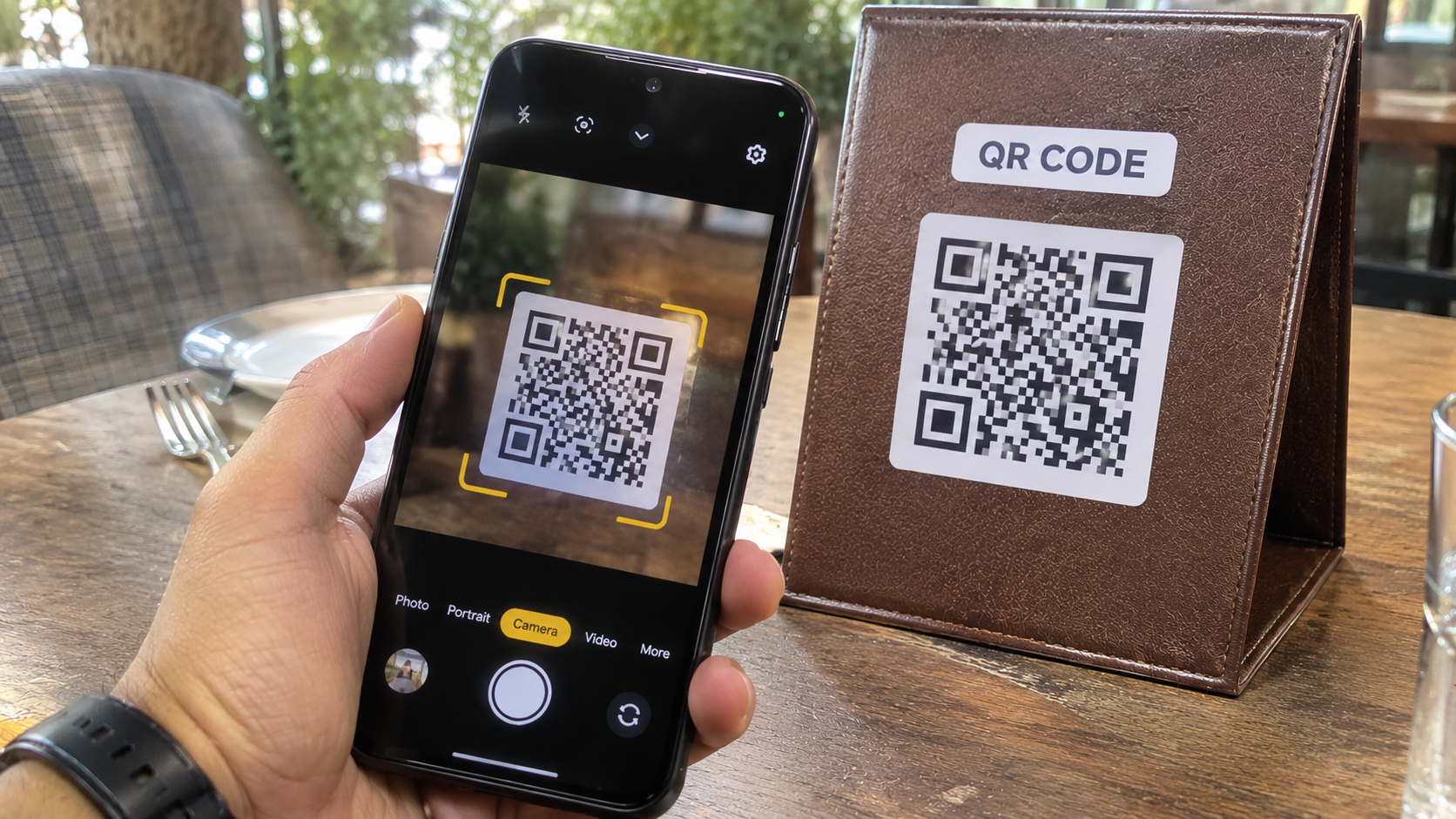
Encountering a sudden QR code scanning problem when opening a restaurant menu or making a payment can be frustrating. These matrix barcodes, standardized under ISO/IEC 18004, make accessing digital information quick and convenient. However, physical damage, poor lighting, and software glitches can interrupt the scanning process.
Modern smartphones rely on clear images, sufficient contrast, and properly functioning cameras to recognize QR codes. When one of these elements fails, your phone may struggle to read the pattern. Cybercriminals also exploit QR codes by placing fraudulent stickers over legitimate ones.
In this guide, we’ll explain four common QR code scanning issues and their solutions. You’ll also learn how to identify malicious QR codes, understand why codes stop working, and fix scanning problems on different devices.
1. Poor Lighting and Glare
The problem: Your smartphone camera needs sufficient light to recognize the dark and light patterns inside a QR code. Poor lighting makes these patterns difficult to distinguish. As a result, your camera may struggle to focus or recognize the code correctly.
Bright sunlight and artificial lighting can also create problems. Reflections from glossy restaurant menus, posters, and digital screens can hide important parts of the QR code. This makes scanning difficult, even when your camera works perfectly.
The fix: Adjust the lighting before attempting another scan. If you’re scanning in a dark room, turn on your phone’s flashlight. You can also move closer to a light source with even illumination.
For glossy surfaces, slightly change your phone’s angle to reduce reflections. Avoid pointing your camera directly toward bright lights. Make sure the entire QR code remains visible inside the camera frame.
These small adjustments often resolve QR code scanning problems without requiring additional apps or software changes.
2. Dirty Camera Lenses and Damaged QR Codes
The problem: A dirty smartphone camera lens can prevent your device from recognizing QR codes. Fingerprints, dust, and pocket lint create blurry images. This makes it difficult for the camera to distinguish individual squares.
Physical damage can cause similar problems. Scratches, faded printing, water damage, and folded surfaces may distort the QR code’s pattern. Although QR codes include built-in error correction, severe damage can make them unreadable.
The fix: Start by cleaning your smartphone camera lens with a soft microfiber cloth. Avoid using rough materials that could scratch the camera glass.
Next, inspect the printed QR code for visible damage. If the paper is folded or curved, flatten it carefully before scanning. Try scanning another copy if the original appears faded, scratched, or partially covered.
For digital QR codes, increase the screen brightness and display the complete code. If the code remains unreadable, ask the provider for a replacement.
Keeping your camera lens clean and checking the QR code’s condition can prevent many common scanning failures.
3. Holding Your Phone at the Wrong Distance
The problem: Camera distance directly affects how accurately your smartphone recognizes a QR code. Holding your device too close can prevent the camera from focusing properly. However, standing too far away makes the individual squares too small to recognize.
Your phone may also struggle when you tilt it excessively or move while scanning. These movements can distort the image and make the QR code difficult to read.
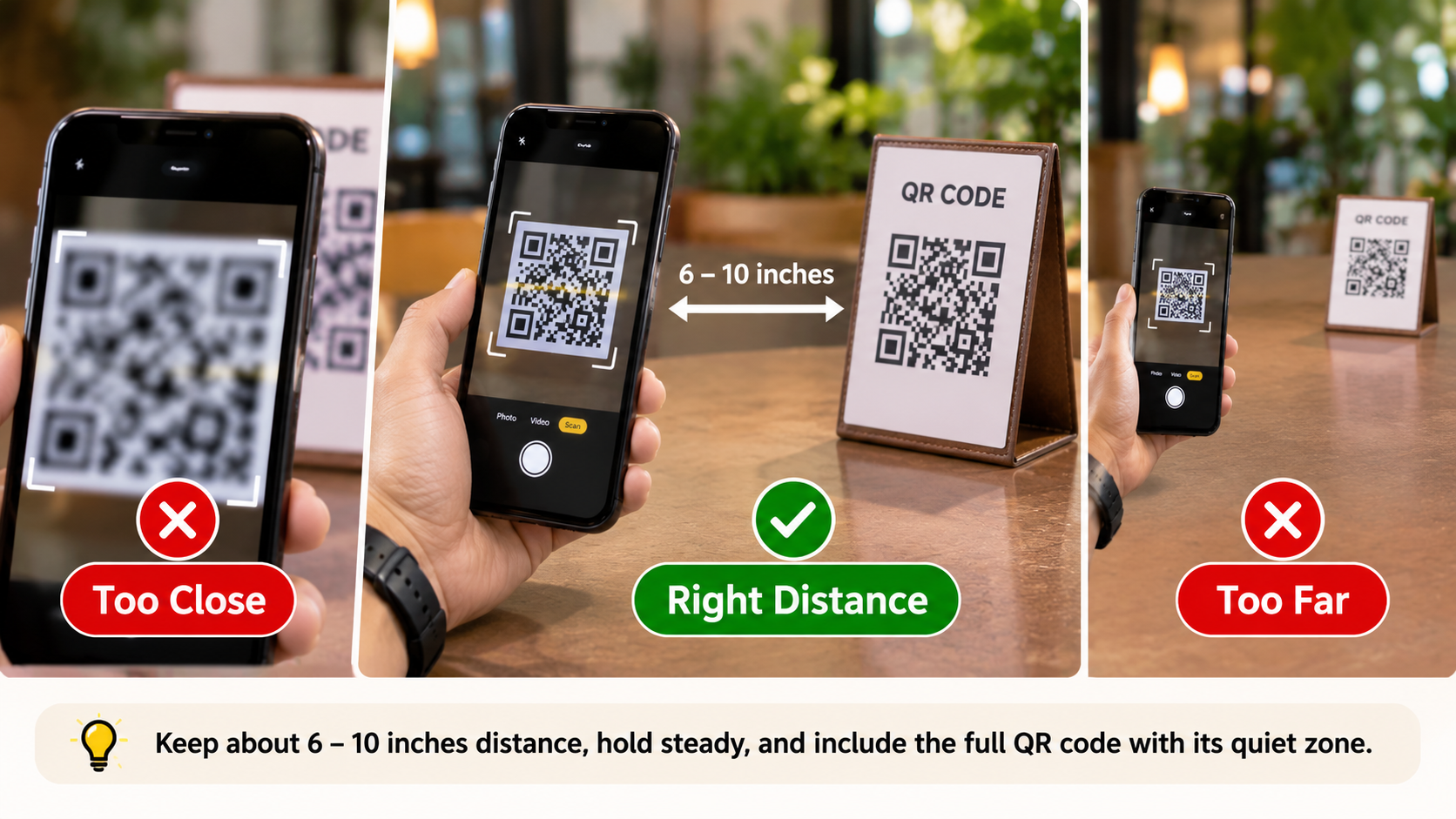
The fix: Start by holding your smartphone approximately 6–10 inches away from the QR code. This is a useful starting distance, although larger codes may require more space.
Keep your phone steady and allow the camera to focus. Make sure the complete QR code fits inside the viewfinder. Include the surrounding blank margin, known as the quiet zone, whenever possible.
If the camera doesn’t recognize the code, slowly move your phone forward or backward. Avoid making sudden movements or tilting the device unnecessarily.
Finding the correct scanning distance helps your camera capture a sharper image. It also reduces repeated scanning attempts.
4. Disabled Camera Settings and Low-Contrast QR Codes
The problem: Sometimes, your smartphone camera supports QR code scanning, but the required setting is disabled. This prevents the native camera application from displaying scanning suggestions.
QR code design can also affect recognition. Some designers use pastel colors, unusual patterns, or inverted color combinations. These designs may confuse standard camera applications because scanners generally work best with dark patterns against light backgrounds.
The fix: Check your smartphone’s camera settings and enable QR code recognition.
- iPhone: Open Settings > Camera and make sure Scan QR Codes is enabled.
- Android: Open your Camera app, select the Settings icon, and look for an option such as Scan QR codes or Camera scan suggestions. The exact setting varies by manufacturer.
If your native camera still struggles, try Google Lens. It can recognize many QR codes directly from your camera view.
For custom QR codes, use a design with strong contrast and a clear background. Avoid placing images or decorative elements over important scanning patterns.
How to Solve a QR Code Scanning Problem?
To solve a QR code scanning problem, start with the simplest troubleshooting steps. Clean your smartphone camera lens and adjust the distance between your phone and the code. Hold your device steady and make sure the complete square remains visible inside the camera viewfinder.
Next, check the surrounding lighting. Dim environments can make QR code recognition difficult, while bright reflections can hide important details. Move to an area with balanced lighting or use your phone’s flashlight when necessary.
You should also check whether your camera application supports QR code recognition. If the feature is disabled, enable it through your device’s settings.
If the problem continues, try these additional steps:
- Restart the camera app: Close the application completely and open it again.
- Check your internet connection: Enable Wi-Fi or mobile data if the QR code opens an online destination.
- Update your phone: Install available operating system and camera application updates.
- Try another scanner: Use Google Lens or another reputable scanning tool.
- Test another QR code: Scan a different code to determine whether the problem comes from your camera or the original code.
Remember that scanning and opening a link are two different processes. Your camera may successfully recognize a QR code even when its destination website is unavailable.
How to Know If a QR Code Is Malicious?
A malicious QR code can redirect you to fraudulent websites, fake payment pages, or phishing forms. These attacks are sometimes called quishing, which combines QR codes and phishing. Scammers often place fake stickers over legitimate codes in public locations. Before scanning unfamiliar codes, understand why you should avoid scanning an unknown QR code when you cannot verify its source.
Before scanning an unfamiliar QR code, inspect its physical appearance. Look for damaged labels, unusual stickers, mismatched printing, or signs that someone covered the original code.
After scanning, examine the destination URL before opening it. Check for misspelled website names, suspicious domain extensions, and unfamiliar shortened links. Be particularly careful when a QR code claims to offer an urgent payment refund or account verification.
Follow these safety precautions:
- Verify the source: Scan codes from trusted businesses and official websites whenever possible.
- Inspect the URL: Check the website address before opening the link.
- Avoid suspicious requests: Never enter banking passwords, OTPs, or sensitive information on unverified pages.
- Check payment details: Confirm the recipient’s name and payment amount before approving a transaction.
- Avoid unexpected downloads: Do not install applications or files from unfamiliar QR code destinations.
Remember, a QR code itself does not indicate whether a website is safe. Always verify the destination before sharing personal information or making payments.
What Makes a QR Code Stop Working?
A QR code can stop working for several reasons, including expired links, damaged printing, and incorrect design. Understanding the underlying cause helps you determine whether the problem comes from the code itself or your smartphone.
One common reason involves dynamic QR codes. Unlike static QR codes, dynamic codes redirect users through a service or management platform. If the subscription expires, the account is disabled, or the destination link changes, the code may stop opening its intended webpage.
Physical damage can also affect scanning. Scratches, faded ink, water exposure, and folded paper may destroy important parts of the pattern. Although QR codes support error correction, this feature cannot recover every damaged code.
Poor design is another possible cause. Low contrast, insufficient quiet zones, excessive decoration, and incorrect color combinations can make codes difficult to recognize. The minimum size a QR code can be also affects scanning reliability, particularly when the code contains large amounts of data or is printed on small surfaces.
Here are some common reasons a QR code stops working:
- Expired destination: The linked webpage or service is no longer available.
- Broken dynamic link: The QR code management service has disabled the redirect.
- Physical damage: Scratches, fading, or water damage affect the printed pattern.
- Poor printing quality: Blurry or pixelated images prevent accurate recognition.
- Incorrect design: Insufficient contrast or missing margins interfere with scanning.
If a QR code repeatedly fails, request a fresh copy or contact its provider.
How to Fix QR Code Scanning Problems?
If basic troubleshooting doesn’t resolve the issue, try additional methods to identify the problem. Sometimes, the camera application experiences a temporary software glitch. In other cases, outdated software or incompatible scanning features prevent successful recognition.
Start by closing your camera application completely. Reopen it and attempt to scan the code again. If the problem continues, restart your smartphone to clear temporary system issues.
Next, check for available software updates. Manufacturers regularly release updates that improve camera performance, compatibility, and security. Installing these updates may resolve scanning issues caused by outdated software.
You can also try a trusted scanning tool, such as Google Lens, if your default camera cannot recognize a particular code. Download applications only through official app stores. Review their permissions and avoid unnecessary access to personal information.
Finally, test your phone with multiple QR codes. If none of them work, the issue may involve your camera or software. If only one code fails, the original code or its destination is more likely responsible.
Conclusion
A QR code scanning problem can happen for several reasons, including poor lighting, dirty camera lenses, incorrect scanning distance, and disabled camera settings. Fortunately, most issues are easy to fix with a few simple adjustments. Clean your camera lens, improve the lighting, check your phone’s settings, and try a trusted scanning tool when necessary.
However, successful scanning isn’t the only thing that matters. Always check the destination URL before opening a QR code, especially when making payments or sharing personal information. Stay alert for suspicious stickers and unfamiliar websites.
By following these troubleshooting and security tips, you can fix common QR code scanning problems and use QR codes more safely and confidently.