Public Wi-Fi Risks: How to Protect Your Personal Data on Open Networks
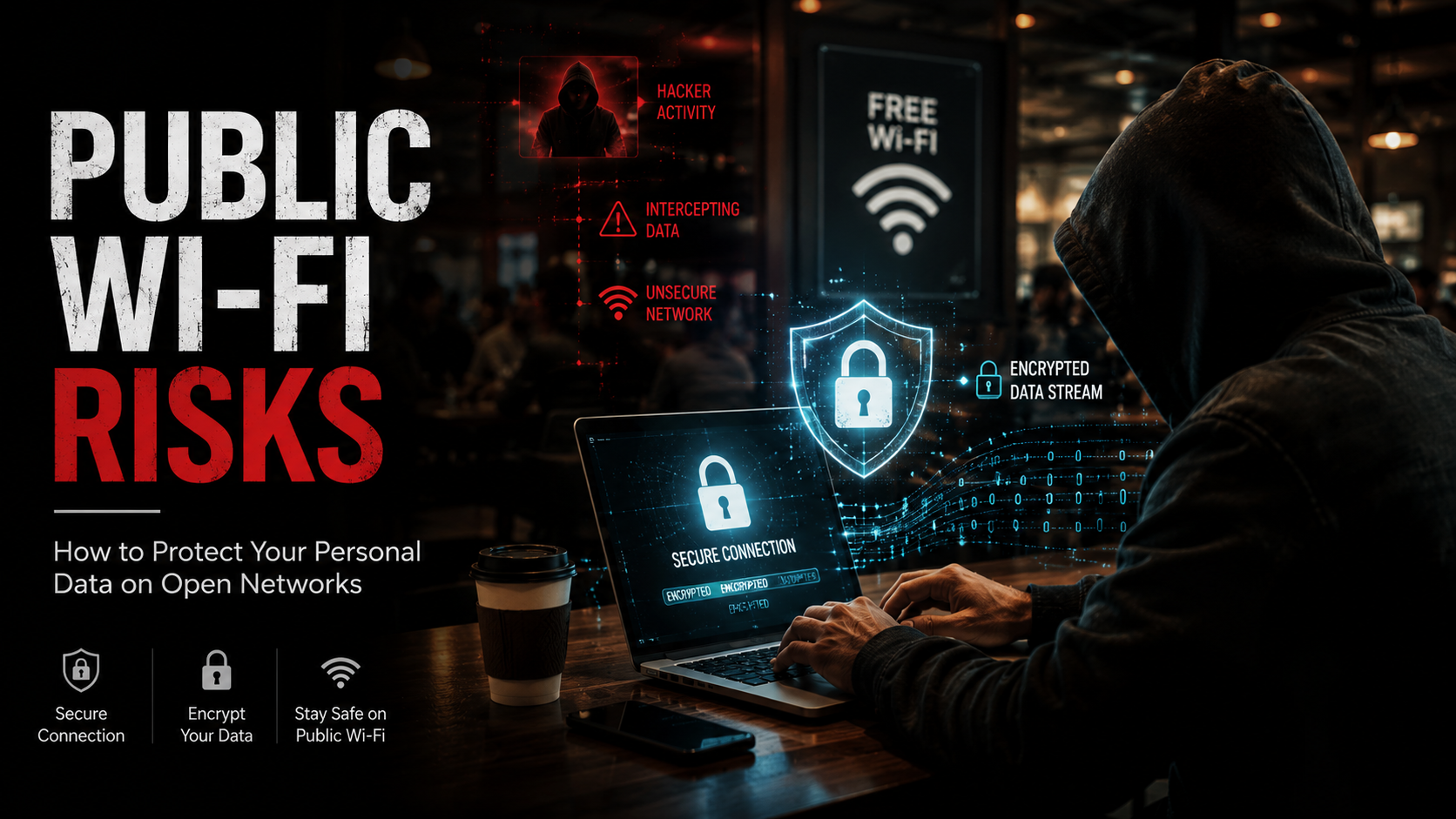
Free internet at coffee shops, airports, hotels, and shopping centers is convenient. However, understanding public Wi-Fi risks is essential before accessing sensitive accounts or sharing personal information. Many public networks lack strong security, making them attractive targets for cybercriminals. Attackers can intercept your internet traffic, steal login credentials, or distribute malware without your knowledge. Security organizations regularly warn users about the dangers of unsecured wireless connections. The Federal Trade Commission’s public Wi-Fi security advice recommends taking precautions when using public Wi-Fi networks, such as checking for secure connections and protecting personal information online.
Public networks prioritize convenience over protection. Most allow anyone to connect with little or no authentication. As a result, hackers can monitor network activity or create fake hotspots that appear legitimate. They often target passwords, financial details, emails, and other sensitive information.
The good news is that you do not need to avoid public Wi-Fi completely. Understanding how these attacks work helps you make safer decisions. With a few smart security habits, you can significantly reduce your risk while staying connected. This guide explains the most common public Wi-Fi risks, how attackers exploit open networks, and the best ways to keep your personal data secure wherever you go.
Primary Public Wi-Fi Risks You Should Know
Every time you connect to an unsecured hotspot, your device becomes more exposed to cyber threats. While many public networks appear harmless, they often lack the security controls found on trusted home or business networks. This creates opportunities for attackers to intercept communications, steal sensitive information, or compromise connected devices. Understanding these threats is the first step toward protecting yourself.
The most common public Wi-Fi risks include Man-in-the-Middle (MitM) attacks, fake wireless hotspots, unencrypted data transmission, and malware distribution. Each method targets users differently, but they all share one goal: gaining unauthorized access to valuable information. Learning to recognize these risks allows you to spot suspicious activity and avoid dangerous situations before they affect your privacy or finances.
Public Wi-Fi Risks: Man-in-the-Middle (MitM) Attacks
A Man-in-the-Middle (MitM) attack happens when a cybercriminal secretly intercepts communication between your device and a website or online service. Instead of your data traveling directly to its destination, it first passes through the attacker’s system. Because the process happens silently, most users never realize their information has been intercepted.
[ Your Device ] ----> ( Intercepted by Hacker ) ----> [ Target Website ]Once attackers position themselves between both ends of the connection, they can monitor or modify the transmitted data. They may capture usernames, passwords, banking information, emails, or other confidential details. In some cases, they can even alter the content you receive from websites without your knowledge. Using encrypted connections and a trusted Virtual Private Network (VPN) greatly reduces the risk of a successful MitM attack on public Wi-Fi.
Public Wi-Fi Risks from Evil Twin Networks
An Evil Twin network is a fake wireless hotspot designed to imitate a legitimate public Wi-Fi network. Cybercriminals often create these rogue access points near busy locations such as cafés, hotels, airports, or libraries. They typically use convincing names like “CoffeeShop_Free_WiFi” or “Airport_Guest” to trick people into connecting without suspicion.
Once your device joins the fake network, the attacker controls the connection. They can monitor your browsing activity, redirect you to counterfeit login pages, or collect sensitive information that you enter online. Some fake hotspots even imitate legitimate login portals to steal usernames and passwords.
Before connecting, always confirm the correct network name with staff. Avoid joining similarly named networks or those that do not require the expected password. Taking a few extra seconds to verify the connection can prevent serious security problems.
Public Wi-Fi Risks from Unencrypted Network Traffic
Many public wireless networks still operate without strong encryption. When a connection lacks modern security standards such as WPA2 or WPA3, information may travel across the network in a form that attackers can intercept. This significantly increases the risk of data exposure.
Two common threats include:
- Packet sniffing: Attackers use freely available software to capture data packets moving across the network. If the traffic is not encrypted, they may view usernames, emails, or other personal information.
- Session hijacking: Cybercriminals can steal browser session cookies and impersonate your active login session. This allows them to access accounts without knowing your password.
Even websites that use HTTPS cannot eliminate every network-level threat. Using a trusted VPN adds another layer of encryption, making intercepted traffic far more difficult to read.
Public Wi-Fi Risks: Malware Injection Explained
Public Wi-Fi can also become a gateway for malware. Cybercriminals may exploit security weaknesses in outdated operating systems or vulnerable applications connected to the same network. Once they identify a weakness, they can attempt to install malicious software without your knowledge.
Attackers often disguise malware as software updates, browser alerts, or security warnings. Clicking these fake prompts may install ransomware, spyware, keyloggers, or other harmful programs. These threats can steal personal information, monitor your activity, or lock important files until a ransom is paid.
Keep your operating system and applications updated before using public Wi-Fi. Disable automatic downloads from unknown sources, and never install software prompted by a public network. These simple precautions greatly reduce the chance of malware infection while using open wireless connections.
How to Reduce Public Wi-Fi Risks
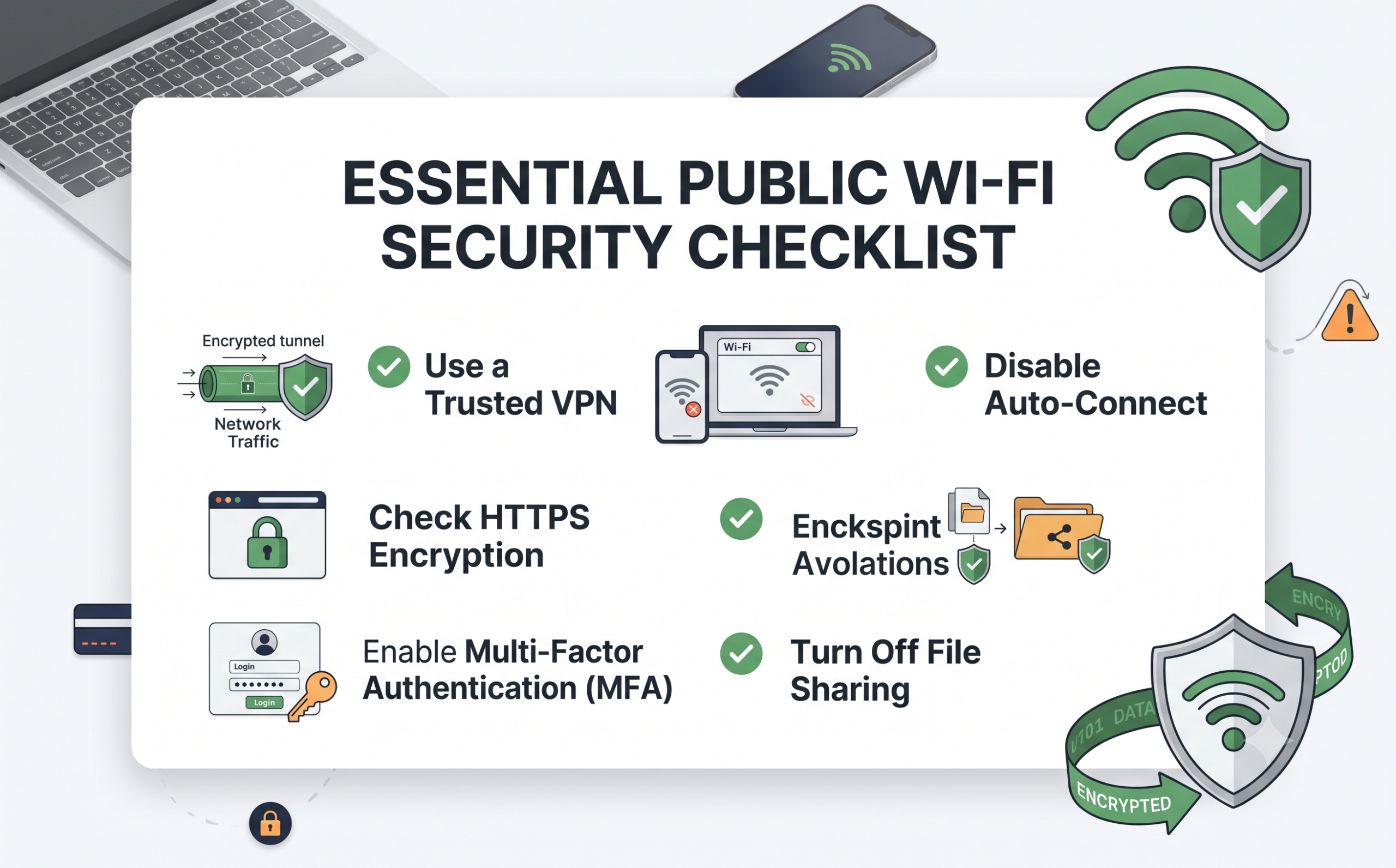
Using public internet does not have to put your personal information at risk. A few simple security practices can greatly reduce your exposure to common public Wi-Fi risks. Before connecting to any open network, make sure your device is updated with the latest security patches. Enable a trusted Virtual Private Network (VPN), disable automatic Wi-Fi connections, and turn off unnecessary sharing features. These small changes make it much harder for attackers to intercept your data or gain unauthorized access to your device. You should also avoid downloading files or installing software while connected to public hotspots unless the source is completely trustworthy. By combining these precautions with safe browsing habits, you can enjoy the convenience of public Wi-Fi without sacrificing your privacy or digital security.
Use a Virtual Private Network (VPN)
A Virtual Private Network (VPN) is one of the most effective tools for protecting your privacy on public Wi-Fi. It creates an encrypted tunnel between your device and the internet, making your online activity unreadable to anyone monitoring the local network. Even if attackers intercept your traffic, they cannot easily access the information inside the encrypted connection.
A VPN also helps protect sensitive activities such as online banking, shopping, and accessing work accounts. Choose a reputable VPN provider with a strong privacy policy and modern encryption standards. Avoid free VPN services that collect user data or display intrusive advertising. For the best protection, enable your VPN before connecting to any public hotspot rather than after you have already joined the network.
Disable Automatic Connections
Many smartphones, tablets, and laptops automatically reconnect to previously used Wi-Fi networks. Although this feature is convenient, it can expose your device to fake hotspots that imitate trusted networks. Cybercriminals often rely on automatic connections because users may never notice they joined a malicious access point.
Disable auto-connect for public networks and manually choose trusted connections instead. After using public Wi-Fi, remove the network from your saved list so your device will not reconnect automatically in the future.
- iPhone and iPad: Open Settings > Wi-Fi, tap the information icon, and turn off Auto-Join.
- Android: Open Network & Internet settings and disable automatic connections to open networks.
- Windows and macOS: Select Forget This Network after disconnecting from a public hotspot.
Taking these simple steps helps prevent accidental connections to fraudulent wireless networks.
Turn Off File Sharing and AirDrop
Many devices automatically share files, printers, or nearby services when connected to a network. On public Wi-Fi, these features can expose your device to strangers. Disabling them adds another layer of protection against unauthorized access.
Before joining a public hotspot:
- Turn off File and Printer Sharing.
- Disable Network Discovery on Windows devices.
- Set AirDrop to Contacts Only or Receiving Off on Apple devices.
- Turn off nearby sharing features when they are not needed.
These settings reduce your device’s visibility on shared networks and make it more difficult for attackers to discover or access your system. Once you return to a trusted home or office network, you can enable these features again if necessary.
Safe Browsing Habits to Prevent Data Interception
Security software provides valuable protection, but your online habits are equally important. Many successful cyberattacks happen because users unknowingly share sensitive information or ignore warning signs while browsing. Practicing safe browsing habits helps reduce the impact of public Wi-Fi risks even when using unsecured networks. Always verify website security before entering passwords or payment details. Enable Multi-Factor Authentication (MFA) on important accounts to prevent unauthorized access if your password is compromised. Avoid logging into banking websites or handling confidential work documents unless you are using a trusted VPN or your mobile data connection. Staying alert, verifying connections, and limiting sensitive activities on public networks create a strong first line of defense against identity theft, account compromise, and financial fraud.
Verify HTTPS Encryption
Before entering any personal information online, check that the website uses HTTPS instead of HTTP. The extra “S” stands for Secure and indicates that communication between your browser and the website is encrypted. Most modern browsers also display a padlock icon in the address bar to confirm a secure connection.
Although HTTPS protects data while it travels to the website, it does not eliminate every security risk on public Wi-Fi. Attackers may still attempt phishing attacks, malware infections, or fake login pages. Always verify the website address carefully and avoid ignoring browser security warnings. If a website reports certificate errors or suspicious redirects, leave the site immediately and reconnect through a trusted network before continuing.
Turn On Multi-Factor Authentication (MFA)
Multi-Factor Authentication (MFA) adds an extra layer of security beyond your password. Even if someone steals your login credentials, they still need a second verification method before accessing your account. This additional step greatly reduces the risk of unauthorized access.
Most major email providers, banks, and social media platforms support MFA through authentication apps, hardware security keys, or temporary verification codes. Authentication apps generally provide stronger protection than SMS verification because they are less vulnerable to interception.
Enable MFA on your most important accounts, including email, banking, cloud storage, and work applications. Since email accounts often control password recovery for other services, protecting them should be your highest priority.
Stick to Cellular Data for Sensitive Tasks
Whenever possible, avoid performing sensitive activities over public Wi-Fi. If you need to access online banking, submit payment information, review confidential work files, or manage important business accounts, switch to your mobile data connection instead.
Another secure option is creating a personal hotspot from your smartphone. Because the connection uses your cellular network rather than a shared public hotspot, it offers significantly better protection against local attackers.
If mobile data is unavailable, connect through a trusted VPN before accessing sensitive services. Delaying financial transactions until you reach a secure network is often the safest decision. A few extra minutes of caution can prevent identity theft, financial loss, and unnecessary stress.
Frequently Asked Questions
Is using public Wi-Fi safe if I only browse news sites?
Browsing news websites on public Wi-Fi is generally less risky than accessing online banking or shopping accounts. However, it is not completely safe. Attackers on the same network may still monitor your activity, redirect you to malicious websites, or exploit security vulnerabilities on your device. Some compromised networks can also inject unwanted advertisements or phishing pages into your browsing session.
For better protection, keep your operating system and browser updated, use a trusted VPN, and avoid downloading files from unfamiliar websites. If a website requests personal information unexpectedly, leave the page immediately. Even casual browsing carries some level of risk on unsecured networks. Taking a few simple precautions helps reduce your exposure to public Wi-Fi risks while allowing you to browse more safely.
Can hackers steal my passwords through a public network?
Yes. Hackers can steal passwords on unsecured public networks using several techniques. If you log into a website that uses HTTP instead of HTTPS, your login credentials may travel without proper encryption. Attackers can intercept this information using packet-sniffing tools or by launching Man-in-the-Middle (MitM) attacks.
Cybercriminals also create fake Wi-Fi hotspots that imitate legitimate networks. These rogue networks may display convincing login pages designed to capture usernames and passwords. In some cases, attackers hijack active browser sessions by stealing session cookies instead of passwords.
To reduce these risks, always verify the network name before connecting, use a trusted VPN, enable Multi-Factor Authentication (MFA), and avoid entering sensitive credentials unless you trust both the network and the website.
Does turning on HTTPS fully protect me from network risks?
No. HTTPS is an important security feature, but it does not eliminate every threat associated with public Wi-Fi. HTTPS encrypts data exchanged between your browser and the website, protecting information such as passwords, payment details, and messages from being easily intercepted.
However, HTTPS cannot prevent every attack. It does not stop malware infections, fake Wi-Fi hotspots, phishing websites, or operating system vulnerabilities. Attackers may still attempt to trick users into connecting to fraudulent networks or downloading malicious software.
For the best protection, combine HTTPS with other security measures. Use a reputable VPN, keep your software updated, enable MFA, and verify website addresses carefully before entering personal information. Layering these defenses provides much stronger protection than relying on HTTPS alone.
How do I know if a public Wi-Fi network is legitimate?
The safest way to verify a public Wi-Fi network is to ask an employee for the exact network name and password before connecting. Do not rely only on the names displayed on your device. Attackers often create Evil Twin networks that closely resemble legitimate hotspots.
Be cautious of generic names such as “Free Wi-Fi” or “Public Internet.” If you notice multiple networks with similar names, avoid connecting until you confirm the correct one with staff. Unexpected login pages requesting excessive personal information should also raise suspicion.
Turning off automatic Wi-Fi connections prevents your device from joining fake hotspots without your knowledge. Spending a few moments verifying the network can help protect your personal information from theft and reduce the likelihood of falling victim to a cyberattack.
Are password-protected public networks completely safe?
No. A password-protected public Wi-Fi network is not automatically secure. Many cafés, hotels, airports, and restaurants share the same password with every customer. While the password limits access to authorized visitors, it does not guarantee complete privacy between connected users.
Someone using the same network may still attempt to monitor traffic, exploit vulnerable devices, or launch attacks against other users. Shared passwords do not provide the same level of protection as a private home or business network.
Treat password-protected public Wi-Fi with the same caution as an open hotspot. Use a trusted VPN, disable file sharing, keep your firewall enabled, and avoid handling sensitive financial or business information unless you are connected through a secure and trusted network.
Conclusion: Staying Secure on Public Networks
Understanding public Wi-Fi risks helps you make smarter decisions whenever you connect to free wireless internet. Open networks remain convenient, but they also create opportunities for cybercriminals to intercept data, steal login credentials, distribute malware, and launch Man-in-the-Middle (MitM) attacks. Fortunately, protecting yourself does not require advanced technical knowledge. Small, consistent security habits can significantly reduce your risk.
Before joining a public hotspot, enable a trusted Virtual Private Network (VPN), disable automatic Wi-Fi connections, and turn off unnecessary sharing features. Always verify HTTPS encryption, enable Multi-Factor Authentication (MFA), and use cellular data or a personal hotspot for sensitive activities whenever possible. By following these best practices, you can enjoy the convenience of public Wi-Fi while keeping your personal information, financial data, and online accounts much safer wherever you travel.
Cyber threats often begin with simple mistakes, such as clicking unsafe links or sharing information on fake websites. To strengthen your overall online security, learn how to recognize suspicious messages and avoid common email-based scams with this guide on how to identify a phishing attack email.