
How to Optimize Your Monitor Settings for Gaming
Learning how to optimize your monitor settings for gaming can improve image clarity, motion smoothness, and responsiveness. Whether you use a gaming PC or a console, your default display settings may not deliver the best experience.
Incorrect refresh rates, excessive sharpening, and unsuitable response time settings can affect gameplay. Fortunately, you can improve your display without buying new hardware. A few adjustments can help you achieve smoother motion, clearer visuals, and more accurate colors.
In this guide, you’ll learn how to adjust refresh rates, choose the right resolution, fix blurry 1080p images, and improve display scaling. These practical tips will help you balance visual quality with gaming performance.

How Do I Optimize My Monitor for Gaming?
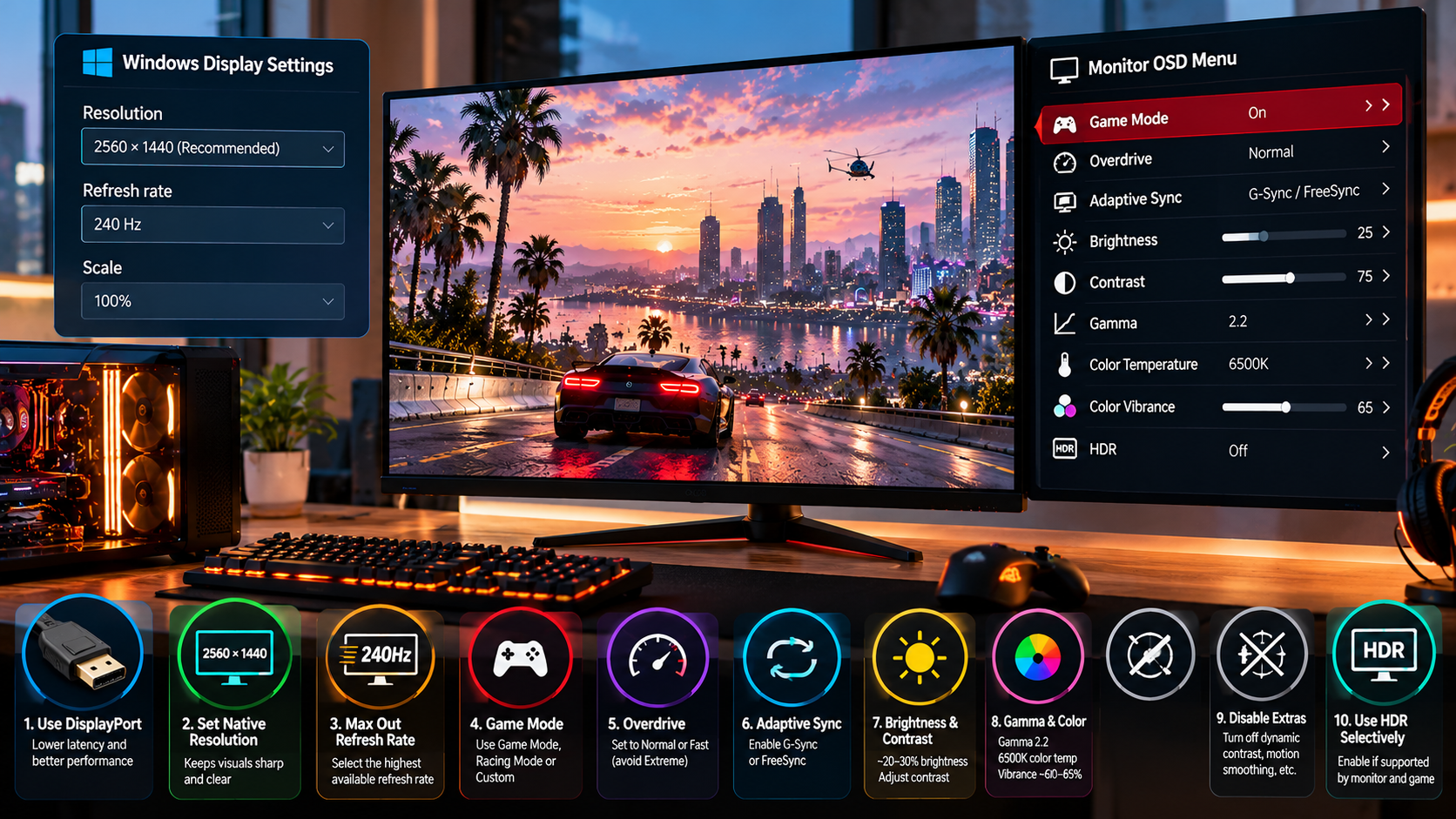
To optimize your monitor settings for gaming, start with your operating system and then adjust your monitor’s on-screen menu. The right configuration can improve motion clarity, reduce unnecessary processing, and deliver a more consistent gaming experience. If you’re still choosing a display, consider these factors when choosing the perfect gaming monitor for your needs.
Follow these steps to get started:
- Set the highest supported refresh rate. Open your operating system’s advanced display settings and select your monitor’s maximum supported refresh rate.
- Adjust response time. Choose a moderate or recommended overdrive setting. Avoid extreme modes that create bright trails or inverse ghosting.
- Calibrate brightness and contrast. Adjust these settings to preserve details in bright scenes and dark areas.
- Disable unnecessary processing. Turn off dynamic contrast or motion smoothing if these features introduce unwanted processing.
- Enable adaptive sync. If your monitor and graphics card support FreeSync or G-SYNC, enable the appropriate feature to reduce screen tearing.
- Choose a suitable color profile. Start with the standard picture mode for balanced, natural colors.
The best settings depend on your monitor, graphics card, and preferred games. Competitive players may prioritize responsiveness, while single-player gamers may prefer richer visuals.
Calibrating Color and Contrast for Maximum Clarity
Correct color and contrast settings help you see details without making the image look unnatural. They can also improve visibility in games with dark environments.
Start by adjusting brightness to suit your room’s lighting. Excessive brightness can make dark scenes look washed out, while low brightness can hide important details. If sunlight makes your display difficult to see, learn how to fix sun glare on your monitor before changing other picture settings. Keep contrast near the manufacturer’s recommended setting unless calibration shows a clear improvement.
Some gaming monitors include a black equalizer or shadow enhancement feature. This can reveal details in dark areas, but excessive adjustment can make blacks appear gray.
Set sharpness carefully to avoid artificial outlines around objects. Use a neutral color temperature unless you prefer a warmer or cooler image. For consistent results, start with your monitor’s standard picture mode and make small adjustments.
Test your changes in the games you play most often. This helps you find a balance between visibility, color accuracy, and natural-looking images.
Is 60Hz or 240Hz Better for Gaming?
A 240Hz monitor generally offers smoother motion than a 60Hz monitor. This advantage is especially noticeable in competitive games that involve fast movement, precise aiming, and quick reactions. To reduce screen tearing when frame rates fluctuate, learn whether you should enable FreeSync on your monitor if your display and graphics card support it.
Refresh rate describes how many times a monitor updates its image each second. A 60Hz display refreshes 60 times per second, while a 240Hz display refreshes 240 times per second.
The difference also affects frame time. At 60Hz, each refresh takes approximately 16.67 milliseconds. At 240Hz, each refresh takes approximately 4.17 milliseconds. This allows the display to present new frames more frequently.
However, a higher refresh rate does not automatically guarantee better gameplay. Your computer must produce enough frames to take full advantage of the display. Your game, input devices, and overall system performance also influence responsiveness.
For casual gaming, 60Hz may be sufficient. For competitive shooters and fast-paced multiplayer games, 144Hz or 240Hz can provide a noticeable improvement.
Understanding Hardware Demands and Motion Fluidity
A high-refresh-rate monitor works best when your graphics card and processor deliver consistently high frame rates. If your system produces only 60 frames per second, you won’t receive the full benefit of a 240Hz display. If your processor is limiting gaming performance, compare your options with this guide to choosing the best AMD CPU for gaming in 2026.
Your target frame rate should match your hardware capabilities. A mid-range gaming PC may deliver a better experience at 144Hz than struggling to maintain high frame rates at 240Hz.
Consider these factors before upgrading:
- Graphics card: Determines how quickly your system renders frames.
- Processor: Can limit performance in CPU-intensive games.
- Game settings: Lowering demanding graphics options can improve frame rates.
- Adaptive sync: FreeSync and G-SYNC help reduce screen tearing when frame rates fluctuate.
A high refresh rate can improve motion clarity, but it cannot eliminate every source of motion blur. Panel response time, pixel transitions, and frame rate also matter.
When you optimize your monitor settings for gaming, choose a refresh rate your system can use effectively. Consistent performance is often more useful than chasing the highest number.
Is 1920×1080 or 2560×1440 Better for Gaming?
The choice between 1920×1080 and 2560×1440 depends on your hardware, monitor size, and gaming preferences. Both resolutions offer advantages, so neither is automatically the best option for every player.
1920×1080, also called 1080p, displays approximately 2.07 million pixels. It requires less graphics processing power than 1440p, making it practical for budget and mid-range gaming PCs. It can also help competitive players achieve higher frame rates.
2560×1440, also called 1440p, displays approximately 3.69 million pixels. That’s around 78% more pixels than 1080p. The additional detail can make textures, text, and distant objects appear sharper, particularly on larger screens.
However, rendering more pixels increases the graphics card’s workload. Depending on your hardware and game, switching to 1440p may reduce your frame rate.
Consider 1080p if you prioritize competitive performance or have limited graphics power. Choose 1440p if you want sharper visuals and your system can handle the additional workload.
Balancing Visual Fidelity and Frame Rate Performance
The ideal gaming resolution balances image quality with smooth performance. Higher resolutions can improve visual detail, but they may not be worth the trade-off if your frame rate drops significantly.
Start by checking your graphics card’s performance in the games you play most often. Compare frame rates and, where possible, frame-time consistency at both resolutions.
Your monitor’s size and pixel density also affect perceived sharpness. A 24-inch 1080p monitor can look sharp at a typical desk distance. A 27-inch 1440p monitor generally provides more detail at a similar viewing distance.
Use these guidelines when choosing a resolution:
- 1080p: Suitable for budget systems, esports, and high-frame-rate gaming.
- 1440p: A strong option for sharper visuals and balanced performance on capable hardware.
- Resolution scaling: Useful when you need more performance without changing your monitor.
If your game supports NVIDIA DLSS or AMD FSR, these technologies may improve performance at higher output resolutions. Results depend on the game, graphics settings, and selected quality mode.
Ultimately, choose the resolution that delivers the best combination of clarity, responsiveness, and stable frame rates for your setup.
Why Does My 1920×1080 Look Blurry?
A 1920×1080 image can look blurry for several reasons, including incorrect resolution settings, display scaling, poor image processing, or a signal problem. First, determine whether the issue affects your entire desktop or only a particular game.
LCD monitors have a fixed grid of physical pixels. For the sharpest results, they generally work best at their native resolution, which matches the panel’s physical pixel dimensions.
If you run a game at a lower resolution, the monitor or graphics card may need to scale the image. This can soften edges and make text or textures look less detailed.
Check your operating system’s display settings. If your monitor’s native resolution is 1920×1080, select that resolution. Also, verify that your game uses the correct resolution and display mode.
Other possible causes include unsuitable sharpness settings, incorrect GPU scaling, outdated graphics drivers, and faulty connections. A compatible digital cable should deliver a clear image, although a damaged cable or unsuitable adapter can cause signal problems.
Fixing Scaling and Display Cable Issues
Start troubleshooting by checking your monitor’s resolution and scaling settings. If the display’s native resolution is 1920×1080, use that resolution in both your operating system and your games whenever possible.
Next, inspect the graphics settings. Look for scaling options in your NVIDIA, AMD, or Intel graphics control panel. Test the available settings to see whether GPU scaling or display scaling produces a clearer image.
If the problem continues, try these steps:
- Check your cables: Ensure the HDMI or DisplayPort connection is secure and supports your display’s resolution and refresh rate.
- Update graphics drivers: Install a compatible driver if you suspect a software issue.
- Reset sharpness: Return the monitor’s sharpness setting to its recommended level.
- Check display scaling: Use the recommended operating system scaling level for comfortable text and interface readability.
- Test another connection: Try a different supported cable or port to identify a possible hardware problem.
An expensive cable will not automatically improve image quality. A compatible, functioning digital connection should deliver a clear image without unnecessary signal processing.
If only one game looks blurry, check its resolution, render scale, anti-aliasing, and upscaling settings. These adjustments may resolve the issue without changing your monitor’s configuration.
Does 1080p Look Worse on 1440p?
Running 1080p content on a 1440p monitor can look softer than displaying it on a native 1080p monitor. This happens because the two resolutions have different pixel dimensions, so simple integer scaling cannot fill the entire screen evenly.
A 1080p image contains 1920 × 1080 pixels, while a 1440p display contains 2560 × 1440 physical pixels. Each dimension increases by one-third when moving from 1080p to 1440p.
As a result, the display or graphics card must scale the lower-resolution image. Depending on the scaling algorithm, monitor size, and viewing distance, the image may appear softer or less detailed.
However, 1080p does not always look noticeably worse on every 1440p monitor. Image processing, panel quality, and the content itself influence the result.
If you need to lower the rendering resolution to improve gaming performance, consider resolution upscaling. This allows a game to render fewer pixels while outputting an image at your monitor’s native resolution.
Utilizing Upscaling Technologies to Improve Image Quality
Upscaling technologies can help maintain performance while producing a sharper image than basic resolution scaling in supported games. Instead of rendering every pixel at the final output resolution, these techniques reconstruct a higher-resolution image from a lower-resolution render.
Popular options include:
- NVIDIA DLSS: Uses supported NVIDIA graphics hardware and game-specific implementations to reconstruct images at higher output resolutions.
- AMD FSR: Provides upscaling options across supported games and a range of graphics hardware.
- Intel XeSS: Offers AI-assisted upscaling on supported hardware, with compatibility varying by implementation.
These technologies can improve the balance between image quality and frame rate, but results vary. Lower-quality modes may introduce softness, shimmering, or other visual artifacts.
For the best results, keep your monitor set to its native 1440p resolution and enable your preferred upscaling option within the game. Test different quality modes to find the right balance between sharpness and performance.
If the image still looks blurry, check the game’s render scale, sharpening controls, and anti-aliasing settings. Avoid excessive sharpening filters, as they can create artificial edges and make the image look unnatural.
Learning how to optimize your monitor settings for gaming also means testing different configurations rather than relying on a single preset. Small changes to scaling, sharpness, and upscaling can make a noticeable difference in supported games.
Conclusion
Learning how to optimize your monitor settings for gaming can improve visual clarity, motion smoothness, and overall gameplay. By choosing the right refresh rate, adjusting brightness and contrast, and using your monitor’s native resolution, you can get more out of your existing setup.
The best settings depend on your hardware and gaming preferences. Competitive players may benefit from higher refresh rates, while players who prefer detailed graphics may favor 1440p resolution. Features such as NVIDIA G-SYNC and AMD FreeSync can also help reduce screen tearing on compatible systems.
For more detailed advice, read this monitor calibration guide from RTINGS to learn how to adjust your display settings for clearer images and smoother gameplay.
Take time to test different settings and find the right balance between image quality and performance. Even small adjustments can make your gaming sessions smoother and more enjoyable.