
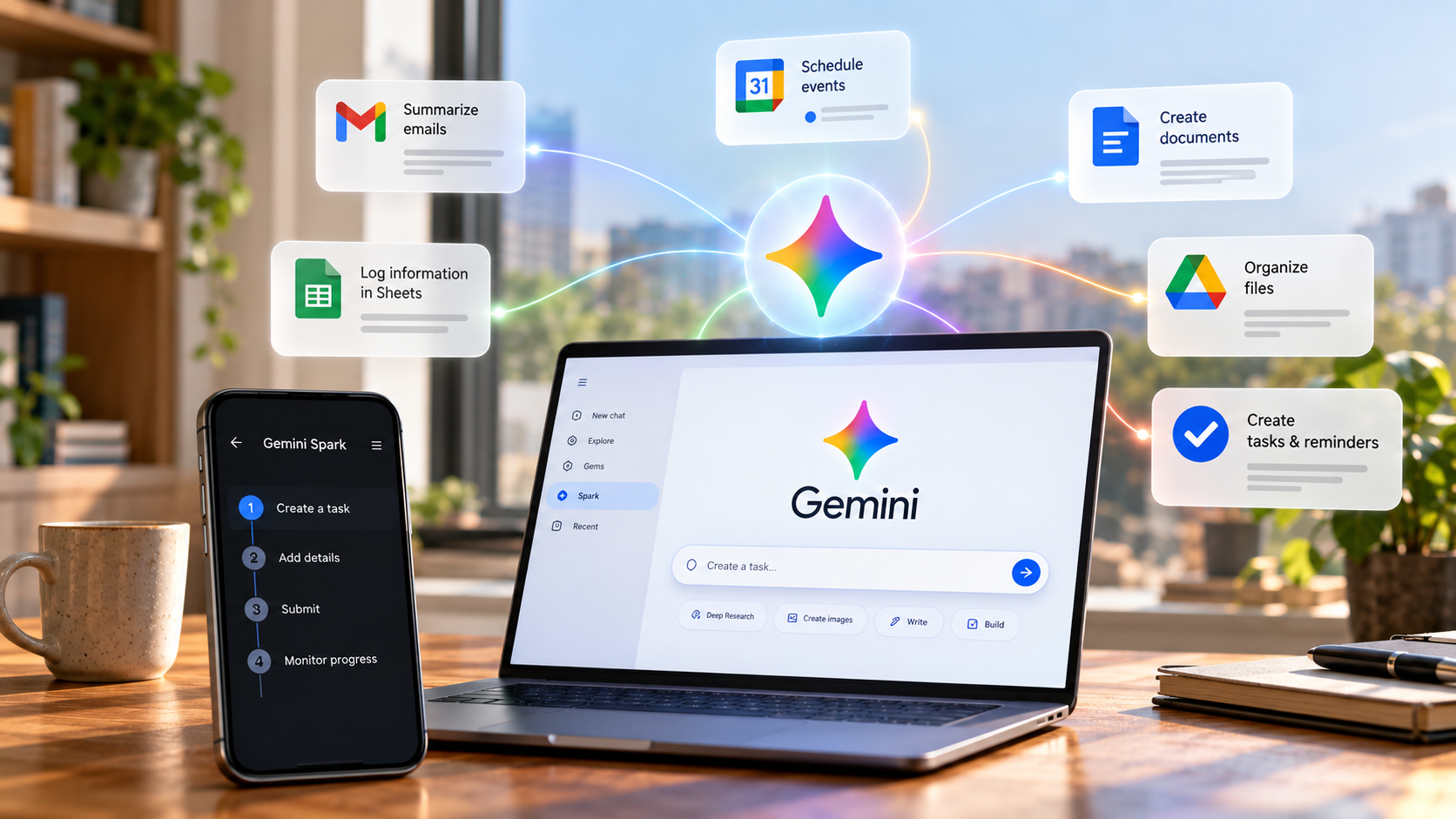
How to Use Google Gemini to Automate Tasks in Your Daily Workflow
Repetitive digital chores consume valuable time every day. Managing emails, organizing information, and scheduling reminders can quickly overwhelm your routine. Fortunately, you can automate tasks using AI tools such as Google Workspace with Gemini.
Instead of handling every small task manually, you can use AI to organize information, prepare content, and streamline everyday workflows. Depending on the tool and your account, you can also create automations that run in the background.
Why does this matter? Every minute spent on repetitive administration leaves less time for creative and important work. Well-designed automations can reduce manual effort, improve consistency, and help prevent mistakes.
Getting started does not require advanced technical skills. You can use Gemini’s connected apps, scheduled tasks, and Google Workspace Studio to simplify common processes. More advanced workflows can use Google Apps Script, Zapier, or Make.
In this guide, you will learn how to automate tasks with Gemini, create Google Tasks, schedule AI workflows, and build practical automations for your daily routine.
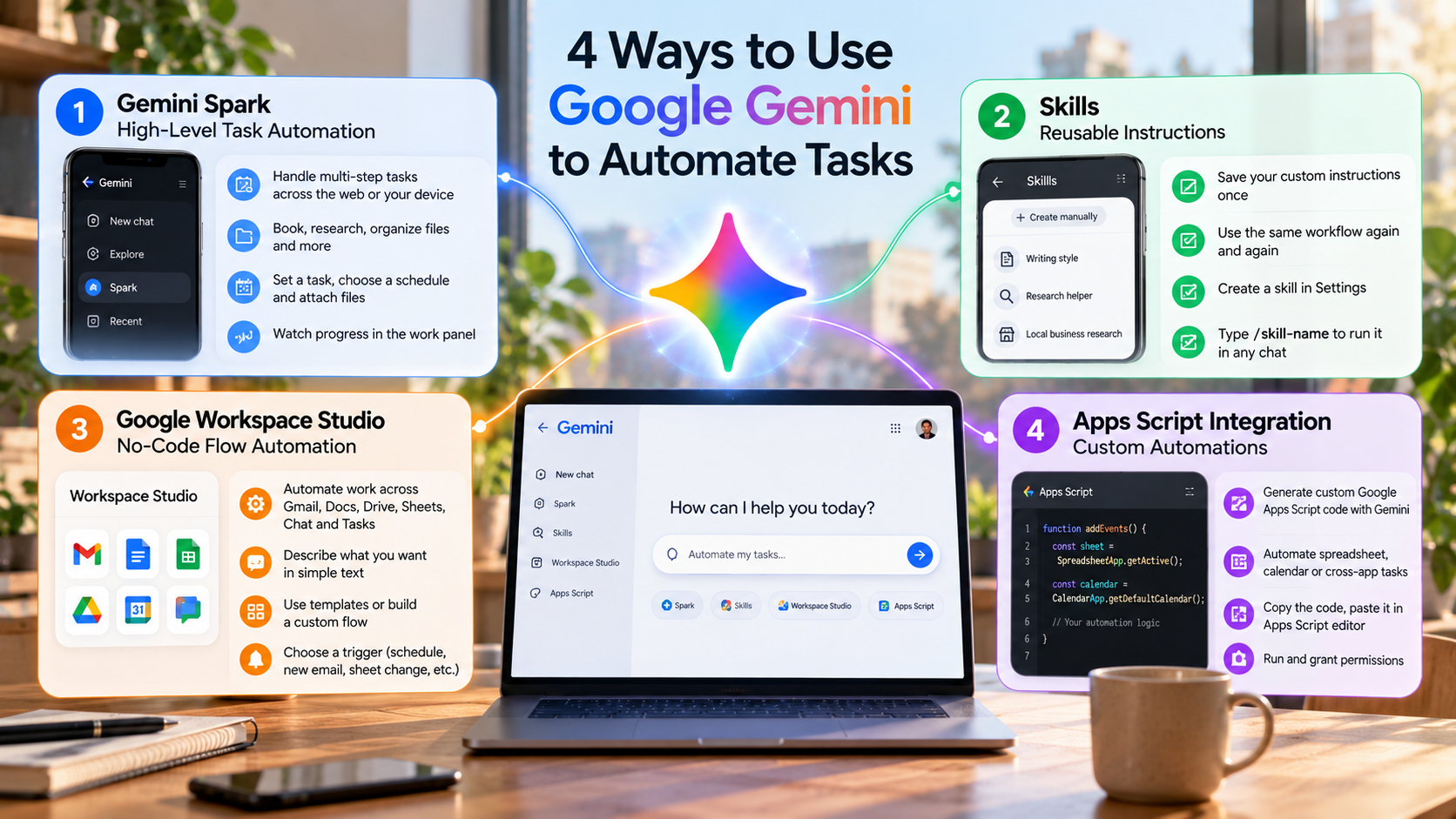

Can Google Gemini Do Scheduled Tasks?
Yes, Google Gemini can run scheduled tasks, but availability depends on your account, subscription, region, and the type of task. Google’s Gemini scheduled-task feature supports time-based schedules and certain event-based monitoring workflows. Eligible users can ask Gemini to perform recurring actions, such as preparing a daily briefing or checking relevant information.
For example, you might schedule a morning summary of your emails, calendar, and priorities. However, some scheduled features require a paid Google AI subscription and a personal Google Account. Before upgrading, compare the free and paid Gemini plans to decide whether the additional features justify the cost. Work or school accounts may not be eligible for the same functionality.
For more extensive business workflows, Google Workspace Studio lets eligible users create AI-powered automations across supported Workspace apps. You can also use third-party tools or scripts when your workflow needs additional integrations.
Before building an automation, check the feature’s availability and permissions. Do not assume every Gemini account supports every scheduling option.
Using Google Apps Script for Timed Triggers
Google Apps Script is useful when you need more control over scheduled Google Workspace workflows. It allows you to write JavaScript-based functions that interact with supported Google services, including Sheets, Gmail, and Calendar.
For example, you could create a script that collects information from a spreadsheet and prepares a daily report. You can then configure a time-driven trigger to run the function automatically.
To get started:
- Open Google Apps Script.
- Create a project and write a function for your workflow.
- Connect the required Google services and configure permissions.
- Set up a time-driven trigger for the desired schedule.
- Test the script and review its execution logs.
If your workflow requires Gemini-generated content, you can integrate the Gemini API where appropriate. API access, authentication, quotas, and billing requirements may apply.
Remember that Apps Script does not automatically make every AI workflow reliable. Add error handling, protect sensitive information, and check the output before allowing important actions to run unattended.
Can Gemini Make Google Tasks?
Yes, Gemini can create, display, update, and manage tasks through supported integrations. When Google Workspace is connected to Gemini, you can ask it to add reminders or tasks to Google Tasks using natural language. This makes it easier to turn conversations, plans, and deadlines into actionable items.
For example, you could ask Gemini to create a reminder to submit a report next Friday. You can also request a list of upcoming tasks or change the due date of an existing item.
To use this feature, sign in to Gemini with the appropriate Google Account and ensure the required connected-app settings are enabled. Google’s instructions also specify that Keep Activity must be on for the supported task integration.
You can find the official instructions in Google’s Gemini Tasks and Reminders guide.
Keep in mind that creating an individual task differs from building a fully automated workflow. For recurring processes, you may need Gemini schedules or another automation tool.
Formatting Prompts for Accurate Task Creation
Clear prompts help Gemini understand exactly what you want to add to Google Tasks. Include the task name, deadline, and relevant context rather than giving a vague instruction.
For example, you could write:
@Google Tasks Add a task called “Submit quarterly tax report” with a due date of October 23, 2026. Include a note to review the supporting documents first.
The @Google Tasks reference helps direct Gemini to the appropriate integration when supported. You can also use natural-language instructions such as “Add this to my tasks” or “Remind me on Friday.”
For more accurate results, include these details when relevant:
- Task title: Describe the action clearly.
- Due date: Specify the exact date.
- Time: Include a time when the reminder requires one.
- Context: Add a short note explaining what needs to be done.
After Gemini responds, verify the task details in Google Tasks. Check the date, time, and title before relying on the reminder. If a deadline is important, confirm that the task was actually created rather than assuming the AI completed the action.
How to Get AI to Automate Tasks?
To get AI to automate tasks effectively, connect an AI assistant to the software involved in your routine. Start with a repetitive process, such as organizing emails, preparing meeting summaries, or drafting standard customer responses.
Next, choose a suitable tool based on your workflow and the applications you use. Google Workspace Studio supports AI-powered workflows across supported Workspace apps. Zapier and Make can connect many external services, while Google Apps Script offers more control for custom Google Workspace processes. If you are still comparing options, explore these best AI tools in 2026 to find a solution that fits your needs.
Most automations follow a simple pattern: a trigger starts the workflow, and one or more actions follow. For example, a new Google Forms submission could trigger an AI-generated summary, which is then saved to a Google Doc for review.
Start with a small workflow and test it using sample information. Check whether the automation produces accurate results and handles unexpected inputs correctly.
You should also review permissions before connecting your accounts. Give the automation access only to the information it needs. For sensitive tasks, require human approval before sending messages, changing records, or making important decisions.
Writing System Instructions That Prevent AI Errors
Reliable AI automation requires clear instructions. Tell Gemini what to do, which information to use, what format to produce, and which actions it must avoid.
For example, “Summarize this email” leaves considerable room for interpretation. A more precise instruction would ask Gemini to identify the sender, main request, deadline, and next action. You can also specify that missing information should be marked as unknown rather than guessed.
A useful instruction template includes:
- Role: Explain what the AI should help accomplish.
- Input: Identify the information it should examine.
- Task: Describe the exact steps it should perform.
- Output: Specify the required format.
- Limits: Explain what it must not assume or change.
For example, an email-processing workflow could extract the sender’s name, requested action, and deadline into three labeled fields. If the email contains no deadline, the AI should leave that field blank.
Test your instructions with different examples, including incomplete messages and irrelevant information. Review the results before connecting the workflow to important business processes. Structured prompts improve consistency, but they cannot guarantee error-free outputs.
How to Automate Google Tasks?
You can automate Google Tasks by combining recurring reminders, Gemini integrations, and supported third-party workflows. The simplest option is to use Google Tasks’ built-in repeat feature for activities that follow a predictable schedule. For example, you can create a weekly planning reminder or a monthly bill-payment task without entering it repeatedly.
Gemini can also help you create and update tasks through supported integrations. This is useful when you want to turn a conversation, email, or project plan into a checklist.
For more advanced automation, you can explore connectors available through tools such as Zapier or Make. Depending on the supported integrations, an event in another application could create a task or update related information.
However, not every Google Tasks action is available in every automation platform. Check the current integration options before designing your workflow.
Start by automating one recurring process. Confirm that the correct task appears with the right details, then monitor the workflow to ensure it continues working as expected.
Turning Starred Emails Into Instant To-Do Items
Important emails often contain requests that are easy to overlook. You can use Gmail and an automation platform to help turn those messages into actionable tasks, provided the required integrations support the workflow.
For example, you might create a workflow that checks for a particular Gmail label or another supported email event. When a qualifying message appears, the automation can extract its subject, identify relevant details, and create a task through an available connector.
A practical setup looks like this:
- Choose a consistent method for identifying important emails, such as a label or supported trigger.
- Configure the automation to detect qualifying messages.
- Extract the subject line and relevant deadline.
- Create a task using a supported Google Tasks integration or another task-management service.
- Include a link to the original email when the integration permits it.
Test the workflow with several emails before using it regularly. Avoid creating duplicate tasks when the same message is processed more than once.
Also, starring an email does not automatically guarantee that a new Google Task will be created. You must configure the trigger and action explicitly. Review the resulting tasks periodically to catch missing or incorrectly classified messages.
How Do You Automate Tasks?
To automate tasks successfully, identify repetitive activities and use software to perform predictable steps. Start by reviewing your daily routine. Look for work that requires copying information, sending routine notifications, updating records, or preparing similar reports.
Next, map the process from beginning to end. Identify what starts the task, what information is required, and what should happen when the process finishes. This helps you choose an automation tool that supports your specific needs.
For example, you could use Google Workspace Studio to process supported Workspace events or Apps Script to run a custom spreadsheet function on a schedule. Zapier and Make may be useful when your workflow spans different applications.
Once you have selected a tool, build a simple version of the workflow. Test it with sample data and check the results before using real information.
Monitor the automation after launch. Review errors, confirm that the expected actions occurred, and adjust the instructions when necessary. Begin with low-risk tasks before automating sensitive operations. A reliable workflow should save time without creating additional work through missed actions or incorrect results.
Choosing the Right Tasks to Automate First
Not every task should run without human involvement. The best starting points are usually repetitive activities with clear rules, predictable inputs, and easily checked results.
Consider automating these activities first:
- Routine reminders: Create recurring prompts for regular responsibilities.
- Data entry: Transfer structured information between supported applications.
- Email organization: Apply labels or identify messages that need attention.
- Report preparation: Collect information and draft summaries for review.
- File management: Organize documents according to defined rules.
- Meeting follow-ups: Extract action items and prepare draft messages.
Avoid fully automating decisions that require empathy, complex judgment, or careful interpretation of sensitive information. For example, AI can draft a customer response, but a person should review complaints that involve legal, financial, or reputational risks. It is also worth understanding how scammers use AI to trick people so you can recognize potential threats when handling automated messages and sensitive information.
Before choosing a workflow, compare the time it saves with the effort needed to build and maintain it. A complicated automation may not be worthwhile for a task that takes only a few seconds.
Start with one useful process, measure its results, and expand gradually. The goal is not to automate everything. It is to reduce unnecessary work while keeping important decisions under human control.