
Google Photos vs. Gallery: What’s the Difference and Which Should You Use?
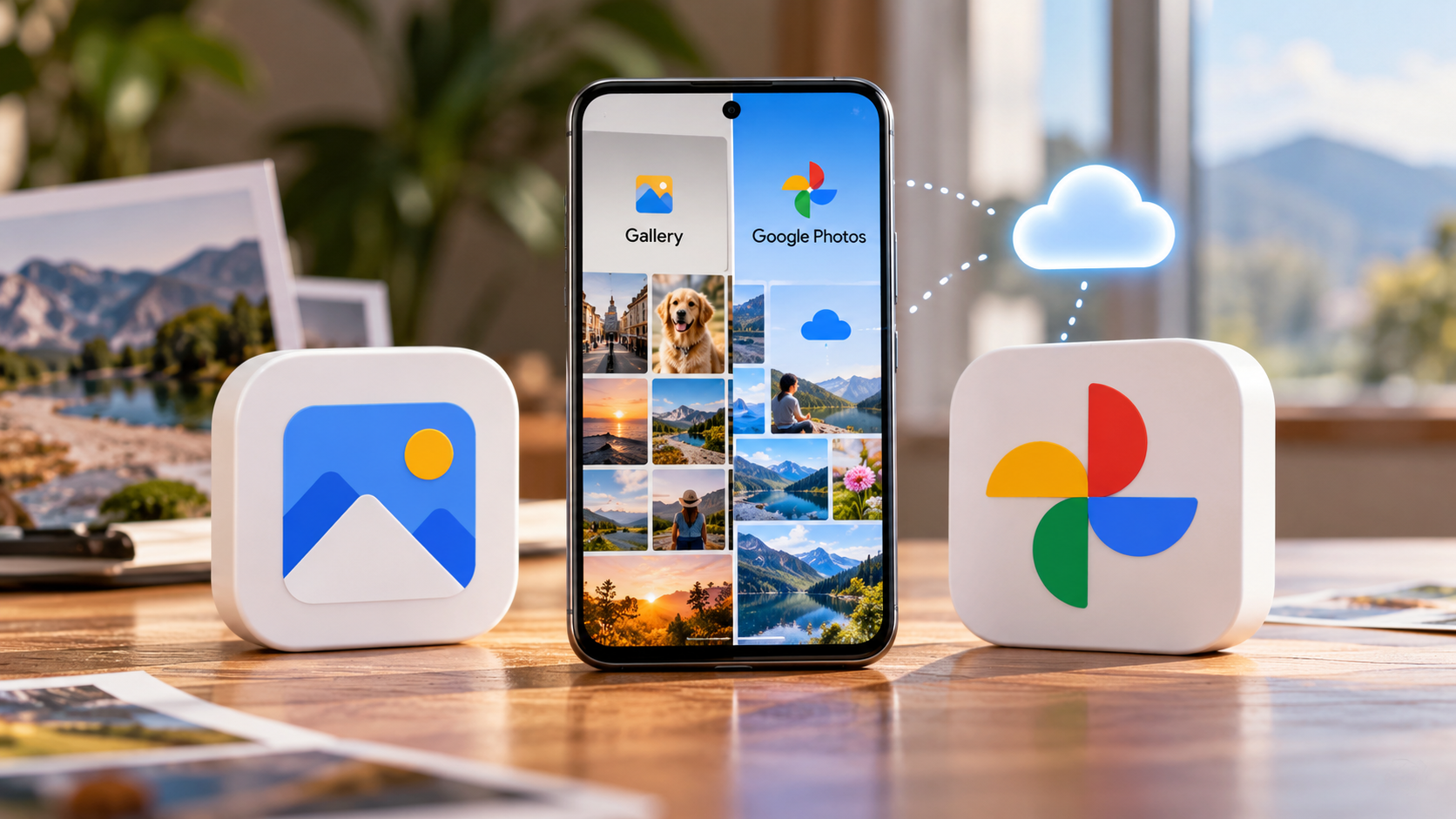
Choosing between a phone’s native Gallery app and Google Photos can be confusing. Both apps display photos and videos, but they serve different purposes. When comparing Google Photos vs. Gallery, the main difference is how they manage local files, backups, syncing, and storage.
When comparing Google Photos vs. Gallery, the biggest differences involve storage, backup, syncing, privacy, and organization. Your Gallery usually focuses on files stored directly on your phone. Google Photos adds cloud backup, cross-device access, advanced search, editing, and sharing.
Many Android phones include both options. That can make it difficult to understand where your photos actually live. It can also create confusion when you delete files or try to free up storage.
Understanding Google Photos vs. Gallery can help you avoid accidental deletions. It can also help you choose the right app for everyday photo management.
This guide explains how both apps work. You will learn when to use Google Photos, when Gallery makes more sense, and whether you need both. You will also learn how to remove local photos without accidentally deleting your backed-up copies.

Is it better to use Google Photos or Gallery?
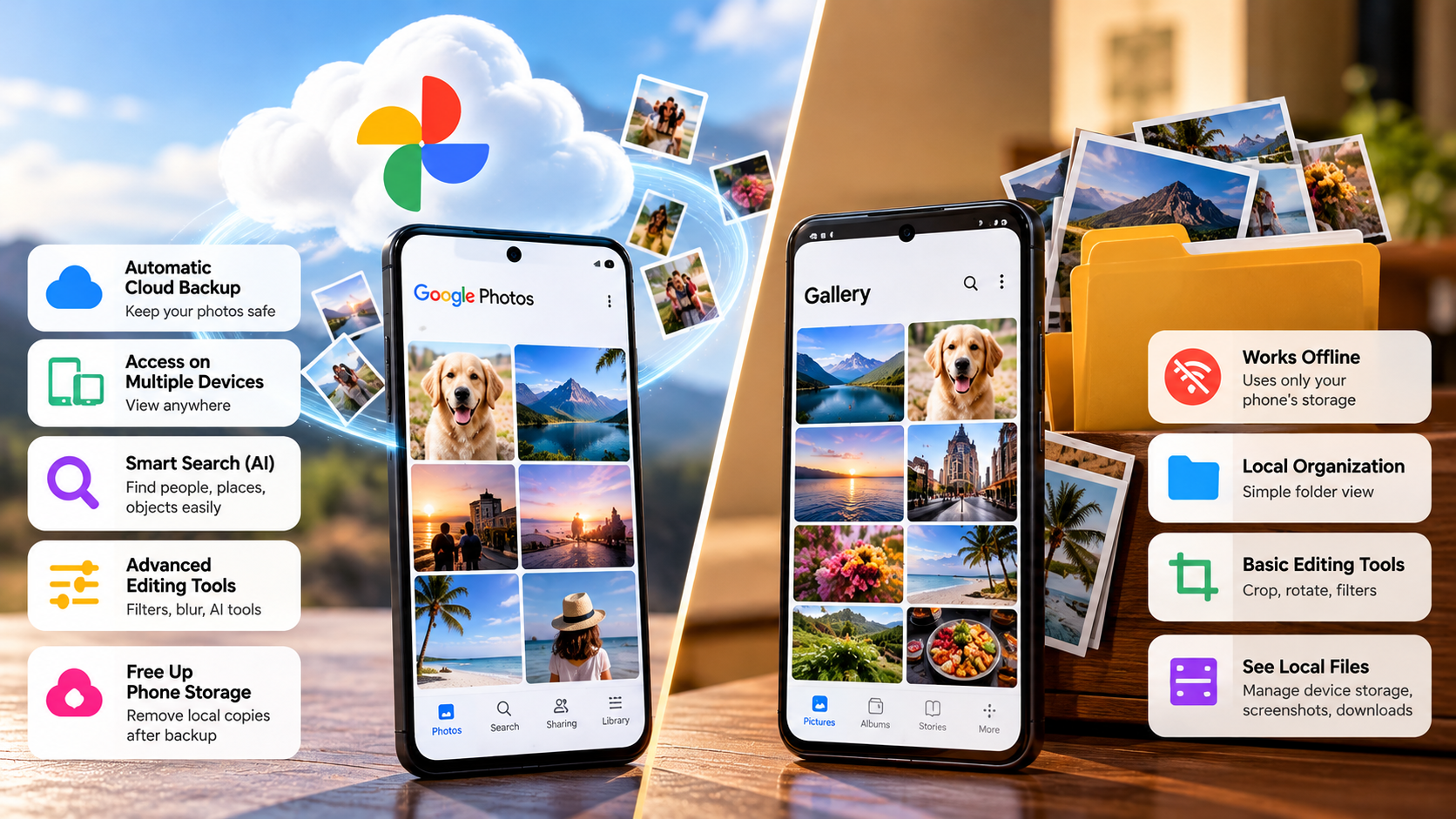
Choosing between Google Photos and Gallery depends on how you use your phone. Google Photos works well if you want automatic backups, cross-device access, advanced search, and cloud storage. It can organize your library and help you find photos using people, places, objects, and text. If you are also comparing other cloud services, our guide to iCloud Photos vs Google Photos can help you understand the differences between the two platforms.
Your phone’s Gallery app works better for simple local browsing. It usually focuses on photos and videos stored on your device. You can browse local files without an internet connection or a Google account.
Privacy also matters when comparing Google Photos vs. Gallery. Google Photos can upload selected folders to your Google account when you enable backup. A local Gallery normally displays files without sending them to a cloud service.
Your choice becomes easier if you focus on your priorities:
- Choose Google Photos for cloud backup and multi-device access.
- Choose Gallery for fast local browsing and offline access.
- Use both apps if you want local access and cloud backup.
- Check backup settings before deleting any important photos.
Neither app works best for every user. Your storage needs, privacy preferences, and backup habits should guide your decision.
Assessing Offline Speed Versus Cloud Convenience
Your daily habits can help you decide between the two apps. A local Gallery can open photos stored on your phone without an internet connection. This makes it useful when you travel or have limited mobile coverage.
Google Photos can also show local photos. However, you may need an internet connection for photos that exist only in your cloud library. This can matter when you remove local copies to save storage.
Google Photos offers more convenience when you use several devices. You can sign into the same Google account and access backed-up photos across supported devices. You also get search, editing, sharing, and organization tools.
Gallery apps usually provide a simpler local experience. They can also integrate closely with your phone’s camera and file system.
For offline browsing, Gallery often has the advantage. For backup, synchronization, and cross-device access, Google Photos offers more features.
Your internet connection also affects the experience. If you frequently browse photos without reliable internet, keeping local copies remains useful.
Is there a better gallery app than Google Photos?
Yes. Several Gallery apps can suit users who mainly want local photo management. Google Photos combines photo viewing with cloud backup, search, editing, sharing, and account-based features.
A dedicated Gallery app can provide a simpler experience. Good photo management also depends on how you organize your library. These apps can support the same goal as following simple tips to organize your photos. Options such as Aves Gallery and other local-focused photo managers can offer folder browsing, metadata tools, and offline organization.
Manufacturer apps can also provide useful alternatives. Samsung Gallery, for example, integrates closely with Samsung devices and related services.
However, you should not assume that every third-party Gallery app offers better privacy. Some apps include advertising, analytics, cloud features, or other online services. Always check the app’s privacy information before installing it.
When comparing alternatives, consider these factors:
- Whether the app focuses on local storage.
- Whether it offers optional cloud backup.
- Whether it displays advertisements.
- What permissions it requests.
- Whether it supports folders and hidden media.
- Whether it provides useful metadata controls.
A lightweight Gallery app may suit you better than Google Photos if you rarely use cloud services. However, Google Photos remains useful if backup and cross-device access matter to you.
Selecting Standalone Tools for Enhanced Media Privacy
Local-focused Gallery apps can give you more control over your media. If an app does not upload your photos, your files remain on your device unless another service handles the backup.
This approach can help users who prefer local storage. It can also reduce the number of services that have access to their personal media.
However, local storage does not automatically provide complete privacy. Anyone who accesses your unlocked phone may still view your files. Your device security therefore matters just as much as your choice of Gallery app.
Before installing a privacy-focused Gallery, review its permissions and privacy policy. Check whether the developer collects usage information or connects the app to external services.
Local apps can also provide useful management features. Depending on the application, you may be able to browse folders, rename files, inspect EXIF information, or manage albums offline.
Remember that privacy and backup solve different problems. Local storage can reduce cloud exposure, but it also creates a backup risk.
If your phone gets lost, damaged, or stolen, locally stored photos may disappear. For important memories, keep an additional backup somewhere you trust.
Do I need both Google Photos and Gallery?
You do not need both apps, but using both can make photo management easier. Each app can handle a different part of your workflow.
Your Gallery app can provide fast access to photos stored on your phone. It may also offer device-specific editing, albums, and camera integration. Google Photos can provide cloud backup, search, sharing, and access across devices.
This makes Google Photos vs. Gallery less about choosing one winner. Instead, you can use each app for the task it handles best.
For example, you could use Gallery for quick local browsing. Google Photos could handle backups and access from another phone or computer.
A practical setup could look like this:
- Use Gallery for local photos and videos.
- Use Google Photos for cloud backups.
- Check your backup status before deleting files.
- Review your Google storage regularly.
- Keep another backup for especially important photos.
Using both apps does not automatically mean that your phone stores two complete copies of every photo. Their behavior depends on your device, settings, and backup configuration.
If your phone has limited storage, Google Photos can help you remove eligible local copies after backup. Always confirm the backup before clearing space.
Coordinating Local Viewers with Automatic Background Uploads
Using both apps can create a simple photo workflow. You can capture photos with your phone’s camera and browse them through Gallery. Google Photos can then back up selected folders when you enable its backup feature.
Your backup settings control which folders Google Photos uploads. Camera photos may receive automatic backup, while screenshots, downloads, or messaging folders may require separate settings.
This makes regular checks important. Do not assume that every image on your phone has reached your Google Photos account.
A simple workflow looks like this:
- Take photos with your phone’s camera.
- Browse them through Gallery or Google Photos.
- Check which folders Google Photos backs up.
- Confirm important photos have finished uploading.
- Use storage-management tools when your phone needs space.
This approach gives you local access while maintaining an online copy. It also reduces the risk of losing photos after a phone failure.
However, cloud backup should not become your only backup for irreplaceable files. Your Google account could become inaccessible, or you could accidentally delete important content.
For valuable photographs, consider keeping another independent copy. An external drive or another trusted backup service can provide additional protection.
Is my phone gallery the same as Google Photos?
No. Your phone’s Gallery and Google Photos can display many of the same pictures, but they serve different purposes.
A typical Gallery app focuses on media stored on your device. It organizes photos according to local folders, albums, and storage locations. Some manufacturer Gallery apps also connect with their own cloud services.
Google Photos connects to your Google account. It can display local photos while also managing photos and videos that you back up to Google’s cloud storage.
This distinction explains much of the confusion around Google Photos vs. Gallery. Seeing the same photo in both apps does not necessarily mean that the phone has created two separate files.
A photo can exist in several locations:
- On your phone: The local copy uses device storage.
- In Google Photos: A backed-up copy uses your Google account storage.
- In both places: You can access the local file and the cloud copy.
For example, a new camera photo may initially exist only on your phone. Google Photos can then back it up. Your Gallery can continue showing the local version.
If you later remove the local copy, the backed-up version can remain available in Google Photos.
Understanding these locations helps you manage storage without accidentally deleting important memories.
Understanding File Storage Locations and Remote Libraries
Your phone’s Gallery usually shows files stored in internal storage or an SD card. The exact folder structure depends on your phone and the apps you use.
Google Photos can also show local photos. However, its cloud library contains photos and videos that you have backed up to your Google account.
This creates an important difference between local storage and cloud storage. A photo can exist only on your phone, only in the cloud, or in both locations.
The deletion method matters when you want to remove one copy. Deleting a local file does not always produce the same result as deleting the photo from Google Photos.
Google Photos provides storage-management features that can help remove local copies after successful backup. You should still check the backup status before deleting anything important.
Think of the two locations separately:
- Phone storage: Holds the physical file on your device.
- Google Photos cloud storage: Holds backed-up copies in your Google account.
- Gallery: Usually displays and organizes local media.
- Google Photos: Manages local and backed-up media with additional cloud features.
This distinction makes Google Photos vs. Gallery much easier to understand. The apps can show the same image while managing different copies.
Can I delete photos in Gallery but keep them in Google Photos?
Yes, but first confirm that Google Photos has backed up the photos. Once the cloud backup finishes, you can remove eligible local copies and keep the backed-up versions in Google Photos.
The safest option involves Google Photos’ Free up space feature. This tool helps remove local copies of photos and videos that Google Photos has already backed up.
You should take care when using the normal delete option inside Google Photos. That option can remove the photo from your Google Photos library rather than simply removing the local copy.
Before freeing space, check these points:
- Confirm that the photo shows as backed up.
- Make sure you use the correct Google account.
- Check which device folders receive backup.
- Verify that important photos finished uploading.
- Understand whether you are deleting a local or cloud copy.
You can also use your phone’s Gallery app to delete local files. However, the exact behavior can vary between devices and software versions.
For the safest workflow, confirm your backup first. Then use Google Photos’ storage-management tools when you want to remove local copies.
Never assume that a photo has a cloud backup simply because you can see it inside Google Photos.
Using the Dedicated Free Up Space Feature
Google Photos’ Free up space feature helps remove local copies of photos and videos that have already reached your Google Photos library. It can prove useful when your phone’s internal storage becomes full.
The feature does not simply delete random photos. It identifies eligible local files that Google Photos has already backed up. You can then remove those local copies while keeping the backed-up versions in your Google Photos library.
After you clear local copies, those photos may disappear from your phone’s Gallery. You can still access them through Google Photos while the cloud versions remain available.
Follow these steps before clearing space:
- Open Google Photos.
- Check that you use the correct Google account.
- Confirm that backup has finished.
- Open the storage-management options.
- Review the files selected for removal.
- Confirm the cleanup.
This process can recover valuable phone storage without intentionally deleting your cloud library.
However, you should still keep another backup for irreplaceable photos. Cloud storage protects against phone damage, but it does not eliminate every possible risk.
Understanding Google Photos vs. Gallery also helps you recognize which copy you are removing. Always check before tapping Delete or confirming a storage cleanup.
Conclusion
The choice between Google Photos vs. Gallery depends on how you use your phone. Google Photos works best when you want automatic backup, cloud storage, powerful search, and access to your photos across multiple devices.
Your phone’s Gallery remains useful for fast, offline access to locally stored photos and videos. It also works well when you prefer to keep your media on your device rather than rely heavily on cloud services.
For many users, you do not have to choose just one. Using Google Photos and Gallery together can give you the benefits of both. Use Gallery for everyday local browsing and Google Photos for backup and cloud access.
Before deleting any photo, always confirm that Google Photos has backed it up. Google explains how to check your backup status and safely remove local copies in its official Google Photos Help guide.
Ultimately, Google Photos is the better choice for backup and convenience, while Gallery is better for simple offline access and local control. Your storage needs, privacy preferences, and backup habits should determine which setup works best for you.