
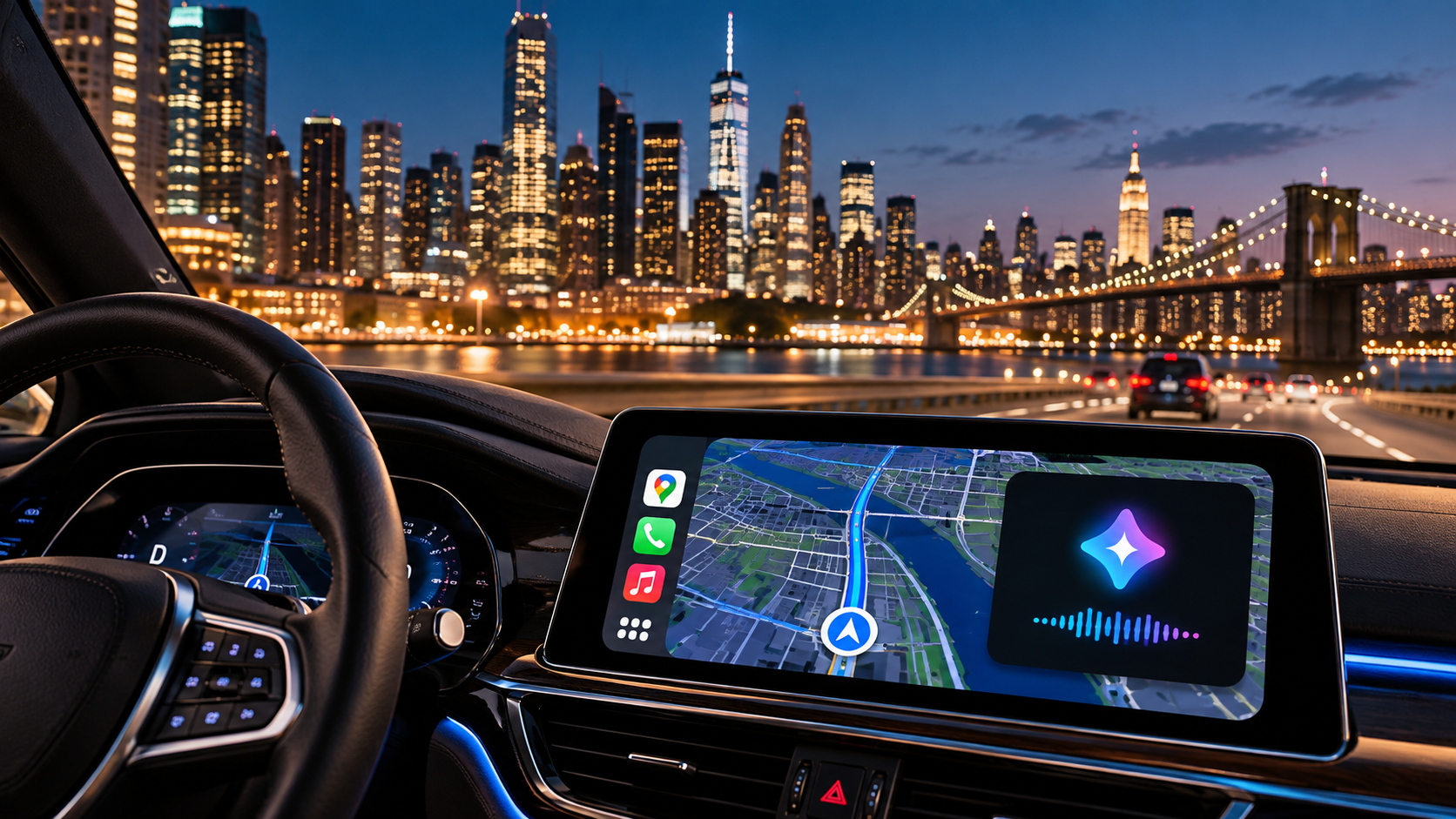
Gemini in Google Maps: Your CarPlay Navigation Guide
Gemini in Google Maps brings conversational AI into navigation. It helps drivers find nearby places, manage stops, and ask questions about their journeys. Instead of relying on rigid voice commands, you can use natural language to request information.
Google has also announced Gemini integration for Google Maps on Apple CarPlay. The rollout began in October 2026, with availability expanding beyond the initial US launch. However, access depends on regional rollout and app support.
According to Apple’s CarPlay documentation, drivers can use supported third-party navigation apps through their vehicle’s display. Google Maps is one of those supported apps.
This guide explains how Gemini works with Google Maps, what CarPlay users can expect, and how to prepare your iPhone. It also covers important compatibility limitations and practical navigation tips.
Does Google Gemini Work With CarPlay?
Yes, Google has started bringing Gemini to Google Maps on Apple CarPlay. However, availability is still subject to Google’s rollout. This distinction matters because having Google Maps on your CarPlay screen does not automatically mean Gemini is available.
Previously, iPhone users could access Gemini-powered navigation through the Google Maps app directly. CarPlay users had to rely on the navigation features available through its standard interface.
Google announced the CarPlay integration in October 2026. The initial rollout began in the United States, with wider availability planned. Therefore, users in other countries may need to wait for the feature to appear.
You should also understand that Gemini does not replace Siri as the system-wide voice assistant. Its integration works within supported Google Maps experiences.
Platform Availability and Integration Limits
Apple CarPlay controls which applications and interfaces can appear on your vehicle’s display. Third-party developers must follow Apple’s requirements for compatible in-car experiences.
Google Maps is already supported on CarPlay. However, Gemini integration is a separate feature that requires compatible software and regional availability.
Here are some important limitations to understand:
- Regional availability: Gemini features may not appear in every country simultaneously.
- App compatibility: Update Google Maps to access the latest supported features.
- Voice assistance: Gemini works within supported Google Maps experiences. It does not replace Siri across your iPhone.
- Account requirements: Sign in to the appropriate Google account to access supported Gemini features.
- Software updates: Availability can depend on app versions and Google’s rollout schedule.
Google’s official Gemini navigation documentation provides additional information about supported iPhone features. Check the latest CarPlay compatibility information before expecting Gemini to appear on your dashboard.

Can Gemini Interact With Google Maps?
Gemini adds conversational capabilities to Google Maps, making navigation more flexible. Instead of searching through several menus, you can ask questions using everyday language.
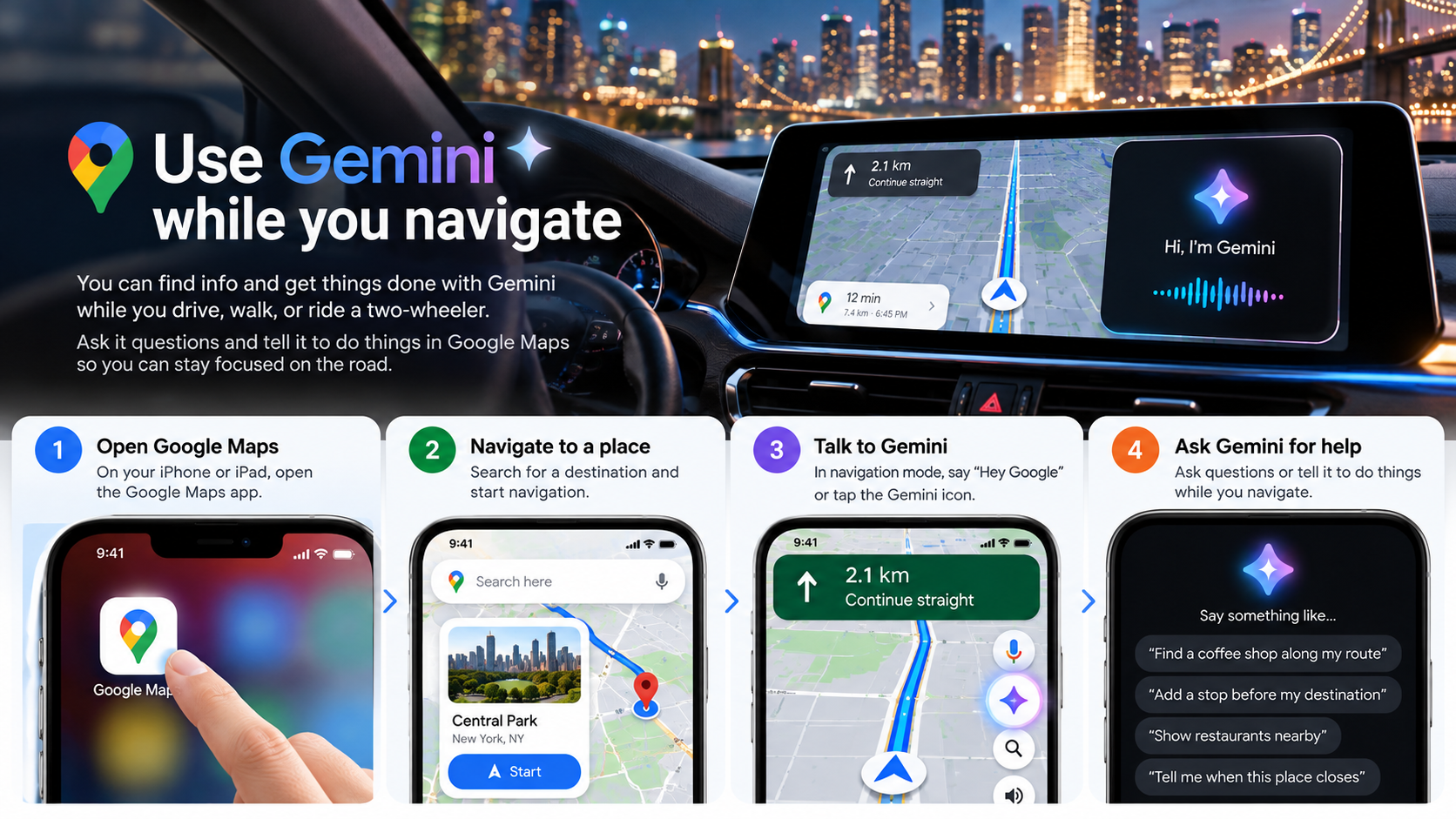
For example, imagine driving to another city and needing a quick coffee break. You can ask Gemini to find a nearby café along your route. You can also request recommendations based on specific preferences.
Gemini can help with several navigation-related tasks. These include finding destinations, adding stops, checking route information, and reporting traffic problems.
The assistant also understands follow-up questions. This makes conversations more natural than traditional voice commands. You can refine a search without repeatedly entering the same information.
Google’s integration combines Gemini’s conversational abilities with Google Maps’ location information. However, available responses and actions depend on the feature and regional support.
Contextual Search and Route Planning
One of the most useful benefits of Gemini in Google Maps is contextual search. Traditional navigation often requires drivers to search for specific categories or enter destination names manually.
Gemini makes this process more conversational. You can describe what you need instead of remembering exact search terms.
For example, you might ask:
- Find a coffee shop near my destination.
- Show restaurants along my current route.
- Find an EV charging station nearby.
- Add another stop before reaching my destination.
- Tell me when my destination closes.
Gemini can also provide information about places and help refine search results. This makes discovering suitable stops easier during longer journeys.
However, recommendations depend on available business information. Google Maps also uses location and visitor activity to estimate how busy a business is. Understanding how Google Maps knows a business is busy can help you make better decisions when choosing restaurants, shops, or other destinations. Opening hours, parking availability, and customer reviews should still be checked when necessary.
For drivers, the main advantage is convenience. You can request useful information through supported voice interactions instead of navigating multiple search screens.
Can I Use Google Maps Through Apple CarPlay?
Yes, Google Maps works with Apple CarPlay. You can display navigation directly on your vehicle’s compatible infotainment screen.
Apple introduced support for third-party navigation apps with iOS 12. This allowed iPhone users to choose alternatives to Apple Maps, including Google Maps. If you’re comparing navigation options, our guide to Apple Maps or Google Maps explains which app offers the better experience.
Once Google Maps is installed on your iPhone, you can access it through the CarPlay interface. Connect your iPhone using a compatible USB cable or wireless CarPlay connection. Then open Google Maps from your vehicle’s display.
Google Maps provides turn-by-turn directions, traffic information, route alternatives, and destination searches. You can also add stops during supported navigation sessions.
The CarPlay interface uses a simplified layout designed for driving. Its larger controls and clear navigation instructions help reduce unnecessary interaction with the screen.
Display Layout and Touchscreen Navigation
Google Maps on CarPlay provides a driving-focused interface. It displays your current route, upcoming turns, and estimated arrival information directly on the dashboard.
Depending on your vehicle and CarPlay configuration, you may also access a dashboard view alongside supported audio information.
Here are some useful features available through Google Maps on CarPlay:
- Turn-by-turn directions: Follow navigation instructions without constantly checking your iPhone.
- Live traffic updates: View traffic conditions and potential delays along your route.
- Alternative routes: Compare available routes when navigation options change.
- Destination searches: Search for places and add stops during supported navigation sessions.
- Incident reporting: Report certain road disruptions when the feature is available.
You can also download offline maps through Google Maps on your iPhone. These maps can help when mobile data coverage becomes unreliable.
However, not every mobile app feature appears on the CarPlay screen. Apple and Google control which functions are supported within the vehicle interface. If you’re considering another navigation option, compare Google Maps and Waze to understand their differences in navigation features, traffic updates, and driving experience.
How to Enable Gemini AI in Google Maps?
Setting up Gemini in Google Maps starts with updating your iPhone’s software and Google Maps application. You also need a compatible account and access to the feature in your region.
First, open the App Store and check whether Google Maps has an available update. Install the latest version before checking for Gemini functionality.
Next, open Google Maps and sign in to your Google account. Start navigation to a destination and check whether the Gemini icon or supported voice activation appears.
On supported iPhone versions, Google documents access through the navigation screen. You can say “Hey Google” or tap the Gemini icon when available.
CarPlay availability is a separate consideration. Connect your iPhone to your vehicle and open Google Maps on the dashboard. If Gemini integration has reached your account and region, its supported controls should appear during navigation.
Do not assume that changing microphone permissions alone enables Gemini on CarPlay. The feature must also be supported by Google’s current CarPlay rollout.
Permissions and Account Setup Tips
Correct account settings and permissions can help Google Maps and Gemini work properly. Before starting a journey, check that the application has the necessary access.
Follow these practical setup tips:
- Update Google Maps: Install the latest available version from the App Store.
- Check microphone access: Open iPhone Settings and allow Google Maps to access your microphone when requested.
- Sign in to Google: Use the account associated with your preferred Maps settings.
- Check Gemini availability: Confirm that Gemini navigation is supported in your country and language.
- Connect CarPlay: Pair your iPhone with a compatible vehicle using USB or wireless connectivity.
- Test before driving: Check that navigation and voice controls work while the vehicle is parked.
You should also review your Google account’s privacy and location settings. Some Gemini features use location information to provide relevant answers.
Avoid changing settings while driving. Complete the setup before starting your journey.
Most importantly, remember that updating your application does not guarantee immediate access to Gemini on CarPlay. Google may enable the feature gradually across different regions and accounts.
Final Thoughts: Is Gemini in Google Maps Worth Using With CarPlay?
Gemini in Google Maps brings a more conversational experience to everyday navigation. It helps drivers find nearby places, plan additional stops, and access useful travel information through voice commands. These features can make long journeys and daily commutes more convenient.
For Apple CarPlay users, the integration adds another layer of convenience without replacing Google Maps’ familiar navigation interface. However, availability depends on Google’s rollout, supported regions, and compatible software.
If you regularly use Google Maps while driving, Gemini is worth exploring once it becomes available on your device. Update your apps, check compatibility, and test the voice features before your next journey. Most importantly, keep your attention on the road and use hands-free controls whenever possible.