
Do Ergonomic Keyboards Really Help?
Spending eight hours a day typing can take a toll on your hands, wrists, and forearms. You might notice stiffness by lunchtime or a dull ache in your wrists by Friday afternoon. Many remote workers and office professionals turn to ergonomic keyboards to improve their typing comfort.
According to the Occupational Safety and Health Administration (OSHA), proper keyboard positioning helps maintain neutral wrist posture. This can reduce unnecessary stress during repetitive computer tasks.
Traditional flat keyboards may encourage awkward wrist angles and inward shoulder positioning. Over time, these habits can contribute to discomfort and muscle fatigue. However, switching to an ergonomic design involves more than buying a curved keyboard.
You need to understand how these keyboards work, what benefits they offer, and where they fall short. This guide explores their advantages, disadvantages, and popular Microsoft models. We also explain workplace ergonomics and the 20-8-2 rule for healthier daily computer use.
Do ergonomic keyboards really make a difference?
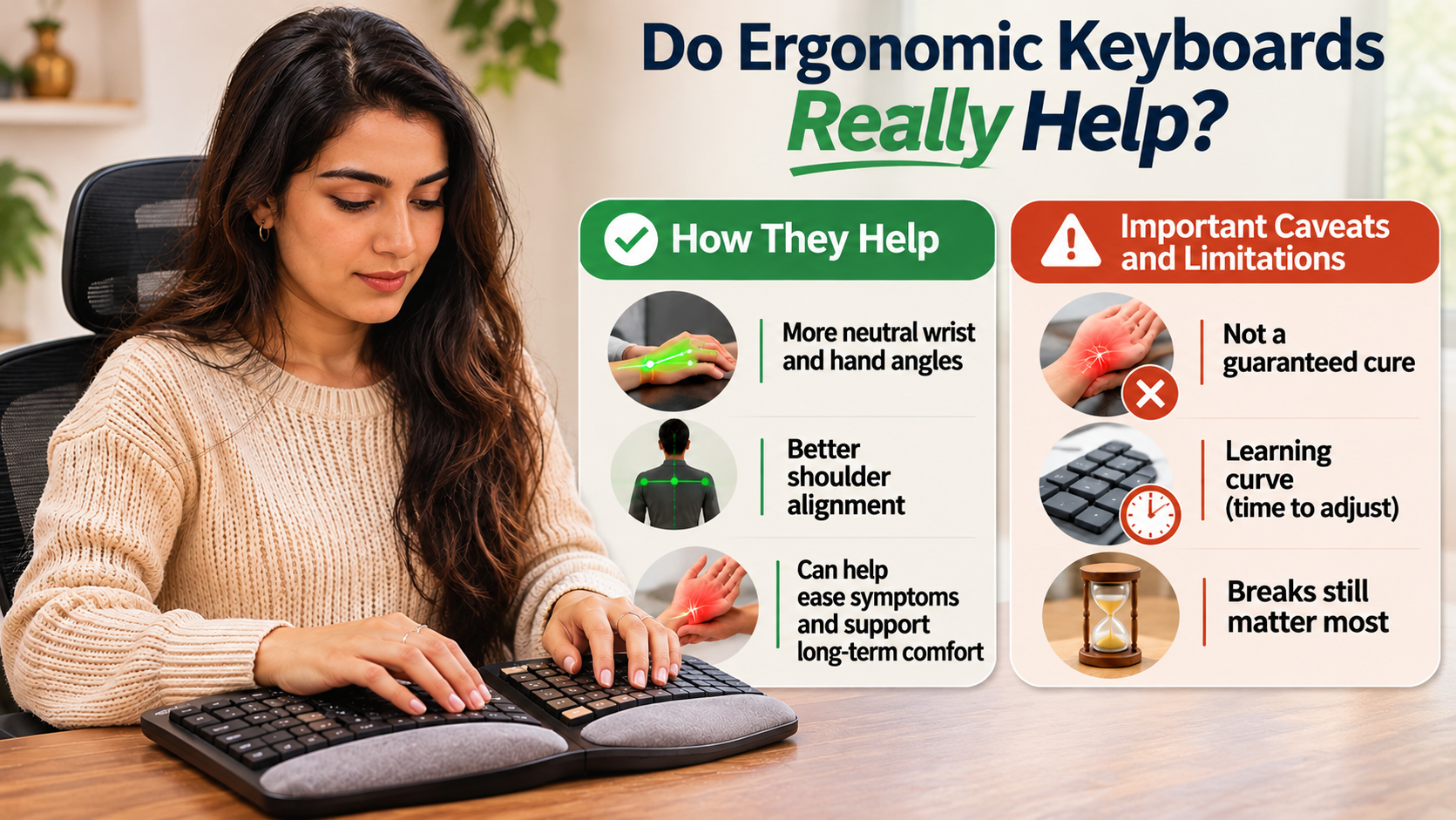
Yes, ergonomic keyboards can improve typing comfort by encouraging more natural hand, wrist, and forearm positioning. Traditional flat keyboards often require your hands to face downward. Some users also angle their wrists outward to reach the keys. Split and curved designs help reduce these awkward positions.
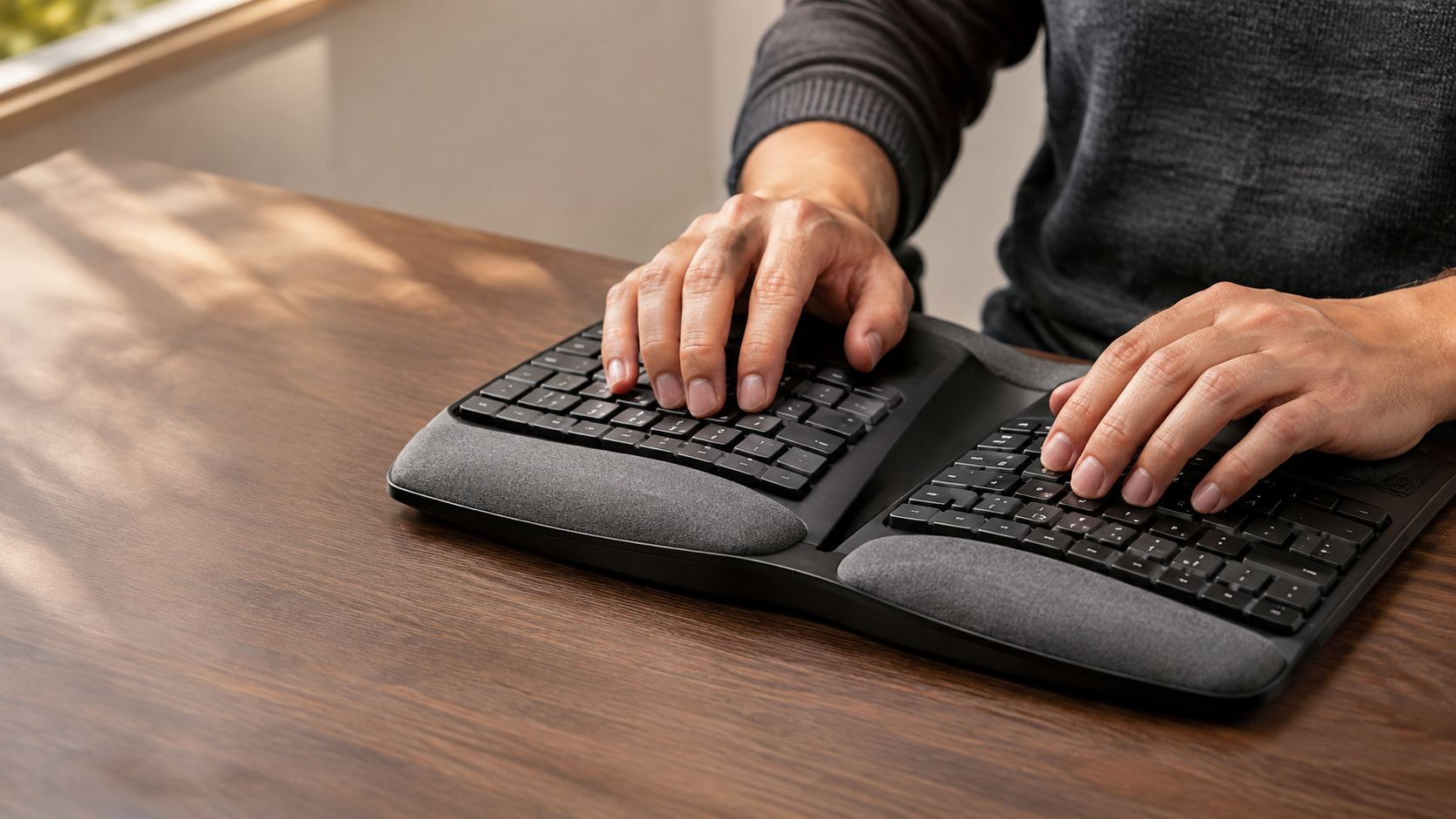
A split ergonomic keyboard separates the keys into two sections. This allows you to position each half closer to your shoulder width. Some models also feature a raised center, known as tenting, which changes the angle of your hands.
These adjustments may reduce unnecessary muscle tension during long typing sessions. They can also make your shoulders feel more relaxed. However, results depend on your body, typing habits, and keyboard design.
An ergonomic keyboard does not cure carpal tunnel syndrome or other medical conditions. It simply supports a more comfortable typing position. Proper desk height, mouse placement, and regular movement remain important.

Reducing Muscle Fatigue and Tendon Strain
One major advantage of ergonomic keyboards is their ability to support more natural hand positioning. Split layouts allow your hands to rest closer to shoulder width. This can reduce the inward shoulder rotation associated with narrow keyboard positions.
Some models also feature negative tilt, which lowers the front edge of the keyboard. This can help reduce upward wrist bending. Tented designs raise the center of the keyboard and change forearm rotation. If you are unsure which position offers better comfort, understanding whether your physical keyboard should be flat or tilted can help you choose a suitable setup. These features work differently, so choosing the right combination matters.
Consider these features when comparing ergonomic keyboards:
- Split layout: Separates the keys to support natural hand positioning.
- Tenting: Changes the angle of your hands and forearms.
- Negative tilt: Helps maintain a more neutral wrist position.
- Cushioned palm rest: Provides support when your hands are resting.
However, no single feature guarantees pain relief. Your keyboard should fit your body and working habits. Keep your wrists relaxed and avoid pressing them against hard surfaces while typing.
What are the disadvantages of using an ergonomic keyboard?
Despite their comfort benefits, ergonomic keyboards have several disadvantages. The biggest challenges include higher prices, unfamiliar layouts, and larger desk requirements. These factors can make switching difficult for people accustomed to traditional keyboards.
The learning curve is particularly noticeable with split and curved designs. Your fingers may need time to adjust to different key positions. During the transition, typing speed and accuracy can temporarily decrease.
Price is another important consideration. Premium ergonomic keyboards often cost more than standard office models. Some specialized designs also require additional accessories or compatible software.
Desk space can become a problem, especially with full-size split keyboards. Their wider layouts may push your mouse further away. This can create additional reaching if you do not arrange your workspace carefully. Before purchasing one, consider how to choose the right keyboard size for your desk, typing habits, and available workspace.
Travel presents another challenge. Bulky ergonomic models are less convenient for commuting or working remotely. Therefore, consider your workspace, budget, and typing habits before purchasing one.
Adapting to Non-Standard Key Layouts
Switching to an ergonomic keyboard can feel uncomfortable during the first few days. This is especially true for people who have developed unconventional typing habits. Split layouts may change how you reach certain keys with your fingers.
For example, some typists use their right index finger to press the B key. A traditional split layout may encourage using the left index finger instead. Adjusting to this arrangement requires practice and patience.
Your typing speed may temporarily decrease while your fingers learn the new positions. However, gradual practice can make the transition easier.
Use these tips when switching keyboards:
- Start slowly: Practice for short periods before using the keyboard all day.
- Learn proper finger placement: Follow the intended layout rather than repeating old habits.
- Avoid rushing: Focus on accuracy before trying to increase typing speed.
- Adjust gradually: Increase your daily usage as the layout becomes familiar.
Not every ergonomic keyboard requires extensive retraining. Some models retain traditional key arrangements while changing the overall shape. These can provide an easier transition for beginners.
Did Microsoft discontinue the ergonomic keyboard?
Yes, Microsoft discontinued its first-party PC accessories business in 2023. This included several popular ergonomic keyboard models. For years, products such as the Microsoft Natural Ergonomic Keyboard 4000 and Sculpt Ergonomic Keyboard were common office accessories.
Many users appreciated their split layouts, comfortable palm rests, and distinctive curved designs. Consequently, the discontinuation disappointed people who preferred these keyboards for everyday typing.
However, the original designs did not immediately disappear. In January 2024, accessories manufacturer Incase announced plans to bring back selected Microsoft-designed keyboards and other peripherals. The products were marketed under the Incase Designed by Microsoft branding.
This development offered an alternative for people who preferred Microsoft’s older ergonomic designs. However, availability has varied across products and retailers.
If you want to purchase one, check the manufacturer’s current product listings first. Also compare warranty coverage, compatibility, and return policies. Avoid assuming that every discontinued Microsoft model is available as a newly manufactured product.
Buying Revived Models Through Incase
Incase announced plans to revive selected Microsoft accessories using licensed designs. Its lineup included the Sculpt Ergonomic Keyboard and other familiar models. This gave previous Microsoft keyboard users another option to consider.
However, buyers should distinguish between a licensed revival and an identical product guarantee. Product specifications, manufacturing details, warranties, and availability should be checked individually.
Before purchasing a revived Microsoft-designed keyboard, consider these points:
- Check availability: Confirm that the exact model is currently available from the manufacturer.
- Verify branding: Look for the official Incase Designed by Microsoft product designation.
- Compare specifications: Check the layout, connectivity, palm rest, and included accessories.
- Review compatibility: Confirm that the keyboard supports your operating system and connection requirements.
- Check warranty coverage: Understand the manufacturer’s current support and replacement policies.
You should also compare prices with other ergonomic keyboard brands. Older Microsoft models can attract inflated resale prices. Paying extra for discontinued stock does not necessarily provide better comfort or reliability.
What are the disadvantages of ergonomics?
Ergonomics improves workplace comfort, but implementing it can create several challenges. The main disadvantages include equipment costs, individual differences, and the need for continuous adjustments.
Setting up an ergonomic workspace may require adjustable chairs, monitor arms, standing desks, and specialized keyboards. These products can become expensive, particularly when upgrading an entire office.
Another challenge is that ergonomic recommendations do not work equally well for everyone. People have different heights, shoulder widths, arm lengths, and working habits. A keyboard that feels comfortable for one person may create discomfort for another.
There is also a risk of becoming too dependent on equipment. Buying an expensive chair or keyboard does not automatically create a healthy working environment. Poor sitting habits and prolonged inactivity can still cause problems.
Effective ergonomics requires more than purchasing specialized products. You need to adjust your workspace, maintain comfortable positions, and change your posture regularly. The goal is to create an environment that supports your body rather than forcing it into one fixed position.
Why Equipment Cannot Replace Movement
Even the most comfortable ergonomic chair cannot replace regular physical movement. Sitting in one position for several hours can contribute to stiffness and muscular discomfort. This remains true even when your desk and chair are properly adjusted.
Your body benefits from changing positions throughout the workday. Standing occasionally, walking, and performing gentle stretches can help reduce prolonged static loading.
Consider incorporating these simple habits into your routine:
- Change positions regularly: Alternate between sitting and standing when possible.
- Take short walking breaks: Move around instead of remaining at your desk continuously.
- Adjust your workstation: Keep your monitor, keyboard, and mouse within comfortable reach.
- Relax your shoulders: Avoid raising or tightening them while typing.
- Stretch gently: Move your wrists, fingers, neck, and shoulders throughout the day.
Remember that standing continuously is not necessarily healthier than sitting continuously. Both positions can cause discomfort when maintained for too long. A combination of comfortable postures and regular movement provides a more practical approach to workplace ergonomics.
What is the 20-8-2 rule in ergonomics?
The 20-8-2 rule is a workplace guideline developed by ergonomics researcher Dr. Alan Hedge at Cornell University. It encourages workers to alternate between sitting, standing, and moving throughout the workday.
The guideline divides each 30-minute period into three activities:
- 20 minutes: Sit in a comfortable, neutral posture.
- 8 minutes: Stand at an appropriately adjusted workstation.
- 2 minutes: Move around, walk, or perform gentle stretches.
The purpose is to reduce prolonged sitting and encourage regular changes in posture. Rather than standing throughout the entire workday, you alternate between different positions.
Dr. Hedge describes this schedule as a general target rather than a strict requirement. Your physical needs and workplace conditions may require adjustments.
Following this approach can make it easier to introduce movement into a busy schedule. However, the 20-8-2 rule is not a medical treatment or a guaranteed way to prevent health problems. It works best alongside proper workstation adjustments and regular physical activity.
How to Apply the 20-8-2 Cycle Daily
Applying the 20-8-2 rule does not require complicated equipment. You mainly need a way to track time and a workspace that allows you to change positions.
Start by setting a timer for each 30-minute cycle. Spend the first 20 minutes sitting comfortably. Then raise your adjustable desk and stand for eight minutes. Use the final two minutes to move around or stretch gently.
Here are some practical ways to follow the routine:
- Set reminders: Use a desktop timer or smartwatch to track each transition.
- Adjust your desk: Keep your keyboard and monitor at comfortable heights when standing.
- Move during breaks: Walk around your workspace or refill your water glass.
- Stretch gently: Roll your shoulders and move your wrists without forcing them.
- Stay consistent: Repeat the cycle throughout your working day when practical.
You do not need to follow every minute perfectly. Adjust the schedule according to your comfort and daily responsibilities.
The most important goal is to avoid remaining in one position for extended periods. Small, consistent movements can make your workday more comfortable.
Conclusion: Are Ergonomic Keyboards Worth It?
Ergonomic keyboards can make everyday typing more comfortable by supporting natural hand and wrist positioning. Their split layouts, tented designs, and cushioned palm rests may help reduce unnecessary muscle strain during long working hours.
However, they are not a perfect solution for everyone. Higher prices, unfamiliar layouts, and adjustment periods can make switching difficult. The best choice depends on your typing habits, comfort preferences, and workspace requirements.
If you spend several hours typing every day, an ergonomic keyboard is worth considering. Choose a design that fits your hands, supports a neutral wrist position, and feels comfortable during extended use.
Most importantly, remember that healthy typing involves more than choosing the right keyboard. Maintain proper posture, adjust your workstation, and take regular movement breaks. Combining suitable equipment with healthy working habits offers a more sustainable approach to everyday computer comfort.