How to Create Custom Widgets for Your Pixel
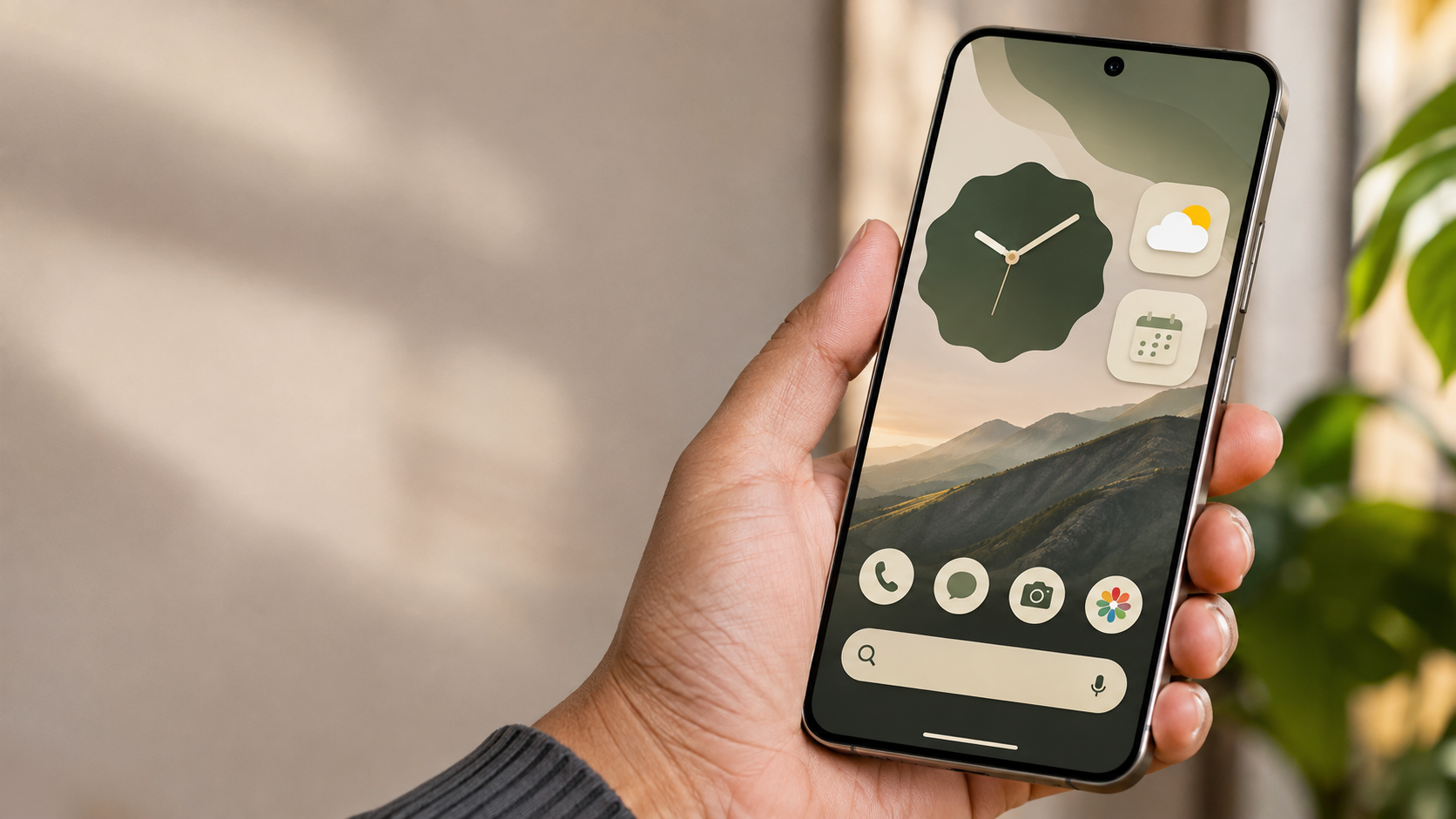
Personalizing your smartphone makes everyday tasks easier and your home screen more useful. Learning how to create custom widgets lets you access important information without opening multiple apps. You can display clocks, weather updates, calendars, photos, and other useful details directly on your Pixel screen.
Google Pixel phones offer several built-in customization options. Android also supports third-party widget creators for more advanced designs. These tools let you adjust colors, fonts, layouts, and interactive elements to match your preferences.
A well-organized home screen can also reduce unnecessary app switching. You can place frequently used information within easy reach and remove visual clutter. Google’s Material You design features help create a consistent appearance through coordinated colors and themes.
In this guide, you’ll learn how to add custom widgets to your Google Pixel, create your own designs, and customize app icons. We’ll also explain how to organize your home screen and personalize it without installing additional applications.
How Can I Add Custom Widgets to My Google Pixel Phone?
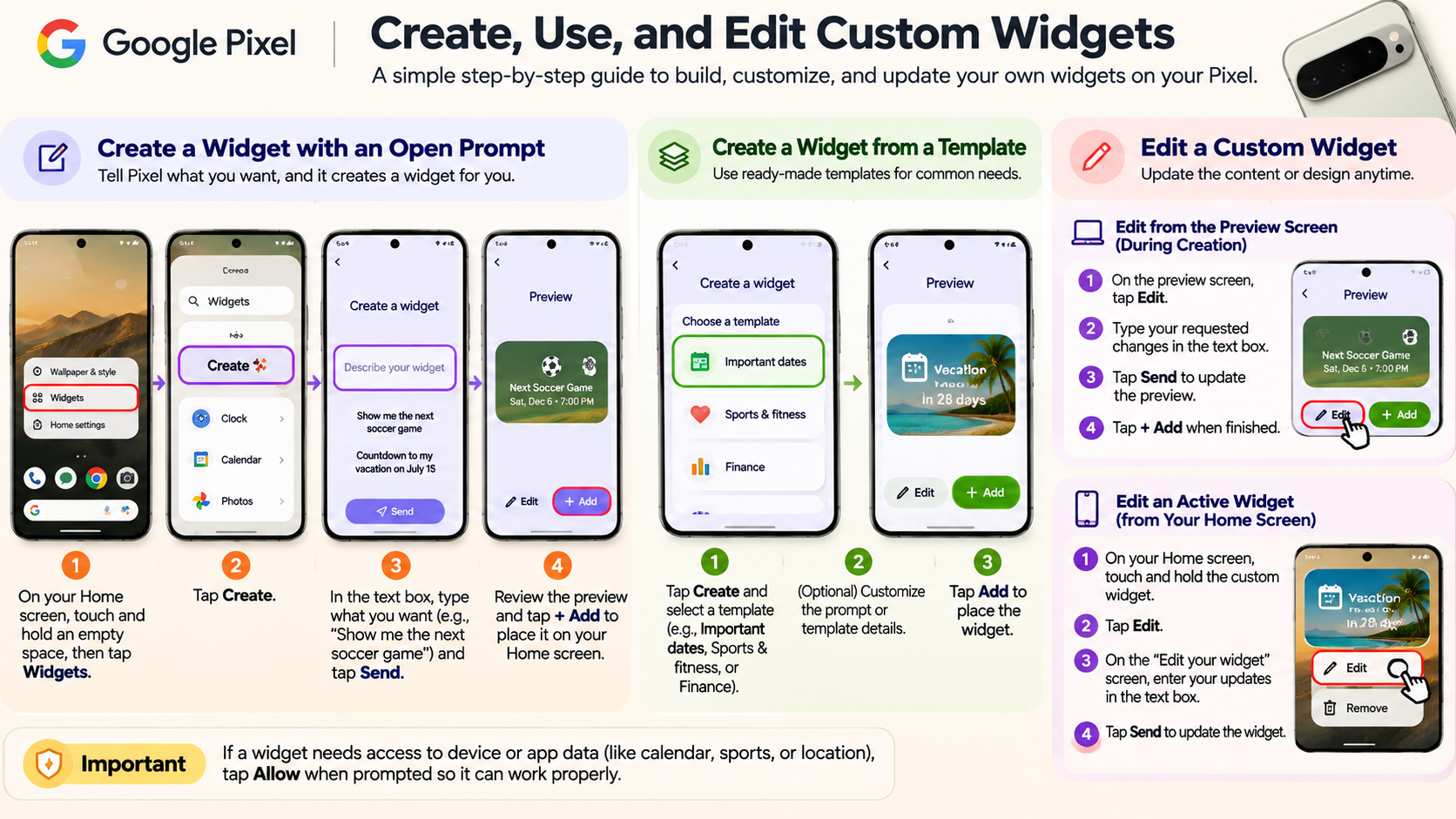
Adding custom widgets to your Google Pixel is simple. You don’t need technical knowledge or additional software to use the built-in options. Start by finding an empty space on your home screen. Touch and hold that area until the customization menu appears.
Tap Widgets to open the available widget collection. You’ll see different categories based on the applications installed on your phone. These may include Google, Clock, Calendar, Photos, and other supported applications.
Follow these steps to add a widget:
- Touch and hold an empty area on your home screen.
- Select Widgets from the menu.
- Find the application containing your preferred widget.
- Tap the application to view its available designs.
- Touch and hold the widget you want to use.
- Drag it to your preferred home screen position.
- Release your finger to place it.
Some widgets also support resizing after placement. Available options depend on the application and widget design.
Resizing and Adjusting Widget Layouts
Resizing widgets helps you create a balanced home screen. Some widgets display limited information when they occupy a small area. Expanding them can reveal additional details without opening the original application.
To resize a supported widget, touch and hold it on your home screen. Release your finger when the selection outline appears. If resizing is supported, small adjustment handles will appear around the widget.
Drag these handles inward or outward to change its dimensions. Once you’re satisfied, tap outside the widget to save its position.
Consider these layout suggestions when arranging your widgets:
- Clock widgets: Choose a size that displays the time clearly without covering other shortcuts.
- Calendar widgets: Use a larger layout to display upcoming appointments and events.
- Weather widgets: Select a design that shows temperature and forecast information.
- Photo widgets: Choose a suitable frame size for displaying personal pictures.
Avoid filling every available space. Leave enough room for frequently used applications and shortcuts. A balanced layout improves visibility and makes navigation easier.
How Do I Make My Own Custom Widgets?
If the built-in Pixel widgets don’t offer enough customization, you can create your own designs instead. A widget-building application gives you greater control over appearance, layout, and functionality. For this purpose, KWGT (Kustom Widget Maker) is a popular option available on the Google Play Store.
With KWGT, you can combine different design elements to build personalized widgets. For example, you can add text, shapes, images, colors, and custom fonts. Additionally, the application supports dynamic information and interactive touch actions. As a result, you can create widgets that look attractive and perform useful tasks.
Follow these simple steps to create your first widget using KWGT:
- First, download KWGT from the Google Play Store.
- Next, open the application and complete the initial setup.
- Then, return to your Pixel home screen.
- Long-press an empty area and select Widgets.
- Find KWGT and choose a suitable widget size.
- Drag the widget onto your home screen.
- Once placed, tap the widget to open the editor.
- Choose a blank design or select an available template.
- Finally, customize your design and save your changes.
After saving, your new widget should appear on the home screen. However, some advanced templates and customization features may require KWGT Pro.
Using Data Variables in Custom Designs
Dynamic data makes custom widgets more useful and interactive. Unlike ordinary decorative widgets, these designs can display information that changes automatically. For example, a custom clock can show the current time without requiring manual updates.
Additionally, KWGT supports different data sources and customization functions. You can use these features to create personalized information panels. Therefore, instead of adding several separate widgets, you can combine multiple details into one convenient design.
Depending on available data sources and integrations, you can display:
- Time and date: Show the current time and relevant calendar information.
- Battery information: Display your phone’s current battery percentage.
- Weather updates: Show temperature and other available weather details.
- Fitness statistics: Display supported activity information through compatible integrations, such as Health Connect.
- Interactive shortcuts: Assign touch actions to launch applications or perform supported tasks.
Furthermore, you can combine these elements to create a single, compact widget. For instance, add a clock, battery indicator, and date to one design. This approach saves home screen space while keeping important information accessible.
However, some data sources require additional permissions or configuration. Therefore, check the application’s documentation before using specific features.
How to Create Custom Icons on Pixel?
Custom app icons can give your Google Pixel home screen a more consistent appearance. You can personalize supported icon styles, colors, and shapes through Google’s built-in customization options. If you also use a Samsung device, explore these custom app icon customization options to personalize its home screen. Depending on your Android version, additional icon customization features may also be available.
To get started, touch and hold an empty area on your home screen. Next, open Wallpaper & style and look for the available icon customization settings. Depending on your device, you may find options for changing icon styles, shapes, and colors.
Follow these steps to explore the available options:
- First, open Wallpaper & style from your home screen.
- Next, navigate to the icon customization section, if available.
- Choose one of the supported icon styles.
- Then, explore additional customization options.
- Select your preferred appearance.
- Finally, apply the changes to your home screen.
However, Google’s built-in options may not provide every customization feature you want. If you need more control, applications such as Shortcut Maker offer additional options. Alternatively, you can use a compatible third-party launcher.
These methods may create individual shortcuts instead of replacing the original application icons. Therefore, choose the approach that best matches your customization requirements.
Maintaining Consistent Icon Aesthetics
Changing app icons can improve the appearance of your home screen. However, combining unrelated colors and shapes can make the layout look cluttered. Instead, maintaining a consistent design helps create a cleaner and more organized interface.
Start by choosing a simple color palette that complements your wallpaper. For example, you can use neutral shades, soft pastels, or matching accent colors. Additionally, try using similar shapes and visual styles across your frequently used applications.
Keep these practical suggestions in mind:
- Choose matching colors: Use a limited color palette throughout your home screen.
- Use clear images: Select high-resolution icons to prevent blurry edges.
- Maintain consistent shapes: Avoid combining too many different icon styles.
- Organize applications: Group related shortcuts into separate folders.
- Check visibility: Ensure icons remain easy to recognize against your wallpaper.
Furthermore, transparent PNG images can help create cleaner-looking custom icons. However, remember that shortcut-based icons may behave differently from native application icons. For this reason, test your preferred method before customizing every application.
Ultimately, a consistent icon design makes your Pixel home screen easier to navigate and visually appealing.
How to Add Custom Widgets on Home Screen?
After creating or selecting a widget, you can place it anywhere on your Google Pixel home screen. Fortunately, the process is similar for built-in Google widgets and designs created through third-party applications.
First, navigate to the home screen page where you want the widget. Then, touch and hold an empty area until the customization menu appears. Select Widgets and find the application containing your preferred design.
Next, tap the application to explore its available widget sizes. Choose your preferred design and touch and hold it. Afterward, drag it toward the desired position on your home screen. Your Pixel will indicate the available placement areas as you move the widget.
Once the widget reaches the correct position, release your finger. If the design supports resizing, use the available adjustment handles to change its dimensions.
Before finishing, check whether the widget covers important shortcuts or other information. Also, leave enough space for comfortable navigation and clear visibility. If your layout changes later, you can move widgets between different home screen pages.
Managing Multiple Home Screen Pages
You don’t need to place every widget on your primary home screen. Instead, Google Pixel lets you organize applications, shortcuts, and widgets across multiple pages. This makes it easier to separate different activities without overcrowding your main screen.
To create another home screen page, start by touching and holding an application or shortcut. Next, drag it toward the right edge of your display. Continue moving it until another home screen page appears. Finally, release your finger to place the item there.
For better organization, consider arranging your pages according to your daily activities:
- Main page: Keep your clock, calendar, and frequently used applications.
- Work page: Add email, productivity, and meeting-related shortcuts.
- Personal page: Include photo widgets, music controls, and entertainment applications.
- Fitness page: Place supported activity and health-related widgets together.
Additionally, you can move existing widgets between pages whenever necessary. Simply touch and hold the widget, then drag it toward your preferred page.
However, avoid adding too many unnecessary elements. Keep your primary screen simple and prioritize information you check frequently. As a result, your Pixel home screen will remain organized and easier to navigate.
How to Add Custom Widgets Without an App?
You can personalize your Google Pixel without downloading a separate widget-building application. However, it’s important to understand the difference between native widgets and custom-designed widgets. Built-in options let you arrange and adjust existing widgets. They don’t offer the same creative freedom as dedicated widget-building applications.
To get started, touch and hold an empty area on your home screen. Next, tap Widgets to explore the available options. You’ll find different categories under Google, Clock, Calendar, Photos, and other installed applications.
Depending on your device and installed applications, you can choose from several built-in widgets. For example, Google Photos offers photo-related widgets that display selected pictures and memories. Similarly, Clock and Calendar widgets provide useful information directly on your home screen.
Additionally, you can personalize the overall appearance through Google’s built-in Wallpaper & style settings. These options let you adjust available color palettes, supported icon styles, and other visual elements.
This method is particularly useful if you prefer a simple setup. You can organize your home screen, customize supported designs, and personalize your phone without installing additional widget-building software.
Leveraging Android’s Wallpaper & Style Menu
The Wallpaper & style menu provides several built-in customization options for Google Pixel users. It lets you adjust the appearance of your home screen without installing a separate personalization application.
To access these settings, touch and hold an empty area on your home screen. Select Wallpaper & style from the customization menu. You’ll find options for changing wallpapers, selecting color palettes, and adjusting supported icon styles.
Depending on your Pixel model and Android version, available features may include:
- Color palettes: Select colors that complement your current wallpaper.
- Icon styles: Apply supported icon appearances and customization options.
- Icon shapes: Choose from the available shapes for compatible home screen icons.
- Home screen layout: Adjust the available grid and icon arrangement.
- Wallpaper settings: Select personal photos or built-in wallpaper designs.
Some customization options may not appear on every Pixel device. Google also updates these features through Android releases.
For the latest instructions, visit Google Pixel Help. You can check which customization features your device currently supports.
Final Tip: Start with native widgets and wallpaper settings before installing additional applications. If you need more creative control, KWGT offers advanced widget-building features. Combine both approaches to create a Pixel home screen that looks organized and supports your everyday needs.
Final Thoughts
Creating custom widgets on your Google Pixel is an easy way to make your smartphone more personal and functional. You can start with built-in Google widgets, adjust your home screen layout, and explore different icon styles. If you want more creative freedom, tools like KWGT let you design widgets that match your preferences.
You don’t need to change everything at once. Start with a simple clock, weather, or photo widget and gradually experiment with different layouts. Keep your icons consistent and avoid overcrowding your screen. With a few simple adjustments, you can create a clean, attractive, and practical Pixel home screen that suits your everyday needs.