
How to Connect an Apple Pencil to an iPad: Complete Step-by-Step Guide
Learning how to connect an Apple Pencil to an iPad unlocks more ways to use your tablet. You can take handwritten notes, create digital illustrations, and annotate PDF documents. However, the setup process depends on your Apple Pencil generation and iPad model.
According to Apple Support, different Apple Pencil models use different pairing and charging methods. Some connect through a magnetic connector, while others require a USB-C or Lightning connection.
Before starting, check that your iPad supports your Apple Pencil. Also, make sure Bluetooth is enabled and your stylus has enough battery power.
In this guide, you’ll learn how to pair an Apple Pencil with an iPad, connect compatible models wirelessly, and troubleshoot common connection problems. We’ll also explain how to make your Apple Pencil recognizable to your tablet.
How Do I Pair My Apple Pencil With My iPad?
Pairing an Apple Pencil with an iPad is usually straightforward. However, the steps depend on which model you own. First, open Settings > Bluetooth and make sure Bluetooth is enabled. Next, follow the instructions for your particular Apple Pencil.
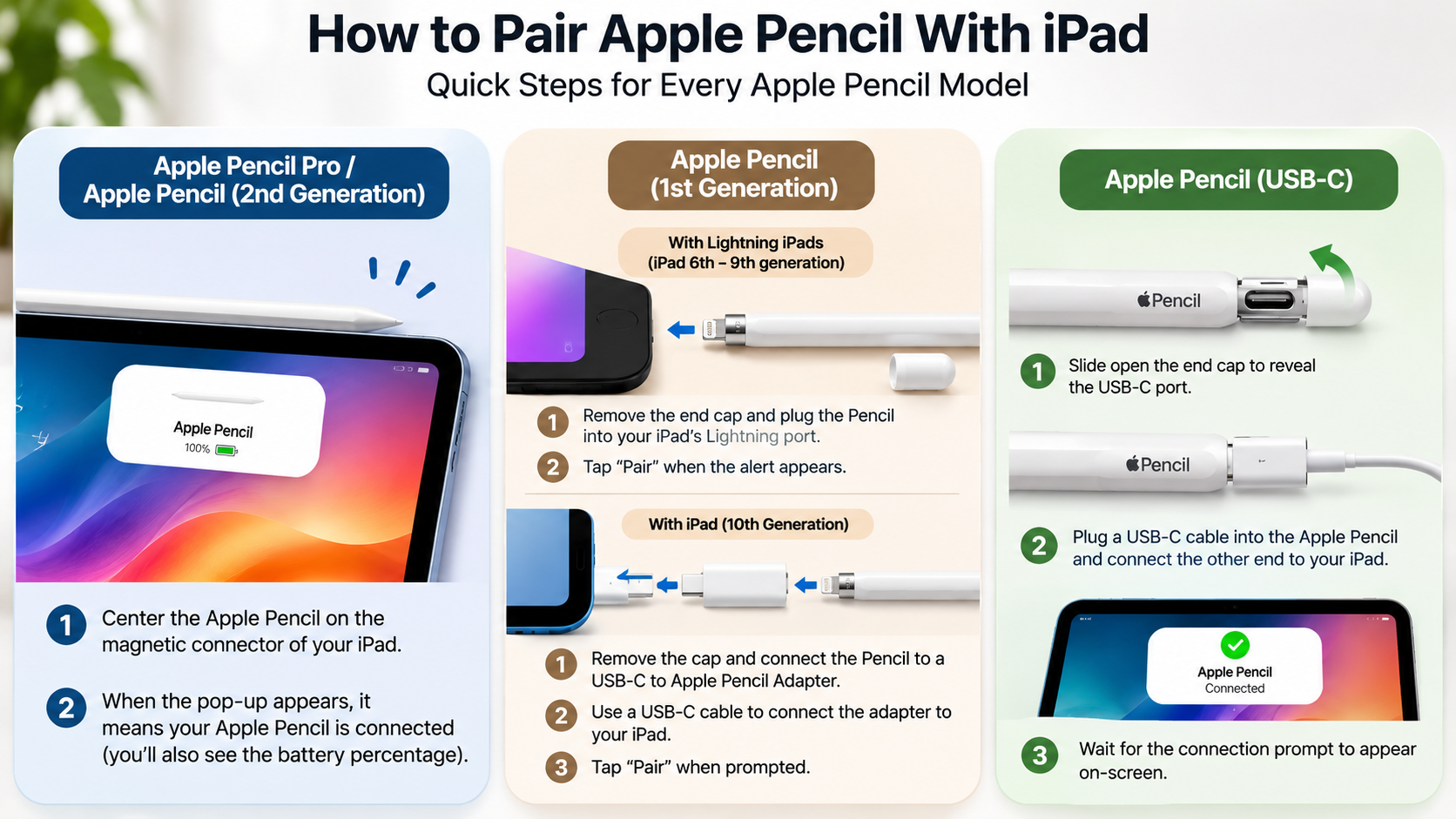
For Apple Pencil Pro and Apple Pencil (2nd generation), attach the flat side of the stylus to the magnetic connector on your compatible iPad. Keep it centered on the connector and wait for the pairing prompt.
For Apple Pencil (1st generation), remove the cap and connect its Lightning connector to a compatible iPad. If you use an iPad with a USB-C port, you’ll need the appropriate USB-C to Apple Pencil Adapter and a compatible cable.
For Apple Pencil (USB-C), slide open its end to reveal the USB-C port. Connect it to your iPad using a USB-C cable. When the pairing notification appears, tap Connect or Tap to Connect, depending on the model.
Once pairing finishes, disconnect the cable if necessary. Your Apple Pencil is ready to use.

Check Compatibility Before Pairing
Before attempting to connect an Apple Pencil to an iPad, verify that both devices are compatible. Apple offers several stylus models, but they don’t work with every iPad. If you’re considering a second-hand tablet, review the pros and cons of buying a used iPad before choosing a model. Choosing the wrong generation can prevent pairing, even when Bluetooth works correctly.
Here is a quick compatibility overview:
| Apple Pencil model | Compatible iPad models |
|---|---|
| Apple Pencil Pro | Selected iPad Pro M4/M5, iPad Air M2/M3/M4, and iPad mini A17 Pro models |
| Apple Pencil (2nd generation) | Selected iPad Pro 11-inch and 12.9-inch models, iPad Air 4th/5th generation, and iPad mini 6 |
| Apple Pencil (USB-C) | Selected iPad Pro, iPad Air, iPad mini 6/A17 Pro, iPad 10th generation, and iPad A16 models |
| Apple Pencil (1st generation) | Selected older iPad, iPad Air, iPad mini, and iPad Pro models |
Important: The iPad 10th generation and iPad A16 require the USB-C to Apple Pencil Adapter when using the first-generation Pencil.
Check the complete Apple Pencil compatibility list before purchasing or pairing your accessory. Always confirm the exact iPad generation, not just its product name.
Can I Connect an Apple Pencil to an iPad Without Plugging It In?
Yes, but this depends on your Apple Pencil model. The Apple Pencil Pro and Apple Pencil (2nd generation) support magnetic pairing. Simply attach either stylus to the magnetic connector on a compatible iPad. The tablet recognizes the accessory and begins charging it wirelessly.
However, not every Apple Pencil supports this feature. The Apple Pencil (1st generation) requires a Lightning connection or the appropriate adapter. The Apple Pencil (USB-C) also needs a physical USB-C cable for initial pairing.
After completing the initial setup, these wired models communicate with the iPad wirelessly during normal use. Therefore, you don’t need to keep them plugged in while writing or drawing.
Remember that magnetic attachment alone doesn’t mean every model can pair wirelessly. The Apple Pencil (USB-C) can attach magnetically for storage, but it doesn’t support magnetic charging or pairing.
Wireless Magnetic Pairing Benefits
Magnetic pairing makes using compatible Apple Pencil models more convenient. Instead of connecting a cable every time, you can attach the stylus directly to your iPad. This feature also helps keep the accessory in a consistent storage position. If you’re looking to outfit your tablet with other useful add-ons, explore these iPad accessories that cost less than Apple.
Here are some practical benefits:
- Convenient pairing: Attach your Apple Pencil Pro or second-generation model to the magnetic connector to initiate pairing.
- Wireless charging: Compatible magnetic models charge while attached to the iPad.
- Easy storage: The magnetic connection keeps your stylus attached to the tablet.
- Quick availability: You can keep your accessory close whenever you need to take notes or draw.
- Less cable clutter: Magnetic models don’t require a separate charging cable for everyday charging.
However, remember that these benefits depend on your iPad and Apple Pencil combination. The USB-C model supports magnetic storage but requires a cable for charging and pairing. Check compatibility before assuming your stylus supports every magnetic feature.
Why Won’t My Apple Pencil Connect to My iPad?
If your Apple Pencil won’t connect to your iPad, several issues could be responsible. The most common causes include an incompatible device, low battery, disabled Bluetooth, or an unsuccessful pairing attempt.
Start by checking whether your iPad supports your particular Apple Pencil generation. Next, make sure Bluetooth is enabled and charge the stylus if necessary. A completely depleted battery can prevent the accessory from pairing.
Software problems can also interrupt the connection. Installing the latest compatible iPadOS update may resolve certain Bluetooth or accessory-related issues. If your Apple Pencil previously worked, removing its saved Bluetooth connection and pairing it again may help.
For magnetic models, check whether your protective case interferes with the magnetic connector. Remove the case temporarily and attach the stylus directly to the iPad.
If these steps don’t work, restart your iPad and attempt the pairing process again. Persistent connection problems may require professional inspection.
Remove Thick Protective Cases
A protective iPad case can sometimes interfere with Apple Pencil pairing and charging. This is particularly relevant for the Apple Pencil Pro and second-generation model. Both depend on the magnetic connector located along the side of compatible iPads.
Some bulky cases cover this area or prevent the stylus from sitting correctly against the magnetic surface. As a result, your iPad might not recognize the accessory or initiate charging.
Try these steps to identify the problem:
- Remove your iPad’s protective case.
- Check the magnetic connector for dust or debris.
- Place your Apple Pencil directly against the connector.
- Wait for the pairing notification to appear.
- Check whether the stylus starts charging.
If pairing works without the case, your cover may be causing the interference. Consider using a compatible case with an appropriate Apple Pencil charging cutout.
Keep in mind that this solution mainly applies to magnetic models. If you use a first-generation or USB-C Apple Pencil, inspect the relevant Lightning or USB-C connection instead.
How Do I Get My iPad to Recognize My Apple Pencil?
If your iPad doesn’t recognize your Apple Pencil, begin with a few basic checks. First, confirm that Bluetooth is enabled under Settings > Bluetooth. Next, check whether your stylus has enough battery power to establish a connection.
Reconnect the accessory using the correct method for its generation. Attach magnetic models to the connector, or use the required cable for wired pairing. Give your iPad a few seconds to display the pairing notification.
If your Apple Pencil appears under My Devices but doesn’t connect, tap the information icon beside its name. Select Forget This Device to remove the existing Bluetooth pairing. Then reconnect your stylus and follow the on-screen instructions.
You can also restart your iPad while keeping the Pencil connected. This may resolve temporary software issues that prevent accessory recognition.
If the problem continues, update iPadOS and repeat the pairing process. If your iPad still doesn’t detect the accessory, contact Apple Support for further assistance.
Clean the Charging Contacts
Dirt and debris around the charging connection can sometimes interfere with Apple Pencil pairing. This is especially important when using magnetic models. A clean connection helps the stylus sit correctly against the iPad.
Follow these simple cleaning steps:
- Detach your Apple Pencil from the iPad.
- Inspect the magnetic connector for visible dust or debris.
- Gently wipe the stylus and connector area with a clean, dry microfiber cloth.
- Check the Lightning or USB-C connection if your model uses a cable.
- Reconnect the accessory and check whether your iPad recognizes it.
Avoid using water, cleaning liquids, or sharp objects around the charging contacts. These can damage the accessory or your tablet.
Also, never force a connector into the charging port. If you notice visible damage or persistent connection problems, seek professional assistance.
Regularly checking the charging area can help prevent connection problems. It also keeps your Apple Pencil and iPad ready for everyday use.
How Do I Make an Apple Pencil Discoverable?
Apple Pencil models don’t have a dedicated power or Bluetooth pairing button. Instead, you initiate pairing by connecting the stylus to a compatible iPad. The exact method depends on the generation.
For Apple Pencil Pro and Apple Pencil (2nd generation), attach the stylus to the magnetic connector on your iPad. This initiates the pairing process and allows the tablet to recognize the accessory.
For Apple Pencil (1st generation), remove the cap and connect the Lightning end to a compatible iPad. If you’re using an iPad with USB-C, use the required adapter and cable.
For Apple Pencil (USB-C), slide open the end of the stylus and connect it using a USB-C cable. Tap the pairing option when it appears on the screen.
Before attempting any of these methods, check Bluetooth and battery levels. If the pairing notification doesn’t appear, leave the accessory connected briefly and try again.
Avoid Pairing With Multiple Devices
An Apple Pencil can be paired with one iPad at a time. If you want to use it with another compatible tablet, you’ll need to establish a new connection.
For example, if you previously used your Apple Pencil with another iPad, connect it to the new tablet using its supported pairing method. You may need to repeat the initial setup before using it.
Follow these tips when switching between iPads:
- Check compatibility: Make sure the new tablet supports your Apple Pencil generation.
- Enable Bluetooth: Turn on Bluetooth in the new iPad’s Settings.
- Reconnect the accessory: Use the appropriate magnetic or cable connection.
- Check existing pairing: If necessary, remove an old Bluetooth entry and attempt pairing again.
- Allow charging time: A low battery can prevent successful pairing.
Don’t assume that simply turning off Bluetooth on another iPad will always resolve the issue. Follow the pairing instructions for your specific model.
Once the new connection is established, test your Apple Pencil in Notes or another compatible app. This confirms that the tablet recognizes the accessory and that its basic functions work correctly.
Conclusion
Connecting an Apple Pencil to an iPad is simple once you understand your device’s compatibility and pairing method. Whether you use the Apple Pencil Pro, second-generation, first-generation, or USB-C model, following the correct setup steps helps establish a reliable connection.
If your Apple Pencil doesn’t connect, check Bluetooth, battery levels, and compatibility first. You can also restart your iPad, remove an existing Bluetooth pairing, and reconnect the stylus. For magnetic models, removing a protective case may also resolve connection problems.
Before purchasing or pairing an Apple Pencil, always check Apple’s official compatibility list. Choosing the correct model ensures you can enjoy its supported features without unnecessary connection issues. Once connected, you can start taking notes, drawing, editing documents, and making the most of your iPad. If you regularly take notes, comparing digital and handwritten note-taking methods can help you find the approach that suits your workflow.