
Can You Use HDMI and DisplayPort at the Same Time?
Setting up a multi-monitor workstation can significantly improve your daily productivity. However, connecting multiple screens often raises an important hardware question: can you use HDMI and DisplayPort at the same time? The good news is that most modern computers support both connections simultaneously.
Modern graphics cards from manufacturers like NVIDIA offer multiple video outputs. These ports allow you to connect different monitors without requiring identical cables.
Some users worry that mixing display standards might cause flickering, resolution problems, or driver conflicts. Fortunately, HDMI and DisplayPort can work together without creating these issues under normal conditions.
Whether you are building a gaming setup or organizing your home office, you can use both connections. You simply need compatible hardware and properly configured display settings.
In this guide, you will learn how to set up dual monitors using HDMI and DisplayPort. We will also explain cable differences, adapter quality, hardware compatibility, and common display problems.
Can You Use HDMI And DisplayPort At The Same Time?
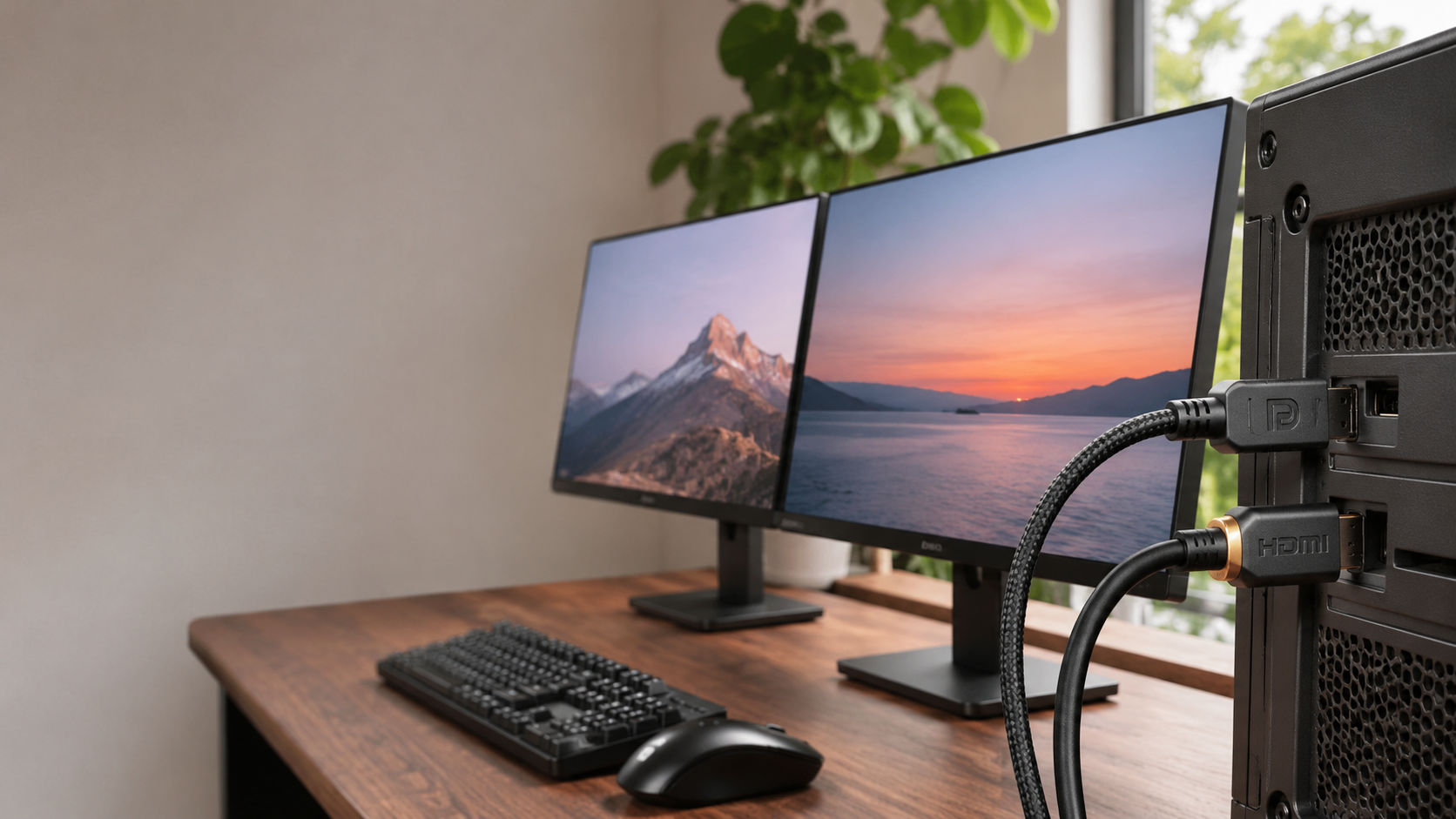
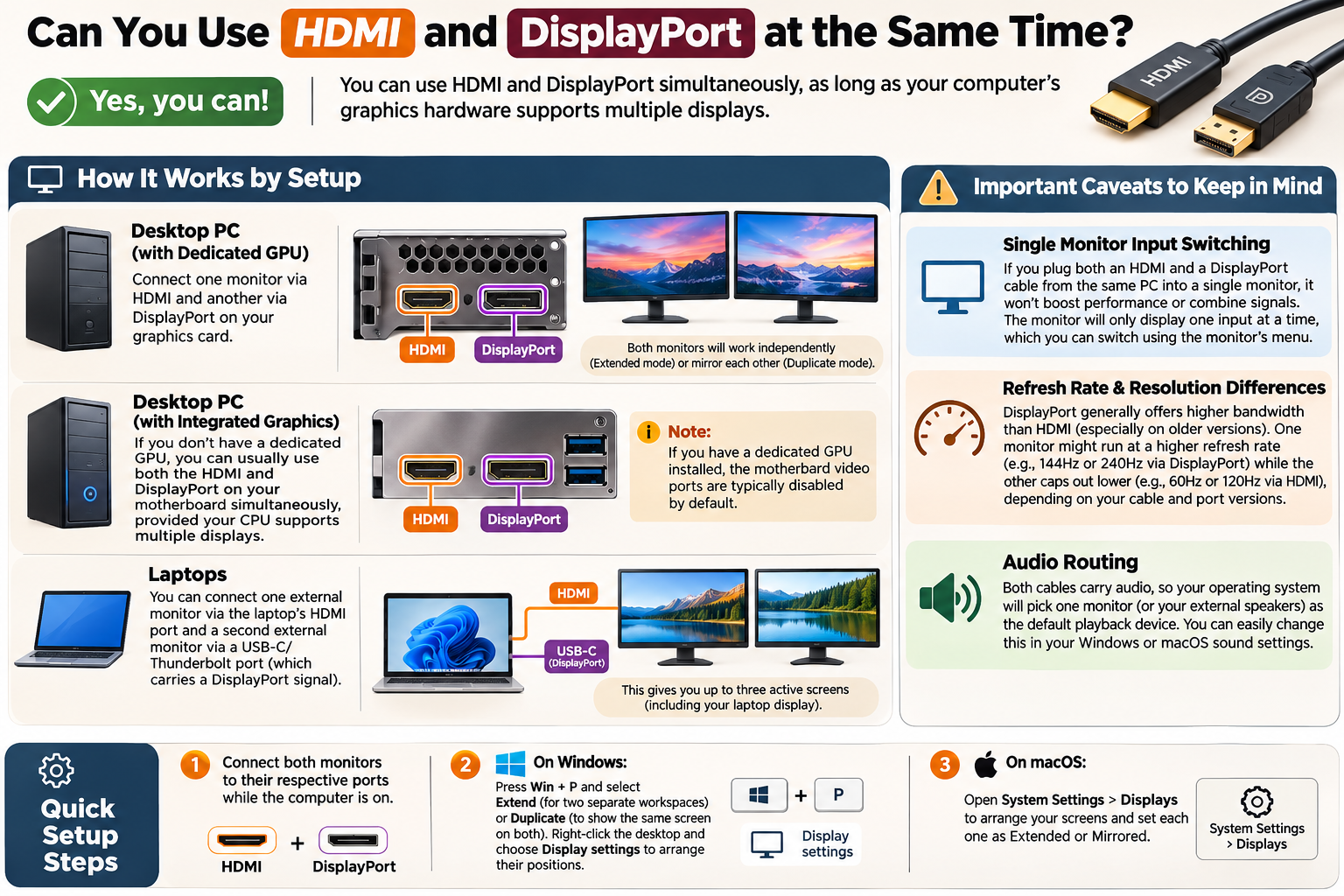
Yes, you can use HDMI and DisplayPort at the same time on most modern desktop computers and laptops. Both connections can transmit video signals simultaneously. Your graphics processor manages these signals independently, allowing each connected monitor to display separate content.
For example, you can connect your primary monitor through DisplayPort and your secondary monitor through HDMI. Windows and macOS can detect both displays automatically. You can then extend your desktop, duplicate screens, or choose which monitor acts as your primary display.
However, your computer must support multiple displays. The number of supported monitors depends on your graphics processor, available ports, and hardware specifications. Some laptops also have limitations on simultaneous external displays.
Before connecting everything, check your graphics card or laptop specifications. This helps confirm that your hardware supports your intended monitor configuration. If you are planning to purchase a new computer for a multi-monitor workspace, consider these important factors when buying a new computer, including available display ports and graphics capabilities.

Hardware Port Limitations to Keep in Mind
Although mixing HDMI and DisplayPort is generally straightforward, your connection source matters. On a desktop computer, connect both monitors to the same dedicated graphics card whenever possible. This ensures that one graphics processor manages both displays. Some laptops also lack dedicated HDMI ports, so understanding why some laptops don’t have HDMI ports can help you identify alternative connection options.
Avoid connecting one monitor to your graphics card and another to your motherboard without checking compatibility. Some motherboards disable integrated graphics when a dedicated GPU is installed. Others support both connections through BIOS settings and compatible processors.
Laptops can have additional limitations because their HDMI and USB-C ports may share display resources. Some models also restrict the number of external monitors they support.
Before purchasing another monitor or adapter, check these specifications:
- Maximum number of supported displays.
- Available HDMI and DisplayPort versions.
- Supported resolutions and refresh rates.
- Graphics card or processor display limitations.
These checks help prevent unexpected connection problems.
How to Set Up Dual Monitors With HDMI and DisplayPort?
Setting up dual monitors is straightforward, even when you use HDMI and DisplayPort at the same time. You do not need special software or complicated configuration tools. First, identify the available video outputs on your computer and the input ports on both monitors.
Connect your primary monitor to the DisplayPort output. Then, connect your secondary monitor using an available HDMI port. Make sure both cables are firmly connected to their respective ports.
Turn on both monitors and start your computer. Windows should automatically detect the connected displays. If detection fails, open Display Settings and select the Detect option.
Right-click your Windows desktop and choose Display settings. You should see two numbered monitor icons. Click Identify to determine which number represents each physical screen.
Drag the monitor icons to match their actual positions on your desk. This ensures your mouse moves naturally between both displays. Select Extend these displays to use both monitors independently. Choose Duplicate these displays if you want identical content on both screens.
Configuring Resolution and Refresh Rates
After arranging your monitors, configure their individual resolution and refresh rate settings. These options determine how sharp and smooth your displayed content appears.
Open Windows Display Settings and select the monitor you want to configure. Scroll down and open Advanced display settings. Choose the highest supported resolution and refresh rate available for that screen.
For example, one monitor might support 2560 × 1440 resolution at 165Hz. Your secondary monitor might support 1920 × 1080 resolution at 60Hz. Both displays can operate with different settings simultaneously. If you primarily use your computer for gaming, explore how to optimize your monitor settings for gaming to get smoother visuals and a better viewing experience.
When you use HDMI and DisplayPort at the same time, remember that each connection has different bandwidth capabilities. Your cable, graphics card, monitor, and adapter can affect available settings.
If your preferred refresh rate is missing, check these things:
- Confirm that your cable supports the required bandwidth.
- Install the latest graphics drivers.
- Select the correct input source on your monitor.
- Check the manufacturer’s supported display specifications.
Does It Matter If I Use DisplayPort or HDMI?
Yes, choosing between HDMI and DisplayPort matters depending on your monitor and intended usage. Both standards deliver high-quality digital video, but their capabilities vary across different versions.
DisplayPort is particularly popular among PC gamers and workstation users. It supports high resolutions and refresh rates, depending on the version and available bandwidth. It also supports Multi-Stream Transport (MST), which allows compatible configurations to connect multiple displays through one DisplayPort connection.
HDMI is widely used with televisions, gaming consoles, laptops, and desktop monitors. Modern HDMI versions also support high resolutions, high refresh rates, and features such as Variable Refresh Rate (VRR). For compatible monitors, technologies like AMD FreeSync can also help reduce screen tearing and improve gaming smoothness.
The actual performance difference depends on the HDMI and DisplayPort versions supported by your devices. For example, HDMI 2.1 offers greater maximum bandwidth than DisplayPort 1.4.
For everyday browsing, office applications, and document editing, either connection works well. If you plan to use HDMI and DisplayPort at the same time for gaming, check both connections’ specifications. This helps you avoid unnecessary refresh rate or resolution limitations.
Which Cable Should Power Your Primary Screen?
Your primary monitor should use the connection that offers the best supported performance. For many desktop gaming setups, DisplayPort is a convenient choice. It commonly provides strong compatibility with high-refresh-rate PC monitors.
However, DisplayPort is not automatically better than HDMI. A monitor with HDMI 2.1 might offer better performance than the same monitor’s DisplayPort 1.4 connection. Always compare supported specifications instead of relying on the connector name.
If your primary monitor supports a higher refresh rate through DisplayPort, use that connection. You can reserve HDMI for your secondary display, such as a vertical monitor used for documents, messaging applications, or reference material.
Consider these factors when selecting your primary connection:
- Resolution: Check the maximum resolution supported by each port.
- Refresh rate: Confirm that the connection supports your preferred frequency.
- Gaming features: Check compatibility with G-Sync, FreeSync, and VRR.
- Cable specifications: Choose a certified cable with sufficient bandwidth.
This approach helps you get the best performance when using two different display connections.
Does DisplayPort to HDMI Conversion Reduce Quality?
Using a DisplayPort-to-HDMI cable or adapter does not automatically reduce image quality. Both DisplayPort and HDMI transmit digital video signals. A properly functioning adapter converts the signal without making the image inherently less sharp or detailed.
For example, you can connect a computer’s DisplayPort output to an HDMI monitor. The display can still produce clear images at supported resolutions. Text, photographs, and videos should look just as sharp as they would through a compatible direct connection.
However, the adapter’s specifications matter. Some inexpensive adapters support only lower resolutions or refresh rates. Others may not support advanced features such as HDR or higher refresh rates.
Passive adapters also depend on compatible DisplayPort output with Dual-Mode DisplayPort (DP++). Active adapters perform signal conversion and support different connection configurations.
Before purchasing an adapter, check its maximum resolution, refresh rate, bandwidth, and supported features. Choosing the correct adapter helps prevent blank screens, flickering, and restricted display settings.
If you plan to use HDMI and DisplayPort at the same time with an adapter, make sure it supports your monitor’s requirements. This is particularly important for 4K displays and high-refresh-rate gaming monitors.
Direction Matters With Conversion Cables
One important detail about DisplayPort-to-HDMI adapters is their connection direction. Most standard DisplayPort-to-HDMI cables are designed to convert a DisplayPort output into an HDMI input.
This means you can connect the DisplayPort end to your computer and the HDMI end to your monitor. The adapter converts the signal so your HDMI display can receive it.
However, reversing the connection usually will not work. Connecting your computer’s HDMI output to a monitor’s DisplayPort input requires a compatible HDMI-to-DisplayPort converter. A standard DisplayPort-to-HDMI cable cannot perform this reverse conversion.
Always check the manufacturer’s product description before purchasing a conversion cable. Look for clearly stated input and output directions. If you are using a USB-C connection, also verify that your device’s port supports video output. You can learn whether all USB-C ports support video before choosing a suitable cable or adapter.
If you need to connect different display standards, consider these options:
- DisplayPort to HDMI: For computers with DisplayPort outputs and HDMI monitors.
- HDMI to DisplayPort: Requires a compatible active converter in most setups.
- USB-C to HDMI: Requires USB-C support for video output.
- USB-C to DisplayPort: Requires compatible DisplayPort Alternate Mode or another supported video solution.
Choosing the correct direction prevents unnecessary connection problems and helps maintain a stable dual-monitor setup.
Is It Okay to Mix HDMI and DisplayPort?
Yes, mixing HDMI and DisplayPort is completely safe for normal computer setups. You can connect one monitor through HDMI and another through DisplayPort without damaging your graphics card or monitors.
Modern graphics processors are designed to handle multiple display outputs. Each port can transmit its own video signal to a compatible screen. Therefore, you can use HDMI and DisplayPort at the same time without worrying about electrical interference or hardware damage.
This configuration is common among desktop users, office workers, and PC enthusiasts. Many graphics cards include one HDMI port alongside two or three DisplayPort outputs. Using different cable types allows you to connect multiple monitors without replacing existing equipment.
You also do not need identical monitors for this setup. One screen can support 4K resolution while another uses Full HD. Both can operate independently, provided your graphics hardware supports the configuration.
However, mixing connections does not guarantee identical display performance. Differences in monitor settings, cable bandwidth, color profiles, and supported features can affect the viewing experience. Check these specifications before connecting multiple screens.
Matching Colors Across Mixed Cables
Sometimes, two monitors connected through HDMI and DisplayPort may display slightly different colors. One screen might appear brighter, while another looks washed out or less vibrant.
This difference does not necessarily mean your cables are causing a problem. Monitor calibration, brightness settings, color profiles, HDR configuration, and graphics driver settings can all affect color reproduction.
One common issue involves RGB color range settings. Some HDMI connections may use a Limited RGB range, while another display uses Full RGB. This mismatch can make dark areas appear less detailed and reduce contrast.
To troubleshoot the problem, open your NVIDIA Control Panel or AMD Software. Look for the color format and dynamic range settings. Where supported, select Full RGB for both displays.
You should also check these settings:
- Match brightness and contrast levels.
- Use similar color temperature settings.
- Check HDR settings on both monitors.
- Update your graphics drivers.
- Select the correct color profile for each display.
These adjustments can help both monitors produce more consistent colors, especially when you use HDMI and DisplayPort at the same time.
Conclusion
Using HDMI and DisplayPort at the same time is a simple and reliable way to create a dual-monitor setup. Most modern computers support both connections simultaneously, allowing you to extend your desktop without needing identical cables or monitors.
For the best experience, check your graphics card’s display support, cable bandwidth, and monitor specifications before connecting everything. Choose the connection that supports your preferred resolution and refresh rate. If you use an adapter, make sure it supports the correct conversion direction and required display features.
Whether you need extra screen space for office work, multitasking, video editing, or gaming, combining HDMI and DisplayPort offers a convenient solution. You can confidently use both connections together without worrying about damaging your hardware.