Apple Image Playground App: What It Is and How to Use It
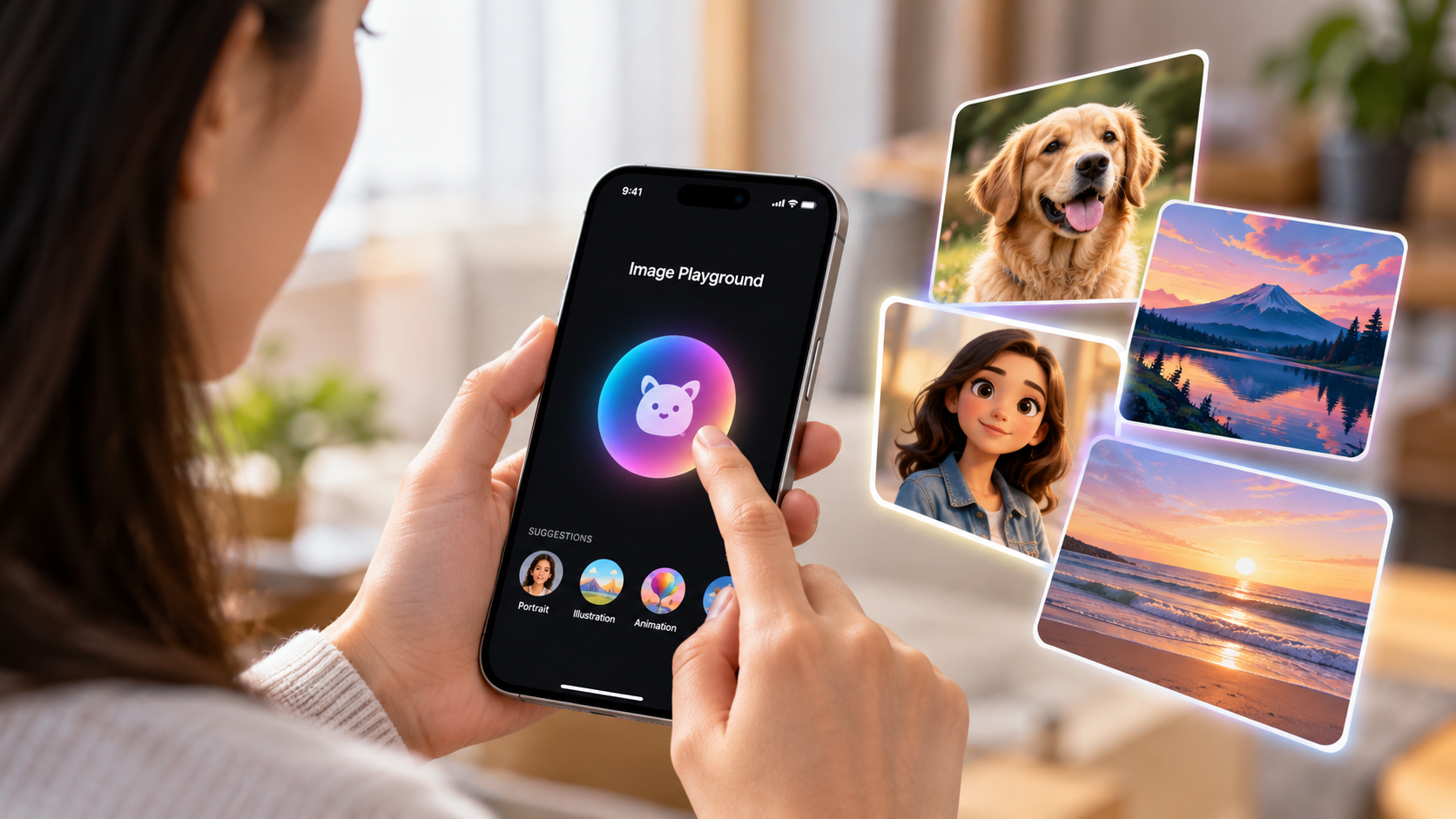
Available across supported iPhone, iPad, and Mac devices, Image Playground makes image creation accessible without professional design skills. You can experiment with different styles, customize characters, and create personalized visuals within seconds.
However, many users still have questions about how the app works. Is it similar to ChatGPT? Does it require a subscription? Which devices support it? And how can you access its features?
In this guide, we explain everything you need to know about Apple’s image generator. We’ll explore its purpose, privacy features, device compatibility, and practical uses. We’ll also show you how to create images and reveal a useful iPhone setting worth enabling.
What Is the Point of Apple Image Playground?
The main purpose of Apple’s Image Playground is to make creative image generation accessible to everyday users. Instead of learning complicated design software or writing detailed AI prompts, you can create images using simple descriptions and visual suggestions.
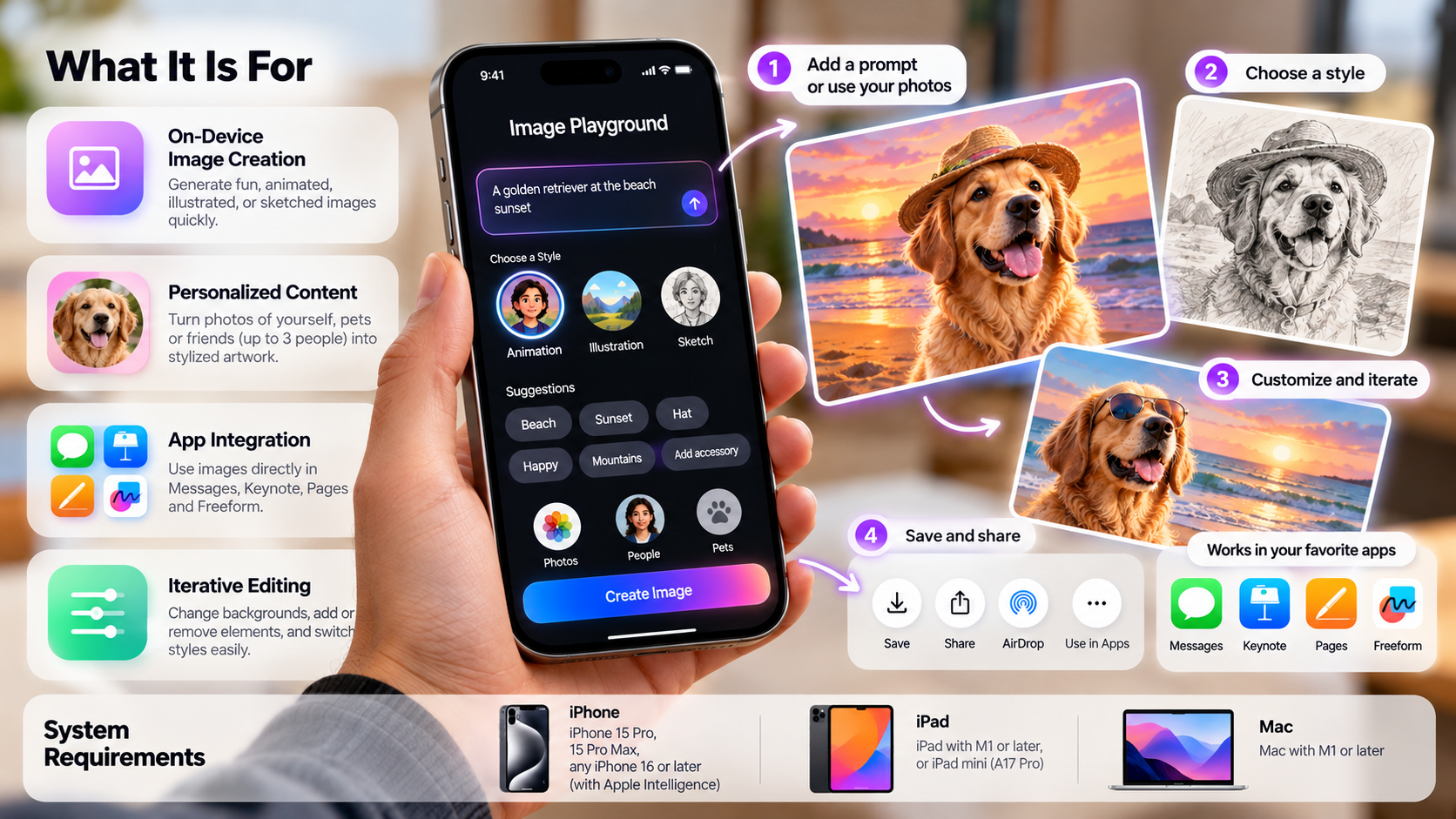
The app combines text descriptions, photos, and creative concepts to produce personalized artwork. You can experiment with different appearances, backgrounds, accessories, and artistic styles. This makes it useful for creating playful images, personalized messages, and visual content.
Image Playground also works with Apple’s wider ecosystem. You can use its features in supported apps, including Messages and Freeform. This allows you to create visuals without constantly switching between applications.
The experience is designed for convenience rather than professional graphic design. Its straightforward interface makes experimentation easy, even for beginners. You can generate several variations, adjust your ideas, and save your preferred results.
Purposeful Privacy and On-Device Processing
Privacy is an important part of Apple’s approach to artificial intelligence. Image Playground uses Apple Intelligence and Apple’s privacy-focused processing infrastructure to generate images. Depending on the feature and model, processing can happen on your device or through Private Cloud Compute.
Apple states that Private Cloud Compute processes eligible requests without storing or sharing personal data with Apple. This helps protect information when a task requires more computing power than your device provides.
You can also use photos from your Photos library to personalize generated images. However, this does not mean every image request stays entirely on your device.
Here are some important privacy considerations:
- On-device processing: Compatible tasks can run directly on your device.
- Private Cloud Compute: More demanding requests can use Apple’s privacy-focused cloud infrastructure.
- Personal photos: You choose which photos or people to include in your creations.
- User control: You can review, edit, save, or delete generated images.
These protections make Image Playground convenient for personal creative projects. However, avoid treating any AI-generated result as automatically private in every possible context.
Is Apple AI Like ChatGPT?
Apple Intelligence takes a different approach. It integrates AI features directly into Apple’s operating systems and supported applications. Its purpose is to make everyday device tasks easier through writing assistance, notifications, image generation, and other intelligent features. If you prefer not to use these features, you can also learn how to disable Apple Intelligence on your iPhone.
Apple Intelligence takes a different approach. It integrates AI features directly into Apple’s operating systems and supported applications. Its purpose is to make everyday device tasks easier through writing assistance, notifications, image generation, and other intelligent features.
Image Playground is one example of this integration. Instead of opening a separate chatbot, you can generate personalized images using Apple’s built-in creative interface.
However, the two platforms are not completely separate. Apple also offers ChatGPT integration for certain supported Apple Intelligence features. Users can choose when to use that integration, and relevant requests are shared with ChatGPT.
Seamless Device Integration Over Broad Knowledge
The biggest difference between Apple Intelligence and ChatGPT is how users interact with them. ChatGPT provides a dedicated conversational experience where you can ask follow-up questions and explore detailed topics.
Apple Intelligence focuses more on integrating assistance into your existing device experience. For example, you can use writing tools, summarize supported notifications, and generate images without opening a separate AI application.
Consider these differences:
- ChatGPT: Useful for research, detailed explanations, coding, brainstorming, and conversational assistance.
- Apple Intelligence: Useful for supported device features, writing assistance, notifications, and everyday productivity.
- Image Playground: Focuses specifically on generating and customizing images.
- ChatGPT integration: Provides access to external generative AI capabilities through selected Apple Intelligence features.
Neither platform replaces the other completely. Your choice depends on what you want to accomplish. ChatGPT is better suited to extended conversations, while Apple’s built-in tools offer convenient integration with supported device features.
What Is the Secret iPhone Setting Everyone Should Know?
One useful iPhone feature that many people overlook is Back Tap. This accessibility setting turns the back of your iPhone into a shortcut trigger. You can perform a double-tap or triple-tap to launch selected actions without searching through multiple menus.
For example, you can configure Back Tap to take screenshots, turn on the flashlight, open an application, or activate a custom Shortcut. This makes frequently used features easier to access.
To enable it, open your iPhone’s Settings app and follow these steps:
- Open Settings.
- Select Accessibility.
- Tap Touch.
- Scroll down and select Back Tap.
- Choose Double Tap or Triple Tap.
- Select the action you want to perform.
You can customize both gestures independently. However, accidental activation can happen, especially when handling your phone. Choose actions that you genuinely use to make this feature more practical.
Unlocking Automated Power With Shortcuts
Back Tap becomes more useful when you combine it with Apple’s built-in Shortcuts app. Shortcuts lets you create automated actions that perform specific tasks with minimal effort.
For example, you can create a Shortcut that opens the Apple Image Playground app. You can then assign that Shortcut to a double-tap or triple-tap gesture.
This creates a convenient way to access your image generator without searching through your Home Screen. You can also create shortcuts for other frequently used applications and device functions.
Here are a few practical ideas:
- Open Image Playground: Launch the image generator using a Back Tap gesture.
- Take screenshots: Capture your screen with a quick double-tap.
- Open frequently used apps: Access your preferred applications faster.
- Activate useful automations: Run custom Shortcuts with a simple gesture.
To set this up, open Shortcuts, create a new shortcut, and add the Open App action. Select Image Playground and save the Shortcut. Return to Back Tap settings and assign your new Shortcut to either gesture.
How to Use Apple’s Image Playground?
Using the Apple Image Playground app is relatively simple, even if you have never used an AI image generator. You can start with a text description, select creative suggestions, or use a personal photo to customize your image.
First, open Image Playground on your compatible Apple device. Tap the option to create a new image and enter a description of what you want. You can also combine different concepts to change the appearance of your creation.
Next, explore the available styles. Depending on your software version and available features, you can choose options such as Animation, Illustration, Sketch, or other supported styles.
You can also add a person from your Photos library or include another photo as a reference. Adjust the composition, experiment with different descriptions, and generate new variations until you find a result you like.
Once finished, save your image or share it through a supported application.
Refining Styles and Managing Personal Likenesses
One useful feature of Image Playground is its ability to create personalized images using people from your Photos library. This lets you generate creative representations of friends, family members, or yourself.
You can also change different visual elements to make your results more interesting. For example, you might create a character wearing a superhero costume or standing in a different environment.
When working with personal likenesses, you can:
- Select a person: Choose someone from your Photos library.
- Change appearance: Customize supported details such as hairstyles, facial hair, and eyewear.
- Adjust the scene: Add descriptions involving clothing, accessories, and locations.
- Explore variations: Generate alternative versions and compare the results.
- Save your creation: Keep your preferred image in the Image Playground gallery.
You can also personalize existing creations by opening them and selecting the editing options. This makes it easier to improve an image without starting from scratch.
Remember that generated faces and visual details may not always match your expectations. Review the result before sharing it with others.
Is Image Playground an Apple App Free?
Yes. Apple includes Image Playground as part of its Apple Intelligence experience on supported devices. You do not need to purchase a separate Image Playground subscription to get started.
However, free access does not necessarily mean unlimited image generation. Apple may apply daily usage limits to certain server-based Apple Intelligence features. These limits can vary depending on the feature, request complexity, and system demand.
You also need compatible hardware and supported software to use the app. Having an older iPhone or iPad does not automatically give you access to Image Playground.
For compatible devices, Apple Intelligence availability also depends on language and regional support. Make sure your device is updated and Apple Intelligence is enabled in Settings.
Before troubleshooting, check Apple’s official compatibility information. This helps you determine whether your device supports the feature or whether a software setting is preventing access.
Zero Subscription Fees and Generous Device Access
Unlike some third-party AI image generators, Image Playground does not require a separate paid subscription for standard access. Apple includes the feature within its supported operating systems.
However, there are important requirements to consider before using it. The app relies on Apple Intelligence, which requires compatible hardware and supported software.
Compatible hardware includes:
- iPhone: iPhone 15 Pro, iPhone 15 Pro Max, and iPhone 16 models or later.
- iPad: iPad mini with A17 Pro and supported iPad models with M1 chips or later.
- Mac: Mac computers with Apple silicon, starting with the M1 chip.
- Software: A compatible, updated version of iOS, iPadOS, or macOS.
Availability can vary by region, language, and feature. Some Apple Intelligence capabilities may also have usage limits.
Therefore, Image Playground is best described as a built-in creative tool with no separate subscription requirement, rather than an unlimited image generator.
Final Thoughts
The Apple Image Playground app makes AI-powered image creation simple, accessible, and enjoyable. Whether you want to create personalized illustrations, experiment with creative ideas, or add unique visuals to your conversations, it offers an easy way to get started without professional design skills.
Its integration with Apple Intelligence makes the experience even more convenient across supported Apple devices. While it may not offer the advanced customization of dedicated AI image generators, its simplicity and built-in features make it a useful everyday creative tool.
If you own a compatible iPhone, iPad, or Mac, give Image Playground a try. Explore its different styles, experiment with text descriptions, and discover what you can create. For detailed instructions, visit Apple’s official Image Playground user guide.
The best way to understand its possibilities is to start creating.