How to Use Your Phone to Find an Apple TV Remote
Knowing how to use your phone to find an Apple TV remote can save you time when your Siri Remote goes missing. Instead of searching endlessly between sofa cushions, you can use your iPhone’s built-in locating feature to track down a compatible remote.
Instead of searching every corner of your living room, you can follow on-screen directions. Your iPhone helps you determine whether the remote is nearby. This saves time and prevents unnecessary replacement costs.
You can also control your Apple TV directly from your iPhone. This means you don’t have to stop watching your favourite shows when the physical remote disappears.
In this guide, we’ll explain how to use your phone to find an Apple TV remote. You’ll also learn which remote models support tracking, whether you can play a sound, and how to control Apple TV without a physical remote.
How to Use Your Phone to Find an Apple TV Remote?
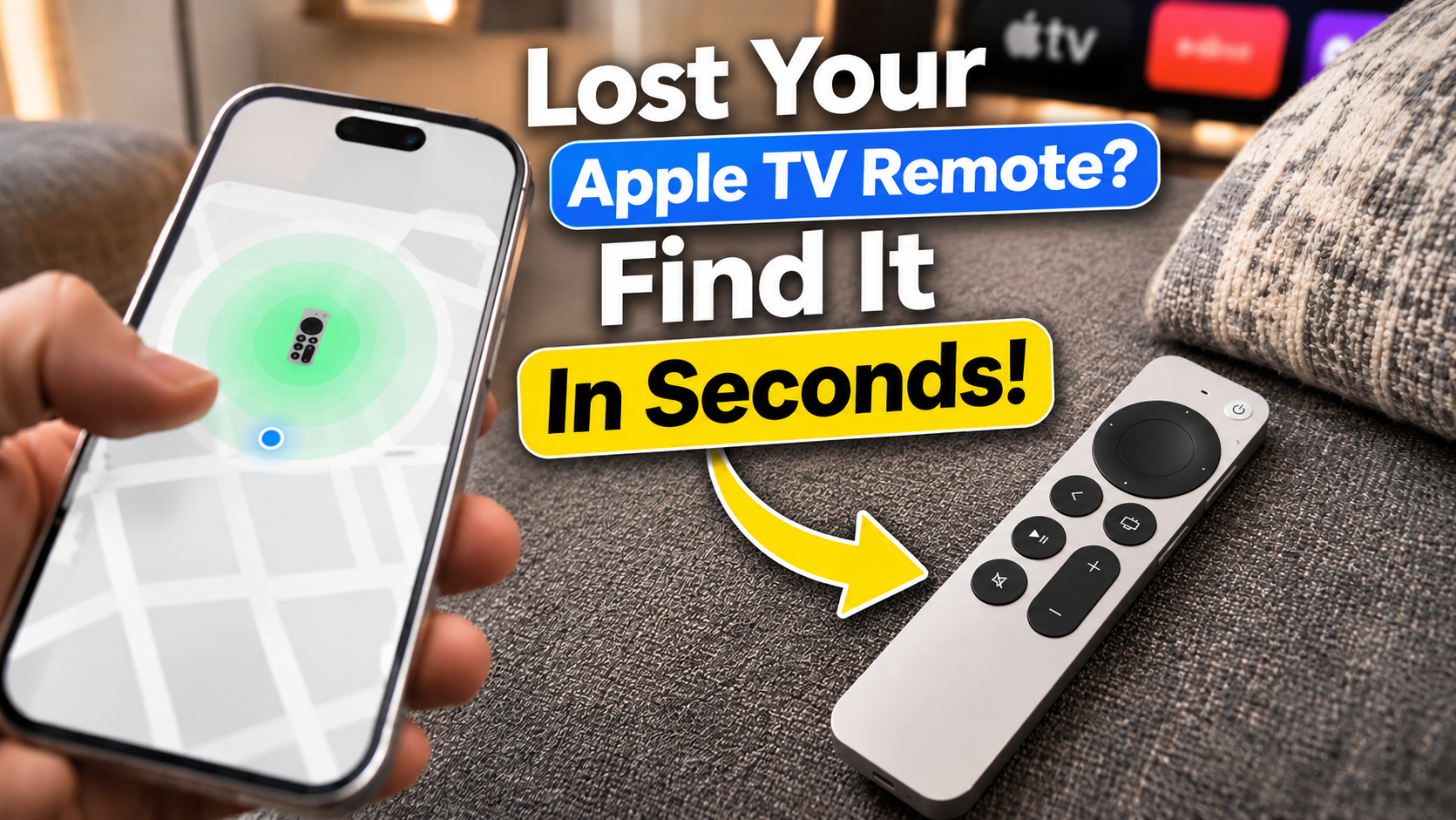
You can use your iPhone’s built-in Apple TV Remote feature to locate a compatible Siri Remote. The feature uses Bluetooth to help you find its approximate location. You don’t need to install an additional tracking application.
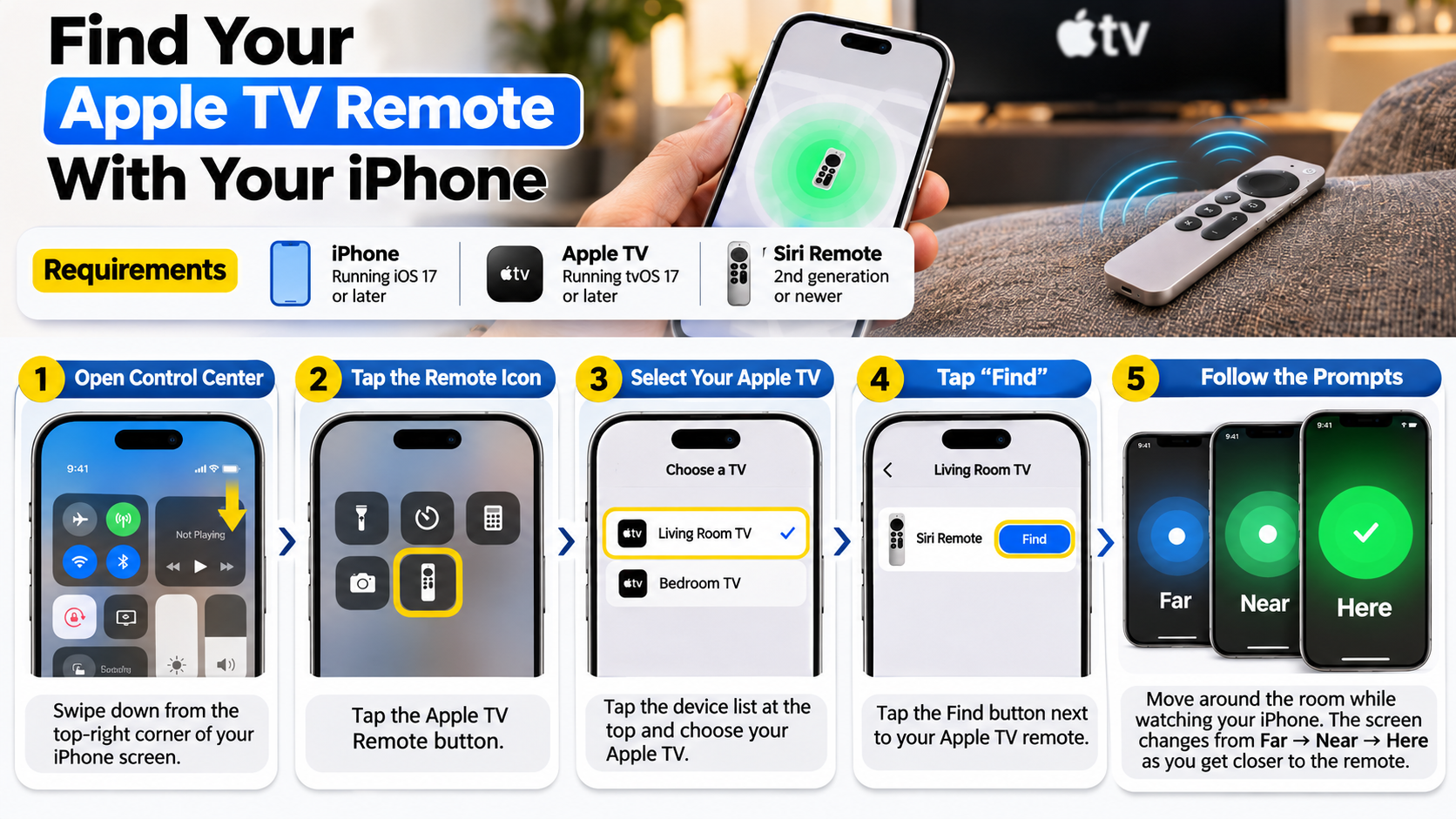
Follow these steps to find your missing Apple TV remote:
- Open Control Center on your iPhone. Swipe down from the top-right corner on newer iPhones.
- Tap the Apple TV Remote icon. Add it to Control Center if it isn’t already available.
- Tap the device list at the top of the remote interface.
- Find your connected Apple TV remote in the list.
- Tap Find next to the missing remote.
- Follow the on-screen instructions to locate it.
Your iPhone displays a visual proximity indicator as you move around. The circle grows as you approach the remote. The screen also changes its guidance from far to near and then here.
Move slowly around your living room and check nearby furniture. Pay particular attention to sofa cushions, blankets, and narrow spaces. Once your iPhone indicates the remote is nearby, search those areas carefully.
Compatible Devices and Software Requirements
Not every Apple TV remote supports Apple’s built-in locating feature. Your iPhone, Apple TV, and remote must meet specific compatibility requirements. Checking these details first can prevent unnecessary troubleshooting.
For the Control Center locating feature, you need:
- iPhone: A device running iOS 17 or later.
- Apple TV: A compatible device running tvOS 17 or later.
- Remote: A second-generation or newer Siri Remote or Apple TV Remote.
- Connectivity: A compatible, paired remote that can communicate with your Apple TV.
The second- and third-generation remotes have an aluminium body and a touch-enabled clickpad. The older first-generation Siri Remote has a black glass touch surface. That older model doesn’t support Apple’s remote-finding feature. If you’re considering upgrading your streaming device, compare the Apple TV 4K 2022 and 2026 models before choosing a newer setup.
Apple’s fourth-generation Siri Remote adds further tracking capabilities. It supports Find My, Precision Finding on compatible iPhones, and built-in sound alerts.
You can check your remote model through Apple’s official identification guide.
Is There a Way to Find a Lost Apple TV Remote?
Yes, several options can help you locate a misplaced Apple TV remote. The best method depends on your remote’s generation and available tracking features.
If you own a compatible Siri Remote, start with the built-in iPhone locating feature. Open Control Center, select Apple TV Remote, and tap Find beside your missing remote.
Owners of the fourth-generation Siri Remote have another option. They can use the Find My app to locate the remote and play a sound. Compatible iPhones can also provide Precision Finding directions.
Older remotes without built-in tracking require a different approach. You can try a Bluetooth scanner application to detect nearby Bluetooth devices. However, these applications cannot guarantee accurate identification or precise location information.
You should also check common hiding places before trying additional tools. Look between sofa cushions, underneath furniture, inside blankets, and around reclining chairs.
If your remote has completely stopped working, check its battery before assuming it is lost. A discharged remote might not respond to tracking attempts.
Attaching a Physical Tracker Case
If your existing remote doesn’t support Apple’s advanced tracking features, an external tracker can help. One practical option is a protective remote case with a dedicated AirTag holder.
An Apple AirTag works with Apple’s Find My network. After pairing it with your iPhone, you can use the Find My app to locate the attached tracker.
Some compatible iPhones also support Precision Finding. This feature provides directional guidance and distance information when supported hardware is available.
Before purchasing a case, check its compatibility with your particular remote model. Make sure the holder secures the tracker properly without covering essential buttons.
You can also consider compatible third-party Bluetooth trackers. However, their tracking accuracy, battery life, and network coverage vary by manufacturer.
Remember that an AirTag tracks the AirTag itself, not the remote independently. If the tracker becomes detached, its location won’t necessarily match the remote’s location.
A protective case also reduces the chances of dropping or damaging your remote. This makes it a useful accessory for everyday use.
Can I Locate My Apple Remote With My iPhone?
Yes, your iPhone can locate a compatible Apple TV remote without requiring a separate tracking accessory. Apple provides built-in locating support for second-generation and newer Siri Remotes.
For older compatible models, use the Apple TV Remote control in Control Center. Open the device list and select Find beside your missing remote.
The feature displays a visual proximity indicator. As you move closer, the indicator changes to help guide your search. Follow the instructions until your iPhone indicates that the remote is nearby.
The fourth-generation Siri Remote offers a more advanced experience. It appears in the Find My app and supports additional locating features.
You can also use Precision Finding with compatible iPhone models. This provides directional arrows and distance guidance instead of relying only on a basic proximity indicator.
One important distinction is that Apple’s remote-finding feature isn’t available on every remote generation. The original black glass Siri Remote doesn’t support this functionality.
If your remote isn’t appearing, check its model and software compatibility first. These details determine which locating methods are available.
Troubleshooting Connection Issues
Sometimes, your missing Apple TV remote won’t appear in the iPhone’s locating interface. This doesn’t automatically mean the remote is permanently lost. Several connection and compatibility issues can prevent successful detection.
Try these troubleshooting steps:
- Check compatibility: Confirm that your remote supports Apple’s locating feature.
- Update iOS: Install a supported iOS version on your iPhone.
- Update tvOS: Make sure your Apple TV has the required software.
- Check the battery: Charge your Siri Remote if its battery might be empty.
- Check pairing: Confirm that your remote is paired with the Apple TV.
- Retry the search: Open Control Center and check the device list again.
If you use the fourth-generation remote, check its Find My setup and software requirements. Also confirm that your iPhone supports the tracking features you want to use.
Remember that Wi-Fi and Bluetooth serve different purposes here. The locating feature relies on the remote’s tracking connection, not simply matching Wi-Fi networks.
If these steps don’t help, consult Apple’s official support documentation for additional troubleshooting instructions.
Can You Make an Apple TV Remote Beep?
Whether your Apple TV remote can play a sound depends on its generation. Older Siri Remotes don’t have built-in speakers for playing locating alerts.
However, Apple introduced this feature with the fourth-generation Siri Remote. Its built-in speaker can play a sound through the Find My app when you misplace it.
If you own an older second- or third-generation remote, you must use the available visual locating features instead. Open the Apple TV Remote control in Control Center and follow the on-screen proximity indicator.
This distinction is important when choosing a replacement remote. Not every model offers the same tracking capabilities.
You can also attach a compatible external Bluetooth tracker to an older remote. Some trackers include built-in speakers that produce sound when activated through their companion applications.
For example, an AirTag can play a sound through its built-in speaker. You can activate this feature through Apple’s Find My app.
Therefore, you don’t necessarily need to replace your entire Apple TV setup. A compatible external tracker can provide an additional way to locate an older remote.
Adding Sound Alerts With Third-Party Accessories
You can add sound-based tracking to an older Apple TV remote using a compatible external tracker. This is useful if your remote frequently disappears between furniture cushions.
An AirTag is one option. Place it inside a protective remote sleeve designed specifically for AirTag storage. Then connect it to your Apple Account through the Find My app.
When your remote goes missing, follow these steps:
- Open the Find My app on your iPhone.
- Select the Items tab.
- Choose your attached AirTag.
- Tap Play Sound.
- Follow the sound to locate your remote.
You can also explore compatible Tile trackers. These devices use their own companion application and supported tracking network.
Before purchasing an accessory, check its size and attachment method. Some trackers might make your remote uncomfortable to hold.
Keep in mind that the tracker must remain attached to your remote. Otherwise, its sound and location won’t help you find the missing device.
An external tracker is optional, but it provides an additional recovery method for older remotes.
How to Use Apple TV Without a Remote?
You don’t need a physical Siri Remote to control your Apple TV. Your iPhone or iPad can act as a virtual remote through Apple’s built-in Control Center feature.
This option is particularly useful when your physical remote is missing or damaged. You can navigate menus, select applications, and control playback directly from your phone.
Follow these steps to access the virtual remote:
- Connect your iPhone and Apple TV to the same Wi-Fi network.
- Open Control Center on your iPhone.
- Tap the Apple TV Remote icon.
- Select your Apple TV from the available device list.
- Follow any pairing instructions displayed on your screen.
Once connected, a digital touchpad appears on your iPhone. Swipe across the touch area to navigate menus and tap to select items.
You can also control playback, pause videos, and return to the Home Screen. When a search field appears, your iPhone keyboard makes entering text easier.
This feature provides a convenient temporary replacement. You can continue streaming while searching for your missing physical remote.
Using Your Standard TV Remote
Your television’s standard remote might also control your Apple TV. Many modern televisions support HDMI-CEC, which allows connected devices to communicate through HDMI.
This feature can provide basic navigation without requiring an Apple TV remote. However, the available controls depend on your television manufacturer and model.
To try this method:
- Check whether your television supports HDMI-CEC.
- Open your television’s settings menu.
- Find the HDMI-CEC option.
- Enable the feature if it’s currently disabled.
- Select your Apple TV’s HDMI input.
- Try using your television remote’s directional buttons.
Different manufacturers use different names for HDMI-CEC. Samsung calls it Anynet+, while LG uses SIMPLINK. Sony and other manufacturers also have their own naming conventions.
Once enabled, your television remote might control navigation and playback. However, some advanced Apple TV functions may remain unavailable.
If the controls don’t work, check your television’s user manual. You may also need to enable HDMI-CEC on your connected devices.
This is a useful backup option when your iPhone isn’t available. It can help you navigate Apple TV until you recover or replace your physical remote.
Conclusion
Losing your Apple TV remote doesn’t mean you have to interrupt your streaming experience. With your iPhone’s built-in locating feature, you can find a compatible Siri Remote without purchasing a replacement. You can also use your iPhone as a virtual remote to navigate menus, control playback, and search for your favourite shows.
If your remote doesn’t support built-in tracking, consider using an external Bluetooth tracker or your television’s HDMI-CEC controls. These alternatives provide additional ways to locate or control your device.
Before buying a replacement, check your remote’s compatibility with Apple’s tracking features. A few simple steps can save you time, money, and unnecessary frustration.