5 Google Messages Settings You Might Want to Disable
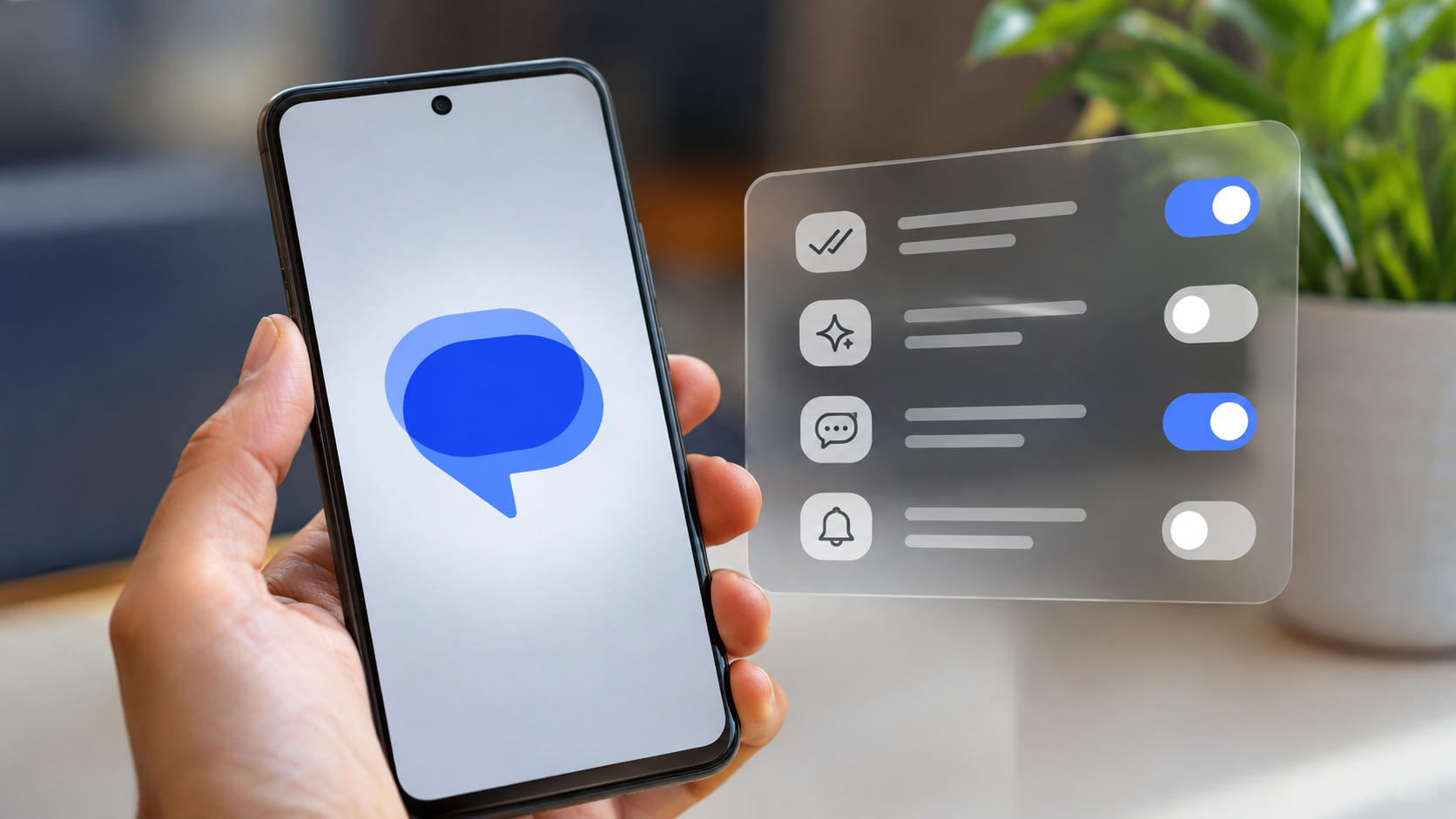
Google Messages is the default texting app on many Android devices. However, some built-in features can create unnecessary distractions and affect your messaging experience. Reviewing the Google Messages settings you might want to disable helps you manage notifications, control privacy, remove unwanted suggestions, and enjoy a cleaner messaging interface.
Reviewing the Google Messages settings you might want to disable helps you control how the app behaves. You can manage read receipts, hide the Gemini shortcut, stop floating chat bubbles, and remove automatic reminders. These changes can make your messaging experience more comfortable.
Google Messages also includes features such as Smart Reply, RCS chats, and automated suggestions. Although these tools can save time, not everyone finds them useful. Some users prefer a simpler messaging interface without additional prompts.
In this guide, we explain five Google Messages settings worth reviewing. You’ll learn why you might want to turn them off and how to find their controls. We’ll also cover how to disable Google Messages, manage Messages for Web, and turn off suggested replies.
1. RCS Read Receipts
Why turn it off: Read receipts tell other people when you’ve opened their messages. This can create unnecessary pressure to respond immediately. Turning them off gives you more control over your messaging privacy.
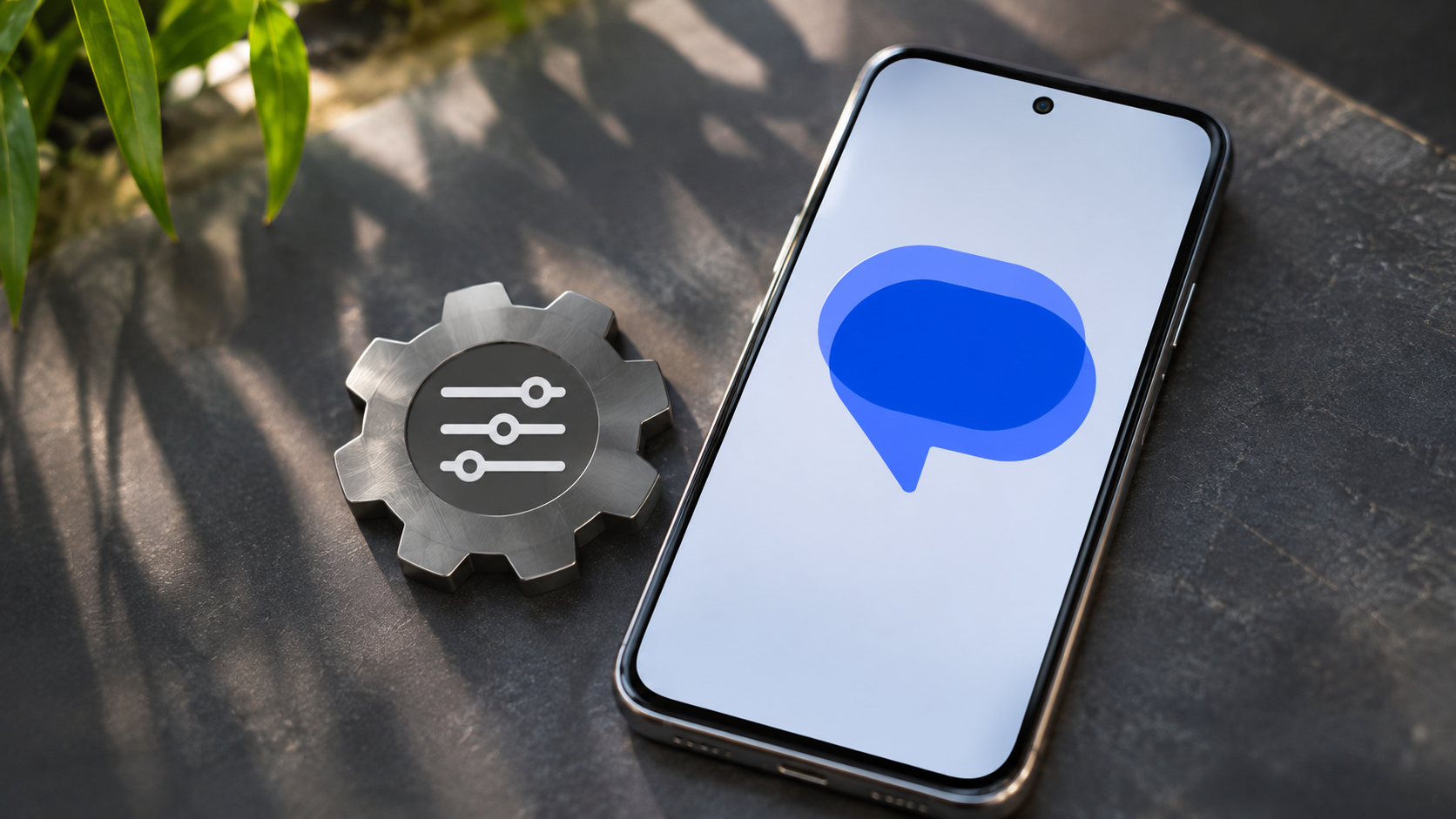
Google Messages uses RCS (Rich Communication Services) to provide modern messaging features. When read receipts are enabled, other RCS users can see when you’ve read their messages. This information appears through a read indicator in the conversation. If you’re interested in recovering information from conversations, you can also explore how an Android setting can reveal deleted messages.
You might find this feature useful when coordinating with friends or colleagues. However, not everyone wants to share their reading activity. Disabling read receipts lets you read messages without sending a read confirmation.
How to disable read receipts:
- Open the Google Messages app on your Android phone.
- Tap your profile picture in the upper-right corner.
- Select Messages settings.
- Open RCS chats. Some devices may display Chat features instead.
- Find Send read receipts.
- Turn off the toggle.
Once disabled, other people won’t receive read confirmations from you through RCS. However, this setting doesn’t prevent you from receiving their read receipts. Their settings determine whether you can see when they’ve read your messages.
2. The Gemini AI Assistant Button
Why turn it off: The Gemini shortcut provides quick access to Google’s AI assistant. However, you might not need it for everyday texting. Removing the shortcut creates a cleaner messaging interface.
Google has integrated Gemini into Google Messages to make AI assistance available during conversations. You can use it to generate responses, explore ideas, and interact with the assistant. However, some users prefer writing messages without additional AI features. If you want to personalize your messaging experience further, you can also explore how to customize Google Messages chats.
The Gemini button can also occupy valuable screen space. If you rarely use it, keeping the shortcut visible offers little benefit. Fortunately, Google provides an option to hide the button without changing your regular messaging experience.
It’s important to understand that hiding the shortcut doesn’t completely disable Gemini across Google’s services. It only removes the visible button from the Messages interface.
How to disable the Gemini button:
- Open Google Messages on your Android device.
- Tap your profile picture or initials.
- Select Messages settings.
- Find and open Gemini in Messages.
- Locate Show Gemini button.
- Turn off the toggle.
The Gemini shortcut should disappear from the main messaging screen. If you don’t see this option, check whether your app supports the feature or needs an update.
3. Floating Chat Bubbles
Why turn them off: Floating chat bubbles allow conversations to appear over other applications. They provide quick access to ongoing chats. However, these pop-ups can interrupt videos, games, browsing, and other activities.
Google Messages supports conversation bubbles on compatible Android devices. When enabled, supported conversations can appear as floating icons on your screen. Tapping an icon opens a small conversation window without requiring you to switch applications.
This feature can be convenient when you frequently respond to messages. However, it may become distracting if several conversations generate floating notifications. You might also accidentally open a conversation while using another application.
If you prefer traditional notifications, turning off chat bubbles can make your screen less cluttered. You can still receive regular message notifications through your Android notification settings.
How to disable floating chat bubbles:
- Open Google Messages on your phone.
- Tap your profile picture.
- Select Messages settings.
- Look for Bubbles.
- Open the available bubble options.
- Select Nothing can bubble, if available.
On some Android devices, bubble controls appear under the system notification settings instead. You can also open Settings > Notifications > Bubbles and adjust the available options. Keeping Google Messages updated can also help you access newer features and improvements, which is why it’s worth understanding why you should keep your phone apps updated.
After disabling bubbles, conversations will no longer appear as floating windows through this setting. Your normal message notifications should continue working.
4. Conversation “Nudges”
Why turn them off: Google Messages includes reminders that encourage you to respond to conversations. These reminders can be useful when you forget to reply. However, they may feel unnecessary if you prefer managing conversations yourself.
The Nudges feature uses automated suggestions to highlight conversations that might need your attention. It includes reply reminders and birthday reminders. These notifications can move selected conversations towards the top of your inbox. Since automated tools aren’t always appropriate for every situation, it’s also worth understanding when AI should never be used.
Reply reminders help you follow up on messages you haven’t answered. Birthday reminders highlight contacts whose birthdays appear in your saved contact information. Google uses machine learning to identify conversations that might need a follow-up.
Although these reminders can be helpful, they aren’t essential for sending or receiving messages. If you already manage your conversations through a calendar or personal reminders, you might prefer disabling them.
How to disable conversation nudges:
- Open the Google Messages app.
- Tap your profile picture in the upper-right corner.
- Select Messages settings.
- Open Suggestions.
- Select Nudges.
- Turn off the available reply and birthday reminder options.
Depending on your device and app version, these options may appear separately. Some features also have language and device requirements.
Once disabled, Google Messages will stop showing the corresponding automatic reminders. Your existing conversations and regular messaging features will remain available.
5. In-App Audio (Incoming/Outgoing Sounds)
Why turn it off: Google Messages can play additional sounds when you send or receive messages. These effects provide audio feedback during conversations. However, you might find them unnecessary if your phone already plays notification sounds.
The app includes an option to control outgoing message sounds. This feature plays a short sound when you send a message. Although the effect is relatively small, it can become repetitive when you exchange several messages.
You might prefer a quieter messaging experience, especially when texting frequently. Turning off unnecessary sound effects can also help reduce interruptions during work or other activities.
Keep in mind that disabling outgoing message sounds doesn’t necessarily silence incoming notifications. Android handles incoming notification sounds separately through its notification settings.
How to disable outgoing message sounds:
- Open Google Messages on your Android phone.
- Tap your profile picture or initials.
- Select Messages settings.
- Find the relevant sound settings.
- Turn off Hear outgoing message sounds, if available.
You can also review your Android notification settings to manage incoming message alerts. Open Settings > Apps > Messages > Notifications and adjust the sound preferences.
This lets you control outgoing sound effects separately from incoming message notifications. You can keep important alerts enabled while removing sounds you don’t need.
How Do You Disable Google Messages?
You can disable Google Messages through Android’s application settings on devices that allow it. However, disabling the app isn’t necessary if you simply want to stop using it as your default texting application.
Google Messages comes preinstalled on many Android phones. Some manufacturers allow users to disable system applications, while others restrict this option. The available controls depend on your device and Android version.
If you want to switch to another messaging application, changing your default SMS app is usually the better approach. This allows another compatible application to handle your regular text messages.
How to change your default messaging app:
- Open your phone’s Settings application.
- Select Apps.
- Open Default apps.
- Find the SMS app option.
- Select another installed messaging application.
If you specifically want to disable Google Messages, return to Settings > Apps > Messages. Look for the Disable option and follow the instructions if your device allows it.
Important: Before switching messaging applications, check whether your alternative supports RCS. You may also need to manage RCS registration to avoid missing messages when changing devices or applications.
How Do I Change the Settings in Google Messages?
Changing your Google Messages settings doesn’t require advanced technical knowledge. Most configuration options are available directly inside the application. You can access them through your profile picture or account menu.
These settings let you customize notifications, manage RCS features, control suggested responses, and adjust other messaging preferences. Reviewing them occasionally helps you keep the application organized and suited to your needs.
How to access Google Messages settings:
- Open the Google Messages application.
- Tap your profile picture or initials in the upper-right corner.
- Select Messages settings.
- Browse the available configuration categories.
- Open the setting you want to change.
- Adjust the available toggle or preference.
You may find options such as RCS chats, Gemini in Messages, Suggestions, and Notifications. Some settings are available only on supported devices or app versions.
You can also manage certain features through Android’s main Settings application. For example, notification permissions, application access, and default SMS preferences are controlled through system settings.
Reviewing these options helps you understand how Google Messages handles your conversations. You can keep useful features enabled while disabling options that create unnecessary distractions.
How Do I Disable Messages in Google Chrome?
Google Messages for Web allows you to access phone conversations through a computer browser. This feature is useful when working at a desk. However, you might not want your messages appearing on a shared or personal computer.
The simplest solution is to unpair your computer from Google Messages. This disconnects the browser session from your phone. It also helps prevent other people from accessing your conversations through that paired device. It’s equally important to understand common ways passwords are hacked and how to prevent them to protect accounts you access across your devices.
You can disconnect a computer directly through the browser or manage connected devices from your Android phone. Both methods provide a way to remove an existing pairing.
How to unpair Google Messages from Chrome:
- Open Chrome on your computer.
- Visit Google Messages for Web.
- Open the menu in the browser interface.
- Select Unpair.
Alternatively, use your Android phone:
- Open Google Messages.
- Tap your profile picture.
- Select Device pairing.
- Find the connected computer.
- Tap the delete icon beside the device.
- Confirm the unpairing action.
You can also select Unpair all computers if you want to disconnect every paired browser.
Remember that unpairing is different from blocking browser notifications. If you only want to stop Chrome alerts, review the website’s notification permissions in Chrome settings.
How Do I Disable Suggestions in Google Messages?
Google Messages includes suggestions designed to make everyday conversations easier. These features can recommend actions based on the context of your messages. However, you might prefer a messaging interface without automated prompts.
The Suggestions section contains several optional tools. Depending on your app version, these may include Nudges and other contextual suggestions. Each feature has its own controls, so you don’t necessarily need to disable everything.
If you want to reduce automated reminders, start by reviewing the Nudges settings. You can disable reply reminders and birthday notifications individually. This prevents those specific prompts from appearing in your conversation list.
How to manage suggestions in Google Messages:
- Open Google Messages on your Android phone.
- Tap your profile picture or initials.
- Select Messages settings.
- Find and open Suggestions, if available.
- Review the listed features.
- Turn off the suggestions you don’t want.
Some suggestion settings may appear under separate categories. Their availability can also depend on your device, language, and application version. Beyond managing these settings, it’s important to recognize the warning signs that your tablet might be hacked so you can take steps to protect your personal information.
Disabling one suggestion feature doesn’t automatically disable every automated feature. For example, Smart Reply and Nudges have separate controls where supported.
How Do I Turn Off Suggested Messages?
Google Messages offers Smart Reply to help you respond to conversations more quickly. It displays short suggested responses above the keyboard. These suggestions can include simple replies such as “Yes,” “Thanks,” or “On my way.”
Although Smart Reply saves time, you might prefer composing every message yourself. Some users also find automatic response suggestions distracting. Turning off this feature provides a cleaner typing experience.
Smart Reply is separate from Nudges and other contextual suggestions. Therefore, disabling reply reminders won’t necessarily remove suggested responses from your keyboard.
How to turn off Smart Reply:
- Open Google Messages on your Android phone.
- Tap your profile picture in the upper-right corner.
- Select Messages settings.
- Look for the Suggestions section or relevant Smart Reply controls.
- Open Smart Reply, if available.
- Turn off the corresponding toggle.
The exact menu location can vary between Google Messages versions. If you cannot find the option, check for an available application update.
Once disabled, the app should stop displaying Smart Reply suggestions where that control applies. You can still receive and send regular SMS, MMS, and supported RCS messages.
Final Thoughts
Google Messages offers several features designed to improve everyday communication. However, not every feature suits every user’s preferences. Some settings provide convenience, while others introduce unnecessary notifications or interruptions.
Reviewing the Google Messages settings you might want to disable gives you more control over your messaging experience. You can hide the Gemini shortcut, manage read receipts, remove chat bubbles, and adjust automatic reminders.
You don’t need to disable every feature. Keep the tools that genuinely help you communicate and turn off those you rarely use. A few adjustments can make Google Messages simpler, quieter, and more comfortable to use.