How to Turn Off Google Health Coach and Manage Your AI Settings
Smart wearables and fitness platforms offer personalized wellness guidance. However, constant notifications and automated suggestions can sometimes become intrusive. If you want to turn off Google Health Coach, you can manage these features through your available app and privacy settings.
Google Health Coach uses AI technology to provide personalized fitness recommendations, health insights, and conversational guidance. However, before relying on automated recommendations, it is important to understand getting health advice from AI chatbots and the potential limitations of AI-generated health information. These features may also use information from connected devices, activity history, sleep records, and your health profile.
Not everyone wants an AI-powered fitness assistant monitoring their progress. Some users prefer basic health tracking without automated recommendations or frequent notifications.
This guide explains how to disable Google Health Coach, manage coaching notifications, and stop automatic activity detection. It also covers Google AI settings, health data, and privacy controls.
Whether you want fewer AI-generated suggestions or prefer manual workout tracking, these steps will help you understand your available options.
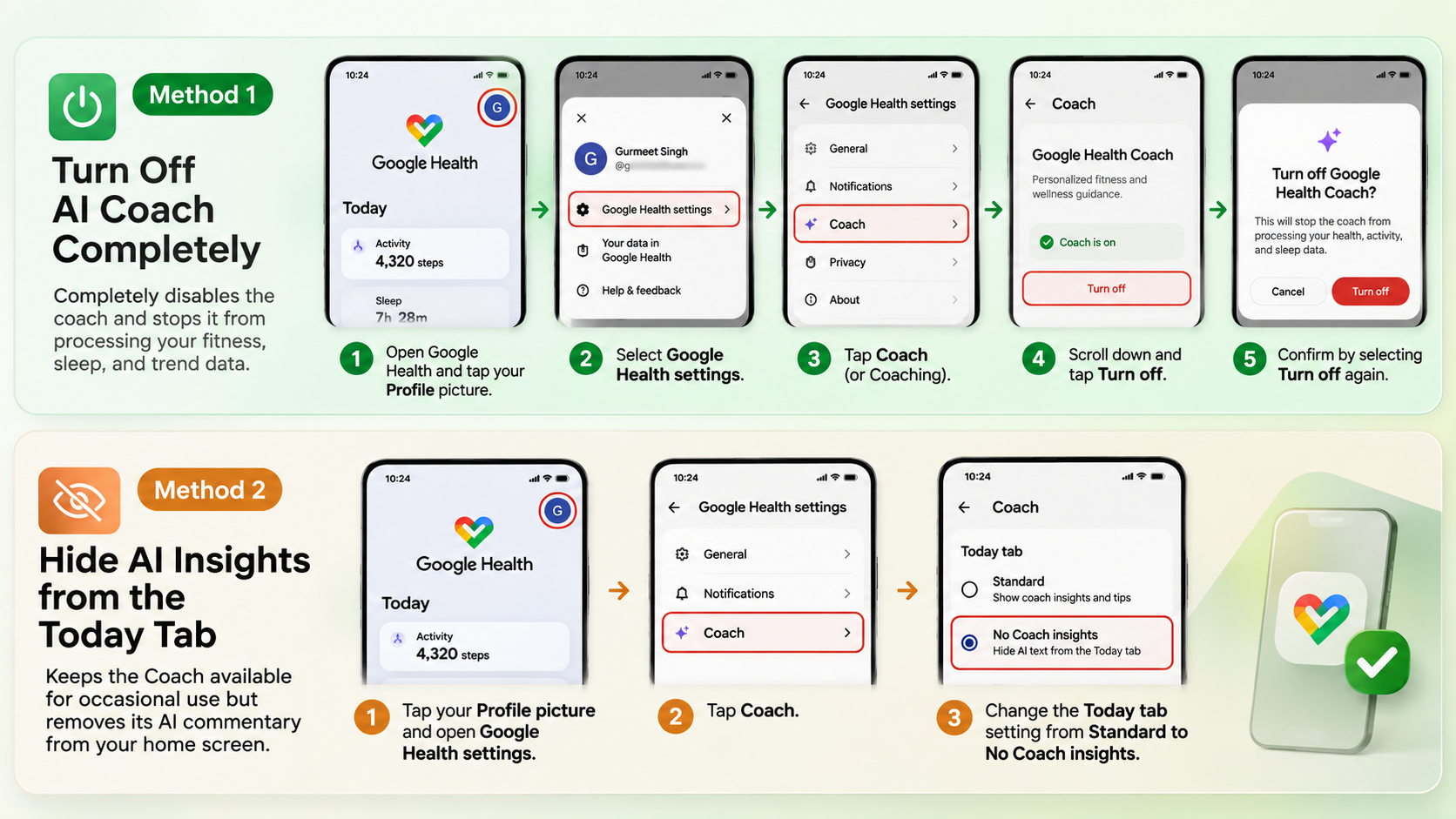
How Do I Turn Off Google Health Coach?
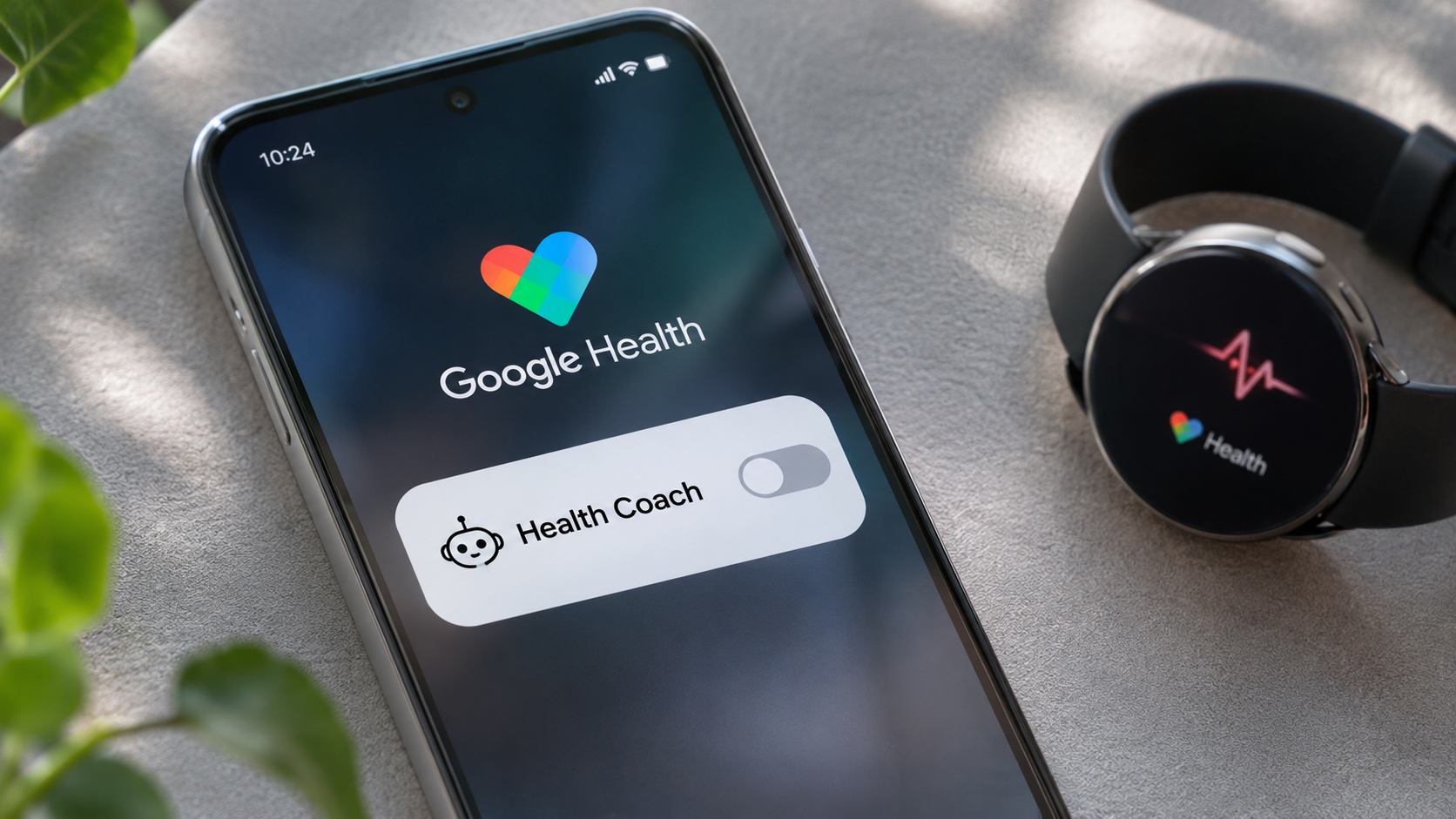
You can manage Google Health Coach through the Google Health app if the coaching feature is available on your account. Fortunately, you do not need to uninstall the application or disconnect your wearable device to manage coaching preferences.
To turn off Google Health Coach, follow these steps:
- Open the Google Health app on your smartphone.
- Tap your profile picture or initials in the upper-right corner.
- Select Google Health settings.
- Open the Coach or Coaching section.
- Find the current coaching status.
- Select Turn off to disable Google Health Coach.
Once disabled, coaching features should stop collecting and processing information for personalized guidance under that consent setting. However, your other health tracking features may remain available.
If you only want to remove coaching insights from your dashboard, look for No Coach insights under Coach messages on the Today tab. This option provides a more limited change without disabling the entire coaching experience.
Keep in mind that available settings may vary depending on your account and app version. Therefore, review your coaching preferences before changing other health permissions.
Disabling Proactive Coaching Notifications
Turning off Google Health Coach and disabling its notifications are two different actions. For example, you might want to keep personalized coaching available while stopping frequent alerts. In that case, changing notification preferences is a better option. Additionally, adopting digital detox practices can help reduce unnecessary screen time and create healthier technology habits.
To manage coaching notifications, follow these steps:
- Open the Google Health app.
- Tap your profile picture or initials.
- Select Settings.
- Find Push notifications.
- Open the Coaching category.
- Turn coaching notifications off.
This setting controls coaching-related alerts rather than every notification from the application. As a result, you can continue receiving other important updates if their notification categories remain enabled.
Alternatively, you can manage notifications through your smartphone settings. Open Apps, select Google Health, and review its notification permissions. Depending on your device, you may also be able to disable individual notification categories.
However, avoid disabling important health and device alerts if you still depend on them. This way, you can reduce unnecessary interruptions without affecting unrelated notifications.
Is There Any Way to Turn Off AI on Google?
Google offers several AI-powered services, but there is no universal setting that disables artificial intelligence across every Google product. For instance, Google Health Coach, Gemini, Google Search, and Google Assistant have separate controls.
If you want to reduce AI interactions, start with the specific service you use. Disabling Google Health Coach, for example, affects its coaching features. However, it does not automatically disable Gemini or AI-powered search features.
Additionally, Google Search provides experimental features through Search Labs. Their availability and settings can vary depending on your account, region, and product version. Therefore, disabling an experiment does not guarantee that every AI-generated result will disappear.
The important distinction is that turning off Google Health Coach does not turn off all Google AI services. Instead, you must review individual application settings to manage their features and permissions.
Similarly, privacy preferences work independently across Google products. Changing one application’s data settings does not automatically update your preferences across other services.
Managing Generative AI Features Across Google Services
If you want fewer AI-powered interactions, review the settings of the Google services you regularly use. Fortunately, each application offers different controls for managing AI features, activity history, and personalized recommendations. Meanwhile, understanding how AI is advancing healthcare and wellbeing can help you explore the benefits and limitations of artificial intelligence in modern healthcare.
Here are some important settings worth reviewing:
- Google Health Coach: Disable coaching through the available Coach or Coaching settings.
- Gemini: Review your Gemini activity preferences and control how your conversations are retained.
- Google Search: Check available Search Labs experiments and disable features you no longer want.
- Google Assistant: Review voice assistance preferences and device permissions.
- Google Account: Check your privacy settings and connected applications.
However, remember that these controls work independently. For example, disabling Gemini activity does not automatically turn off Google Health Coach. Likewise, changing Google Search preferences does not affect your fitness tracking settings.
Before disabling a feature, understand what it actually controls. Some settings affect personalized recommendations, whereas others manage activity history or notifications.
Therefore, review each service separately before making changes. This approach gives you greater control over your Google experience without unnecessarily disabling useful features.
How to Stop Google Health Auto-Tracking Walks?
Automatic activity detection helps fitness applications recognize movement and record workouts. However, you may not want every walk to appear as a separate exercise session. If you prefer manual tracking, check whether your Google Health app or connected wearable supports automatic activity detection controls.
To stop automatic walk tracking, follow these general steps:
- Open the Google Health app.
- Tap your profile picture or initials.
- Select Google Health settings.
- Open the Activity section.
- Look for Activity detection or automatic tracking preferences.
- Select Walking, if individual activity controls are available.
- Disable the automatic detection option.
Additionally, you may find separate controls for running, cycling, or other supported activities. However, their availability depends on your device and application version.
Disabling automatic workout detection does not necessarily stop daily step counting. For example, your smartphone or wearable may continue recording basic movement information through separate tracking settings.
Therefore, review your device’s activity permissions before assuming that all movement tracking has stopped.
Preserving Battery Life by Disabling Sensor Triggers
Automatic activity detection uses device sensors to recognize movement and identify workouts. Consequently, some users prefer disabling this feature to reduce background monitoring. However, switching it off does not guarantee a noticeable improvement in battery life.
Actual battery consumption depends on your smartphone, wearable, sensor activity, and background applications. Therefore, review the tracking permissions on both your phone and connected fitness device.
Consider these adjustments if you want more control over activity tracking:
- Disable automatic detection: Turn off automatic recognition for supported activities.
- Review location permissions: Allow location access only when necessary.
- Manage background permissions: Check which applications can access activity information.
- Use manual workout tracking: Start recording when you begin an exercise session.
- Review wearable settings: Check whether your connected device has separate activity detection controls.
Keep in mind that turning off automatic workout detection may not stop daily step counting. This is because some devices collect basic movement information independently of workout recognition.
As a result, you may need to adjust additional device settings to reduce unwanted tracking. These changes also let you decide when individual workouts should appear in your fitness history.
How Do I Turn Off AI Training on My Google Account?
Google Health Coach and Gemini have separate privacy settings, even though both use Google’s AI technology. Therefore, turning off Google Health Coach does not automatically change your Gemini activity preferences or other Google Account settings.
To manage your health coaching privacy, open Google Health settings and review the available data and consent controls. In particular, pay attention to coaching permissions and optional research or development settings.
Google Health Coach may also provide separate controls for managing conversations and feedback. However, human review and research-related data use should not be confused with ordinary coaching activity. Therefore, check the consent options presented in your account before enabling optional data-sharing features.
If you also use Gemini, review its activity settings separately. Changing Gemini Apps Activity affects Gemini-related data handling, not Google Health Coach’s dedicated consent settings.
Ultimately, there is no single AI training switch for your entire Google Account. Instead, you must manage individual services and their privacy preferences.
Managing Account Retention and Auto-Delete Schedules
Managing stored activity is another important part of protecting your digital privacy. Fortunately, Google provides different controls for reviewing, deleting, and retaining information across its services.
For Google Health Coach, you can manage coaching conversations through the app’s data and privacy settings.
To review or delete coaching conversations, follow these steps:
- Open the Google Health app.
- Tap your profile picture or initials.
- Select Google Health settings.
- Open Manage data and privacy.
- Select Manage your data.
- Find Coach activity.
- Open Conversations and review the available deletion options.
If you want to remove all coaching conversations, look for the option to delete all conversation data.
However, remember that conversation history and other health records are different. Deleting coaching conversations does not necessarily erase information collected by connected devices or other health applications.
Additionally, review your account’s retention preferences regularly. Choose available auto-delete settings where supported, and check connected application permissions.
Finally, understand what information different services retain before removing your data. These steps give you better control over your personal information without unnecessarily removing useful health tracking features.
Final Thoughts
Turning off Google Health Coach gives you greater control over your digital fitness experience. Whether you want to disable AI-generated recommendations, reduce coaching notifications, or stop automatic workout detection, reviewing your available settings can help create a more comfortable experience.
Remember that disabling Google Health Coach does not turn off every Google AI service or automatically delete all your stored health information. Review your privacy preferences, activity tracking permissions, and data retention settings separately.
For additional guidance, visit Google’s official Health Coach privacy and data management guide to understand how coaching consent and personal health information are managed.
Ultimately, your fitness technology should support your goals without creating unnecessary interruptions. Choose the features you find useful, disable those you do not need, and keep your personal health data under your control.