How to Translate with Your Phone Camera: The Complete Guide
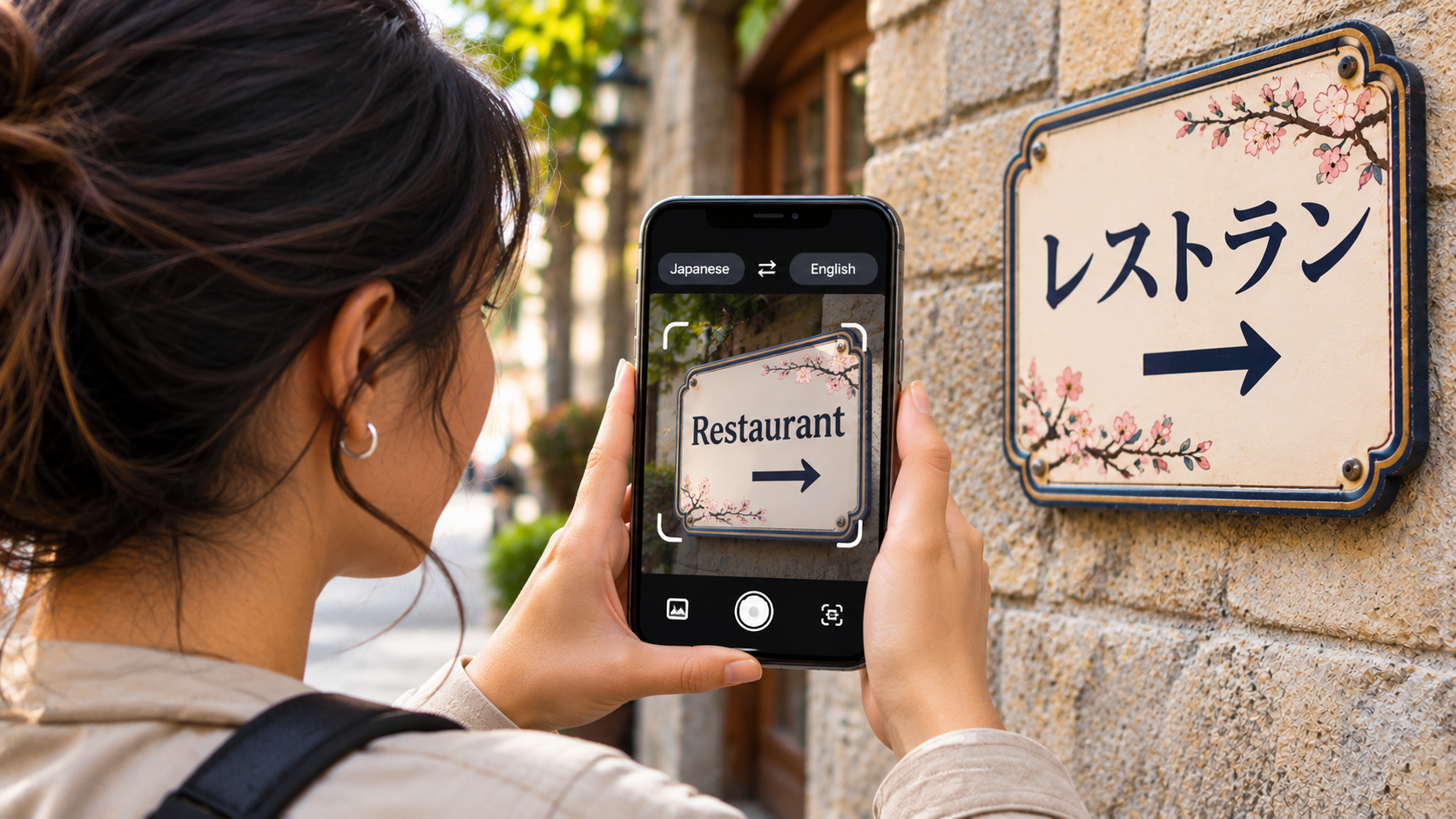
Traveling abroad or reading foreign-language packaging no longer requires a pocket dictionary. Modern smartphones make understanding unfamiliar languages much easier. You can translate with your phone camera by pointing your lens at printed text. Translation applications recognize the words and display their meanings in your preferred language.
These tools use optical character recognition (OCR) and machine learning to identify foreign characters. They then convert the recognized text into another language. This process makes reading unfamiliar signs, menus, and documents much faster. If you need to work with historical documents, you can also explore our guide to translating ancient transcripts online.
Whether you are checking train schedules in Tokyo or reading grocery labels in Paris, your smartphone can help. Modern translation apps offer instant text recognition, camera-based translation, and offline language support.
In this guide, you will learn how to translate with your phone camera on Android and iPhone. We will also cover real-time translation, spoken pronunciation, and offline language downloads. These features can make international travel and everyday communication easier.
Can I Translate with My Phone Camera?
Yes, you can translate foreign text directly through your smartphone camera. Both Android and iPhone devices support camera-based translation. You can use built-in features or dedicated translation applications.
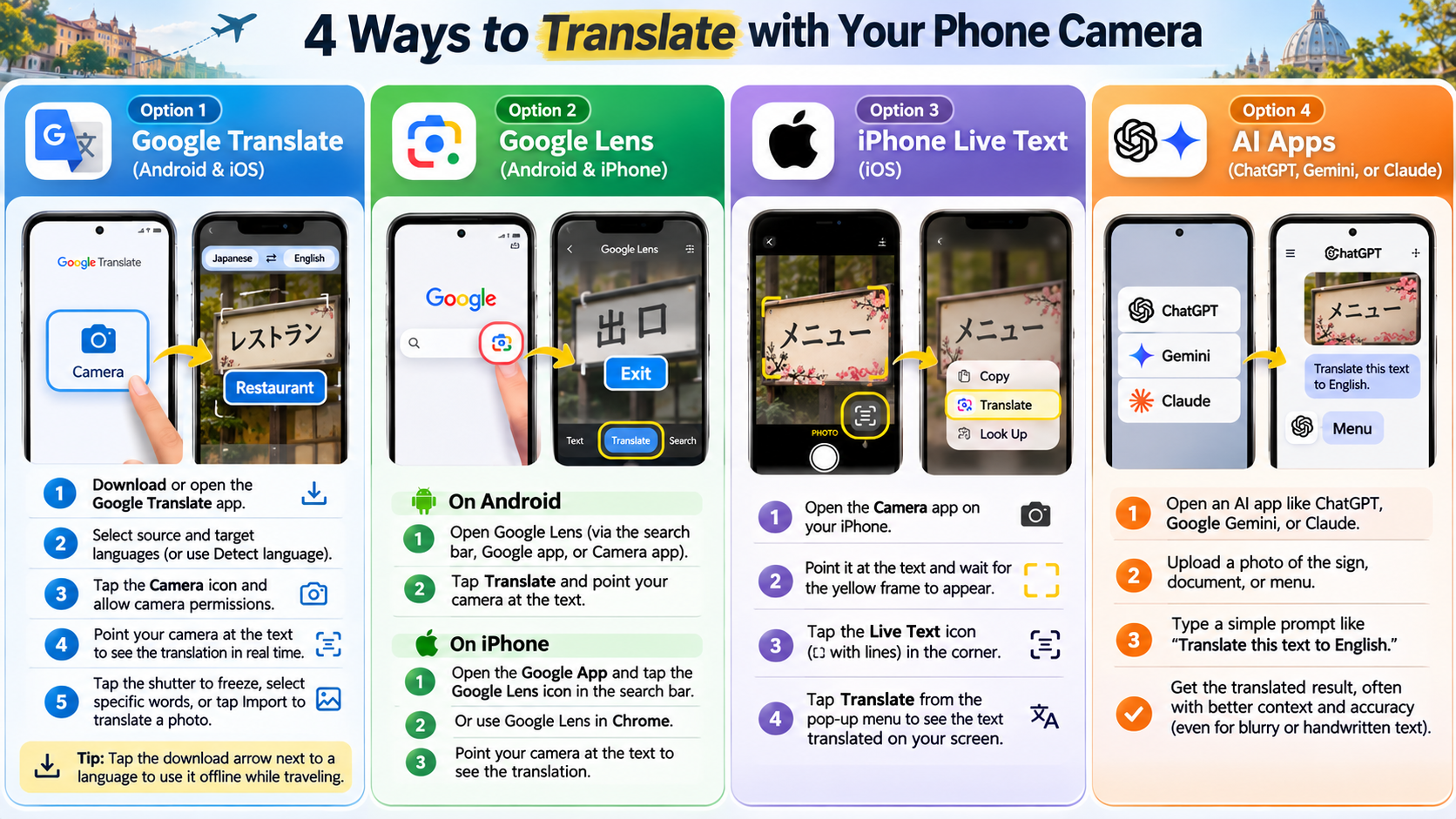
On Android, Google Translate and Google Lens recognize and translate printed text. On supported iPhones, Apple’s Live Text feature identifies written content through the Camera app. You can also use Apple’s Translate app for camera-based translation.
The process is simple:
-
Open your preferred translation application.
-
Select the original and target languages.
-
Point your camera towards the foreign text.
-
Wait for the application to recognize the words.
-
View the translated text on your screen.
This feature works with restaurant menus, road signs, product labels, and printed documents. You do not need to type every sentence manually. However, translation quality depends on image clarity, language support, and the application’s recognition capabilities.
Can I Use My Phone as a Real-Time Translator?
Yes, modern smartphones can work as real-time translators for written text and spoken conversations. Camera translation displays translated wording while you scan foreign-language signs, menus, and documents. Some applications update translations as you move your camera across the text.
For spoken conversations, Google Translate and Apple Translate offer dedicated translation features. These tools recognize speech and convert it into another language. Depending on the application and supported languages, they can also play translated speech aloud.
Real-time translation is useful in several everyday situations:
-
Ordering food at restaurants in another country.
-
Asking local people for travel directions.
-
Understanding announcements at international airports.
-
Communicating during overseas business meetings.
-
Reading unfamiliar information while shopping.
However, real-time translation is not always perfect. Background noise, regional accents, and complicated expressions can affect accuracy. Always check important information before relying on automatic translations.
Offline Translation Packs
Internet access is not always available when traveling. Fortunately, several translation applications support offline language downloads. Google Translate allows users to download supported language packs before their journeys.
To download an offline language pack:
-
Open the Google Translate application.
-
Tap the language selection option.
-
Find the language you want to download.
-
Tap the download icon beside that language.
-
Wait until the download finishes.
After downloading, open the camera feature and select your preferred languages. You can then translate supported text without an active internet connection.
Offline translation is particularly useful in remote destinations, underground stations, and areas with weak mobile coverage. However, supported languages and features can vary. Download your required languages before leaving home.
Can I Use My Camera to Translate and Read Words?
Yes, your smartphone can translate foreign words and read translated text aloud. This feature combines camera-based text recognition with text-to-speech technology. It helps you understand unfamiliar words without manually typing them into a translation application.
First, point your camera towards the foreign-language text. Let the application recognize and translate the visible words. Depending on the app, you can select individual words or the complete translated passage.
Look for the speaker icon to hear the translated content. Tap it to play the pronunciation through your phone’s speakers. Some applications also let you replay translations or select different passages.
This feature is particularly helpful when reading restaurant menus, product instructions, and public notices. It also supports language learning by helping you understand pronunciation. However, available audio options depend on the application and selected language.
Hearing Proper Native Pronunciation
Listening to translated words can make communication easier when visiting another country. Instead of relying entirely on written translations, you can hear how unfamiliar words sound.
For example, imagine ordering food at a restaurant in Japan. You can scan the menu, translate the dish names, and listen to their pronunciation when audio playback is available.
Follow these steps:
-
Scan the foreign text using your translation application.
-
Select the translated word or passage.
-
Find the speaker or audio playback icon.
-
Tap the icon to hear the pronunciation.
-
Replay the audio if you need additional practice.
Remember that automated pronunciation may differ from natural regional speech. Some expressions also have different meanings depending on context. Use audio translation as a learning aid rather than a replacement for understanding local communication.
Can I Use My iPhone Camera to Translate Text?
Yes, you can use your iPhone camera to translate foreign text without installing additional applications. Apple’s Live Text feature recognizes written content directly through the Camera app. It is available on supported iPhone models and software versions. You can also explore popular iOS AI features that make everyday iPhone tasks easier.
To translate text using your iPhone camera, follow these steps:
-
Open the default Camera app.
-
Point your camera towards the foreign-language text.
-
Wait until the text-detection indicator appears.
-
Tap the Detect Text button.
-
Touch and hold the text you want to translate.
-
Select the Translate option from the available actions.
Your iPhone will display the translated text in your selected language. You can also copy, share, or explore the translated content.
This feature works with many everyday text sources. Examples include restaurant menus, printed documents, advertisements, and street signs. However, Live Text availability depends on supported languages and regions.
Using the Live Text Feature
Live Text makes translating foreign-language content easier without taking unnecessary photographs. It identifies readable text directly inside your camera viewfinder. You can then select specific words or entire passages for translation.
Here is how to use this feature effectively:
-
Launch the Camera app on your iPhone.
-
Position your device towards the document or sign.
-
Wait for the text-detection indicator.
-
Tap the Detect Text button.
-
Select the foreign-language passage.
-
Tap Translate to view its meaning.
You can also use Live Text with existing photographs. Open the Photos app and select an image. Tap the Detect Text button, choose the required passage, and select Translate.
This approach is useful when someone shares a foreign-language document or photograph. You can understand its contents without manually entering every sentence.
How Do I Turn On iPhone Translate?
You do not need to activate a separate camera translation setting on your iPhone. Instead, enable Live Text to recognize and translate supported written content.
Follow these steps to enable Live Text:
-
Open the Settings application.
-
Select General.
-
Tap Language & Region.
-
Find the Live Text option.
-
Turn on the Live Text toggle.
Next, open your Camera app and point it towards readable text. When your iPhone detects foreign characters, the Detect Text button should appear.
You can also check Settings, select Camera, and ensure Show Detected Text is enabled. This setting controls whether detected text appears inside the camera view.
Remember that Live Text and Apple’s Translate application offer different workflows. Live Text recognizes selected text, while Translate provides additional translation tools. Some features may vary by iPhone model, iOS version, language, and region.
Conclusion
Being able to translate with your phone camera makes traveling, shopping, and communicating across language barriers much easier. You no longer need to type unfamiliar words or carry a physical dictionary. Your smartphone can recognize foreign text, display translations, and even pronounce unfamiliar words aloud.
Whether you use Google Translate on Android or Live Text on iPhone, these features make everyday translation faster and more convenient. You can explore Google Translate to access camera translation, text translation, and offline language features.
For iPhone users, Apple’s Live Text support guide explains how to recognize and interact with text in photos and other supported content.
For the best results, keep your camera steady, ensure proper lighting, and select the correct languages. Although automatic translations are not always perfect, they provide a practical way to understand unfamiliar content. Explore your phone’s translation features and make language barriers less challenging wherever you go.