
Is Cloud Storage Actually Secure?
Cloud storage makes it easy to save photos, documents, videos, and other important files online. However, many people wonder whether cloud storage is actually secure. Understanding how these services protect information can help you make better decisions about digital safety.
Major providers use encryption, secure data centers, and account protection tools to safeguard stored files. These measures reduce common security risks, but they cannot eliminate every threat. Weak passwords, phishing attacks, and incorrect sharing settings can still expose private information. The Cybersecurity and Infrastructure Security Agency’s online safety guidance explains practical steps for protecting accounts, recognizing phishing, and using stronger passwords.
Knowing whether cloud storage is actually secure requires looking beyond a provider’s reputation. You should also understand its encryption methods, privacy policies, and recovery options.
This guide explains cloud storage security, compares iCloud and Google Drive, and explores common hacking risks. You will also learn what happens when you cancel an iCloud subscription and whether paying for additional storage is worthwhile.
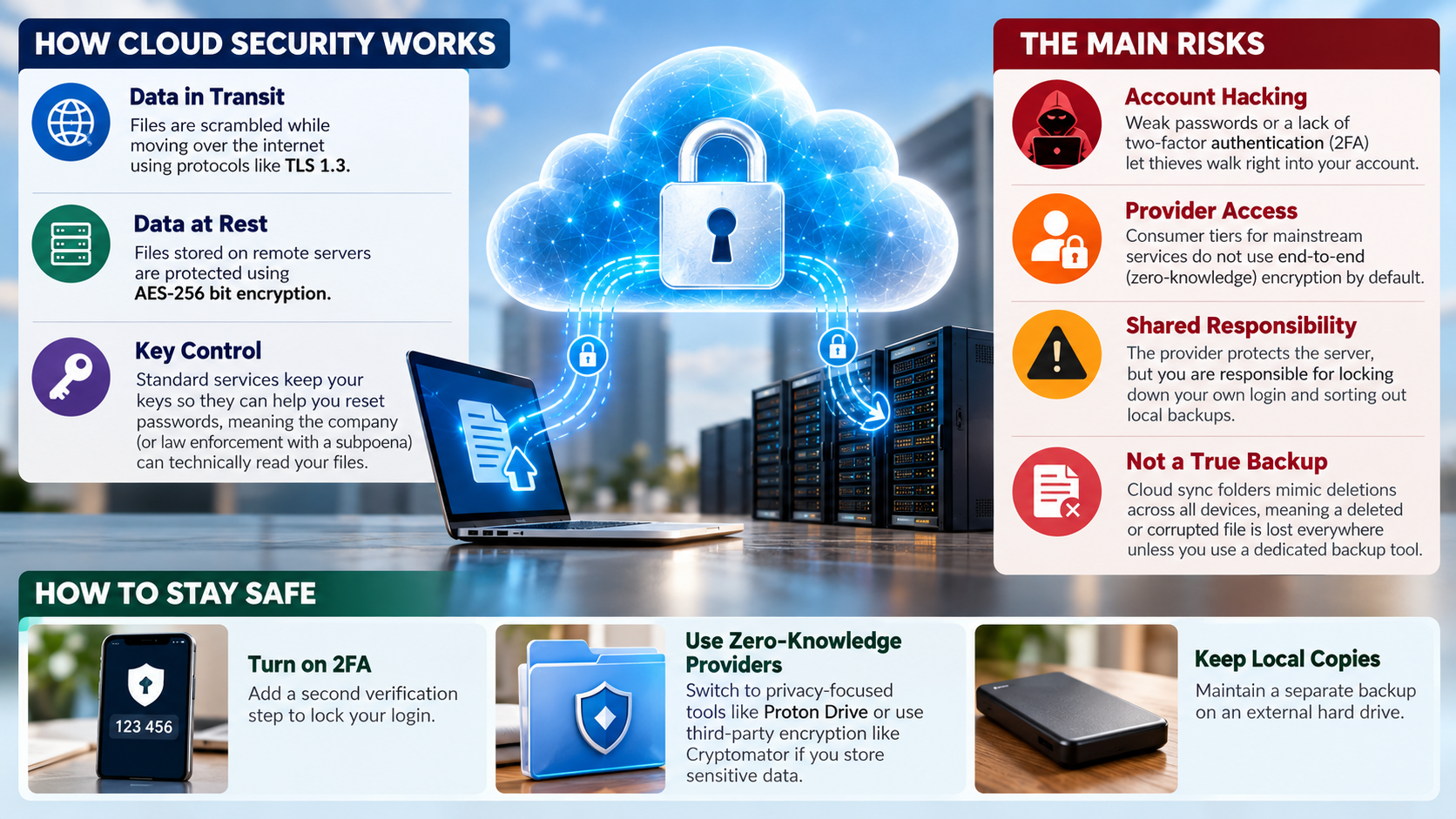
Is Cloud Storage Actually Secure?
Yes, cloud storage can be secure when you choose a reputable provider and protect your account properly. Major services use encryption, security monitoring, access controls, and reliable infrastructure. These safeguards help protect files against unauthorized access and certain technical failures.
However, whether cloud storage is actually secure depends on more than the provider’s technology. Weak passwords, phishing attacks, compromised devices, and careless sharing settings can expose private information. Even a well-protected platform cannot prevent every security incident.
Cloud storage also offers advantages over keeping files on a single computer. If your device breaks, gets stolen, or becomes unusable, your online files may remain accessible from another device. To understand the technology behind these services, explore how cloud computing works.
Before choosing a service, consider these essential factors:
- Encryption: Check how the provider protects files during transfers and storage.
- Account security: Look for two-factor authentication and secure recovery options.
- Privacy controls: Understand who can access your stored information.
- Backup reliability: Keep another copy of important files in a separate location.
No provider can eliminate every risk. Combining a trustworthy service with good security habits offers stronger protection than relying on either approach alone.
Understanding Cloud Storage Encryption
Encryption protects cloud storage by converting readable information into a format that requires the appropriate key to access. Most established providers encrypt files during transmission and while storing them on their servers. These protections reduce the risk of unauthorized access.
However, encryption methods differ between services. Standard encryption at rest does not necessarily prevent the provider from accessing file contents. In some systems, the provider manages the encryption keys and can decrypt information when required.
End-to-end encryption offers stronger privacy for supported data because only authorized users or devices hold the necessary decryption keys. Some providers also offer zero-knowledge encryption, which prevents the provider from reading protected file contents under the service’s encryption design.
If you want to know whether cloud storage is actually secure for sensitive documents, examine the encryption features before uploading files.
Check whether your chosen service offers:
- End-to-end encryption for your files.
- User-controlled encryption keys.
- Secure account recovery methods.
- Clear policies covering file access and sharing.
Remember that encryption cannot prevent every type of attack. Someone who gains access to an authorized device or an unlocked account may still view your files.
Is iCloud or Google Drive Safer for Cloud Storage?
Both iCloud and Google Drive use established security measures to protect stored information. However, neither service is automatically safer for every user. The better option depends on your privacy requirements, device preferences, and account settings.
Apple offers standard data protection for iCloud, including encryption and end-to-end encryption for certain categories. Users can enable Advanced Data Protection for iCloud to extend end-to-end encryption to additional categories, including iCloud Photos, iCloud Drive, and iCloud Backup.
Google Drive encrypts files during transmission and at rest. However, standard Google Drive storage does not provide user-controlled end-to-end encryption for every file by default.
Your choice should reflect how you work and which features matter most. iCloud may suit people who use several Apple devices and want integrated backups. Google Drive may be more convenient for users who regularly collaborate through Google’s productivity tools. If photo backup is your main priority, compare iCloud Photos and Google Photos before choosing a service.
To determine whether cloud storage is actually secure enough for your needs, compare each provider’s encryption options, account protections, and privacy controls. Both services require strong account security and careful management of sharing permissions.
Comparing Cloud Storage Privacy Features
Cloud storage security and privacy are closely related, but they address different concerns. Security focuses on protecting information against unauthorized access. Privacy concerns how a provider collects, processes, shares, and uses information.
Apple and Google publish privacy policies explaining their practices. Reviewing these policies can help you understand how each company handles account information, stored files, and connected services.
Google provides security controls and privacy settings across its services. However, it is inaccurate to assume that every file uploaded to Google Drive is routinely scanned for advertising purposes. Different services process information for different reasons.
Apple also offers different levels of iCloud encryption. Advanced Data Protection extends end-to-end encryption to more categories, but users must maintain suitable recovery methods. Losing access to those methods can make protected information difficult or impossible to recover.
When comparing providers, consider these questions:
- Can the provider access your files under its standard encryption settings?
- Does the service offer end-to-end encryption?
- What information does the provider collect?
- Can you manage file-sharing permissions?
- What happens if you lose access to your account?
These details provide a more useful comparison than brand reputation alone. The safest choice depends on the information you store and the protections you need.
Can Cloud Storage Actually Be Hacked?
Yes, cloud storage accounts can be compromised. However, a compromised account does not necessarily mean hackers have breached the provider’s central servers. Attackers often target individual users because stealing login credentials can be easier than defeating a company’s security infrastructure.
Phishing emails, fake login pages, reused passwords, and malware can expose account credentials. Attackers may also exploit weak recovery methods or devices that already contain active login sessions.
Once someone gains access to your account, they might download private documents, change sharing permissions, or delete stored information. The damage depends on the attacker’s access and the provider’s security controls.
Even when cloud storage is actually secure at the infrastructure level, stolen credentials can expose files. This is why protecting your login details matters as much as choosing a reputable provider.
To reduce these risks, enable two-factor authentication and use a unique password. Review connected devices regularly and remove unfamiliar sessions. Check shared folders, and avoid opening suspicious links.
For particularly sensitive documents, consider a service offering end-to-end encryption. You can also encrypt files yourself before uploading them. Maintaining independent backups helps protect your information if someone compromises your account.
How to Improve Your Cloud Storage Security
Protecting your cloud storage account starts with a few practical habits. You do not need advanced technical knowledge to reduce common security risks. Consistent account maintenance can make unauthorized access considerably harder. If you struggle to remember strong passwords, try these simple tricks to create a password you will remember.
If you want to keep cloud storage actually secure for everyday use, focus on protecting your login credentials, devices, and shared files.
Follow these steps:
- Create a strong password. Use a unique password that you never reuse on other websites.
- Enable two-factor authentication. Add another verification step to protect your account if someone steals your password.
- Use a password manager. Generate and store strong passwords without memorizing every credential.
- Review account activity. Check signed-in devices, recent security alerts, and unfamiliar sessions.
- Limit file sharing. Remove public links and permissions you no longer need.
- Update your devices. Install security updates for your operating system, browser, and storage applications.
- Maintain separate backups. Keep important files in another secure location.
Be cautious with unexpected emails requesting account verification. Instead of clicking suspicious links, open the provider’s official website or application directly.
If you store confidential business documents or financial records, consider encrypting them before uploading them. These precautions reduce the consequences of a stolen password or accidental file sharing.
What Happens If You Stop Paying for iCloud Storage?
Canceling a paid iCloud+ subscription does not automatically mean Apple immediately deletes all your stored files. However, you should not assume that every file will remain available indefinitely without restrictions.
When your paid plan ends, your account generally returns to the free storage tier. Apple’s free iCloud plan includes 5 GB of storage. If your existing data exceeds that limit, your account may stop syncing new information and completing new iCloud backups.
Some services may also stop updating properly until you free up space or purchase additional storage. Existing files and photos may remain stored, but continued access and synchronization should not be treated as guaranteed in every circumstance.
Before canceling, check your current storage usage and Apple’s latest subscription terms. Download important photos, documents, and backups wherever possible. Save those copies to a computer or external drive, and verify that the files open correctly.
Understanding these policies is another part of knowing whether cloud storage is actually secure for long-term file preservation. Keeping an independent backup is safer than relying on an assumed grace period.
How to Manage iCloud Storage Before Canceling
Managing your storage before canceling an iCloud+ subscription can help prevent unexpected disruptions. Start by checking how much space your account currently uses. On an iPhone or iPad, open Settings, tap your name, and select iCloud.
Review which categories consume the most storage. Photos, device backups, and large files often account for a substantial portion of your available space.
Before downgrading, consider these steps and decide where to keep a separate copy of your important files. Comparing cloud storage and external hard drives can help you choose a suitable backup method before canceling your subscription.
- Download important files: Save documents and photos to a computer or external drive.
- Verify your backups: Open copied files and confirm that the transfer completed successfully.
- Review old backups: Remove obsolete device backups only after confirming that you no longer need them.
- Reduce unnecessary storage use: Delete unwanted files and duplicate content.
- Check synchronization settings: Understand which services may stop updating when your account exceeds its storage limit.
Avoid deleting files before confirming that another copy exists. Some cloud services synchronize deletions across connected devices, meaning a file removed from one location may disappear elsewhere.
For important personal or business information, maintain at least one independent backup before changing your subscription. This approach reduces your dependence on a single provider and helps protect against accidental loss.
Is Paying for iCloud Storage Necessary?
Paying for iCloud storage is not necessary for everyone. Whether an upgrade makes sense depends on your storage needs, device usage, and preferred backup method.
Apple’s free plan provides 5 GB of storage. This may be sufficient for users who store relatively little information online, manage their files regularly, or maintain alternative backups. However, available space can fill quickly when you back up multiple devices or store large photo libraries.
A paid iCloud+ plan provides additional capacity and can simplify backups and synchronization across Apple devices. This may be useful if you regularly take high-resolution photos, record videos, or want your documents available across multiple devices.
Consider the practical benefits before subscribing. A paid plan offers convenience, but it does not replace independent backups or eliminate every security risk.
Compare your current storage usage with your expected needs. Also consider whether another cloud provider or a local storage solution would better suit your workflow.
Cloud storage can be actually secure without requiring the most expensive subscription. The important factors are choosing appropriate security features, protecting your account, and maintaining reliable backups.
How to Decide How Much Cloud Storage You Need
Your storage habits provide the clearest indication of whether you need a paid iCloud plan. Instead of upgrading automatically, review your current usage and determine which files genuinely need online storage.
Start by checking the storage breakdown on your iPhone, iPad, or Mac. Identify whether photos, device backups, documents, or application data consume most of your available space. If your phone frequently runs out of room, learn why phones are running out of storage faster than ever and consider which files belong on your device versus in the cloud.
Next, consider how you use your devices. If you frequently switch between an iPhone, iPad, and Mac, additional iCloud storage may make synchronization easier. If you mainly use one device and already maintain reliable local backups, a free plan may be sufficient.
Use these questions to guide your decision:
- Do you regularly receive warnings about insufficient iCloud storage?
- Do you need automatic backups for multiple Apple devices?
- Do you want your photos and documents synchronized across devices?
- Can you safely store some files locally instead?
- Would another storage provider better suit your needs?
Review your storage every few months, especially if your photo and video collection grows quickly.
Choose a plan based on actual usage rather than fear of losing files. Regardless of your subscription, keep separate copies of important information and protect your account with strong security settings.