The First Thing You Need to Do If Your Android Is Water Damaged
Accidents happen in seconds. Your phone can fall into a sink, bathtub, pool, or puddle. A sudden downpour can also leave your device soaked. If your Android is water damaged, acting quickly can reduce the chance of permanent hardware failure.
Liquid can enter through charging ports, speakers, microphones, buttons, and other openings. When electricity flows through wet circuits, it can create short circuits. Moisture can also leave behind residues that contribute to corrosion.
Many modern smartphones offer some level of water resistance. However, an IP rating does not make a phone completely waterproof. Physical damage, aging, repairs, and repeated exposure can also affect that protection. The International Electrotechnical Commission defines standards for IP ratings.
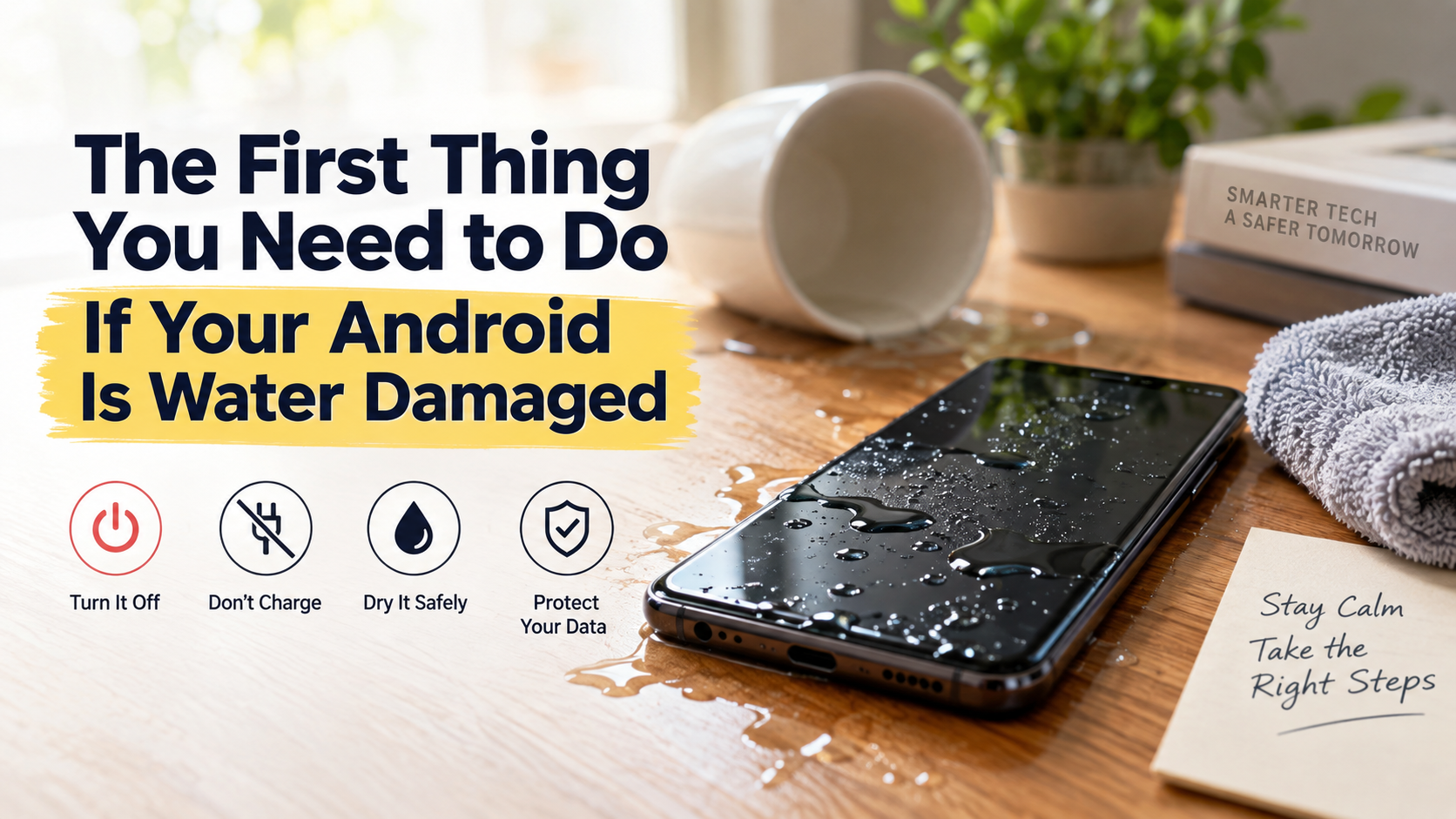
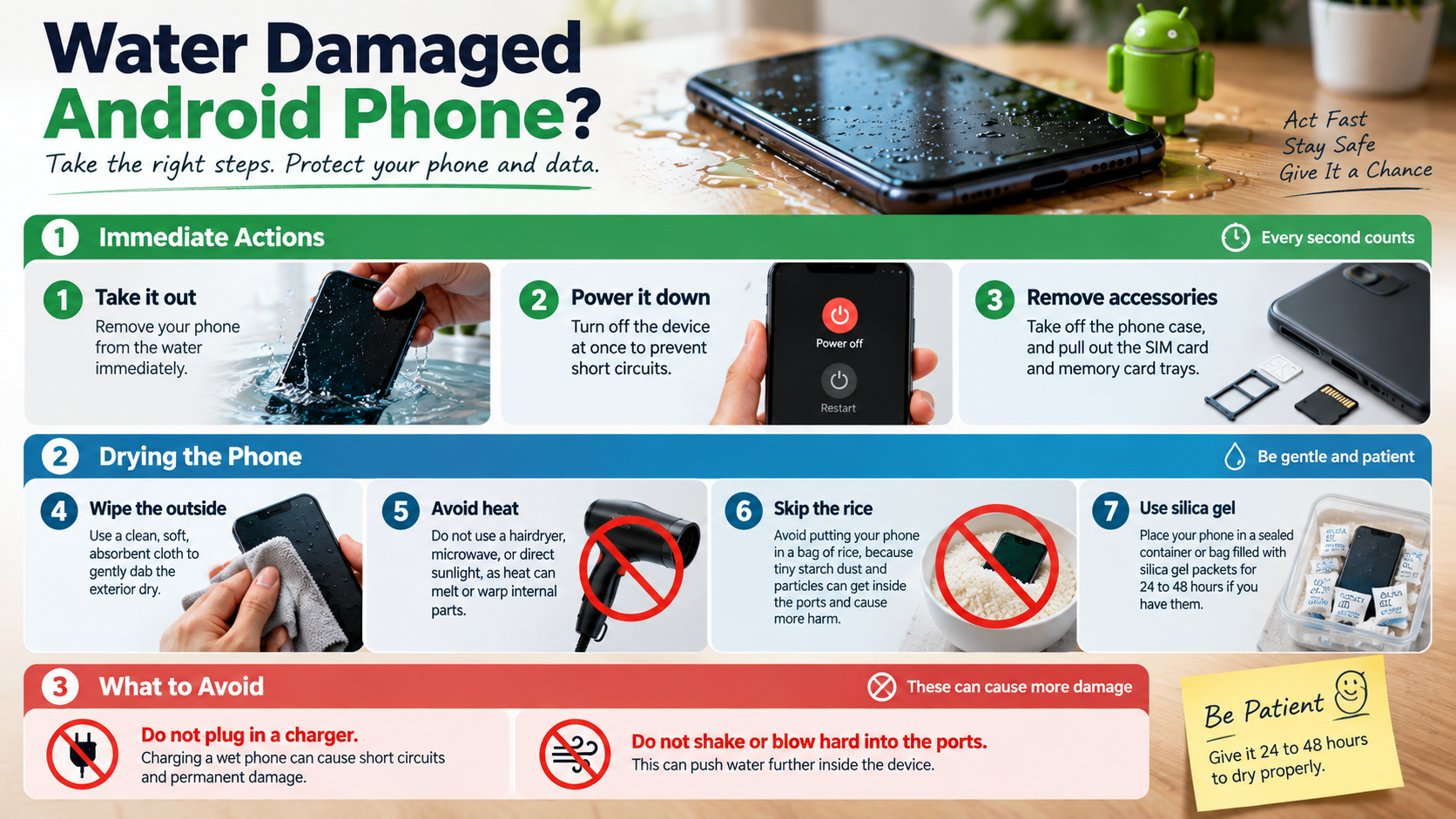
The first few minutes matter. Do not charge a wet phone or repeatedly press its buttons. Avoid hair dryers and other direct heat sources. Instead, shut the device down, disconnect it from power, and dry the exterior.
This guide explains what to do when your Android gets wet. You will learn how repair works, how to protect your data, and which popular drying methods you should avoid.
Can a Phone With Water Damage Be Repaired?
Yes, a water-damaged phone can sometimes be repaired. However, repair success depends on the liquid, exposure time, and affected components. A phone that briefly contacts clean water may have a different outcome from one submerged in saltwater or a sugary drink.
A professional technician can inspect the motherboard, battery, display, charging assembly, connectors, and other components. They may clean affected areas to remove moisture and contaminants. Early inspection can also help identify corrosion before it spreads.
The type of liquid matters considerably. Saltwater and sugary liquids can leave conductive or corrosive residues behind. Those residues can continue affecting internal components even after the visible liquid has evaporated.
Repair becomes harder when corrosion damages motherboard traces or important chips. Older devices may also have repair costs that approach their replacement value.
Seek professional help if:
- The phone will not turn on.
- The display flickers or shows unusual lines.
- The device becomes unusually hot.
- Charging stops working.
- Important files exist only on the phone.
If your Android is water damaged, avoid repeated attempts to power it on. A technician can assess the damage before another electrical failure occurs.
The True Cost of Micro-Soldering Repairs
Water exposure can damage tiny motherboard components. These include capacitors, resistors, connectors, and power-management circuits. Replacing an external part will not always fix damage located on the main board.
Micro-soldering repair allows a skilled technician to work directly on individual components. The process requires magnification, specialized tools, and extensive technical knowledge. A technician may inspect damaged traces, identify failed components, and attempt to restore the affected circuit.
Repair costs vary by phone model and damage level. Labor, replacement components, and the technician’s experience can also affect the final price. Minor board damage may require a relatively simple repair. Extensive corrosion can require much more work.
Data can influence the repair decision too. You may care more about recovering irreplaceable photos and documents than restoring the handset itself.
Before approving expensive work, compare the estimate with the phone’s age and replacement cost. If the device contains valuable data, tell the technician that data preservation is the priority.
Do not keep testing the phone at home. Every power attempt can create additional problems if moisture remains inside.
How to Restore an Android Phone From a Water-Damaged Phone?
When a water-damaged phone stops working, protect your data before attempting risky repairs. First, check whether the device already synchronized important information with your Google account or another cloud service.
Google services can synchronize contacts, calendars, photos, files, and device backups. The exact information available depends on your settings, Android version, applications, and backup configuration.
A damaged Android may not provide file access through a normal USB connection. The phone may need to power on and unlock before it allows access to local storage. Modern Android security features can also protect encrypted data from direct storage extraction.
Start by signing into your Google account from another trusted device. Check your synchronized photos, contacts, files, and available backups. You may recover much of your information without repairing the original handset.
If important files exist only on the damaged phone, stop experimenting with it. A reputable data recovery specialist can inspect the device and determine whether recovery remains possible.
Recovery is not guaranteed. Modern smartphones often encrypt stored data, which can make chip-level recovery difficult. Tell any repair professional that preserving the original data matters before they begin work.
When your Android is water damaged, patience can protect more than the hardware. Avoid actions that could make a later recovery attempt harder.
Activating Google Cloud Sync on a New Device
A replacement Android phone can restore information from an existing Google backup. During setup, sign in with the same Google account that you used on the damaged device.
Android may then offer an available backup for restoration. The information you recover depends on what the original phone synchronized before the accident. Backup options can vary between Android versions, manufacturers, and applications.
Supported information may include:
- Contacts
- Applications
- Device settings
- Call history
- SMS messages
- Other supported backup data
Photos and videos may remain available through Google Photos if you previously enabled synchronization. Files stored through cloud services can also remain accessible after you sign in.
Do not expect every local file to return automatically. A cloud backup can only restore information that the phone previously synchronized or backed up.
If the damaged handset still works, back up important information as soon as possible. However, do not keep operating it simply because the screen appears normal. Internal moisture can continue causing corrosion.
For future protection, check your backup settings regularly. Keep important photos, documents, contacts, and other files synchronized with a trusted cloud service.
A reliable backup can turn a serious phone accident into a much smaller data-loss problem.
How Do I Get My Phone to Work After Water Damage?
If your Android is water damaged, switch it off immediately if it remains powered on. Do not keep checking the screen or opening applications. Disconnect every charging cable and accessory.
Next, dry the exterior with a clean, absorbent, lint-free cloth. If the phone has a removable SIM tray or microSD card, take those components out. Keep them separate while the device dries.
Never connect a wet phone to a charger or computer. Electrical current can create short circuits when moisture remains around internal connections. Avoid wireless charging as well until the phone has dried properly or a technician has inspected it.
Place the phone somewhere dry with good ventilation. Gentle airflow from a fan can help moisture on exposed surfaces evaporate. Keep the device at normal room temperature.
Do not push tissues, cotton swabs, or other objects into charging ports. They can leave fibers behind or push moisture farther inside.
There is no universal drying period that guarantees safety. A dry exterior does not prove that the internal components are dry. Significant exposure or submersion deserves professional inspection.
If your Android is water damaged after substantial liquid exposure, resist the urge to test it repeatedly. The safest goal is to prevent additional damage while the device dries.
Why You Must Avoid External Heat Sources
Direct heat cannot safely replace proper drying. Hair dryers, ovens, heaters, and prolonged sunlight can raise the phone’s temperature too far. Excessive heat can damage displays, adhesives, plastics, and other delicate components.
The battery also creates an important safety concern. Smartphones use lithium-ion batteries that can react badly to excessive heat. Heating the device unnecessarily can increase battery stress and create additional risks.
Hot air may also move moisture toward other internal areas. It does not guarantee that trapped liquid will leave the phone.
Instead, use room-temperature drying with gentle airflow. Keep the phone switched off and place it somewhere dry and ventilated. Never put it directly against a heater or hot surface.
Strong compressed air is also unnecessary. High-pressure airflow can potentially force liquid deeper into openings.
Watch for serious battery warning signs. These include unusual heat, swelling, smoke, or an unusual smell. If you notice them, stop handling the device unnecessarily and seek professional assistance.
Remember that external dryness does not confirm internal dryness. Moisture can remain around connectors, shields, and motherboard components.
If your Android is water damaged after significant exposure, professional inspection provides a safer way to identify hidden moisture and corrosion.
I Dropped My Phone in Water for 5 Seconds. What Should I Do?
Five seconds may sound harmless, but even brief submersion can allow liquid to enter a smartphone. Water can reach internal areas through speaker openings, microphones, charging ports, buttons, and other gaps.
Remove the phone immediately and turn it off. If the phone has already shut down, leave it off. Disconnect charging cables, headphones, and other accessories.
Dry the exterior with a clean, absorbent cloth. Keep openings facing downward while you gently dry the outside. Avoid vigorous shaking because moving the device can spread liquid internally.
Remove the SIM tray and microSD card if your phone allows it. Do not insert paper, cotton swabs, or other objects into the ports.
Check your manufacturer’s guidance for the specific model. Some Android phones carry IP ratings that provide protection against certain forms of water exposure. However, those ratings apply under controlled testing conditions. They do not guarantee protection in every real-world situation.
Do not charge the phone just because the display still works. A phone can appear normal while moisture remains inside.
Contaminated liquids deserve extra attention. Saltwater, sugary drinks, and other liquids can leave residues that continue affecting components after evaporation.
If your Android is water damaged after a brief drop, focus on preventing additional damage rather than testing every feature.
Inspecting the Liquid Contact Indicator
Some smartphones contain a Liquid Contact Indicator (LCI). This small component can change color after exposure to liquid. Manufacturers place LCIs in different locations depending on the device.
Some models position the indicator near the SIM tray. If yours has an accessible indicator, you can inspect it after removing the tray. Use a flashlight if necessary, but never insert tools into the opening.
A changed indicator can provide evidence of liquid exposure. However, it cannot measure the amount of liquid that entered the phone. It also cannot identify every component that may have suffered damage.
Treat the LCI as an indicator rather than a complete diagnostic tool. Your phone can experience moisture-related problems even when an indicator does not provide useful information.
The indicator’s appearance also varies between manufacturers. Check the manufacturer’s documentation for your exact model if you want to identify it correctly.
Never dismantle the phone simply to locate an LCI. Opening a device can create additional damage and may affect its existing seals.
Most importantly, do not use the indicator to decide whether charging is safe. If the phone became wet, keep it disconnected from power until it has dried sufficiently.
If your Android is water damaged and contains valuable data, professional inspection offers more information than a visual indicator alone.
Can Rice Really Save a Wet Phone?
No. Rice cannot reliably repair a water-damaged phone. Dry rice may absorb some moisture from surrounding air, but it does not reliably remove liquid trapped inside a smartphone.
Putting a wet phone into rice can introduce dust, starch particles, and small grains into openings. Those particles can create additional cleaning problems around charging ports, speakers, and microphones.
Rice can also create a false sense of security. A phone may look dry externally while moisture remains around internal components. Turning the device on too soon can then cause additional electrical damage.
Avoid using flour, salt, cereal, or other household grains as drying solutions. These materials do not provide a dependable method for removing internal liquid.
Instead, switch the phone off and disconnect it from power. Dry the exterior with a clean cloth and place the device in a dry, ventilated environment. Gentle airflow can assist natural evaporation from accessible openings.
For significant exposure, especially submersion, professional inspection remains the safer option. A technician can inspect the device for moisture, residue, and corrosion.
If important data exists only on the phone, avoid experimenting with household remedies. Protecting the data may matter more than getting the phone to turn on immediately.
When your Android is water damaged, the priority should be limiting further electrical and corrosion-related damage.
Better Alternatives to Raw Food Grains
Silica gel is a desiccant that absorbs moisture from surrounding air. However, it should not receive too much credit for fixing a wet smartphone. Silica packets cannot guarantee the removal of liquid trapped deep inside the device.
If you already have unused silica-gel packets, you can keep them near the powered-off phone in a dry environment. They may help reduce surrounding humidity. Do not assume that this process makes a submerged phone safe to power on.
Focus on these immediate actions instead:
- Turn the phone off.
- Disconnect all chargers and accessories.
- Dry the exterior with a clean cloth.
- Remove accessible SIM and memory cards.
- Keep the device somewhere dry and ventilated.
- Avoid heat, rice, and repeated power attempts.
- Seek professional inspection after significant exposure.
Professional cleaning and diagnostics can provide more useful information after serious water exposure. This becomes especially important when the phone contains valuable files.
Saltwater and sugary drinks require particular caution. They can leave residues behind after the visible moisture disappears. Those residues may contribute to corrosion over time.
Do not confuse a dry exterior with a dry motherboard. Internal moisture can remain hidden around connectors and other components.
If your Android is water damaged, focus on prevention first. A cautious approach gives you a better chance of protecting both the hardware and your data.
Frequently Asked Questions
Can I charge my phone if it shows a moisture detected warning?
No. Disconnect the charger and let the port dry naturally. Avoid heat, tissues, and other objects inside the port. If the warning continues, check your manufacturer’s support guidance.
Does Tap Water Damage Phones Faster Than Salt Water?
Saltwater can cause additional corrosion because it contains dissolved salts. Tap water can also damage electronics. After significant exposure, keep the phone powered off and seek professional help.
Will Standard Manufacturer Warranties Cover Liquid Intrusion?
Many standard warranties exclude liquid damage. Coverage varies by manufacturer, region, and protection plan. You can also compare AppleCare vs. Carrier Insurance when evaluating separate device protection options. Check your warranty terms before paying for repairs.
How Long Should an Android Dry Before Turning It Back On?
There is no guaranteed drying time. Keep the phone powered off in a dry, ventilated area. Avoid rice and direct heat. Significant water exposure may require professional inspection.
Conclusion
If your Android is water damaged, turn it off immediately and disconnect it from power. Dry the exterior and avoid charging, direct heat, rice, or repeated restart attempts.
Check your cloud backups if the phone stops working. For serious exposure or valuable data, professional inspection can help prevent further damage.
Water resistance offers protection, but it has limits. Acting carefully and quickly gives your phone and data the best chance of recovery.