What Is the Minimum Free Space on SSD Drives for Peak Performance?
Solid-state drives deliver fast boot times, quick file transfers, and quiet operation. However, keeping an SSD nearly full can reduce write performance. It can also make storage management less efficient. Maintaining the recommended minimum free space on SSD drives gives the controller room for garbage collection, wear leveling, and other background tasks. If you are comparing SSD technologies, our guide to NVMe SSDs and their benefits explains how they differ from other storage options.
NAND flash memory works differently from traditional hard drives. As explained in technical documentation from Micron Technology, SSDs cannot simply overwrite existing data. The controller must erase flash blocks before writing new data. A nearly full drive has fewer suitable blocks available, so the controller may perform more internal work.
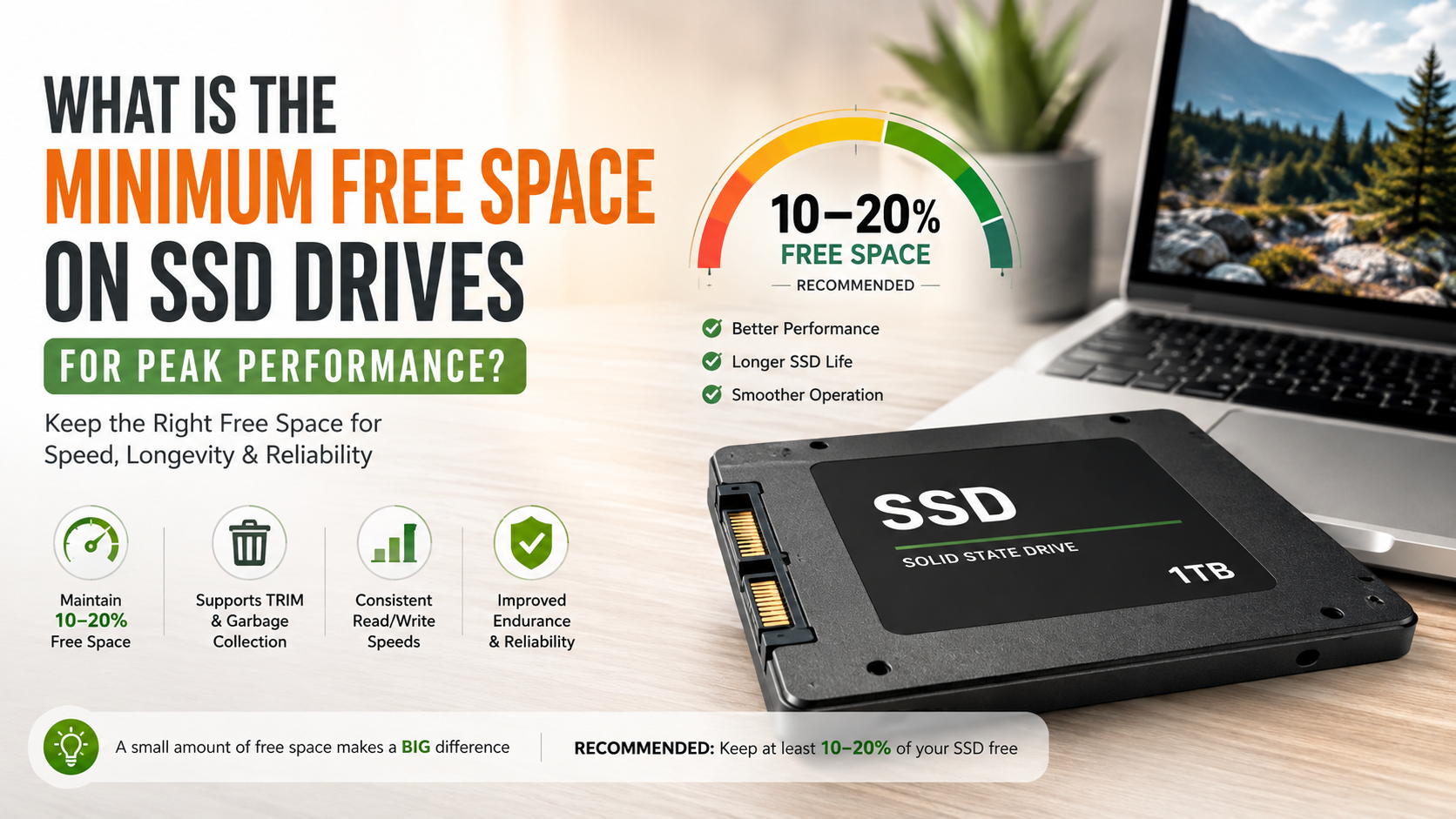
For most users, keeping 10% to 20% free space provides a practical buffer. The ideal amount depends on drive design and workload. Heavy users may benefit from keeping even more space available.
This guide explains how much space to leave on SSDs. It also covers 1TB and 2TB capacity, SSD lifespan, TRIM, and practical storage management. For a deeper technical explanation, see Micron’s SSD over-provisioning guidance. Micron’s SSD Over-Provisioning Technical Brief
How much GB should I leave free on my SSD?
As a general rule, keep 10% to 20% of an SSD free for smooth everyday performance. A 15% buffer works well for many consumer systems. However, there is no universal minimum because SSD controllers and NAND designs differ. Your workload also affects how much free space is useful. If you are considering an older interface, our guide explains whether a SATA SSD is still worth buying.
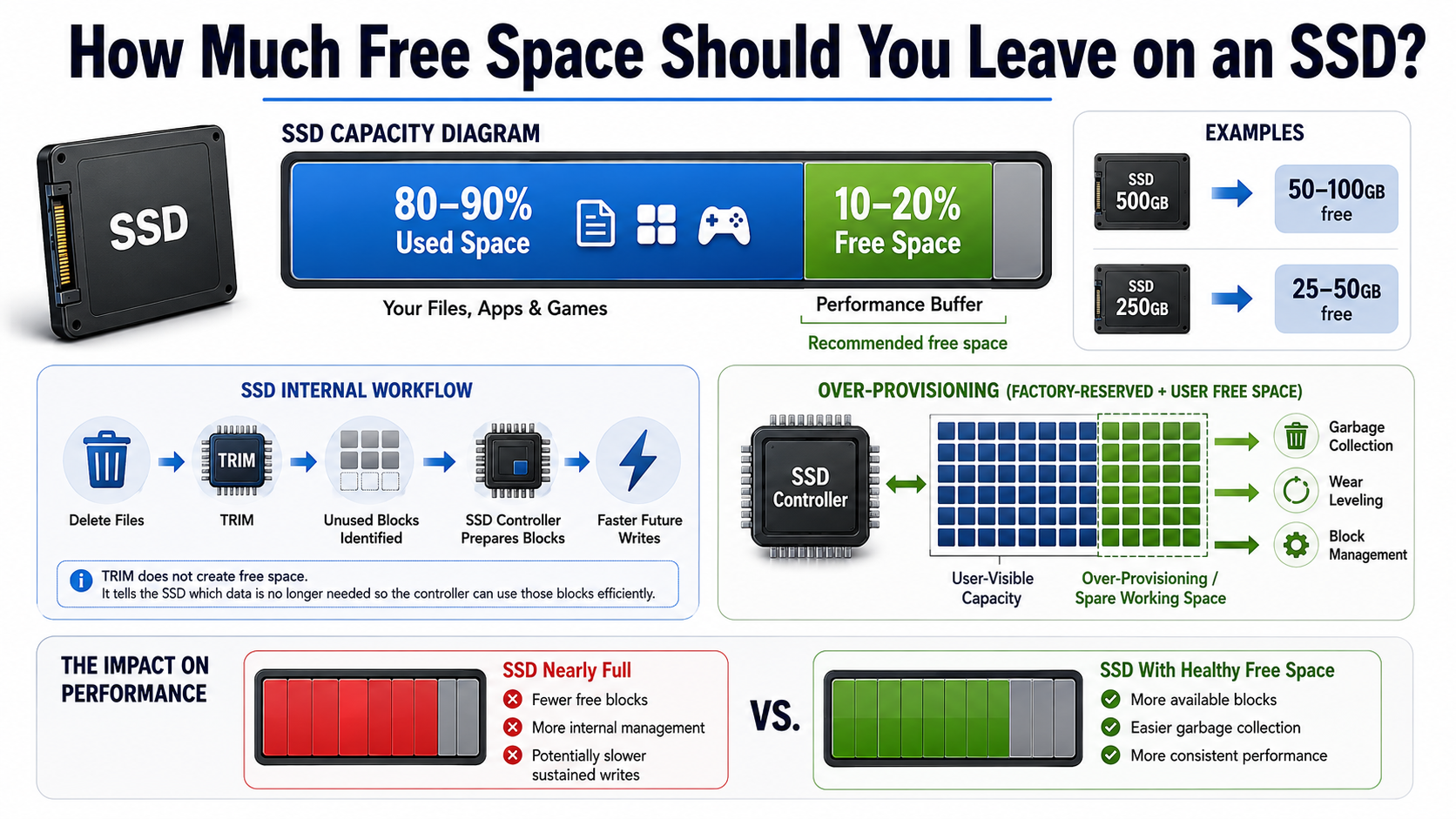
For example, a 500GB SSD could retain 50GB to 100GB of free space. A 250GB drive could keep about 25GB to 50GB available. Larger drives should follow the same percentage rather than a fixed number of gigabytes.
Keeping the drive below roughly 80% to 90% capacity can provide useful headroom. This becomes especially important during large file transfers, software installations, and other write-heavy tasks.
You should also consider operating system requirements. Windows, macOS, applications, temporary files, updates, and virtual memory all need working space. Regularly removing unnecessary downloads and moving large archives elsewhere can help maintain your minimum free space on SSD without sacrificing useful storage.
The Role of Over-Provisioning and TRIM Support
Over-provisioning gives an SSD additional space for internal management. Some drives reserve part of their NAND capacity automatically. Others can benefit from additional free space maintained by the user. As a general rule, keeping at least 10–15% of an SSD’s capacity free can give the controller enough room to handle garbage collection, wear leveling, and block management more efficiently.
TRIM support also plays an important role. When you delete files, TRIM allows the operating system to tell the SSD which data blocks are no longer needed. The controller can then prepare those blocks for future writes.
Keeping enough free space does not replace TRIM. Instead, both features contribute to efficient SSD operation. TRIM is supported by modern operating systems and compatible SSDs, although implementation can vary by platform and drive type.
For best results, enable the operating system’s normal SSD optimization features. Avoid manually running traditional disk defragmentation tools on SSDs unless the operating system specifically manages the process. A healthy amount of free capacity gives the controller more flexibility and can help maintain consistent performance during everyday workloads.
Is 1 TB of SSD enough?
For many users, a 1TB SSD is enough for everyday computing. It provides comfortable space for an operating system, applications, documents, photos, and several large games. It also leaves useful room for the minimum free space on SSD performance recommendations. If you are choosing a new computer, our Chromebook vs Laptop comparison can help you decide which option better suits your storage needs.
A typical Windows or macOS installation uses only part of a 1TB drive. However, applications and personal files can quickly consume the remaining capacity. Modern games are particularly demanding. Many AAA titles now require 80GB to 150GB or more after updates and downloadable content.
Creative workloads can consume storage even faster. Uncompressed 4K video, large photo catalogs, virtual machines, and software development projects can occupy hundreds of gigabytes.
A 1TB SSD works best when you manage storage regularly. Keep your operating system and frequently used applications on the SSD. Move older projects, large media collections, and backups to another drive when necessary. This makes it easier to maintain the minimum free space on SSD needed for smooth performance.
For most office users and casual gamers, 1TB offers a strong balance between capacity, speed, and cost. Power users may prefer 2TB to avoid frequent storage cleanup.
Balancing OS Files, Applications, and Modern Game Installs
Modern applications and games can use substantial amounts of SSD capacity. A few large game installations can consume hundreds of gigabytes. Productivity applications also grow over time as they add features, caches, libraries, and local data.
A 1TB SSD can comfortably support a typical operating system and several large applications. However, you should avoid filling the drive simply because capacity remains available. Maintaining a healthy amount of free space helps preserve useful performance headroom.
Consider separating storage by purpose. Keep frequently used applications and active projects on your primary SSD. Store completed projects, archived footage, installers, and backups on secondary or external storage. For another practical storage option, compare cloud storage vs external hard drives before deciding where to keep your archives.
For gaming systems, uninstall titles you no longer play or move them to a secondary drive when practical. Game platforms often support library transfers, which can make storage management easier.
The goal is not to avoid using your SSD. Instead, maintain enough free SSD space for normal system operations and future updates. A simple monthly storage check can prevent sudden capacity problems and keep a 1TB drive comfortable for longer.
How much free space should I leave on my 2TB SSD?
For a 2TB SSD, keeping 200GB to 300GB free provides a useful buffer for many users. This represents roughly 10% to 15% of the advertised capacity. The exact amount is not a strict technical requirement, but it gives the drive plenty of working room.
A larger buffer becomes valuable when you regularly perform heavy writes. Video editing, large backups, game installations, virtual machines, and software development can generate significant amounts of data. These workloads may also create temporary files and additional internal writes.
You should also leave room for operating system updates and application installations. A drive with only a few gigabytes remaining can become inconvenient even if its hardware still functions normally.
A 2TB SSD gives you more flexibility because the same percentage represents a larger absolute amount of space. If your workload is write-heavy, keeping closer to 15% or 20% free can be a sensible approach.
Rather than chasing one exact number, monitor your minimum free space on SSD regularly. If capacity consistently falls below 10%, consider deleting, archiving, or moving less frequently used data.
Maintaining Optimal Minimum Free Space on SSD for Sustained Transfers
Large sustained transfers can expose the limitations of an SSD’s write design. Many consumer SSDs use an SLC cache to absorb incoming data quickly. Once that cache fills, sustained write speeds may fall as the drive writes directly to slower NAND.
Keeping substantial free capacity can help the controller manage available blocks efficiently. However, free space does not guarantee that an SSD will maintain its advertised peak speed during very long transfers. Drive capacity, NAND type, controller design, temperature, and cache behavior all affect sustained performance.
A 2TB SSD with 200GB or more free can provide useful operational headroom. That space can also accommodate temporary files created during video exports, backups, and large installations.
For demanding workloads, choose an SSD designed for sustained writes rather than relying only on capacity. Check the manufacturer’s specifications for sustained write performance, endurance, and thermal behavior.
Free space remains important, but it is one part of overall SSD performance. Keeping your drive reasonably empty simply gives the controller more flexibility during demanding storage operations.
Is 2TB of SSD overkill?
A 2TB SSD is not overkill for many power users. Gamers, content creators, developers, and professionals often benefit from the additional capacity. Large games, high-resolution footage, virtual machines, and development environments can consume storage surprisingly quickly.
Modern AAA games can occupy more than 100GB each. Video projects can require hundreds of gigabytes before final exports and backups. A 2TB drive lets you keep more active data available without constantly moving files.
For casual users, however, 2TB may be unnecessary. If you mainly browse the web, stream content, use office applications, and store documents in the cloud, a 500GB or 1TB SSD may provide enough capacity. Performance does not automatically improve simply because you choose a larger drive.
The right capacity depends on how you use your computer. Consider your current storage usage and expected growth over the next few years.
If your existing drive regularly approaches 90% capacity, upgrading to 2TB can provide valuable headroom. If you rarely exceed half of a 1TB drive, spending more on capacity may offer little practical benefit.
Long-Term Value and Future-Proofing Storage Capacity
Choosing a larger SSD can reduce the need for an early storage upgrade. Software, games, media files, and operating system features generally become larger over time. Additional capacity gives you more room to accommodate that growth.
A 2TB drive can also simplify storage management. Instead of constantly moving active projects between drives, you can keep frequently accessed files together. This can be especially useful for creative professionals and developers working with large project directories.
However, future-proofing should not mean buying capacity you will never use. Compare your current storage consumption with your expected needs. If you use 600GB today and expect moderate growth, 1TB may remain practical. If you already approach 1TB, 2TB offers a more comfortable margin.
Remember that free space still matters on a larger SSD. Buying a 2TB drive does not mean you should fill all 2TB. Keeping a reasonable percentage available supports storage management and reduces the likelihood of low-disk-space problems.
For users with growing storage needs, 2TB can therefore provide strong long-term value. It offers convenience without requiring frequent upgrades or aggressive file cleanup.
What is the lifespan of a 1 TB SSD?
A 1TB SSD can often remain usable for many years, but there is no fixed lifespan that applies to every drive. SSD endurance depends on NAND technology, controller quality, workload, temperature, power conditions, and total data written.
Manufacturers commonly specify endurance using Terabytes Written (TBW). For example, a drive rated at 600TBW is designed to support at least that amount of host writes under its stated warranty conditions. It does not mean the SSD will necessarily fail immediately after reaching that figure.
Daily write volume matters more than simply owning a 1TB SSD. A user who writes 20GB per day has a very different workload from someone who writes several hundred gigabytes daily.
Consumer SSDs can remain reliable for many years under normal workloads. However, electronic components and controllers can fail before NAND reaches its rated endurance. Firmware issues, power problems, physical damage, or other faults can also cause failure. If you notice broader hardware problems, watch for these warning signs for your laptop before they become more serious.
Therefore, SSD lifespan should not be treated as a guaranteed number of years. Monitor drive health, maintain sensible temperatures, and keep reliable backups of important files.
Understanding Manufacturer Warranties and Drive Health Metrics
SSD warranties can provide useful information about expected endurance. Many consumer models offer warranties of several years and specify a TBW limit. Always check the manufacturer’s documentation because warranty terms differ between models and regions.
You can also monitor SSD health through SMART data and manufacturer-specific utilities. These tools may report information such as total host writes, drive temperature, remaining life estimates, and other diagnostic values.
Health readings are useful, but they are not guarantees. An SSD can fail unexpectedly even when monitoring software reports good health. Conversely, reaching a manufacturer’s endurance rating does not necessarily mean immediate failure.
For that reason, monitoring should complement—not replace—regular backups. Keep important documents, photos, projects, and other irreplaceable files on a separate backup system.
Temperature also matters. Excessive heat can affect performance and may accelerate component aging. Ensure your SSD has appropriate airflow, especially in compact systems and desktops with high-performance components.
Checking health information occasionally can help you identify unusual behavior early. If the drive reports warnings, increasing errors, or rapidly declining health, move important data to another storage device as soon as possible.
Frequently Asked Questions
What happens when an SSD is 100% full?
When an SSD reaches 100% capacity, write speeds plummet, and your system may experience severe lag, crashes, or boot failures. The operating system cannot write temporary files, update registry entries, or manage swap space. Furthermore, the drive controller cannot execute garbage collection, which causes extreme write latency across all active programs.
Does SSD performance drop as it fills up?
Yes, SSD performance drops significantly when total data usage exceeds 80% to 90% capacity. As empty blocks become scarce, the drive controller must continuously read, clear, and rewrite partially filled blocks rather than writing directly to fresh space. This process, known as write amplification, noticeably slows down file saving and loading.
Can an SSD fail suddenly without warning?
While solid-state drives rarely experience mechanical breakdown, electronic components like memory controllers, power capacitors, and NAND chips can fail suddenly. Unlike mechanical hard drives that often click or grind before dying, an SSD might instantly become read-only or disappear from BIOS. Maintaining regular off-site backups remains vital for safeguarding important data.
Conclusion
Keeping the right amount of free space is essential for maintaining SSD performance and reliability. As a general rule, aim to keep 10% to 20% of your SSD free, especially if you regularly handle large files or demanding workloads.
Whether you use a 1TB or 2TB SSD, avoid filling the drive to capacity. Maintaining the recommended minimum free space on SSD storage gives the controller room for essential maintenance tasks and helps keep performance consistent. Regular storage cleanup, TRIM support, and reliable backups can also help you get the most from your SSD.