How to Clear System Storage Space on Your Mac
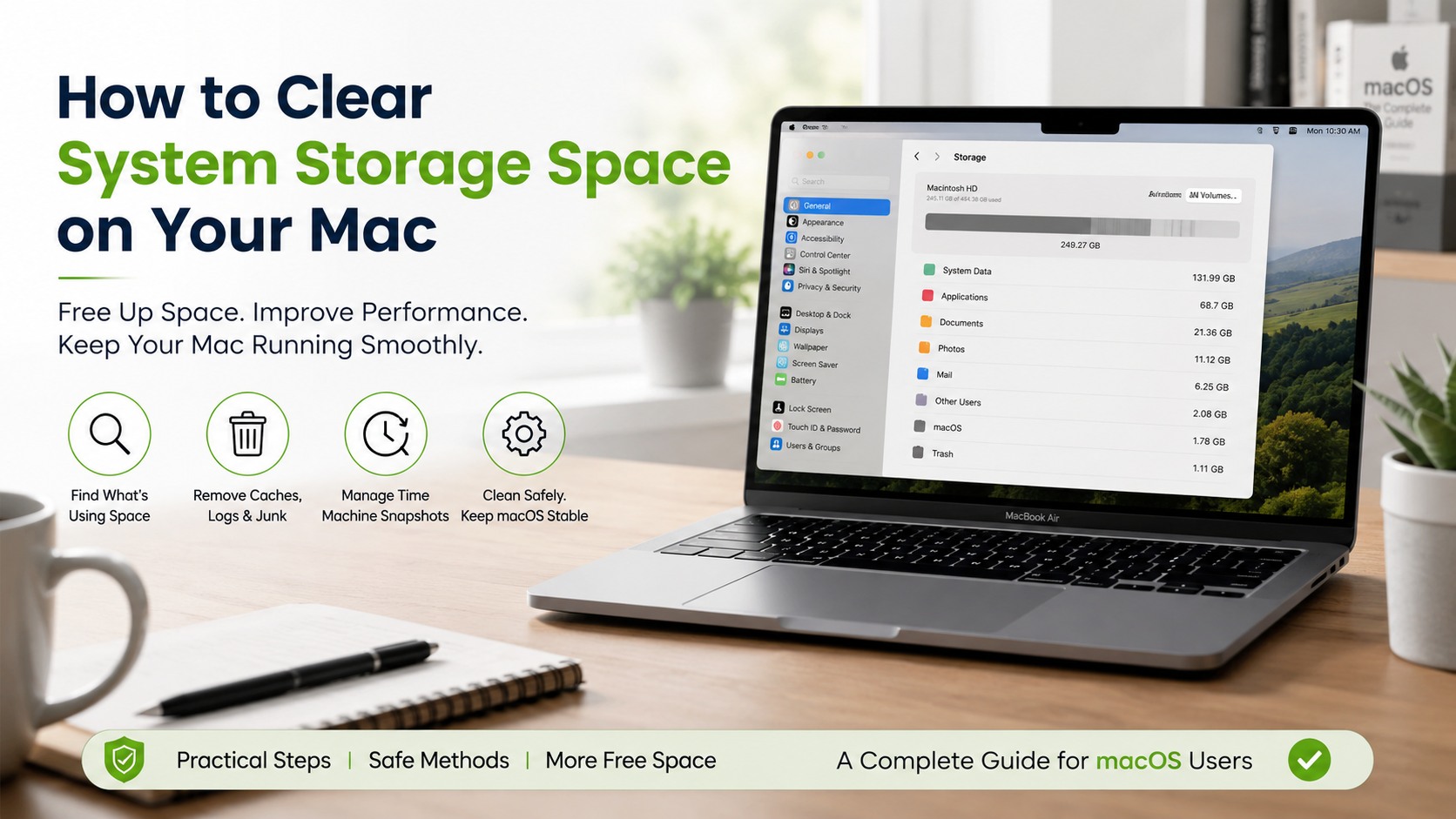
Running out of storage can quickly disrupt your daily workflow. If you want to clear system storage space on your Mac, start by checking the gray System Data category in your storage breakdown. This category can seem confusing because it includes many different types of files.
Learning how to clear system storage space on your Mac can help you recover valuable disk space. It can also help you identify which files and applications are taking up the most storage.
Apple explains that System Data is a general storage category. It contains files that do not fit into other categories. These can include logs, caches, temporary files, virtual machine files, fonts, app support files, and plug-ins. You can learn more about these categories in Apple’s Mac Storage settings guide.
System Data can change in size as your Mac manages its available storage. A large number does not always mean there is a problem. However, unnecessary files can still reduce the space available for documents, applications, photos, and updates.
In this guide, you will learn practical ways to clear system storage space on your Mac safely. You will also learn why System Data can reach 100GB or even 200GB and which areas are worth checking first.
How can I clear system data on my Mac in 2026?
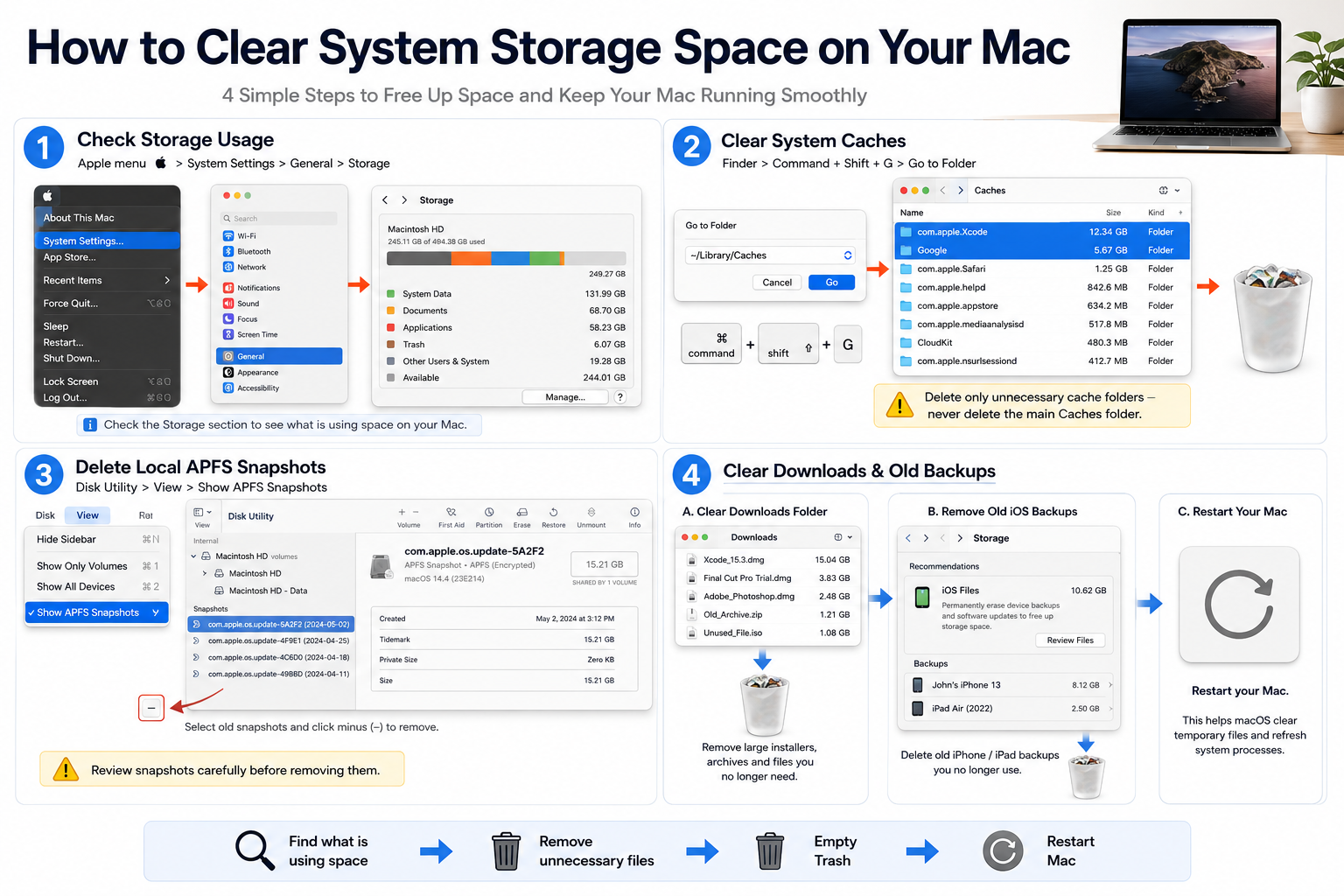
Start by checking exactly what is using your Mac’s storage. On macOS Ventura 13 and later, open System Settings > General > Storage. This section shows storage categories and provides recommendations for freeing up space. For additional guidance, see Apple’s official guide to freeing up storage space on Mac.
Next, inspect common user-level locations that can contain temporary files. In Finder, choose Go > Go to Folder, then enter ~/Library/Caches. Review the folders before removing unnecessary cache contents. Avoid deleting the parent Caches folder itself.
You can also check ~/Library/Logs for unusually large user log files. Remove only files you recognize and no longer need. Then empty the Trash so the deleted files can release their occupied disk space.
If storage remains limited, restart your Mac. You can also use Safe Mode when you need temporary storage for tasks such as installing an update. Apple explains that Safe Mode can clear certain system caches that macOS can recreate later.
For more ways to clear system storage space on your Mac, focus on files you can identify rather than deleting unknown system components. macOS manages much of the System Data category automatically, so manual cleanup should target unnecessary user and application data.
Deleting Outdated Local Time Machine Snapshots
Time Machine can create local snapshots when its backup disk is unavailable. These snapshots allow you to recover files even when your external backup drive is disconnected. Apple says Time Machine manages local snapshots automatically and removes them as they age or when storage space is needed.
If you suspect local snapshots are contributing to storage usage, reconnect your Time Machine backup disk first. This gives Time Machine an opportunity to complete its regular backup process. You can read Apple’s Time Machine backup guidance for more information about how Mac backups work.
You can also temporarily turn off automatic backups in Time Machine settings. On macOS Ventura and later, open System Settings > General > Time Machine and adjust the backup settings. After making changes, give macOS some time to update the available storage.
Older macOS versions may also support Terminal commands such as tmutil. However, manually deleting snapshots is not always necessary. Local snapshots use space that macOS can reclaim when required.
If you are trying to clear system storage space on your Mac, do not delete Time Machine data blindly. Let macOS manage local snapshots unless you have a specific reason to investigate them. This approach reduces the risk of removing backup data unnecessarily.
How do I clear my system storage?
To clear system storage, start with locations that contain data from applications you no longer use. In Finder, press Shift-Command-G to open Go to Folder. You can then inspect ~/Library/Application Support for leftover folders from removed applications.
Be careful when reviewing these directories. Some folders belong to applications that are still installed. Removing the wrong support files can cause an application to lose settings or data.
You can also review browser caches and offline website data from within each browser. This is usually safer than manually deleting unfamiliar browser files. Check ~/Library/Containers only when you understand which application owns a particular container.
After removing unnecessary files, empty the Trash. Then restart your Mac and return to System Settings > General > Storage to check the updated figure. Apple notes that storage information updates as you make changes.
Focus on files you recognize rather than trying to empty every hidden folder. System Data includes resources managed by macOS, so manual deletion is not a complete solution.
Removing Broken Launch Agents and Daemons
Launch agents and daemons allow software to run background tasks automatically. If you have removed an application, its startup files may sometimes remain behind. These files can be worth investigating when troubleshooting unwanted background activity.
You can inspect /Library/LaunchAgents and /Library/LaunchDaemons with Finder’s Go to Folder command. User-specific launch files can also exist under your home Library.
However, avoid deleting a .plist file simply because its name looks unfamiliar. Some files belong to macOS or software that you still use. Removing an active launch configuration can cause applications or services to stop working correctly.
A safer approach is to identify the software associated with each file first. If the application has an official uninstaller, use that method instead. You can also check the developer’s documentation before removing configuration files manually.
Cleaning obsolete startup items may reduce unwanted background activity. It can also prevent poorly behaving software from repeatedly generating logs. However, this step should be treated as advanced maintenance, not a routine storage-cleaning task.
Only remove files when you are confident they belong to software you no longer need.
Why is my system storage so full?
System Data can become large because macOS groups many different files into one broad category. Apple describes it as a general storage category for files that do not fit elsewhere. This includes items such as logs, caches, virtual machine files, temporary files, fonts, app support files, and plug-ins.
Large applications can also create substantial temporary data. Video editors may generate render files and previews. Developer tools can create build artifacts and simulator data. Virtualization software can store large disk images.
Time Machine local snapshots can also appear confusing when you investigate storage. They are managed by macOS and are counted differently from ordinary files. Apple states that snapshots are automatically removed as they age or when space is needed.
Failed applications can leave behind logs or temporary files. Cloud services may also keep local copies of files for offline access.
The best approach is to identify the source before deleting anything. Use System Settings > General > Storage first. Then inspect large user-accessible folders and applications. This method is safer than attempting to erase System Data as one large category.
Impact of Stalled macOS Software Installers
Large software installers can temporarily consume significant storage. This is especially noticeable during macOS upgrades or major application installations. Apple also supports local content caching, which can store copies of software updates and other Apple content on a Mac.
If an installation fails, avoid deleting random files from protected system directories. Instead, restart the Mac and check System Settings > General > Storage again. Reconnect to the internet and allow pending updates to complete when possible.
If your Mac uses Content Caching, review its settings under System Settings > General > Sharing > Content Caching. Apple provides controls for the cache location, cache size, and cached content. You can also reset cached content from its settings.
For ordinary users, there is rarely a reason to manually search protected macOS installation folders. Those directories can contain files required by current updates.
If an installer repeatedly fails, troubleshoot the update itself instead of simply deleting its files. Freeing some storage, restarting the Mac, and checking for available updates can often resolve temporary installation problems.
Why do I have 100GB of system data on my Mac?
Seeing 100GB of System Data can be alarming, but the number alone does not identify the cause. System Data is a broad category, so a large figure may reflect several different types of files.
Developers can accumulate substantial storage through Xcode projects, build artifacts, simulators, SDKs, and related components. Creative applications can also create large preview, render, proxy, and cache files. Virtual machines may store large disk images that contribute to overall system storage.
Start by checking System Settings > General > Storage. Look for large applications, documents, developer files, or other categories that may explain the increase. Apple recommends using Storage settings and Finder to identify files that can be removed.
Do not assume that every large System Data figure represents junk. Some files are necessary for applications or macOS to operate correctly.
If you regularly compile software or work with large media projects, review those applications first. Cleaning their temporary data can recover meaningful space without touching protected macOS files.
For extreme cases, inspect large directories carefully. The goal is to find the actual source of the storage growth, rather than simply trying to make the System Data number smaller.
Purging Xcode DerivedData and Simulator Runtimes
Xcode can consume substantial storage when projects, build products, simulators, and downloaded components accumulate. One common location is ~/Library/Developer/Xcode/DerivedData.
Developers can review DerivedData and remove build information for projects they no longer need. This can recover storage without deleting the source code itself. However, Xcode may recreate required build data when a project is opened again.
Simulator data can also become large. If you have old or unavailable simulator devices, Xcode’s command-line tools provide ways to remove unused simulator data. The command xcrun simctl delete unavailable can remove unavailable simulator devices. If you want to understand how similar mobile environments run on computers, How Mobile Emulators Work on Desktop Computers provides additional context.
Before running cleanup commands, make sure you understand what they remove. Active projects may need simulator runtimes or related development components.
Apple also supports Xcode-related content through macOS content caching. Cached Xcode components can therefore contribute to storage use on Macs configured for content caching.
If you develop regularly, make storage cleanup part of your normal maintenance routine. Review DerivedData and simulator storage periodically. This is often more effective than deleting unrelated macOS system files.
Why do I have 200 GB of system data on my Mac?
A 200GB System Data figure usually deserves closer investigation. Because System Data is a catch-all category, the number may represent several large sources rather than one problem.
Start by checking Storage settings and identifying unusually large applications or files. Virtual machines are an important area to review. Docker, Parallels, UTM, and similar tools can maintain large virtual disks that require substantial local storage.
Developers should also check Xcode data, simulator files, and build artifacts. Creative professionals may need to inspect video previews, render files, proxies, and application caches.
Time Machine local snapshots are another factor to understand. However, Apple says macOS automatically manages their space and removes snapshots when necessary.
Do not immediately delete files from /private/var, /System, or other protected locations. Large system files can be essential to macOS.
Instead, identify unusually large files and directories first. Terminal commands such as du can help experienced users locate storage-heavy areas. Third-party disk analyzers can also provide a visual overview.
When System Data reaches hundreds of gigabytes, finding the source matters more than deleting files at random.
Identifying Giant Runaway Log Files via Terminal
Large log files can indicate an application or background process that is repeatedly failing. Experienced Mac users can use Terminal to identify unusually large directories and files.
For example, commands based on du can help you inspect storage usage. You can examine user logs with a command such as:
du -sh ~/Library/Logs/*
System log locations may require administrator permissions, depending on the directory being inspected. Do not automatically delete every large file you find.
First identify which application or service created the file. A rapidly growing log can point to an underlying problem that will return after deletion. Fixing the application or service is therefore more useful than repeatedly removing its logs.
You should also avoid modifying protected macOS directories unless you understand the consequences. Apple notes that System Data is managed by macOS and cannot simply be selected and deleted from Storage settings.
Use Terminal as an investigation tool, not a shortcut for deleting system files. If a log is clearly associated with software you no longer use, uninstalling that software is usually the cleaner solution.
Frequently Asked Questions
Is it safe to delete everything in the Mac Library cache folder?
Yes, it is generally safe to delete the contents within ~/Library/Caches. These files are temporary assets created to accelerate app launch speeds. However, do not delete the actual Caches parent folder itself—only remove the subfolders inside it. For a clearer explanation of cache-related data, see Clear Cache and Clear Data Difference: What to Know. Certain active applications may rebuild their caches upon relaunch, which is normal behavior.
How does restarting my Mac help reduce System Data storage?
Restarting your Mac triggers automated built-in maintenance routines. During shutdown and reboot, macOS purges virtual memory swap files (swapfile), clears volatile scratchpad directories, flushes temporary font registries, and discards inactive sleep images. A weekly restart ensures temporary system files do not continuously accumulate into massive, persistent disk allocations.
Why does System Data storage fail to shrink after emptying the Trash?
System Data often fails to shrink immediately because APFS local Time Machine snapshots lock deleted drive sectors until the snapshot expires or is overwritten. Additionally, macOS indexing needs time to recalculate available free space. Restarting your computer or manually purging local snapshots using Terminal forces macOS to recalculate accurate storage figures.
Can third-party cleaning apps damage my macOS operating system?
Poorly designed cleaning applications can occasionally delete essential application support registries or active database indexes if used carelessly. Stick to notarized, reputable disk analyzers to locate heavy files manually. Avoid tools that request permanent root permissions to modify protected read-only macOS system files directly.
Conclusion
Managing storage on a modern Mac does not need to be confusing. The System Data category can become large because it combines many types of files that do not fit into more specific storage categories. These can include caches, logs, temporary files, virtual machine data, app support files, fonts, and plug-ins.
The safest way to clear system storage space on your Mac is to identify the source before deleting anything. Start with System Settings > General > Storage and review Apple’s recommendations.
Then inspect application data, unnecessary downloads, user-level caches, developer files, and other large items you recognize. Developers should pay particular attention to Xcode data and simulator files. Virtual machine users should review their virtual disks.
Time Machine snapshots usually do not require manual removal. macOS manages them automatically and removes them as they age or when storage is needed.
For extreme storage growth, use disk-usage tools to locate the source. Avoid deleting protected system files at random.
A short monthly storage review can prevent future problems. Keep unnecessary files under control, remove unused applications, and maintain reliable backups. This approach keeps your Mac’s storage healthier without taking unnecessary risks.
If you’re also deciding which computer best fits your needs, read Mac or Windows for Students for a detailed comparison of macOS and Windows laptops.