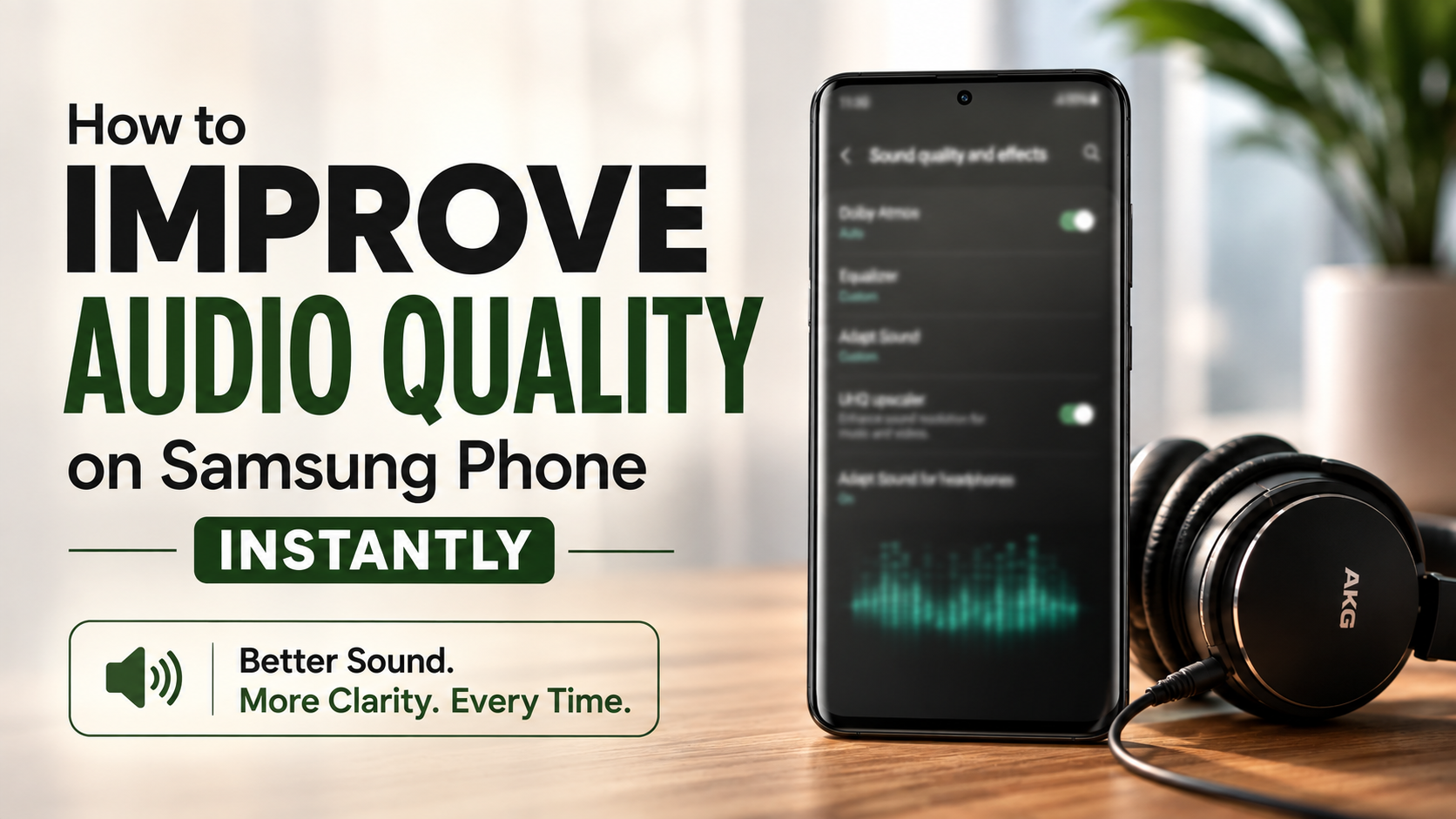
How to Improve Audio Quality on Samsung Phone Instantly
How to improve audio quality on Samsung phone is easier than most users think. Samsung Galaxy phones include built-in sound tools that can improve clarity, bass, vocals, and overall listening quality. If you stream music, watch movies, or play mobile games, adjusting these settings can make a noticeable difference.
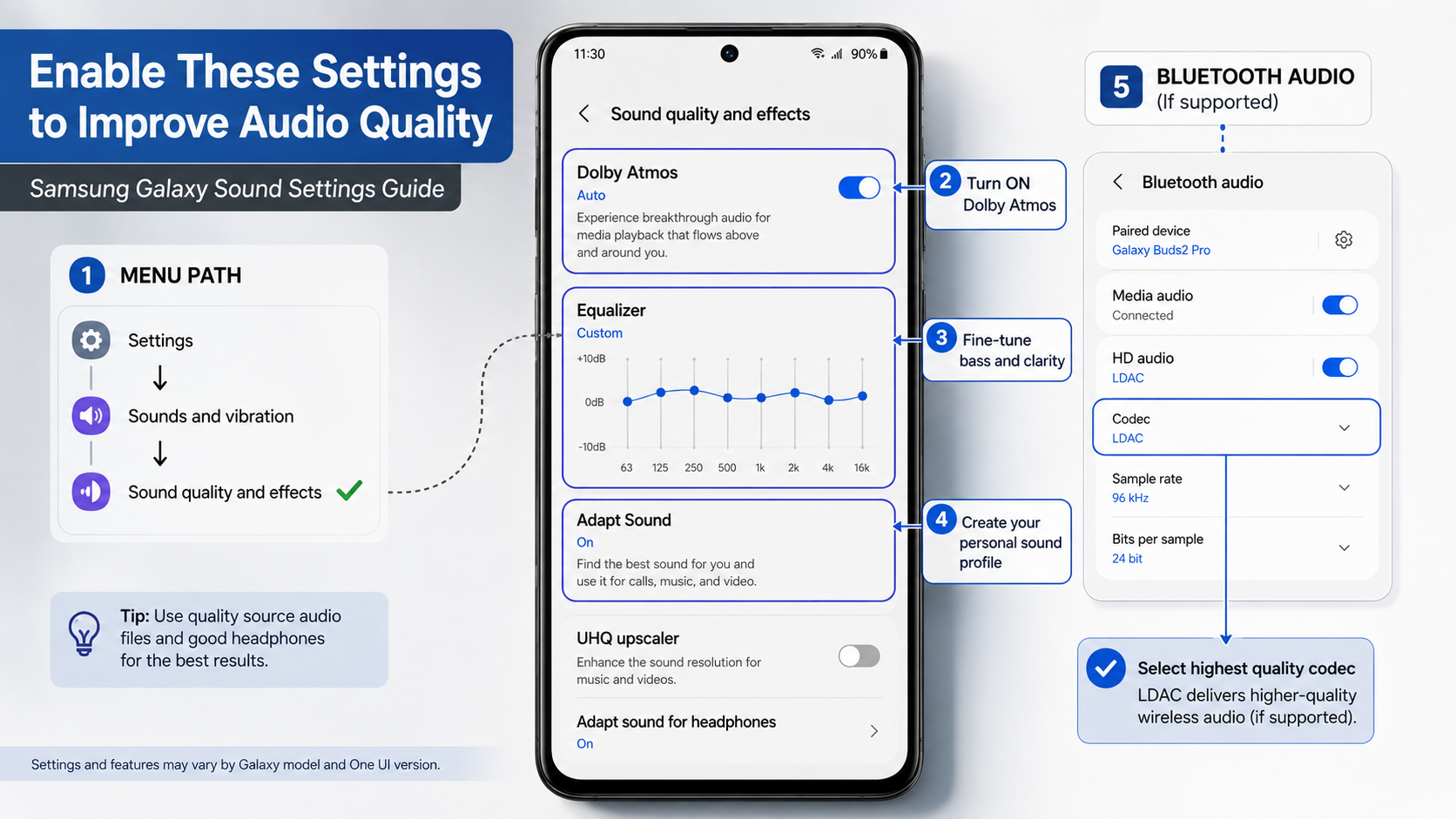
Learning how to improve audio quality on Samsung phone starts with the sound tools built into One UI. Depending on your Galaxy model, you may find features such as Dolby Atmos, Adapt Sound, an equalizer, and UHQ Upscaler.
According to the official Samsung Support documentation, enabling proprietary sound enhancements dramatically refines dynamic range and spatial separation.
This guide explains how to configure Samsung sound settings for better results. You will learn how to use Dolby Atmos, customize Adapt Sound, adjust the equalizer, and optimize Bluetooth playback. You will also learn when higher-quality source files can make a real difference.
How to improve audio quality on Samsung phone?
To improve audio quality on Samsung phone, open Settings > Sounds and vibration > Sound quality and effects. The exact menu names can vary by Galaxy model and One UI version. This section contains several useful tools for improving music, videos, calls, and games.
Start with Dolby Atmos if your device supports it. It can create a wider and more immersive soundstage, similar to the principles discussed in how 8D audio creates spatial sound. You can usually choose between modes such as Auto, Movie, Music, and Voice. The best option depends on what you are listening to.
The built-in Equalizer can also change the sound balance. Avoid extreme adjustments because they may introduce distortion or make certain frequencies sound unnatural. Small changes often produce better results.
For supported headphones, Adapt Sound can personalize audio based on your hearing profile. You can also improve playback by using quality source files and suitable Bluetooth codecs, while understanding how spatial audio works in headphones can help you get more from supported immersive sound features.
Calibrate Your Personalized Adapt Sound Profile
Adapt Sound is designed to personalize audio output for supported Samsung Galaxy devices. It uses a hearing test to identify frequencies that may be harder for you to hear. The phone can then adjust the sound profile accordingly.
To use it, connect compatible headphones and follow the hearing-test instructions. The process typically asks you to respond to different tones. Your responses help create a personalized listening profile.
This can be useful if certain voices, instruments, or high-frequency details sound less noticeable. It may also help create a more balanced listening experience at moderate volume levels.
Adapt Sound is different from simply selecting an age-based preset. A personalized test uses your responses instead of relying only on a general profile.
Keep in mind that results depend on your headphones, environment, and hearing. The feature also varies across Galaxy models and software versions. If you do not see Adapt Sound, your device may not support it or may place it elsewhere in Settings.
How to turn low quality audio into high quality?
Samsung offers UHQ Upscaler on some Galaxy devices, but availability and behavior vary by model. When supported, the feature is designed to enhance audio playback from certain compressed sources. It should not be viewed as a true conversion of low-quality audio into lossless audio.
Audio processing can improve perceived detail and smoothness. However, it cannot fully restore information that was removed during compression. The quality of the original recording still matters most.
On compatible devices, you may find UHQ Upscaler under Settings > Sounds and vibration > Sound quality and effects. Some versions offer options related to bit recovery or bandwidth scaling.
The available options can depend on your connected audio device. Some UHQ features are limited to wired connections or specific accessories. Bluetooth playback may not expose every option.
For the best results, combine moderate processing with a good source file. A high-quality recording and properly tuned headphones usually provide a larger improvement than aggressive software processing.
Connect Wired Gear for Full UHQ Bit Recovery
A wired connection can provide more predictable audio behavior on compatible Samsung devices. However, the exact benefits depend on your Galaxy model, USB-C audio equipment, and the UHQ features supported by your software.
If your phone has a 3.5mm headphone jack, compatible wired headphones can connect directly. Many newer Galaxy phones do not include this port. In that case, you can use compatible USB-C headphones or a USB-C DAC.
A good DAC can provide clean digital-to-analog conversion. It does not automatically make every recording sound better. The headphones, source quality, and overall tuning remain important factors.
UHQ Upscaler availability can also differ between devices. Some Samsung phones may disable certain options when using Bluetooth or internal speakers. Others may offer different processing controls depending on the connected hardware.
Before buying an external DAC, check your phone’s supported audio specifications. A simple USB-C audio adapter may be enough for everyday listening. More advanced equipment is useful when your headphones require additional power or you want more control.
Which sound setting is best?
There is no single Samsung sound setting that works perfectly for everyone. Your best configuration depends on your headphones, music preferences, and the type of content you consume.
For general use, start with Dolby Atmos in Auto mode if your Galaxy model supports it. This provides a convenient balance without requiring constant manual changes. You can then fine-tune the equalizer if the default sound does not suit you.
For music, avoid pushing bass and treble too far. A mild adjustment can add warmth or clarity without making the sound harsh. Podcasts and spoken content may benefit from settings that emphasize vocal clarity.
If you use headphones regularly, Adapt Sound can provide a more personalized result. Gaming can also benefit from a suitable Dolby Atmos mode when available, especially if you understand how noise cancellation works and how it affects what you hear.
Try one change at a time and listen to familiar tracks. This makes it easier to identify which setting actually improves the sound. Remember that aggressive processing can reduce natural dynamics rather than improve them.
Optimize Dolby Atmos for Dedicated Gaming Audio
If you play competitive mobile games, Dolby Atmos can make directional effects easier to notice on supported Samsung devices. Its spatial processing can create a wider presentation for compatible content. This may help you distinguish sounds such as footsteps, vehicles, or environmental effects.
Samsung provides different Dolby Atmos modes on some Galaxy models. Game mode is designed specifically for gaming audio. It can emphasize effects and create a more spacious presentation.
However, Dolby Atmos cannot guarantee a competitive advantage. Game design, headphones, volume levels, and the quality of the game’s audio mix all affect what you hear. Some players may also prefer a less processed sound.
For competitive gaming, avoid excessive bass. Heavy low frequencies can sometimes mask quieter directional details. A balanced profile may make footsteps and voice communication easier to distinguish.
You can test Game mode against Auto mode using the same title and headphones. Choose the option that makes important sounds easiest to identify. If your phone does not offer Game mode, use the standard Dolby Atmos controls available on your device.
How to increase audio quality on phone?
Increasing audio quality involves more than changing an equalizer. Your source file, headphones, Bluetooth connection, and Samsung sound settings all influence the final result.
For wireless headphones, check which Bluetooth audio codecs your phone and headphones support. Compatible Galaxy devices may offer Samsung Seamless Codec, while some third-party headphones support codecs such as LDAC or aptX. The available choices depend on both devices, and choosing and maintaining quality headphones can make a noticeable difference to the final listening experience.
Developer Options can expose Bluetooth settings on some Samsung phones. However, forcing a codec or sample rate does not always improve sound. The connected headphones must support the selected option, and the connection must remain stable.
You should also avoid stacking multiple equalizers or audio-enhancement apps. Several processing layers can cause clipping or unwanted coloration.
Finally, keep your Galaxy software updated. Samsung can change audio features and compatibility across One UI versions.
For the clearest playback, use quality headphones, a well-mastered source, and moderate system processing. These factors usually matter more than simply selecting the highest available setting.
Switch to High-Bitrate Bluetooth Streaming Codecs
Bluetooth audio quality depends on the codec used by both your Samsung phone and wireless headphones. Compatible Galaxy devices may support different codecs, including Samsung Seamless Codec and LDAC. Availability varies by model and accessory.
LDAC can support higher data rates than basic SBC under suitable conditions. Its maximum advertised bitrate can reach 990 kbps, but actual performance depends on connection quality and device settings. Higher bitrate does not automatically mean better sound.
Samsung Seamless Codec is optimized for supported Samsung devices and Galaxy Buds. Its capabilities also depend on the specific phone and earbuds.
You can check Bluetooth codec options through Developer Options on supported phones. If a setting is unavailable, your device or headphones may not support it. Android can also switch codecs automatically when necessary.
Do not assume that selecting 24-bit/96kHz always improves wireless playback. The source recording, headphones, codec, and connection quality all matter. A stable connection with sensible settings can sound better than an unstable high-bandwidth connection.
Can audio quality be improved?
Yes, audio quality can often be improved through careful equalization, audio processing, better source files, and suitable hardware. Samsung Galaxy phones include several tools that can change how audio is presented.
However, software cannot recreate information that was never recorded. Upscaling a compressed track does not make it equivalent to a true lossless master. Instead, processing can change its perceived clarity, balance, or spatial presentation.
Your headphones and phone speakers also have their own frequency characteristics. Equalization can compensate for some unwanted peaks or dips. It can also make vocals clearer or bass more noticeable.
For the biggest improvement, focus on the entire playback chain:
- Use a high-quality recording or lossless source when available.
- Choose headphones with a balanced sound signature.
- Apply moderate equalizer adjustments.
- Use Adapt Sound when supported and useful.
- Select a suitable Bluetooth codec for compatible devices.
- Keep the phone and audio accessories updated.
These changes can make music, movies, games, and spoken content sound clearer. The goal is not maximum processing. The goal is a balanced sound that suits your equipment and preferences.
Upgrade Source Media to Uncompressed Lossless Streams
The quality of your source audio has a major effect on the final result. If a recording is heavily compressed, Samsung’s audio enhancements cannot fully restore the missing information.
When available, choose lossless or high-quality streaming from services that offer those options. Apple Music, Tidal, and Amazon Music provide higher-quality audio tiers, although the exact formats and settings vary by service.
Lossless audio preserves more of the original recording than lossy compression. Hi-Res audio can provide additional resolution, but it does not automatically sound better. Your headphones, DAC, mastering quality, and listening environment still matter.
You should also avoid assuming that a larger file is always better. A well-mastered lossless recording can sound better than a poorly mastered high-resolution track.
For everyday listening, start by selecting the highest practical quality offered by your streaming service. Then adjust Samsung’s sound settings to suit your headphones.
If storage or mobile data is limited, standard high-quality streaming may be a better compromise. The important point is to improve the source before relying heavily on audio processing.
Frequently Asked Questions
Does enabling Dolby Atmos drain the phone battery faster?
Dolby Atmos requires minimal digital signal processing and consumes a negligible amount of battery. The background processor handles the real-time spatial calculations efficiently without straining the CPU. You can leave it running continuously for music, videos, and gaming without noticing any measurable drop in your daily battery life.
Why is the UHQ Upscaler setting grayed out on my device?
The UHQ Upscaler requires a physical, wired audio connection to function. It automatically disables itself when listening through the phone’s internal stereo speakers or standard Bluetooth connections. To unlock and configure UHQ Bit Recovery, plug in USB-C headphones or connect an external digital-to-analog converter.
Which Bluetooth codec provides the highest audio quality on Samsung?
Samsung Seamless Codec (SSC) and Sony’s LDAC offer the highest transmission bitrates on Galaxy devices. SSC dynamically scales up to 24-bit/48kHz for Galaxy Buds hardware, while LDAC transfers up to 990 kbps at 24-bit/96kHz on supported third-party wireless audiophile headphones.
What is the difference between Adapt Sound presets and custom profiles?
Pre-configured Adapt Sound presets apply generalized equalization curves based on broad demographic hearing trends across different age groups. In contrast, running the personalized hearing test creates a custom frequency map matched specifically to your unique left and right ear sensitivities for optimal acoustic balance.
Conclusion
You do not need expensive audio equipment to start improving your Galaxy phone’s sound. Samsung provides several built-in tools that can make a noticeable difference when configured correctly.
Start with Dolby Atmos if your device supports it. Then experiment with the Equalizer and Adapt Sound. Use moderate adjustments rather than extreme boosts, especially with bass and treble.
For wireless listening, check which Bluetooth codecs your phone and headphones support. Options such as LDAC or Samsung Seamless Codec can provide high-quality transmission on compatible devices. A stable connection is still more important than simply choosing the highest bitrate.
UHQ Upscaler can also be useful on supported Galaxy models. Remember that audio upscaling cannot recreate information lost from heavily compressed recordings.
Finally, use good-quality source files whenever possible. Your source, headphones, and listening environment have a major effect on the result.
Now that you know how to improve audio quality on Samsung phone, open your sound settings and test one change at a time. This approach makes it easier to find a profile that genuinely sounds better to you.
This version is structured for publication, keeps the original headings, reduces overlong sentences, and avoids presenting model-dependent Samsung features as universal.