
What Is the 2.5G Ethernet Port on Your Internet Router?
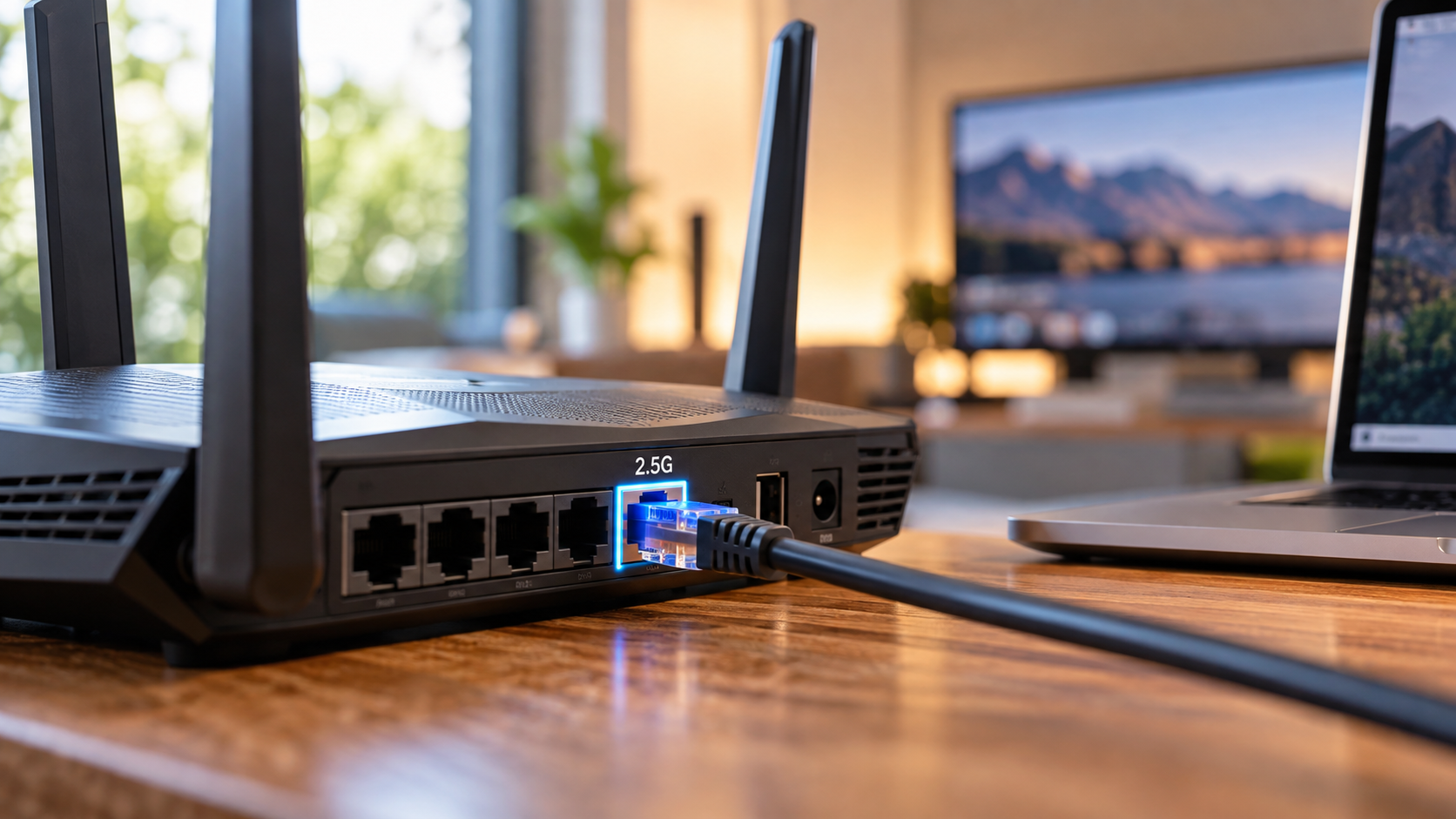
If you recently bought a Wi-Fi 6, Wi-Fi 6E, or Wi-Fi 7 router, you may have noticed a port labeled 2.5G. The 2.5G Ethernet port on your internet router supports wired speeds up to 2.5 Gbps, making it useful for faster internet plans and high-speed local networking.
For years, Gigabit Ethernet was enough for most home internet connections. That is changing as internet providers offer plans above 1,000 Mbps. A 2.5G Ethernet port on your internet router can support these faster connections without creating a 1 Gbps wired bottleneck. The technology is based on the 2.5GBASE-T Ethernet standard, which is part of the broader Ethernet standards developed by the IEEE Standards Association.
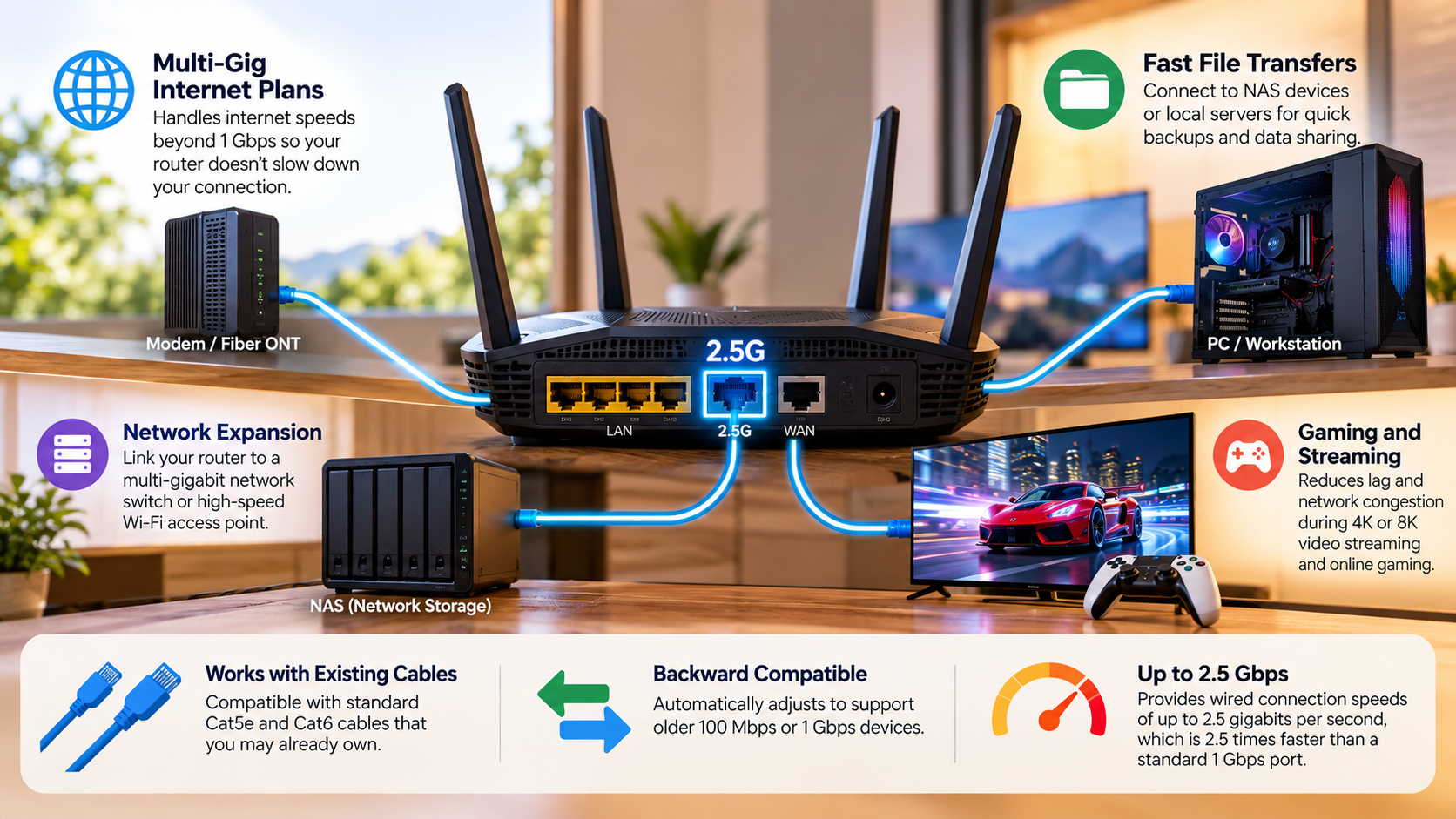
The port can work as either a WAN or LAN connection, depending on the router. As a WAN port, it can connect your router to a multi-gigabit modem or fiber terminal. As a LAN port, it can connect a compatible PC, NAS, or network switch.
This guide explains how 2.5G Ethernet works, what you can connect to it, how to use it on ASUS routers, and whether upgrading is worthwhile.
What Is the 2.5G Port Used For?
The 2.5G Ethernet port on your internet router provides a wired connection faster than standard Gigabit Ethernet. Depending on the router, the port may function as a WAN port, LAN port, or both. This flexibility makes it useful for newer multi-gigabit home networks.
As a WAN connection, the port can connect your router to a modem or fiber ONT. This setup is useful when your internet plan exceeds 1 Gbps. A standard 1 Gbps WAN port would limit the connection before it reaches your other devices.
As a LAN connection, the port can connect high-speed equipment inside your home. Common examples include:
- A desktop PC with 2.5GbE
- A NAS device with multi-gig Ethernet
- A 2.5GbE network switch
- A high-performance workstation
- A compatible media server
For local transfers, 2.5GbE can deliver roughly 2.5 times the link speed of Gigabit Ethernet. Actual speeds depend on hardware, cables, storage, and network overhead.
Multi-Gig Local File Transfers and NAS Backups
A 2.5G LAN connection can make large local file transfers noticeably faster. This matters most when both devices support 2.5GbE. Your PC, NAS, switch, and router must all support the required speed. If you are setting up a wired network at home, understanding why some Ethernet cables are blue can also help you identify different cables.
A 1 Gbps Ethernet connection has a theoretical maximum of about 125 MB/s. A 2.5 Gbps connection raises that theoretical ceiling to about 312.5 MB/s. Real transfer speeds are lower because Ethernet introduces protocol and processing overhead.
This can still make a significant difference when moving large files. For example, video projects, photo libraries, backups, and game files can transfer faster across a multi-gigabit network.
However, the storage system can become the next bottleneck. A slow hard drive may not sustain the throughput that 2.5GbE can provide. Fast SSD storage is better suited to multi-gigabit transfers.
A 2.5G connection therefore works best as part of a complete high-speed setup. The router alone cannot guarantee faster transfers.
Which Wi-Fi Router Has Two 2.5 Gbps Ethernet Ports?
Several modern routers offer multiple multi-gigabit Ethernet ports. However, port configurations vary significantly between models. The ASUS RT-AX88U Pro, for example, has two 2.5 Gbps Ethernet ports. Both are dual-function WAN/LAN ports, allowing them to serve different networking purposes.
The TP-Link Archer AXE300 takes a different approach. It has one 2.5 Gbps WAN/LAN port and two 10 Gbps WAN/LAN ports. This gives it substantial multi-gigabit flexibility, although it does not provide two dedicated 2.5G ports.
The NETGEAR Nighthawk RS700S also focuses on 10GbE. It includes one 10 Gbps Internet port and one 10 Gbps Ethernet LAN port, along with four Gigabit LAN ports.
Before buying a router, check the exact port layout. A router advertised as multi-gigabit may use 10G ports instead of multiple 2.5G ports.
Why Dual Ports Protect Your Full Network Bandwidth
Two multi-gigabit ports can make a router more flexible for high-speed setups. One port can handle the internet connection while another connects directly to a compatible LAN device.
For example, a router with two 2.5G WAN/LAN ports can connect a multi-gigabit modem and a 2.5GbE desktop. This avoids forcing the high-speed workstation through a 1 Gbps LAN port. If you are planning a wired setup, knowing how to hide Ethernet cables around the house can help keep the network tidy.
However, the number of ports is not the only factor that matters. You should also check whether the ports can operate simultaneously in the required WAN and LAN configuration.
Some routers have restrictions on how multi-gigabit ports can be assigned. The TP-Link Archer AXE300, for example, cannot configure its two 10 Gbps ports and 2.5 Gbps port concurrently as WAN ports.
Therefore, check the manufacturer’s specifications before planning your network. The exact port configuration matters more than the number printed on the box.
How to Use the 2.5G Port on an ASUS Router?
Using a 2.5G Ethernet port on an ASUS router starts with identifying how the specific model supports the port. ASUS routers can provide dual-function 2.5 Gbps WAN/LAN ports, but available settings vary by model. The RT-AX88U Pro, for example, supports two 2.5 Gbps WAN/LAN ports.
If you want to use the port for internet access, connect your modem or fiber equipment to the appropriate multi-gig WAN port. Then open the ASUSWRT administration interface and review the WAN configuration. If your connection seems fast but file transfers remain slow, it is worth checking why your internet is fast but downloads are slow.
The exact menu names can differ between ASUS models and firmware versions. Look for the WAN, Dual WAN, or WAN port configuration options. Select the appropriate physical port if your model allows WAN/LAN reassignment.
For a LAN connection, connect your compatible PC, NAS, or switch to the 2.5G port. Then confirm that the device negotiates a 2.5 Gbps link.
Also check the Ethernet adapter on your computer. A Gigabit network adapter cannot use the full 2.5G connection. Your cable should also support the required Ethernet standard.
Activating LAN Mode for Local Workstations
If your ASUS router supports WAN/LAN reassignment, you can use a compatible 2.5G port for a high-speed local device. This can be useful when your regular WAN port already handles the internet connection.
Connect the workstation using a suitable Ethernet cable. Then open the router’s administration interface and check the LAN or WAN settings. Choose the appropriate port mode if the firmware provides that option.
The connected computer also needs a 2.5GbE network adapter. If it only supports Gigabit Ethernet, the connection will normally negotiate at 1 Gbps instead.
You should also verify the negotiated link speed in your computer’s network settings. This confirms whether the connection is actually running at 2.5 Gbps.
For larger networks, another option is a 2.5GbE switch. The router’s multi-gig port can connect to the switch, allowing several compatible devices to share faster wired connectivity.
Remember that every part of the connection matters. The router, switch, network adapter, Ethernet cable, and storage system can all affect final performance.
Is 2.5G Ethernet Good?
2.5G Ethernet is useful for homes that need more than Gigabit Ethernet. Its biggest advantage is the higher link speed without requiring a move to 10GbE equipment.
A 2.5 Gbps connection offers a theoretical bandwidth of 2,500 Mbps. That is 2.5 times the link speed of Gigabit Ethernet. It can therefore provide more capacity for multi-gigabit internet plans and fast local transfers.
It is especially useful when you have:
- An internet plan above 1 Gbps
- A 2.5GbE desktop or laptop
- A fast NAS
- Large local file transfers
- Multiple high-bandwidth users
- A 2.5GbE network switch
Another advantage is compatibility with existing Ethernet infrastructure. 2.5GBASE-T was designed to work over common twisted-pair cabling in suitable installations. This can make upgrading easier than moving directly to faster networking technologies. If you are also comparing wireless upgrades, Wi-Fi 6 vs Wi-Fi 7 can help you understand how newer Wi-Fi standards differ.
However, upgrading is not automatically worthwhile. If your internet plan is only 500 Mbps or 1 Gbps, you may see little benefit from a 2.5G WAN connection.
Optimal Efficiency Without Upgrading Wall Cables
One practical advantage of 2.5GbE is that many existing Cat5e Ethernet installations can support 2.5 Gbps connections. This means you may not need to replace every Ethernet cable in your home.
The exact result depends on cable quality, installation conditions, connector quality, and distance. The network devices must also support 2.5GbE.
For a home office, this can make 2.5G a convenient middle ground. You can upgrade the router and network adapters without immediately replacing an entire wired network.
A typical upgrade could include:
- A router with a 2.5G WAN or LAN port
- A 2.5GbE adapter for your computer
- A compatible Ethernet cable
- A 2.5GbE switch if several devices need multi-gig access
- Fast SSD or NAS storage for local transfers
You should still check the specifications of your existing cables. A cable that physically connects does not automatically guarantee the expected speed.
If your existing wiring performs reliably at 2.5 Gbps, there may be no reason to replace it.
How Fast Is 2.5 Gbps in Mbps?
2.5 Gbps equals 2,500 Mbps. The conversion is straightforward because one gigabit contains 1,000 megabits. This represents the theoretical link rate of a 2.5GbE connection.
Compared with a 1,000 Mbps Gigabit Ethernet connection, 2.5 Gbps provides 150% more theoretical bandwidth. However, that does not mean applications will always reach 2,500 Mbps.
Ethernet networking has protocol overhead. Your router, computer, network adapter, storage, and other equipment can also reduce actual throughput. A good 2.5GbE connection may therefore deliver around 280–300 MB/s during suitable file transfers.
The difference between Mbps and MB/s is important:
- 2,500 Mbps ÷ 8 = 312.5 MB/s theoretical maximum
- Real-world transfers are usually lower
- Storage performance can become the limiting factor
For example, a 50 GB file could theoretically transfer in about 2 minutes and 40 seconds at 312.5 MB/s. Real transfer times will usually be longer because of overhead and device limitations.
Therefore, treat 2,500 Mbps as the connection’s maximum link rate, not a guaranteed download speed.
Conclusion
A 2.5G Ethernet port on your internet router can remove the limitations of traditional Gigabit Ethernet. It is particularly useful when you have internet faster than 1 Gbps or regularly transfer large files between local devices.
The upgrade also does not always require replacing your entire network. Many suitable Cat5e installations can support 2.5GbE, while compatible routers, computers, switches, and NAS devices can provide the necessary hardware.
However, 2.5G Ethernet is not automatically useful for everyone. If your internet plan is below 1 Gbps and you rarely move large files locally, a Gigabit connection may still be sufficient.
Before upgrading, check your internet speed, router ports, Ethernet adapters, cables, and storage performance. If you are adding more connected devices to your home network, it is also important to protect them with a secure home network guide. If all of these components can take advantage of multi-gigabit networking, 2.5G Ethernet can provide a practical step up from Gigabit speeds without the cost and complexity of a full 10GbE setup.