
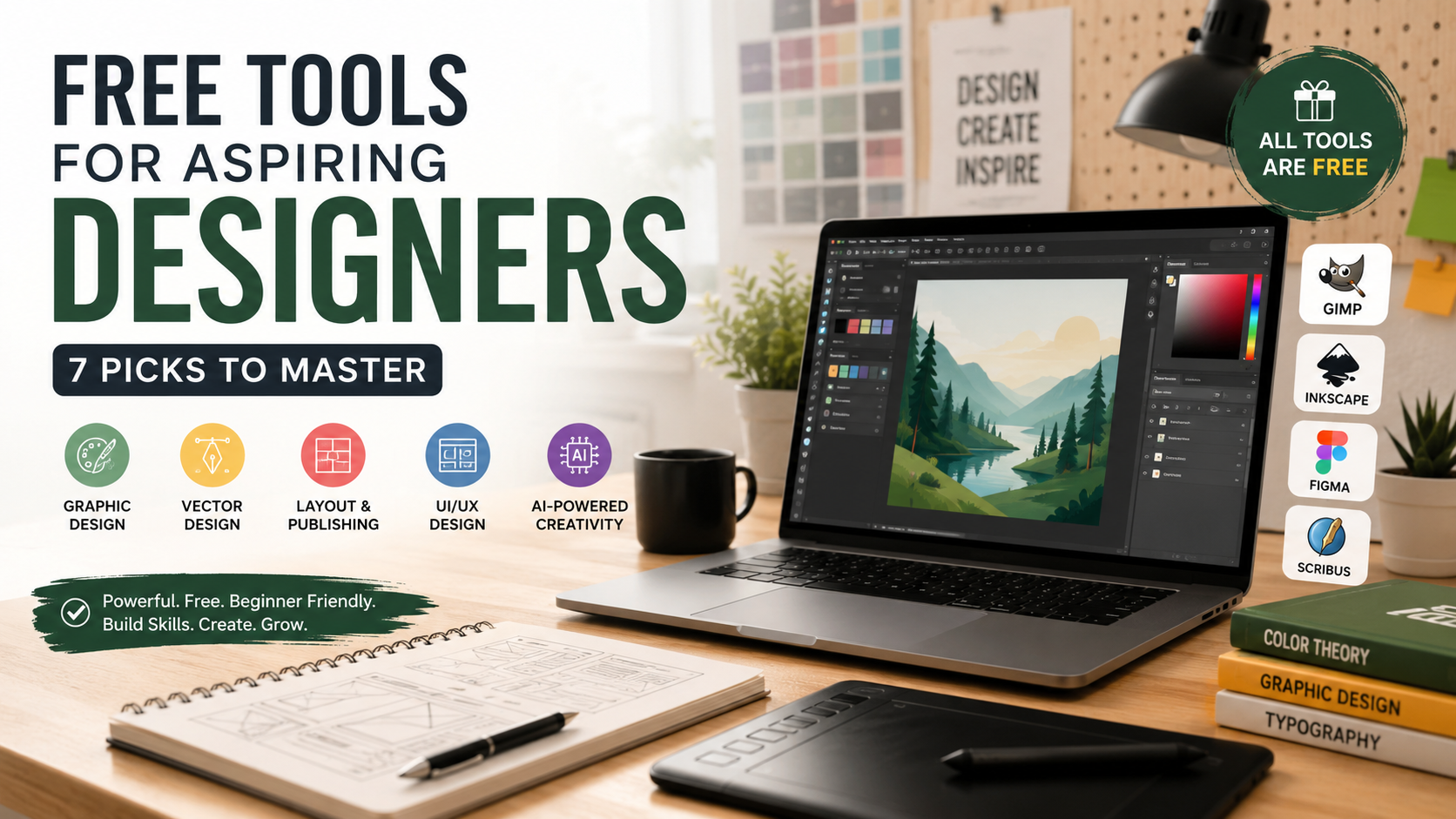
Free Tools for Aspiring Designers: 7 Picks to Master
Entering visual design can feel overwhelming, especially when professional software comes with expensive subscriptions. Fortunately, many capable design platforms now offer free options for beginners. Learning about the free tools for aspiring designers can help you build practical skills without a large upfront investment.
Whether you create social media graphics, edit photos, design interfaces, or explore digital illustration, the right tools can support your learning journey. Popular options include image editors, vector design software, layout tools, and browser-based platforms.
This guide explores useful design software, AI-powered options, and essential design principles. It also explains how to choose tools based on your goals. You can experiment with different workflows before paying for premium software.
For guidance on web accessibility and standards, you can also refer to the World Wide Web Consortium (W3C). The goal is not to master every application. Instead, focus on building strong design skills and creating portfolio projects that demonstrate them.

What Are Some Free Tools for Designers?
Aspiring designers can choose from many capable free design tools. These platforms cover different creative needs, including image editing, vector graphics, page layouts, and interface design. The best choice depends on the type of work you want to create.
GIMP is useful for photo editing and raster-based image manipulation. Inkscape focuses on vector graphics and provides tools for illustrations, icons, and scalable artwork. Scribus offers an open-source option for page layout and desktop publishing projects.
For interface and collaborative design, Figma provides a browser-based workflow with a free Starter plan. Its free offering includes unlimited drafts and collaboration features, although some advanced capabilities require paid access.
Other tools may suit specific needs better. Photographers may prefer image editors, while illustrators may need drawing software. Start with one tool that matches your goals. Then add another when your projects require it.
Leveraging Open-Source Alternatives
Open-source design software can reduce your dependence on expensive subscriptions. It also gives beginners an opportunity to learn professional concepts through accessible tools. Programs such as GIMP, Inkscape, Krita, and Scribus cover several major areas of digital design.
One advantage of open-source software is its community-driven development model. Users can access documentation, tutorials, extensions, and community discussions. These resources can make it easier to troubleshoot problems as you learn.
Open-source tools can also strengthen transferable skills. Understanding layers, paths, typography, masks, grids, and color systems matters more than memorizing a particular interface. Those concepts often appear across different design applications.
However, free does not automatically mean better. Some open-source applications have steeper learning curves than commercial alternatives. Their interfaces may also feel less familiar to beginners.
Choose software based on your project rather than its price alone. Use open-source tools to practice consistently and build real projects. Once your workflow becomes clear, you can decide whether premium software offers enough additional value to justify its cost.
Which Free AI Tool Is Best for Designing?
There is no single best AI design tool for every project. Your ideal choice depends on whether you need images, layouts, text effects, editing, or concept development. AI can speed up repetitive work, but it should not replace fundamental design skills.
Adobe Firefly is a strong option for designers who want AI-assisted creative workflows. The platform includes generative AI models and tools designed specifically for creative work. According to Adobe, its Firefly models are trained using licensed content and public-domain content rather than customer content.
Microsoft Designer is another option for AI-assisted graphics and image creation. Microsoft states that Designer uses AI powered by DALL-E to generate images from user ideas and prompts.
AI tools are especially useful during early concept development. You can generate ideas, explore visual directions, and create starting points quickly. However, generated content still needs human judgment.
Always check the current plan, usage limits, and licensing terms before using AI-generated assets commercially. These conditions can change over time.
Maximizing AI Efficiency
AI works best when you treat it as part of your design workflow. It should help you explore ideas, overcome creative blocks, and reduce repetitive work. It should not become a substitute for learning composition, typography, hierarchy, or visual communication. For more options, explore best AI tools for image generation for creative workflows.
Start with a clear objective before writing a prompt. Describe the subject, style, audience, format, mood, and important visual requirements. Specific instructions usually give you more useful starting points.
You can also generate several variations instead of accepting the first result. Compare them against your design goal and identify what works. Then refine the strongest direction manually.
For example, AI can suggest a social media composition. You can then adjust spacing, typography, colors, and alignment yourself. This process develops your design judgment while still saving time.
Remember that AI-generated output can contain mistakes. Review images, text, proportions, and visual details before publishing anything. Also check usage rights when working on commercial projects.
The strongest workflow combines AI speed with human decision-making. Your final design should communicate a clear message rather than simply demonstrate what an AI tool can generate.
What Are the 7 Basic Elements of Design?
The seven basic elements of design are line, shape, color, value, form, texture, and space. These elements provide the visual building blocks used in many forms of graphic and digital design.
Line can define boundaries, guide attention, or create movement. Shape gives objects structure and helps organize a composition. Color influences mood, emphasis, identity, and visual relationships. Value describes the lightness or darkness of an area and helps create contrast.
Form represents three-dimensional qualities. It can make an object appear solid or dimensional. Texture adds visual or tactile character to surfaces. Space controls the distance between elements and helps prevent crowded layouts.
These elements work together rather than independently. A strong design uses them intentionally to communicate information. For example, contrast between color and value can make an important heading easier to notice.
Learning these principles is often more valuable than learning a specific application. Software changes, but fundamental design concepts remain useful across different tools and industries.
Practice each element through small projects. Create layouts that focus on spacing, then experiment with color or contrast. Over time, these exercises can improve your visual judgment and make your designs more deliberate. You can also experiment with setting up constraints to inspire creative thinking when developing practice projects.
Applying Foundation Principles
Knowing the seven elements is only the beginning. The real challenge is using them together to create clear and balanced compositions. Beginners often focus heavily on decoration while overlooking hierarchy, spacing, and consistency. Understanding how design constraints create better products can also help you think more deliberately about design decisions.
Start by deciding what viewers should notice first. Then use size, position, contrast, color, and space to guide their attention. This creates a clear visual hierarchy and makes information easier to understand.
Consistency also matters. Repeated typography, spacing, colors, and alignment can make different parts of a design feel connected. A consistent system is especially important when creating branding materials or multi-page layouts.
Balance is another useful principle. A composition does not always need perfect symmetry. Instead, visual weight should feel intentional and stable.
Before finishing a project, step back and evaluate the overall result. Ask whether the main message is obvious and whether unnecessary elements distract from it.
You can also test your design at different sizes. A layout that looks good on a large monitor may become difficult to read on a phone.
The more projects you complete, the easier these decisions become. Use free tools as practice environments. Focus on solving communication problems rather than simply making attractive graphics.
What Are the Top 10 Tools for Graphic Design?
The top 10 graphic design tools in this broad beginner-friendly list are Canva, Adobe Express, GIMP, Inkscape, Figma, Krita, Gravit Designer, Pixlr, Vectr, and Blender. They cover different areas of creative work, so they should not be treated as interchangeable applications.
Canva and Adobe Express are useful for quick graphics, social content, presentations, and marketing materials. GIMP and Pixlr focus more heavily on image editing. Inkscape and Vectr are designed around vector graphics.
Figma is particularly useful for interface design, prototypes, and collaborative workflows. Its current Starter plan is free, although advanced features are limited compared with paid plans.
Krita is well suited to digital painting and illustration. Blender extends beyond traditional graphic design into 3D modeling, animation, and visual production.
Not every tool will fit your goals. A beginner creating Instagram graphics does not need the same software as someone learning 3D design.
The important point is to choose tools based on the work you want to produce. Free software can give you enough functionality to practice, experiment, and build portfolio projects before investing in premium applications.
Choosing Your Core Toolkit
Having access to many design tools can create another problem: spending more time comparing software than actually designing. Beginners usually benefit from mastering a small core toolkit first.
Start with two or three applications that match your primary goals. For example, a beginner interested in social media design could combine Canva with an image-editing tool. Someone interested in vector illustration could focus on Inkscape and a raster editor.
If you want to learn interface design, Figma may deserve priority because it supports design, prototyping, inspection, and collaboration. Its free Starter plan provides a practical entry point, although it has limits on certain advanced features. For broader guidance, see how to design a website that is mobile friendly.
Do not choose software simply because it appears frequently in design tutorials. Choose it because it supports the projects you want to create.
Once you become comfortable with your core tools, add specialized applications when necessary. This approach keeps your learning focused and prevents tool overload.
Your portfolio should demonstrate problem-solving, not the number of applications you know. Strong concepts and polished execution matter more than a long software list.
Is Canva Better Than Illustrator?
Canva and Adobe Illustrator solve different design problems, so calling one universally better is misleading. Your choice should depend on the type of project, required precision, and your experience level.
Canva focuses on speed and accessibility. Its templates and simplified controls make it useful for social media posts, presentations, marketing graphics, and other quick visual materials. Beginners can create polished layouts without learning every technical aspect of graphic production.
Adobe Illustrator, by comparison, is a professional vector graphics application. It provides detailed control over paths, anchor points, shapes, typography, and scalable artwork. That precision makes it useful for branding, illustration, icons, packaging, and other projects requiring custom vector assets.
Canva is often the easier starting point. Illustrator offers deeper control when a project requires precise construction and customization.
The difference becomes clearer when you consider the final output. A quick promotional graphic may benefit from Canva’s efficiency. A custom logo system may require Illustrator’s vector workflow.
Neither application replaces strong design principles. A poor composition remains poor regardless of the software used.
Choose Canva when speed and simplicity are priorities. Choose Illustrator when detailed vector control is central to the project.
The Professional Workflow Balance
Using Canva and Illustrator together can create a practical workflow. Each application can handle the tasks for which it is best suited.
A designer might build a custom icon, illustration, or logo asset in Illustrator. The finished vector artwork can then become part of a broader content system. Canva can help turn those assets into social media graphics, presentations, or marketing materials.
This approach separates asset creation from content production. It can save time when a business needs many variations of similar designs.
The workflow also helps maintain consistency. Custom assets can provide a distinctive visual identity, while templates make repeated content easier to produce.
However, moving between applications is not always necessary. If Canva already provides everything a project needs, adding Illustrator may create unnecessary complexity.
Similarly, using Illustrator for simple social media graphics can slow down production. The best workflow depends on the project’s requirements.
Beginners should first understand what each tool does well. Then they can decide whether combining them actually improves efficiency.
The goal is not to use more software. The goal is to produce better work with less wasted effort. Build a workflow around your design needs, deadlines, and required level of control.
Free Design Tool Online: What Should You Use?
Finding a free design tool online is easier than ever. Browser-based platforms reduce installation requirements and let you work from compatible computers with an internet connection. This makes them useful for students, freelancers, and beginners who work across multiple devices.
Canva, Pixlr, and Figma are examples of browser-based design platforms. Their workflows differ, but each can support common creative tasks. Figma is particularly useful for interface design and collaboration, while Canva focuses on accessible visual content creation.
Cloud-based tools also make sharing easier. You can send project links instead of repeatedly exporting files for every review. Figma’s free offering supports sharing and collaboration, although its Starter plan has specific limitations.
Online tools can also reduce hardware requirements. Many beginner projects can be completed without installing large desktop applications.
However, browser-based software still has limitations. Internet access, account requirements, browser performance, storage limits, and advanced feature restrictions can affect your workflow.
Do not choose an online tool only because it is free. Check whether it supports your required file formats, export options, collaboration needs, and design features.
For beginners, online design tools provide a convenient way to practice regularly. They can also make it easier to share early portfolio work and receive feedback.
Cloud-Based Design Advantages
Cloud-based design tools offer several advantages for collaborative work. Multiple people can review or edit projects without passing files back and forth. This can reduce confusion when several versions of the same design exist.
Real-time collaboration is especially useful for teams and client projects. Designers can share work, collect comments, and make revisions within a shared environment. Figma, for example, allows collaboration and file sharing through its platform.
Cloud workflows can also improve accessibility. You can continue working from another compatible device instead of relying on one computer. This is useful for students and freelancers who regularly switch between locations.
Automatic saving can provide another layer of convenience. However, designers should still understand how version history and file recovery work within their chosen platform.
There are trade-offs as well. Cloud tools depend more heavily on internet connectivity and service availability. Free plans may also restrict storage, collaboration, version history, or advanced features.
Security and privacy should also matter when handling client work. Review the platform’s terms and permissions before uploading sensitive material.
Used carefully, cloud-based design tools can make creative workflows more flexible. They are especially useful when collaboration and accessibility matter as much as design functionality.
For aspiring designers, the key is to use these tools consistently. Practice, feedback, and portfolio development will have a greater impact on your progress than constantly switching platforms.
FAQ SECTION
How can I improve my design skills for free?
You can improve your design skills without spending money by practicing consistently and studying fundamental principles such as balance, contrast, alignment, color, and typography. Recreate designs you admire to understand how professional layouts are structured, then experiment with your own ideas. Use free tutorials on YouTube, Coursera, and Khan Academy, and join online design communities for constructive feedback. Regular design challenges can also help you develop creativity, explore different styles, and build a portfolio that shows steady improvement.
Do I need a powerful computer for these tools?
You usually do not need a powerful computer to use many Free Tools for Aspiring Designers. Browser-based platforms such as Canva and Figma can run smoothly on average laptops with basic specifications. However, demanding applications such as Blender or advanced image-editing software may require more RAM, storage, and graphics performance. If you are a beginner, start with lightweight tools and upgrade your computer only when your projects become too demanding for your current hardware.
Where can I find free stock photos and icons?
Several websites provide free resources that can support your design projects. Unsplash, Pexels, and Pixabay offer large collections of photographs, while Flaticon and The Noun Project provide icons and vector graphics. These resources can make Free Tools for Aspiring Designers even more useful by giving you quality visual assets to work with. Before using any image, icon, or illustration, check its current license and attribution requirements, particularly when creating commercial work for clients.
Can I sell work created with free tools?
Yes, you can sell designs created with free software, but the software being free does not automatically mean every asset or feature can be used commercially. Always review the licensing terms of the specific tool, template, font, image, icon, or other resource you use. Some platforms may place restrictions on certain assets or premium elements. Understanding these requirements is an important part of using Free Tools for Aspiring Designers professionally and avoiding copyright or licensing problems when working with clients.
Conclusion
Mastering design does not require a large budget. It requires consistent practice, experimentation, and access to the right resources. Free Tools for Aspiring Designers make it possible to learn essential design skills, experiment with different creative approaches, and produce professional-looking projects without making a major financial investment.
From learning fundamental design principles to using AI-assisted features and free visual resources, beginners have plenty of opportunities to develop their abilities. The most important factor is not the price of your software but how consistently you practice and apply what you learn.
Whether you use Canva for social media graphics, Figma for interface design, or Inkscape for vector illustrations, Free Tools for Aspiring Designers can provide a practical starting point. Create real projects, experiment with different styles, collect your strongest work in a portfolio, and continue developing your skills. Over time, consistent practice can help you become a more capable and confident designer.