
Should You Update Printer Firmware? Everything You Need to Know
Deciding whether to update printer firmware can feel like a gamble between security and convenience. That notification on your printer promises better performance, but online discussions often warn about cartridge compatibility problems. Understanding how firmware updates work can help you make an informed decision.
Printers are no longer simple devices that only transfer text onto paper. Modern models connect to Wi-Fi, communicate with computers, and process sensitive documents. According to the Cybersecurity and Infrastructure Security Agency (CISA), securing connected devices is an important part of protecting networks. Printers deserve the same attention as other connected hardware.
In this practical guide, we explain whether you should install printer firmware updates. We examine their advantages, potential disadvantages, and security implications. You will also learn how to update your printer safely using different methods. Finally, we discuss what happens when you ignore updates and how often you should check for them.
Should You Update Printer Firmware?
Yes, you should generally update printer firmware, particularly when your device connects to Wi-Fi or an office network. Manufacturers release firmware updates to address security vulnerabilities, fix software bugs, and improve device compatibility. These improvements can help your printer communicate more reliably with newer operating systems, computers, and mobile devices.
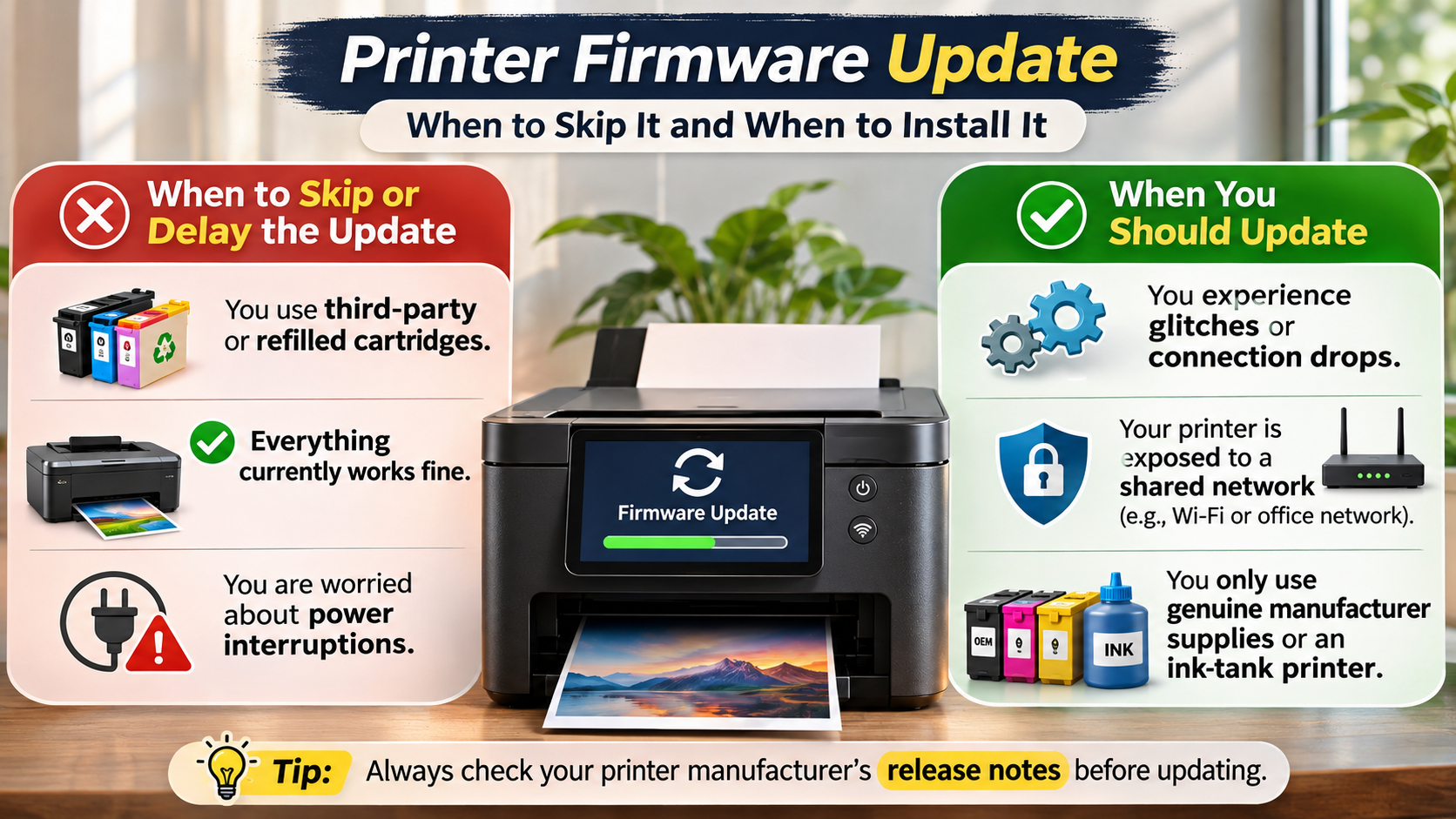
However, installing every available update without checking its details is not always necessary. Some manufacturers introduce changes that affect third-party or refilled ink cartridges. For users who depend on affordable replacement supplies, this possibility deserves attention.
Before installing an update, check the manufacturer’s release notes. Look for information about security improvements, cartridge compatibility, and known issues. Also, confirm that the update applies to your exact printer model.

Evaluating Your Cartridge Usage First
Your cartridge requirements should influence how you approach firmware updates. Some printer manufacturers use firmware-based cartridge authentication. As a result, certain updates can affect whether compatible third-party supplies work correctly.
Before approving an update, identify which cartridges your printer currently uses. Consider these points:
- Original cartridges: Check the update details and install important security patches.
- Third-party cartridges: Review compatibility information before updating.
- Refilled cartridges: Confirm whether the manufacturer has reported any cartridge restrictions.
- Subscription-based ink: Check whether the update affects your existing service.
Do not assume every firmware update blocks non-genuine cartridges. This behavior depends on the manufacturer, printer model, and firmware version.
If your current cartridges work properly, check compatibility before proceeding. You can also contact the cartridge supplier for confirmation. This simple precaution can prevent unexpected printing problems.
Is It a Good Idea to Update Firmware?
Updating printer firmware is generally beneficial when you want better security, improved compatibility, and reliable performance. Modern printers use internal software to control printing, scanning, wireless connections, and communication with other devices. Like computer software, this firmware can contain bugs or security weaknesses.
Manufacturers release updates to address these problems. Some updates improve wireless connectivity, fix printing errors, and resolve communication issues. Others introduce support for newer operating systems or improve compatibility with printing applications. If you are planning to move to Microsoft’s latest operating system, follow this guide to safely upgrade to Windows 11 without losing data.
However, updating also has potential disadvantages. An update may introduce unexpected bugs or change how your printer handles compatible cartridges. Occasionally, an installation may fail because of interrupted power or connectivity problems.
The best approach is to evaluate each update individually. Prioritize important security patches, especially for network-connected printers. For optional updates, review the release notes before installation.
Balancing Security Against Convenience
Security should be an important consideration when deciding whether to update printer firmware. Network-connected printers communicate with computers, smartphones, and other devices. Poorly secured printers can become potential entry points for attackers.
Some printer models also store temporary document data or retain information about recent print jobs. If attackers exploit a vulnerability, they may gain access to sensitive device functions or information. Similar security concerns affect computers running outdated operating systems. Learn about the security risks of using Windows 10 in 2026 to understand why keeping software updated matters. The exact risk depends on the printer’s design and configuration.
Consider these factors before making your decision:
- Security fixes: Updates can close vulnerabilities that attackers might exploit.
- Device reliability: Bug fixes may resolve unexpected errors and connection problems.
- Cartridge compatibility: Certain releases may change cartridge authentication.
- System compatibility: Updates can improve communication with newer computers and applications.
Avoid treating every update as equally urgent. A critical security patch deserves more attention than an optional feature update. Check the manufacturer’s security announcements and release notes before deciding.
How Do You Update Printer Firmware?
You can update printer firmware through three common methods. These include the printer’s built-in control panel, the manufacturer’s companion software, and a USB-connected computer. The available options depend on your printer model and manufacturer.
For most modern printers, the companion application provides the simplest experience. Applications such as HP Smart and Epson Software Updater can help identify available updates. Some Canon printers also provide firmware update options through their supported software or control panel.
Before starting, identify your exact printer model and check the manufacturer’s official support website. Download firmware only from trusted manufacturer sources. Avoid third-party download websites because unofficial files can damage your device or introduce security risks.
Follow these general steps:
- Turn on your printer and check its current firmware version.
- Connect the printer to a stable power source.
- Ensure its Wi-Fi or USB connection works properly.
- Open the manufacturer’s official application or support page.
- Check whether a compatible firmware update is available.
- Review the release notes and cartridge compatibility information.
- Start the update and wait until installation finishes.
- Allow the printer to restart before sending another print job.
Never Interrupt the Installation Process
Interrupting a firmware installation can create serious problems. During an update, the printer writes new software instructions into its internal memory. If this process stops unexpectedly, the firmware may become corrupted. In some cases, the printer may fail to start normally.
Take a few precautions before beginning the installation:
- Check the power supply: Avoid updating when electricity is unstable.
- Use a reliable connection: Prevent unnecessary Wi-Fi or USB disconnections.
- Avoid urgent printing: Choose a time when you do not need the printer.
- Read installation instructions: Follow the manufacturer’s specific guidance.
- Allow sufficient time: Some updates take longer than others.
Never switch off the printer or unplug its power cable while installation is running. Wait until the device confirms completion or restarts automatically.
If an update appears frozen, do not immediately disconnect the printer. Check the manufacturer’s troubleshooting instructions first. Contact official support if the device remains unresponsive.
What Happens If You Don’t Update Your Firmware?
Ignoring printer firmware updates does not necessarily cause immediate problems. However, it can leave your device running outdated software. Over time, this may increase security risks and create compatibility issues.
Manufacturers sometimes release updates to address vulnerabilities discovered after a printer reaches the market. If you continue using an affected firmware version, attackers may have more opportunities to exploit known weaknesses. This becomes particularly important for printers connected to business or home networks.
Outdated firmware can also create technical difficulties. New operating systems and printing applications may introduce changes that older printer software cannot handle properly. Consequently, you might experience connection failures, unexpected printing errors, or scanning problems. When computer-related issues become difficult to identify, PC diagnostic tools for troubleshooting computer problems can help you investigate potential causes.
However, not every outdated printer automatically becomes unsafe. The actual risk depends on its model, network exposure, available security patches, and configuration. Even so, checking manufacturer updates regularly is a sensible maintenance practice.
The Risk of Silent Network Breaches
One problem with printer security is that suspicious activity may not produce obvious warning signs. A compromised printer might continue accepting ordinary print jobs while an attacker exploits its network capabilities.
Depending on the vulnerability and printer configuration, unauthorized access could expose device settings, interfere with printing, or provide another route into a connected network. These risks are also worth considering when connecting devices through unsecured networks. Understanding public Wi-Fi security risks and how to stay safe on open networks can help you make better decisions about protecting connected devices. Some printers also retain temporary document information, creating additional privacy considerations.
You can reduce these risks through several practical measures:
- Install important security updates released for your printer.
- Change default administrator passwords.
- Use a secure Wi-Fi network with strong encryption.
- Disable unnecessary network services and remote access.
- Avoid exposing printer management interfaces directly to the internet.
- Replace unsupported printers when critical security fixes are no longer available.
Firmware updates are only one part of printer security. Combining updated software with secure network settings provides better protection for personal and business documents.
How Often Should Firmware Be Updated?
There is no universal schedule for installing printer firmware updates. Manufacturers release them according to individual product requirements, discovered vulnerabilities, and software compatibility changes.
A practical approach is to check for available updates every three to six months. You should also review manufacturer security announcements when they become available. If a critical vulnerability affects your printer, prioritize the recommended security update rather than waiting for your next routine check.
Enable update notifications in your printer’s companion application whenever possible. These notifications help you identify new releases without manually checking the support website every week.
Before installing an update, review its description. Determine whether it addresses a security issue, fixes a specific bug, or introduces optional features. This helps you understand its importance and potential impact.
For business environments, establish a maintenance schedule. Test important updates on a less critical printer before deploying them across multiple devices. This approach reduces unexpected interruptions and compatibility problems.
Turning Off Automatic Background Updates
Automatic firmware updates can make printer maintenance easier. However, some users prefer manual approval because they want to review changes before installation. This can be particularly useful when a printer depends on specific third-party cartridges or operates in a busy office.
Turning off automatic installation does not mean ignoring important updates. Instead, it gives you more control over when and how updates are installed.
Consider the following approach:
- Keep notifications enabled: Receive alerts when new firmware becomes available.
- Review release notes: Understand the purpose and potential effects of each update.
- Check cartridge compatibility: Confirm that your current supplies remain supported.
- Schedule installation: Choose a time when printing interruptions will not affect your work.
- Prioritize security patches: Do not unnecessarily delay important vulnerability fixes.
Remember that automatic update settings vary between manufacturers and printer models. Some devices allow notification preferences, while others provide limited control.
The goal is to maintain a secure printer without creating avoidable compatibility or workflow problems. Regular checks and informed installation decisions provide a practical balance between convenience and control.
Frequently Asked Questions About Printer Firmware Updates
1. Can Firmware Updates Damage a Printer?
Yes, although it is uncommon. A firmware update can cause problems if the installation gets interrupted or an incompatible file is installed. These issues may prevent the printer from starting or functioning correctly. To reduce the risk, download updates from the manufacturer’s official website. Keep your printer connected to a stable power source and follow the installation instructions. Never switch off the device while the update is running.
2. Can I Downgrade Printer Firmware?
Some printer manufacturers allow firmware downgrades, but many restrict this option. The availability depends on your printer model, firmware version, and manufacturer policies. Check the official support website before attempting a downgrade. Avoid unofficial firmware files because they can introduce security risks or make your printer unusable. If an update creates compatibility problems, contact the manufacturer’s support team for assistance.
3. How Do I Know If My Printer Needs a Firmware Update?
You can check for available updates through your printer’s control panel or companion application. Some manufacturers also provide firmware information on their official support websites. Look for notifications about security patches, compatibility improvements, and bug fixes. If your printer experiences connection problems or printing errors, check whether an update addresses those issues. However, not every printing problem requires a firmware update.
4. How Long Does a Printer Firmware Update Take?
Most printer firmware updates take a few minutes, although some installations may require longer. The duration depends on the printer model, update size, and connection speed. During installation, your printer may restart automatically or display a progress notification. Avoid switching off the device until the process finishes. If the update takes unusually long, consult the manufacturer’s troubleshooting instructions before taking further action.
Conclusion
Keeping your printer firmware updated is an important part of maintaining device security, performance, and compatibility. Regular updates can fix software bugs, address security vulnerabilities, and help your printer work smoothly with newer computers and operating systems. However, installing every update without checking its details is not always the best approach.
Before you update printer firmware, review the manufacturer’s release notes and check whether the update affects your current ink or toner cartridges. Always download firmware from official sources and follow the installation instructions carefully. You can also consult HP’s official printer firmware update guide for model-specific instructions.
Ultimately, the best approach is to stay informed, check for updates regularly, and install them when they offer meaningful improvements. A little attention to firmware maintenance can help keep your printer reliable, secure, and ready for everyday use.