
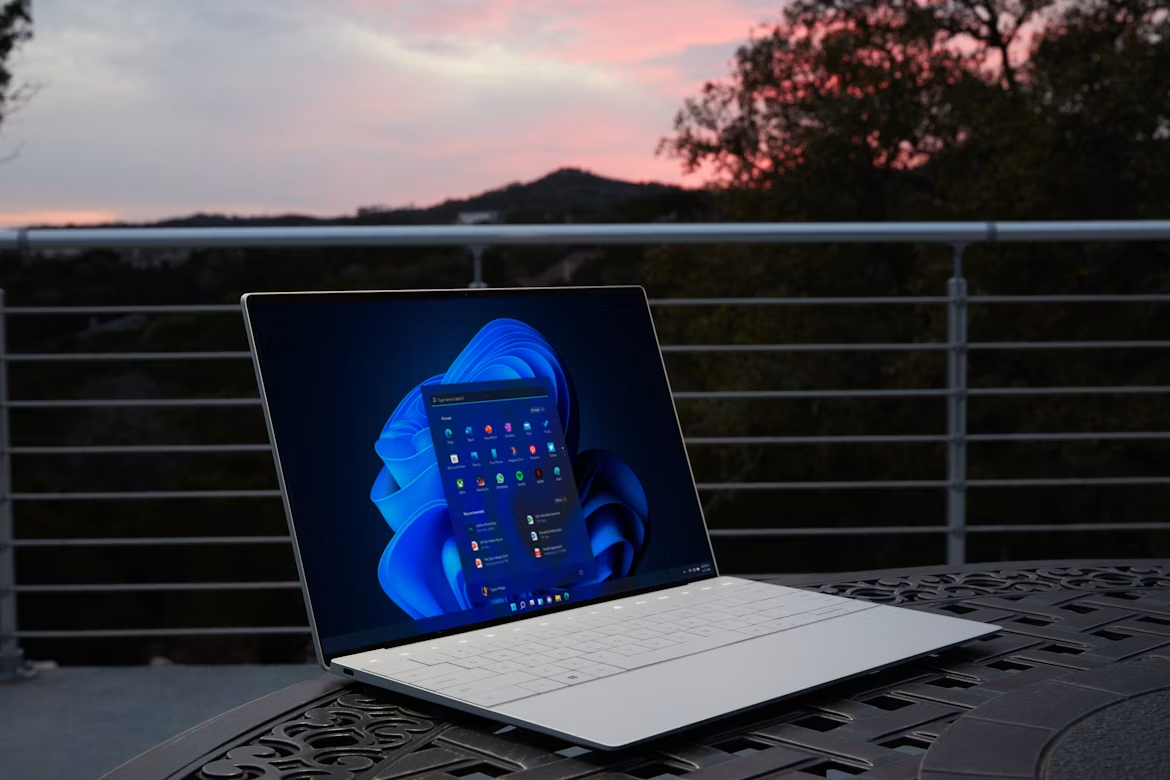
Microsoft CPU Speed Boost: How to Maximize Performance
In today’s fast-paced digital world, a microsoft cpu speed boost can make a huge difference when a slow computer starts hurting productivity and patience. This is especially true whether you run data models, compile code, or juggle many browser tabs. System performance matters more than ever.
A slow processor does more than waste a few seconds. It can slow down an entire workflow. For businesses, this often means lost time and reduced efficiency. When systems lag, productivity drops quickly.
Computing efficiency also has a wider economic impact. Reports from the World Bank on digital infrastructure show that better technology use supports growth and productivity. Efficient systems help both individuals and organizations perform better.
The good news is that Windows includes many built-in tools for optimization. You do not need advanced technical skills to use them. Simple changes can make a noticeable difference.
In this guide, you will learn how to safely improve processor performance. We will look at power settings and background app management. Each step is practical and easy to follow.
By the end, you will have a clear plan to improve speed. Your computer will feel more responsive. Your daily workflow will run more smoothly.
Understanding Your Processor’s True Potential
Before changing any system settings, it is important to understand what actually slows down your processor. A computer’s CPU is the brain of the entire operation, handling millions of calculations every second. However, Windows often restricts this power by default to save battery life and reduce heat generation.
Consequently, your machine might be operating at a fraction of its true capability. Bottlenecks usually occur due to strict power management plans, excessive background applications, or thermal throttling. Therefore, achieving a meaningful performance upgrade requires a balanced approach between software optimization and hardware management.

The Windows 11 Low Latency Profile (LLP)
Recently, a massive microsoft cpu speed boost has been introduced natively for Windows 11 users through the Low Latency Profile (LLP). Available in versions 24H2 and 25H2, this powerful feature is a complete game-changer for daily system responsiveness. Whenever you interact with the Start menu, use the search bar, or launch applications, the LLP forces your CPU to hit its absolute maximum clock speed for one to three seconds.
Consequently, this short burst of targeted power dramatically reduces frustrating lag. In fact, Microsoft reports that this profile accelerates app launches by up to 40% while improving overall system responsiveness by an impressive 70%. The best part is that you do not need to download sketchy third-party software to get it. It arrives automatically via standard Windows Updates, such as the KB5094126 cumulative patch.
To ensure you have this feature, simply navigate to Settings > Windows Update, and check for any pending downloads.
How to Optimize and Verify the CPU Boost
Once your system is updated, you can further optimize this feature by adjusting your power settings. Navigate to Settings > System > Power & battery, and change the Power mode dropdown to “Best performance.” This ensures your operating system is continually supplying optimal voltage to your processor when it demands it.
If you want to confirm this boost is actively working, you can easily monitor your system’s behavior. Open the standard Windows Task Manager or a free monitoring application like HWiNFO. Next, briefly open your Start menu or Search bar. You should immediately see your processor’s core speeds spike to their maximum turbo frequency before quickly settling back down to an idle state.
However, you should be aware of a few minor trade-offs with the LLP. Because your processor is frequently hitting its maximum frequency, laptop users might experience slightly increased battery consumption. Additionally, you may notice minor, temporary spikes in processor heat, though modern cooling systems handle this perfectly well.
Following Official System and Visual Optimizations
Sometimes the best improvements come straight from the creators of the operating system. According to Microsoft’s official tips to improve PC performance in Windows, adjusting your visual effects can free up significant processing power. Windows 11 includes beautiful animations and shadow effects, but these aesthetic features consume valuable system resources.
If your computer is older or struggling to keep up, disabling these effects is a smart move. You can easily do this by searching for “Performance” in the taskbar and selecting “Adjust the appearance and performance of Windows.” Choosing the “Adjust for best performance” option will strip away unnecessary animations, leaving more CPU cycles available for your actual work. Furthermore, Microsoft highly recommends utilizing the built-in Storage Sense feature to automatically clear out temporary files that can bog down system drives and slow down data retrieval.
Disabling Startup Apps and Bloatware
Even the fastest processor in the world will struggle if it is constantly fighting against invisible background applications. When you install new software, many programs secretly set themselves to launch the moment you turn on your computer. Over time, this bloatware severely clogs up your CPU cycles and system memory.
Therefore, managing your startup applications is a crucial step in system optimization. You can easily do this by pressing Ctrl + Shift + Esc to open the Task Manager, then navigating to the Startup tab. Here, you will see a comprehensive list of every program that boots alongside Windows.
Simply right-click and disable any non-essential applications like cloud syncing services you rarely use, third-party update checkers, or chat applications. Periodically uninstalling software you no longer need will prevent unnecessary background processes from consuming your valuable processing power.
The Impact of Thermal Management and Custom Hardware
Software tweaks can only take you so far if your hardware is physically overheating. Modern processors are designed with built-in safety mechanisms that protect them from melting. When a CPU gets too hot, it automatically triggers a process known as thermal throttling, deliberately slowing itself down to reduce heat output.
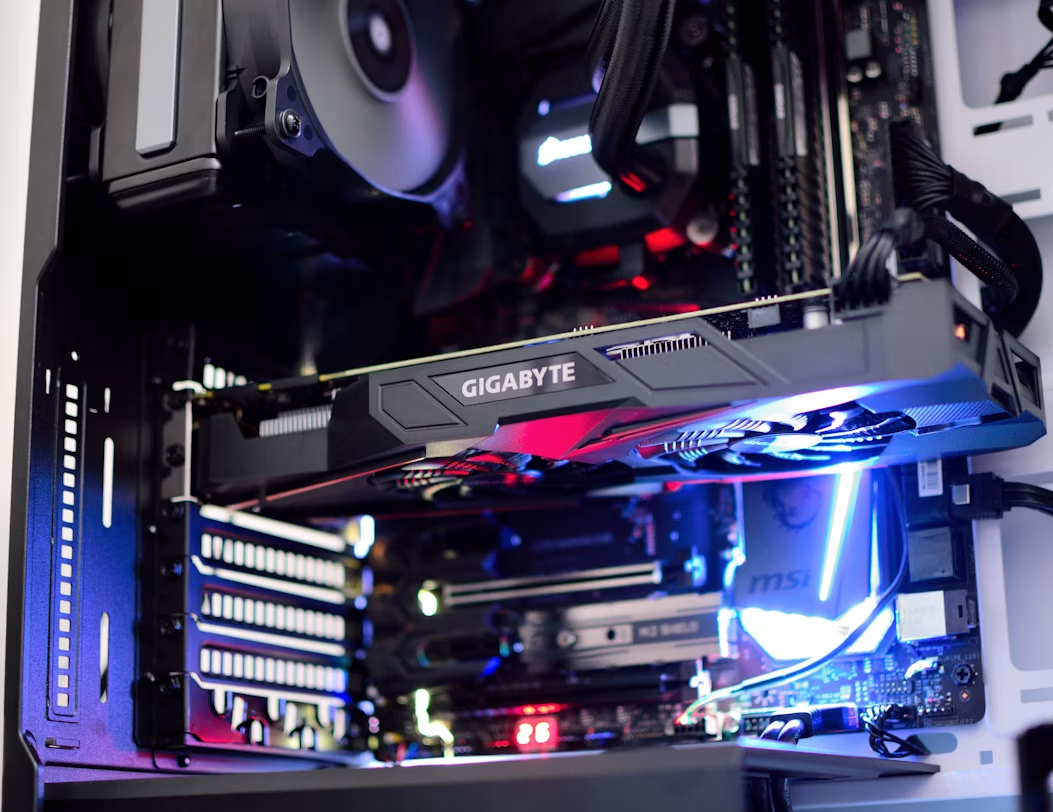
For desktop users, fighting this involves cleaning dust out of case filters or installing additional intake fans. However, pre-built computers often come equipped with highly restrictive cases and budget-tier coolers that permanently limit your processor’s potential.
If you want absolute control over your machine’s thermals to ensure sustained maximum speeds, constructing your own system is the best route. You can explore this comprehensive beginner-friendly guide to building a computer to learn exactly how selecting custom components—like premium aftermarket heatsinks and high-airflow chassis—can completely eliminate thermal bottlenecks and hardware limitations.
FAQ SECTION
Does a microsoft cpu speed boost require third-party software?
No, achieving a significant performance improvement does not require any third-party software. In fact, many programs advertised as “PC boosters” or “speed optimizers” can actually do more harm than good. These third-party applications often run constantly in the background, consuming the very processor cycles they claim to be freeing up. Furthermore, some untrustworthy optimization tools bundle malware or excessive advertisements that severely degrade system stability over time.
Instead of relying on external programs, you should utilize the powerful tools already built directly into the Windows operating system. Utilities like the Task Manager, System Configuration, Storage Sense, and the Power Options menu offer deep control over how your computer allocates its resources. By manually adjusting these native settings, you ensure that your system remains clean, secure, and genuinely optimized without adding unnecessary bloatware to your hard drive.
How does thermal throttling affect my processor speed?
Thermal throttling is a built-in hardware safety feature that drastically reduces your processor speed to prevent permanent heat damage. When you run demanding tasks like video editing, 3D rendering, or heavy gaming, your CPU generates a massive amount of electrical heat. If the computer’s cooling system cannot expel this heat fast enough, the processor hits a critical temperature threshold, usually around 90 to 100 degrees Celsius.
Once this dangerous threshold is reached, the motherboard forcefully lowers the CPU’s clock speed and voltage. By operating slower, the processor generates less heat, bringing temperatures back to a safe level. However, this sudden drop in speed causes massive performance drops, stuttering, and system lag. To prevent thermal throttling, you must ensure your computer has excellent airflow, clean cooling fans, and occasionally replace the thermal paste sitting between the processor and its heatsink.
Will changing the processor scheduling settings improve Microsoft CPU speed boost?
Yes, adjusting your processor scheduling settings can definitely improve performance, provided you tailor it to your specific computing workload. Windows allows you to allocate processor resources specifically for either “Programs” or “Background services.” You can access this hidden setting by opening the Advanced System Settings menu, navigating to the Performance Options, and clicking on the Advanced tab.
By default, Windows is optimized for “Programs,” which gives priority to the active applications running on your screen, such as web browsers or video games. This is the ideal setting for almost all standard desktop and laptop users. However, if you are using your computer as a dedicated server, or if you heavily rely on background audio processing software, switching this setting to “Background services” will force the CPU to treat all running tasks equally. This prevents foreground applications from stealing vital resources away from your crucial background operations.
Is overclocking safe for a standard Windows computer?
Overclocking carries inherent risks and is generally not recommended for a standard, factory-built Windows computer. Overclocking involves manually forcing your processor to run at a higher clock speed than the manufacturer officially intended. While this can provide a massive and immediate microsoft cpu speed boost, it also requires pushing more electrical voltage through the silicon chip.
This increased voltage drastically raises the processor’s operating temperature and power consumption. Standard laptops and budget desktop computers simply lack the robust cooling systems necessary to handle this excess heat. Consequently, improper overclocking can lead to constant system crashes, blue screens of death, and even permanent hardware failure. Furthermore, modifying clock speeds often completely voids your hardware warranty. It is far safer for average users to rely on software optimizations and built-in “High Performance” power plans rather than risking manual overclocking.
How often should I update my BIOS to maintain CPU speed?
You should only update your BIOS when it is absolutely necessary, rather than treating it as a routine maintenance task. The BIOS, or Basic Input/Output System, is the fundamental firmware that initializes your hardware before Windows even starts loading. While keeping your operating system and graphics drivers updated regularly is highly recommended, BIOS updates carry a higher level of risk. If a power outage occurs during a BIOS flash, it can permanently “brick” your motherboard, rendering the computer useless.
However, there are specific times when a BIOS update is crucial for CPU speed. If you are upgrading to a newly released processor, or if the manufacturer releases a critical microcode update to fix performance bugs, updating becomes essential. For instance, security vulnerabilities like Spectre and Meltdown required mandatory BIOS updates that significantly impacted processor scheduling and performance. Unless you are experiencing hardware instability or need a specific patch, your current BIOS version is usually fine.