
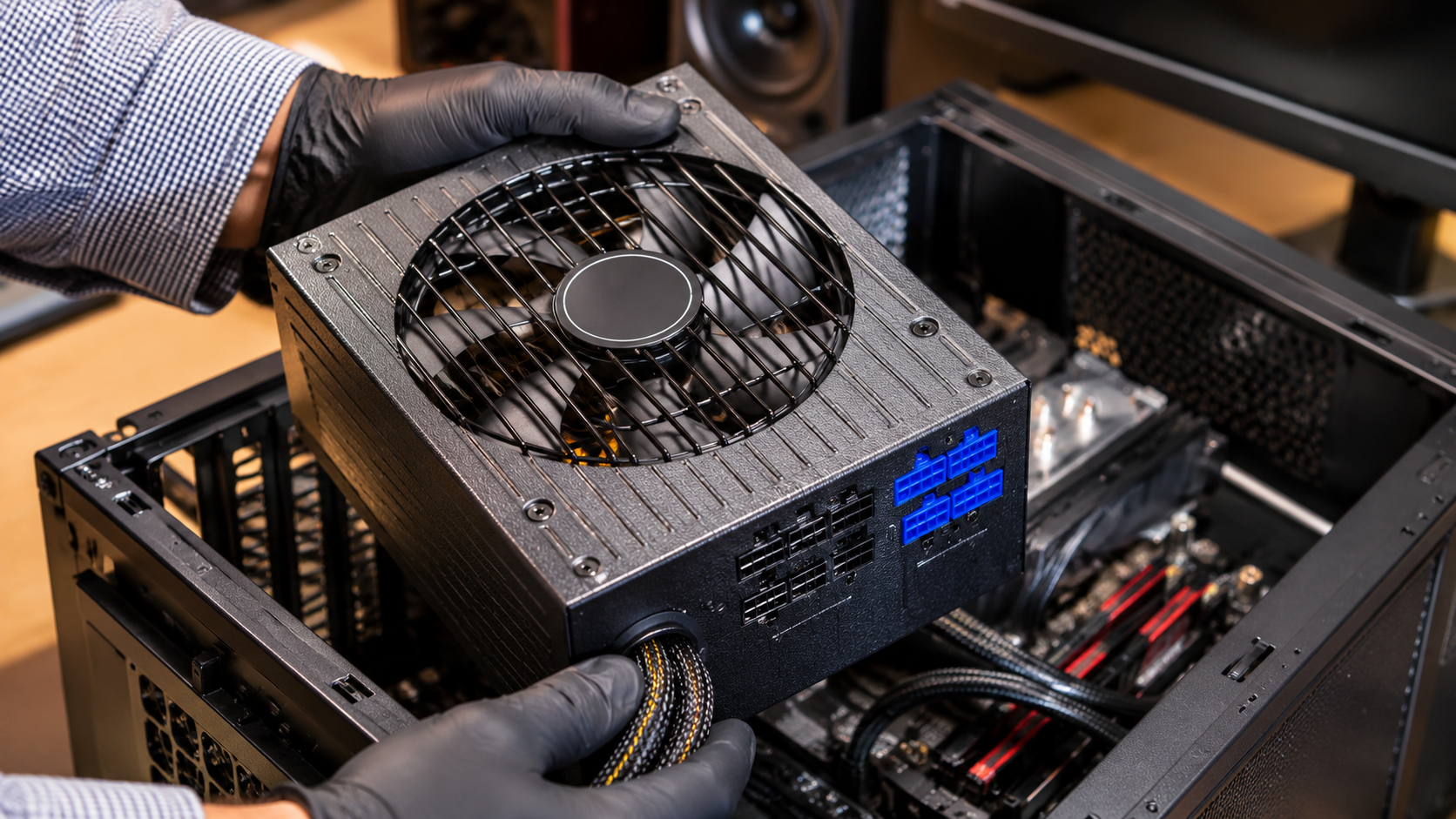
Understanding the Lifespan of a PC Power Supply and What Affects It
Knowing the lifespan of a PC power supply helps protect your expensive computer hardware. Many PC builders spend hours researching graphics cards and processors. If you are planning a new build, consider these important factors when buying a new computer. Choosing reliable components, including a quality PSU, helps improve long-term system reliability.
Your PSU delivers electricity to every major component inside your computer. Its quality and condition directly affect system stability. A failing power supply can cause unexpected shutdowns, restarts, and hardware problems.
Organizations such as 80 PLUS certify power supplies based on their energy efficiency. However, certification alone does not guarantee overall build quality or reliability.
Understanding PSU longevity helps you recognize potential problems before they become expensive. In this guide, we answer four important questions. You will discover how long power supplies last and whether 750W is overkill. We also explain common PSU failure symptoms and whether frequent computer shutdowns cause damage.
What Is the Lifespan of a PC Power Supply?
The average lifespan of a PC power supply typically ranges from five to ten years. However, its actual lifespan depends on build quality, operating temperature, and daily usage. Premium power supplies can sometimes operate reliably for more than ten years.
Budget models often use less expensive internal components. These units may experience problems earlier, especially under demanding workloads. Meanwhile, reputable manufacturers generally use better components and provide longer warranty coverage.
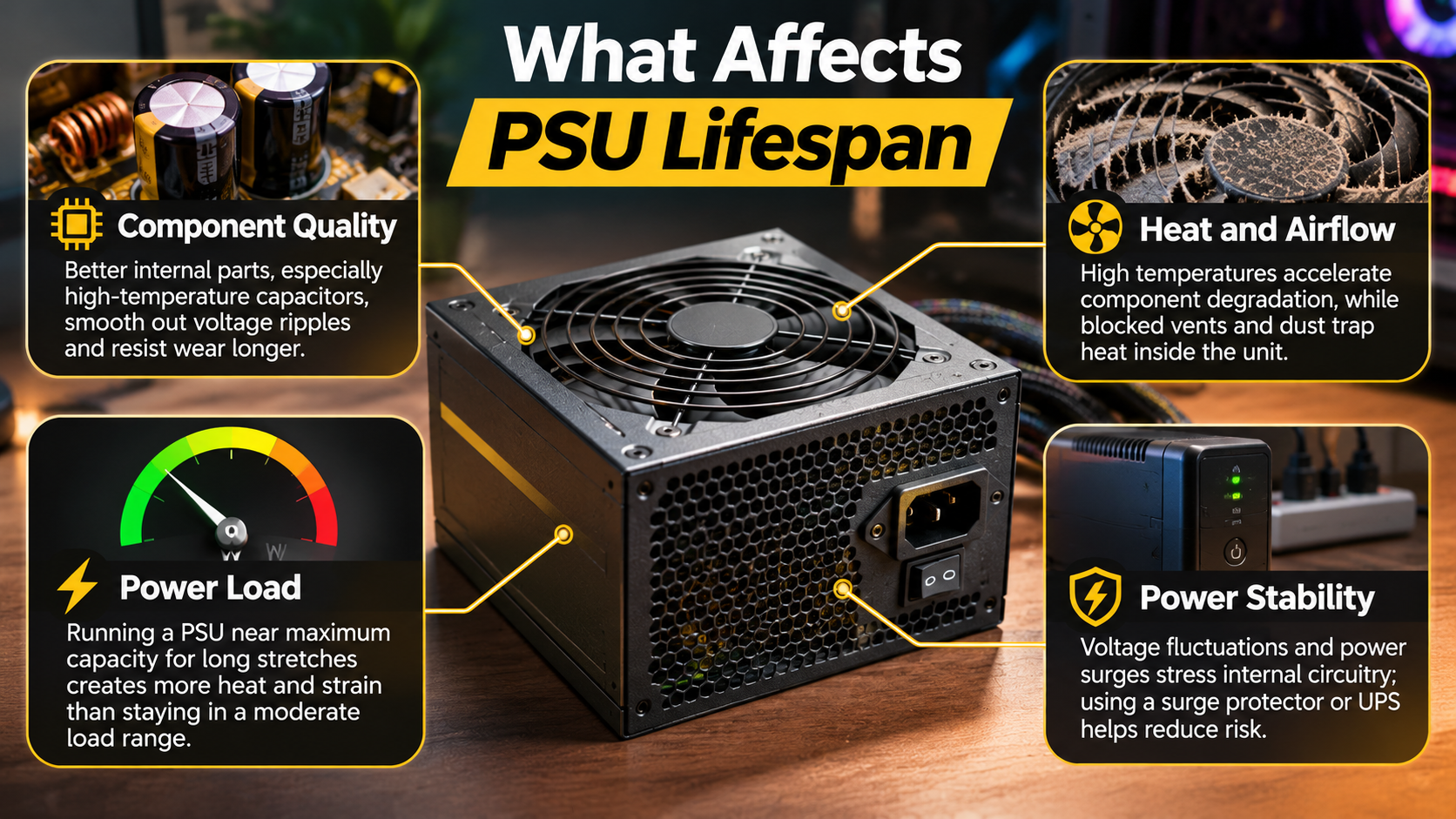
Several factors influence how long your PSU lasts:
-
Component quality: High-quality capacitors and internal components generally improve reliability.
-
Operating temperature: Excessive heat accelerates component aging.
-
Daily workload: Heavy gaming and demanding applications increase power consumption.
-
Dust accumulation: Dust restricts airflow and can increase internal temperatures.
-
Electrical stability: Poor-quality electricity and power surges can damage internal components.
Your manufacturer’s warranty provides another useful indicator of expected product support. However, a longer warranty does not guarantee that every unit will last beyond its coverage period. You should also monitor other hardware components, including your SSD, using SSD health checks and monitoring tools.

How Warranty Periods Reflect PSU Longevity
A PSU warranty provides useful information about the manufacturer’s confidence in its product. Entry-level models commonly offer three to five years of coverage. Mid-range products frequently provide five to seven years.
Premium power supplies sometimes include ten-year or twelve-year warranties. Manufacturers typically offer these periods on models with stronger component selection and more extensive testing.
Before purchasing a PSU, check its warranty and the manufacturer’s reputation. Also, review independent hardware testing and reliability reports.
Remember that warranty length is not the same as guaranteed lifespan. A power supply can fail before its warranty expires. Conversely, a well-maintained unit can continue working long after coverage ends.
Pay attention to these details when comparing warranties:
-
Warranty duration and replacement conditions.
-
Availability of local customer support.
-
Coverage for electrical or manufacturing defects.
-
Manufacturer reputation for handling warranty claims.
These factors help you evaluate long-term ownership costs. They also make it easier to choose a reliable power supply.
Is a 750W Power Supply Overkill?
A 750W power supply is not necessarily overkill for a modern gaming computer. Its suitability depends on your processor, graphics card, and other components. Mid-range and high-end gaming systems can benefit from additional wattage headroom.
Modern graphics cards sometimes experience short power spikes during demanding workloads. A properly selected PSU can handle these temporary increases without triggering unexpected shutdowns.
For example, consider a gaming computer that draws approximately 400W under load. A 750W power supply would operate at roughly 53% of its rated capacity.
However, a 750W unit is unnecessary for many basic office computers. Systems without dedicated graphics cards usually require much less power.
Before purchasing, check your graphics card manufacturer’s recommended PSU wattage. Also, consider future upgrades and the PSU’s available connectors.
Choose a power supply based on actual system requirements rather than wattage alone. Efficiency ratings, component quality, and warranty coverage matter too.
Why Wattage Headroom Improves Efficiency and Noise
A power supply’s efficiency changes depending on its operating load. Many modern PSUs reach their highest efficiency around 40% to 60% load. However, the exact efficiency curve varies between models.
Choosing additional wattage can provide useful headroom for demanding applications. It can also help accommodate future graphics card upgrades.
Noise levels depend on the PSU’s cooling design and fan-control settings. Some models use zero-RPM fan modes during light workloads. Their fans remain inactive until internal temperatures reach specific thresholds.
A properly sized PSU can therefore provide several practical benefits:
-
Lower operating stress: Adequate capacity helps prevent continuous operation near maximum output.
-
Upgrade flexibility: Additional wattage supports some future hardware upgrades.
-
Potentially quieter operation: Certain models maintain lower fan speeds under moderate loads.
-
Power spike handling: Sufficient capacity helps accommodate temporary increases in demand.
However, buying a larger PSU does not automatically improve efficiency or reduce noise. Always check independent reviews before choosing a particular model.
How to Tell If a PC PSU Is Dying?
A failing power supply often causes random restarts, unexpected shutdowns, and startup problems. These symptoms become especially noticeable during demanding gaming sessions. You can investigate similar computer problems using PC diagnostic tools to identify hardware issues. These tools can help identify potential problems before replacing components.
Unlike many software crashes, power-related failures can interrupt electricity immediately. Your computer might suddenly switch off without displaying an error message. Sometimes, it may refuse to start until you toggle the rear power switch.
Other warning signs can indicate PSU problems. However, similar symptoms can also result from faulty RAM, overheating, or motherboard issues.
Watch for these common warning signs:
-
Random shutdowns: Your computer suddenly loses power during normal use.
-
Unexpected restarts: The system repeatedly restarts without an obvious software error.
-
Startup problems: Your computer struggles to power on consistently.
-
Unusual noises: The PSU produces grinding, rattling, or unexpected buzzing sounds.
-
Burning smells: You notice an unusual electrical smell near the power supply.
-
Unstable peripherals: Connected devices disconnect unexpectedly.
A burning smell, smoke, or crackling sound requires immediate attention. Switch off the system and disconnect it from the wall. Never open a PSU yourself because internal capacitors can retain dangerous electrical charges.
Testing Voltage Rails Before Replacing Hardware
Before replacing a power supply, confirm that it is actually causing the problem. Motherboard BIOS readings can provide an initial indication of voltage irregularities. However, these readings are not always accurate. You should also consider whether other components, such as RAM, are contributing to system instability. Understanding how a single RAM stick affects PC performance can help when troubleshooting memory-related issues.
A dedicated PSU tester can provide additional information about the power supply’s output. A multimeter can also measure voltage rails when used correctly.
Standard ATX voltage tolerances generally allow approximately ±5% variation. The expected ranges include:
-
12V rail: 11.40V to 12.60V.
-
5V rail: 4.75V to 5.25V.
-
3.3V rail: 3.135V to 3.465V.
These measurements help identify possible voltage problems. However, a basic PSU tester cannot detect every failure under real operating loads.
If your computer continues experiencing power problems, consider professional testing. Replace a PSU when testing confirms instability or when safety-related warning signs appear.
Is Shutting Down a PC Often Bad?
Shutting down your PC frequently is generally safe for modern computers. Daily shutdowns do not normally damage your power supply, motherboard, or other components.
Modern computer hardware is designed to handle regular power cycles. Turning off your computer overnight also reduces electricity consumption. It prevents components from generating unnecessary heat while the system remains inactive.
However, frequent power cycling creates brief electrical transients. One example is inrush current, which occurs when electrical components initially receive power. Quality power supplies include protection and current-limiting features to manage these conditions.
Normal daily shutdowns rarely create a problem. However, repeatedly switching your computer on and off within seconds is unnecessary.
You should also avoid shutting down your system during important updates. Allow background installations and software updates to finish first.
For most users, the decision is simple. Shut down your computer whenever you finish using it for the day. Use sleep mode when you only need a short break.
When Sleep Mode Makes More Sense Than Shutting Down
Sleep mode is useful when you leave your computer unattended for a short period. It keeps your current work available while reducing power consumption. However, if your computer frequently experiences unexpected shutdowns or performance problems, checking your PC with diagnostic tools can help identify potential hardware issues.
Unlike a complete shutdown, sleep mode allows you to resume your session quickly. This makes it convenient when taking breaks or stepping away from your desk.
However, sleep mode still consumes some electricity. Its power consumption depends on your computer’s hardware and sleep configuration.
Consider these situations when choosing between sleep and shutdown:
-
Short breaks: Use sleep mode when leaving your desk temporarily.
-
Overnight breaks: Shut down your computer if you will not use it for several hours.
-
Software updates: Keep your computer running until important updates finish.
-
Extended absence: Shut down your system when leaving home for several days.
Neither option significantly damages a healthy PSU through normal use. Choose the setting that best suits your daily routine.
Conclusion
Understanding the lifespan of a PC power supply helps you maintain a reliable and stable computer. Most quality PSUs last between five and ten years, although build quality, temperature, and usage affect their longevity. Choosing a reputable power supply with sufficient wattage and a good warranty can protect your investment.
Watch for warning signs such as random shutdowns, unexpected restarts, unusual noises, and burning smells. Replace a faulty unit rather than risking damage to other components. Also, remember that a 750W PSU is not overkill for every gaming PC, and shutting down your computer daily is generally safe.
Ultimately, investing in a reliable PSU and maintaining proper airflow can help your computer run smoothly for years.