
How to Enable Parental Controls on an Android Device
Handing a smartphone to your child opens a world of discovery. However, it can also expose them to inappropriate content, excessive screen time, and unwanted purchases. Learning how to enable parental controls on an Android device can help you create safer digital boundaries.
Android provides several tools for managing a child’s device. Depending on the Android version and manufacturer, you can use built-in parental controls, Google Play settings, or Google Family Link. These tools can help manage apps, screen time, purchases, and online content.
The exact menu names can vary between Android versions and phone brands. Therefore, do not worry if your device looks slightly different from the steps below.
This guide explains how to enable parental controls on an Android device, manage your child’s phone remotely, limit screen time, and use app pinning. It also explains the limits of these controls and how to choose settings that suit your child.
How Do I Set Parental Controls on Android?
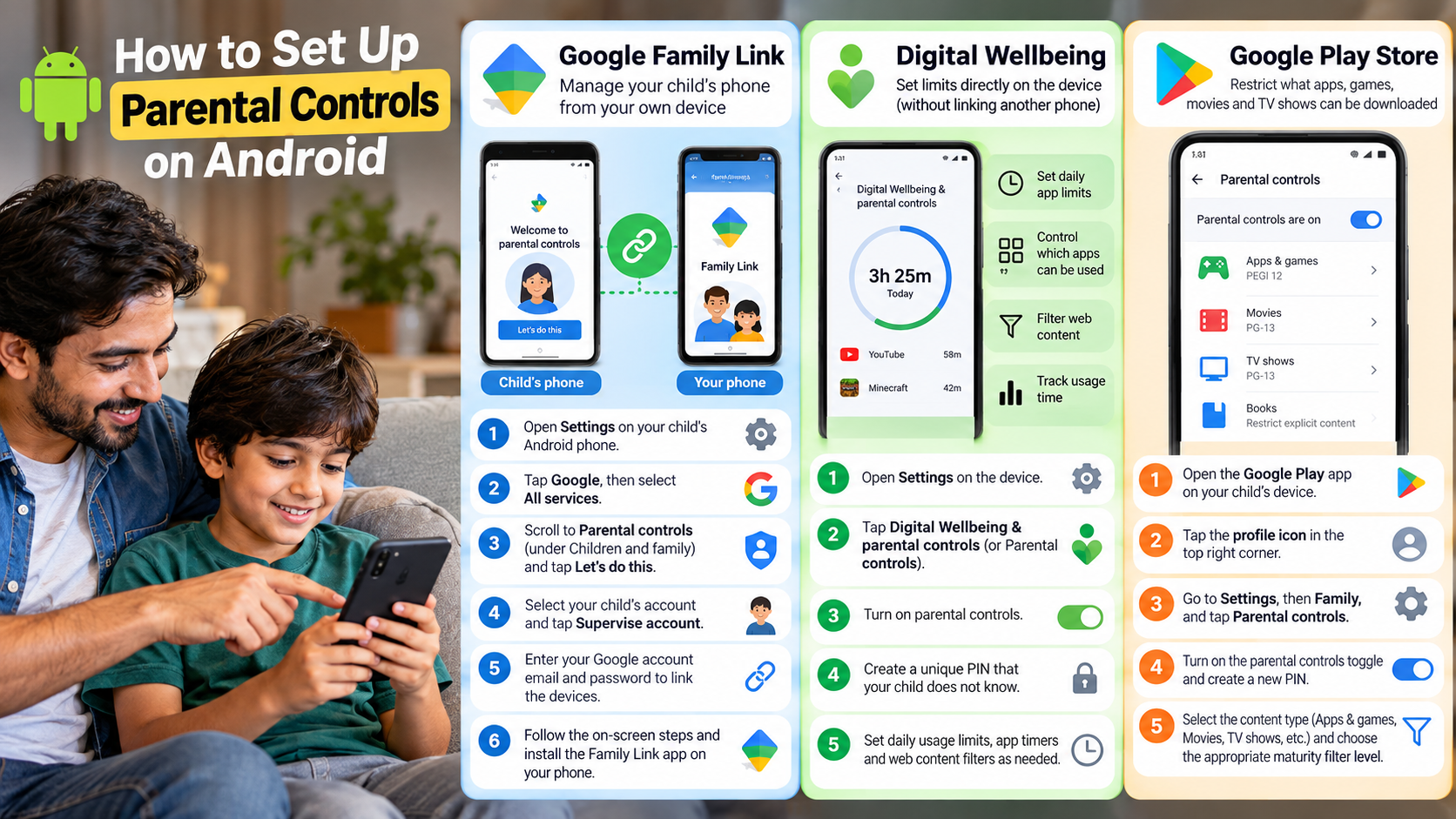
If you want to enable parental controls on an Android device, start by checking the parental control options in the Settings app. On supported newer Android versions, open Settings and look for Parental controls. Some phones may place these options under Digital Wellbeing & parental controls.
Depending on your device, you may be able to create a parental controls PIN and manage screen time, downtime, app limits, blocked apps, and web content. The available options depend on your Android version and manufacturer.
You can also use Google Play parental controls to restrict certain types of content. These controls can limit apps, games, movies, TV shows, and books based on available age ratings. Parents can also review the best free apps for Android users when choosing age-appropriate apps for their children.
For broader supervision, consider using Google Family Link. It connects a child’s supervised Google Account with a parent’s device.
When setting up controls, create a PIN that your child cannot easily guess. Review the settings regularly as your child’s age and digital needs change.
Choosing Age Ratings for Apps and Games
Age ratings can help parents control access to apps and games that may not be suitable for their child. The available rating system can vary by country, content type, and platform.
Google Play parental controls allow parents to restrict certain types of content based on maturity ratings. Family Link can also help parents approve or block app downloads on compatible supervised accounts.
However, an age rating should not be the only factor you consider. An app can have an appropriate rating while still containing advertisements, chat features, purchases, or other functions you may not want your child using.
When you enable parental controls on an Android device, review the available restrictions carefully. Consider checking these areas:
- Apps and games
- Movies and TV
- Books
- In-app purchases
- App permissions
- Download approvals
You should also review the apps already installed on the device. Parental controls reduce certain risks, but they cannot identify every inappropriate interaction.
For younger children, combine technical restrictions with simple conversations about safe downloads, strangers online, personal information, and responsible device use.
How Do I Control My Child’s Phone From Mine?
You can remotely manage many aspects of a child’s compatible Android device through Google Family Link. First, install Family Link on your own compatible device. Your child will also need a compatible supervised Google Account on their device.
After supervision is configured, parents can manage several settings remotely. Depending on the child’s device and account, these can include screen time limits, app limits, app approvals, blocked apps, and scheduled downtime.
Family Link can also show certain information about your child’s app activity. It can support location sharing when the necessary location settings are enabled on the devices.
The available features are not identical on every phone. Android version, manufacturer, account configuration, and regional availability can affect what you can manage.
Family Link is particularly useful when you want to manage your child’s device without physically accessing it every time. It can also be useful to explore iPhone and Android apps to simplify your routine when managing everyday family tasks across devices. However, parental controls should support family rules rather than replace communication.
Explain the limits to your child in simple terms. Clear expectations can make digital restrictions easier to understand and follow.
Setting Remote Screen Time and Bedtime Limits
Family Link allows parents to create daily screen time limits for compatible supervised devices. You can set different limits for different days, which can help separate school days from weekends.
You can also create scheduled downtime. For example, you could restrict device use during school hours or establish a nighttime schedule.
When the screen time limit is reached, the device can become locked. Some apps may remain available if they have been designated as unlimited. Phone and emergency features can also remain available on supported devices. Parents can also use these limits alongside healthy routines to beat sleep inertia and wake up without brain fog.
These controls give parents more flexibility than simply taking the phone away each evening. You can adjust the schedule when your child’s routine changes.
A practical setup could include:
- Shorter limits on school days
- Longer limits on weekends
- Downtime during sleeping hours
- Restricted access to distracting apps
- Continued access to essential apps
When you enable parental controls on an Android device, avoid choosing restrictions simply because they are available. Consider your child’s age, school schedule, responsibilities, and current habits.
Review the limits periodically. A setting that works for a young child may become unnecessarily restrictive as they get older.
Can You Put Parental Controls on a Mobile Phone?
Yes. Modern Android phones provide several ways to add parental controls, although the exact features depend on the Android version, manufacturer, account type, and region.
Built-in Android controls can help manage screen time, app usage, blocked apps, web content, and other restrictions on supported devices. Google Family Link can provide additional supervision for compatible child accounts.
Google Play also provides content and purchase controls. These features can reduce access to unsuitable apps and media. However, no single parental control setting can block every possible source of inappropriate content.
Some mobile carriers may offer additional network-level filtering. Third-party parental control services can also provide extra monitoring and filtering features.
Before using a third-party service, check its privacy policy and requested permissions. Some services may collect sensitive information about the child’s device or activity.
The best approach is to combine several appropriate safeguards. These may include:
- Screen time limits
- App restrictions
- Purchase controls
- Web filters
- SafeSearch
- Location sharing
Parents should also teach children how to spot fake news and misinformation online, especially when they begin using websites and social platforms independently.
When you enable parental controls on an Android device, remember that these tools are not a substitute for parental guidance. Children should also learn why certain content, websites, and online interactions can be risky.
Carrier-Level Content Filters and Cellular Protections
Some mobile carriers offer optional content filtering and account-level safety features. These services can provide another layer of protection when a child uses mobile data.
Carrier features differ significantly. Some may filter categories of websites or services, while others may focus on account controls or spending restrictions. Availability depends on your country, carrier, and specific plan.
Network-level filtering can complement controls configured directly on the child’s Android phone. However, it should not replace device-level restrictions.
Before activating a carrier filter, check exactly what it blocks. Also determine whether it applies to every device on your account or only a specific phone number.
Parents should still configure the child’s Android device separately. Useful settings may include:
- Screen time limits
- App restrictions
- Google Play purchase approval
- Web content filtering
- SafeSearch
- Location sharing
Using several layers can provide broader protection. However, excessive restrictions may block legitimate websites or apps.
Review your settings regularly. If your child’s needs change, adjust the restrictions rather than leaving outdated controls active.
How Do I Lock an Android Phone for Kids?
Android may allow you to temporarily lock a phone to one application using App Pinning. This feature keeps a selected app on the screen until you complete the required unpinning process.
The exact steps vary between Android versions and manufacturers. Open Settings and search for App pinning or Screen pinning. The option may appear under Security or another device settings category.
After enabling the feature, open the app you want your child to use. Open the recent apps screen and select the pin option when it appears. The phone will then remain within that application.
To leave the pinned app, Android requires the appropriate unpinning action. Depending on the device, this may involve your PIN, pattern, password, or another security method.
App Pinning is useful when you temporarily give your phone to a young child. For example, you can pin an educational game or video application.
However, App Pinning does not provide full parental supervision. It only limits navigation during the current session.
For broader protection, combine App Pinning with other controls when you enable parental controls on an Android device.
Preventing Accidental Navigation and In-App Purchases
App Pinning can prevent a child from accidentally opening other apps while using your phone. This can be useful when you want to let a young child play a game without giving access to messages, photos, or other personal information.
However, pinning an app does not automatically make that app safe. Your child may still encounter advertisements, purchases, links, chat features, or unsuitable content inside the application.
Before giving a child access, check the app’s age rating and features. Review its permissions and determine whether it includes advertisements or in-app purchases. It is also useful to compare the best web browser apps for Android when deciding which browsing tools are appropriate for your child.
You should also configure Google Play purchase approval when your child uses a supervised Google Account. Remember that purchase approval applies to purchases made through Google Play’s billing system.
A simple safety checklist includes:
- Pin only trusted apps
- Review app permissions
- Restrict unnecessary purchases
- Check age ratings
- Keep Android updated
- Explain basic online safety rules
These measures work together. App Pinning limits navigation, while parental controls and Family Link provide broader device and account management.
No single setting can eliminate every digital risk. Regular supervision remains important.
Can Android Use Parental Controls?
Yes. Android supports parental controls through built-in device settings and Google’s family supervision tools. However, the exact controls are not identical across every Android phone.
On supported newer versions, Android can provide features such as daily limits, downtime, app limits, blocked apps, and content restrictions. Google Family Link can provide additional supervision for compatible child accounts and devices.
The available features depend on the Android version, manufacturer, account configuration, and regional availability. Older devices may have fewer options or different menus.
Family Link can help parents manage app approvals, screen time, and certain location-sharing features. Location tools require the appropriate settings and permissions to be enabled.
If you want to enable parental controls on an Android device, first check which Android version the phone uses. If you cannot find a particular option, use the Settings search feature or check the manufacturer’s support documentation.
Do not activate every available restriction automatically. Choose controls based on your child’s age and needs.
A balanced setup may include:
- Age-appropriate content restrictions
- Screen time limits
- App controls
- Purchase restrictions
- Web protection
- Regular conversations about online safety
Compatibility Across Manufacturers and Operating System Versions
Parental controls are available across many Android devices, but the experience can differ between manufacturers. Samsung, Google Pixel, Motorola, Xiaomi, and other brands may use different menus and terminology.
The Android version also matters. Newer versions can provide parental control features that older versions do not include. Manufacturer software can further change where specific options appear.
For this reason, instructions written for one Android phone may not work exactly the same way on another. If a setting is missing, use your phone’s Settings search feature first.
You can also check the manufacturer’s official support documentation for your specific model. This can help you find the correct menu without changing unrelated security settings.
Google Family Link can provide a more consistent way to manage compatible supervised accounts. However, its available features still depend on the child’s device and account configuration.
Before you enable parental controls on an Android device, check:
- Android version
- Device manufacturer
- Child’s Google Account type
- Family Link compatibility
- Available parental control features
Keeping the phone updated is also important. Updates can improve security and sometimes introduce new parental control options.
The safest approach is to configure only the controls your child actually needs. Review them regularly as your child’s age, habits, and responsibilities change.
Conclusion
Learning how to enable parental controls on an Android device gives you practical ways to create a safer and more balanced digital experience for your child. You can manage screen time, restrict unsuitable content, control app downloads, limit purchases, and use Family Link for remote supervision.
Start with the controls that match your child’s age and daily routine. Avoid adding unnecessary restrictions, and review the settings regularly as your child’s needs change.
Remember that parental controls work best alongside open communication. Teach your child how to recognize unsafe content, protect personal information, and make responsible choices online.
With the right combination of Android parental controls, screen time limits, app restrictions, and family rules, you can give your child the benefits of a smartphone while reducing common digital risks.