
How Long Does GPU Thermal Paste Last? Complete Maintenance Guide
Every dedicated PC gamer or workstation user eventually notices their graphics card running hotter than usual. Understanding how long GPU thermal paste lasts helps maintain cooling performance and prevent unnecessary hardware problems.
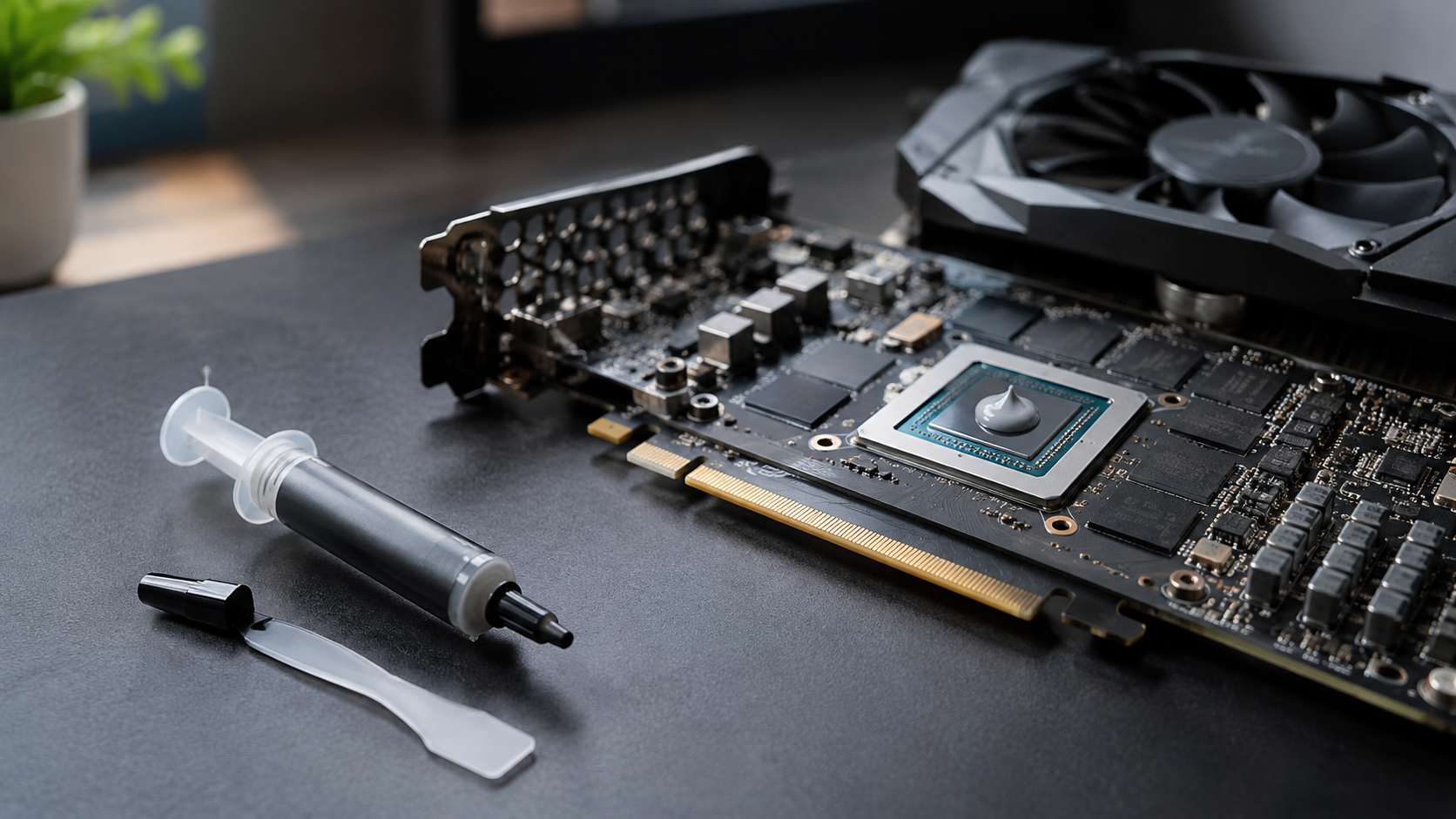
Thermal paste sits between the GPU die and heatsink. It fills microscopic gaps between these surfaces, improving heat transfer. Over time, thermal compounds can dry out, separate, or lose their original consistency.
Degraded paste may contribute to higher temperatures, increased fan noise, and thermal throttling. However, these symptoms can also indicate dust buildup or poor case airflow.
Knowing when to replace GPU thermal paste can help maintain stable performance. This guide explains typical paste longevity, storage conditions, temperature limits, and safe cleaning methods. You’ll also learn whether two-year-old paste remains usable and whether a five-year-old graphics card needs fresh compound.

How Many Years Does GPU Thermal Paste Last?
GPU thermal paste typically lasts between three and five years under normal operating conditions. However, its actual lifespan depends on the compound’s quality, application, cooling design, and usage patterns. Some factory-applied compounds can perform well beyond five years without requiring replacement.
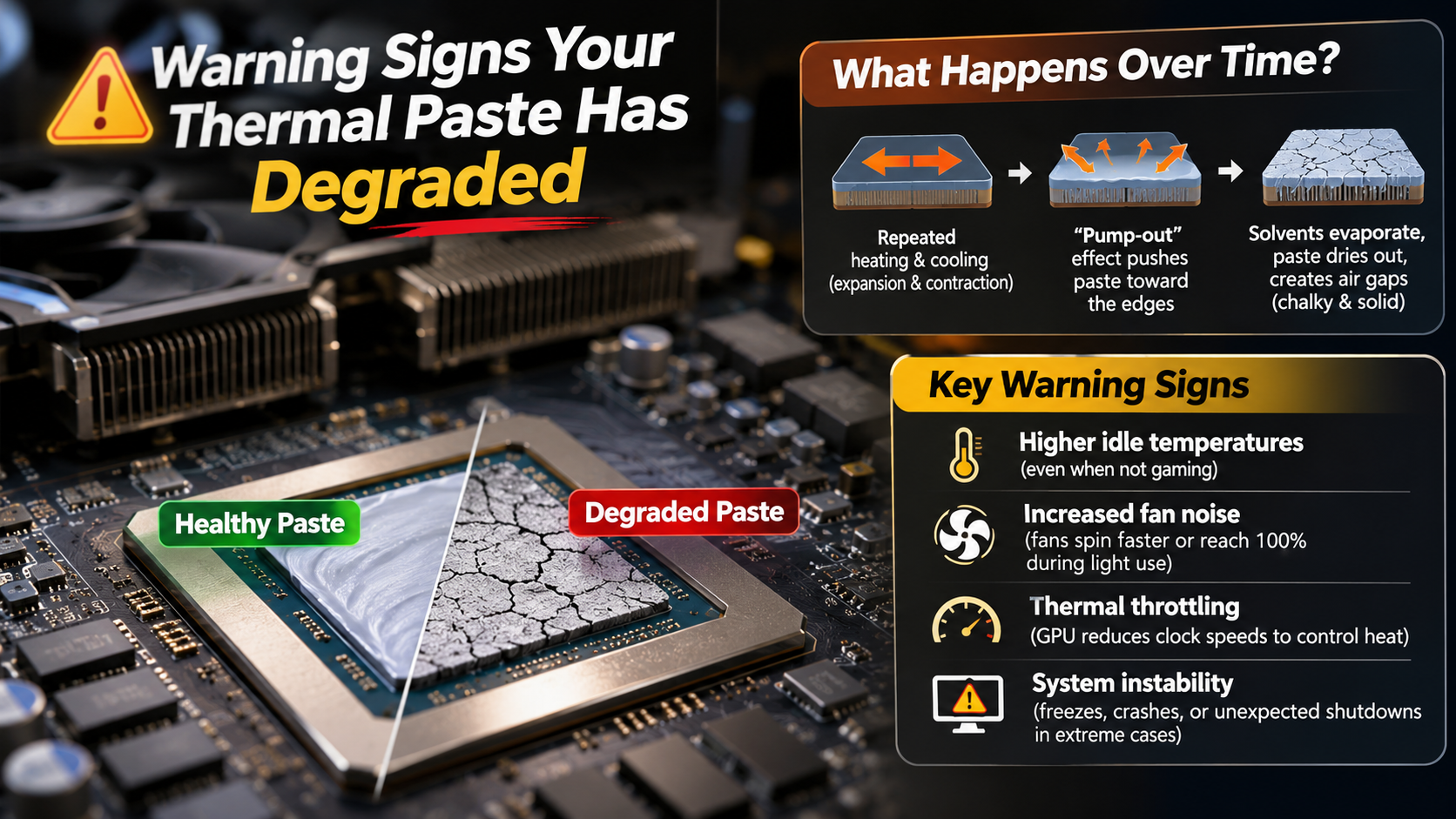
Gaming PCs and workstation systems experience repeated heating and cooling cycles. Over time, these cycles can affect the thermal compound’s consistency. Certain formulations may gradually dry out or experience component separation. This can reduce heat transfer between the GPU die and heatsink.
Several factors influence how long GPU thermal paste lasts:
- Paste quality: High-quality compounds often provide better long-term stability.
- Operating temperatures: Consistently high temperatures can accelerate compound degradation.
- Workload: Heavy gaming, rendering, and overclocking increase thermal demands.
- Application quality: Uneven coverage can create inefficient contact areas.
- Cooling conditions: Dusty heatsinks and restricted airflow increase thermal stress.
You don’t need to replace thermal paste automatically every three years. Monitor temperatures and investigate noticeable performance changes before deciding to repaste.
Signs Your GPU Thermal Paste Has Dried Out
Dried GPU thermal paste can contribute to overheating, but rising temperatures alone don’t confirm compound failure. Check your graphics card’s performance before opening the cooling assembly. Monitoring software such as HWiNFO and GPU-Z helps identify unusual temperature changes.
Look for these warning signs:
- Higher GPU temperatures: Temperatures increase under workloads that previously ran cooler.
- Louder cooling fans: Fans run faster to compensate for rising heat.
- Thermal throttling: GPU clock speeds decrease when temperatures approach operating limits.
- Performance drops: Games experience inconsistent frame rates or unexpected stuttering.
- Higher hotspot temperatures: The difference between core and hotspot readings becomes unusually large.
A hotspot-to-core difference of 15°C to 20°C deserves investigation, particularly when it increases over time. However, acceptable differences vary between graphics card models.
Dust buildup, poor case ventilation, and faulty fans can produce similar symptoms. Regularly cleaning your PC’s cooling components helps prevent these problems. You can also learn how to safely clean your electronics with compressed air to remove accumulated dust without damaging sensitive components. Compare temperatures under similar workloads. If overheating continues, inspect the thermal interface.
Can I Use Two-Year-Old Thermal Paste?
Yes, two-year-old thermal paste can remain usable if you stored it correctly. However, its condition matters more than its age alone. An unopened syringe generally has a better chance of retaining its original consistency than an improperly stored, opened one.
Different manufacturers specify different shelf lives. For example, Noctua recommends using its NT-H1 and NT-H2 compounds within two years after opening. Other products may have different storage recommendations.
Before applying older thermal paste, inspect its consistency carefully. Fresh compound should generally have a uniform texture and spread smoothly. Excessive oil separation, hardened material, or unusual clumping can indicate degradation.
Check the manufacturer’s storage instructions before using an older syringe. Avoid applying questionable compound to an expensive graphics card. Replacing an inexpensive tube is safer than risking poor thermal contact.
Remember that thermal paste shelf life and applied lifespan are different. A compound that remains usable inside its syringe may behave differently after installation.
Testing Thermal Paste Storage Quality Before Application
Proper storage plays an important role in preserving thermal paste quality. Heat, direct sunlight, and exposure to air can affect certain formulations. Always follow the manufacturer’s recommended storage conditions rather than assuming every compound has the same shelf life.
Use these checks before applying older thermal paste:
- Inspect the syringe: Check for cracks, damaged caps, or hardened material around the nozzle.
- Check consistency: Dispense a small amount onto a clean surface.
- Look for separation: Excessive liquid separation or uneven filler distribution may indicate degradation.
- Check the texture: Avoid paste that appears unusually dry, grainy, or clumpy.
- Verify the expiry guidance: Compare its age with the manufacturer’s recommendations.
Store opened thermal paste with its cap tightly secured. Keep it away from direct sunlight and extreme temperatures. An airtight bag can provide additional protection against exposure.
Do not assume that mixing separated paste will restore its original performance. Some formulations cannot be reliably restored once their components degrade. When consistency looks questionable, replace the syringe instead.
Is 90°C Safe for a GPU?
A GPU temperature of 90°C requires attention, but it isn’t automatically dangerous for every graphics card. Different manufacturers and GPU models have different maximum operating temperatures. You should always check your specific graphics card’s temperature specifications.
According to NVIDIA, maximum operating temperatures vary between GPU models. When a card reaches its specified limit, its driver can reduce performance to control temperatures.
Repeatedly running near the thermal limit can cause noticeable performance reductions. However, a brief temperature spike doesn’t necessarily indicate hardware damage. Check whether your graphics card maintains stable clock speeds and performance.
Also, distinguish between the average GPU core temperature and the hotspot temperature. These readings represent different measurements and have different operating limits.
If your GPU consistently reaches 90°C, investigate the cooling system. Check the fans, heatsink, case ventilation, and thermal interface. For supported AMD graphics cards, undervolting your AMD GPU can also help reduce power consumption and operating temperatures. Don’t assume dried thermal paste is responsible without checking other possible causes.
Understanding GPU Core Versus Hotspot Temperatures
Modern graphics cards use multiple temperature sensors across the GPU die. These sensors help monitor different areas of the processor during demanding workloads.
Two important readings are GPU core temperature and GPU hotspot temperature. Understanding their differences helps identify potential cooling problems.
- GPU core temperature: Represents the reported overall temperature of the graphics processor.
- GPU hotspot temperature: Represents the hottest measured point across the GPU die.
- Temperature difference: Shows how much hotter the hottest area is compared with the reported core temperature.
Hotspot readings naturally exceed average core readings. Therefore, seeing a higher hotspot temperature doesn’t automatically indicate thermal paste failure.
However, an unusually large or increasing temperature difference deserves attention. It can indicate uneven thermal contact, mounting pressure problems, or degraded thermal compound.
Acceptable hotspot temperatures depend on the graphics card model. Some manufacturers permit hotspot readings around 100°C under heavy workloads. Always compare your readings with the manufacturer’s specifications.
Use HWiNFO or GPU-Z to monitor both values. Compare readings during similar workloads rather than relying on isolated temperature spikes.
Should I Repaste a Five-Year-Old GPU?
A five-year-old GPU doesn’t automatically need new thermal paste. However, its cooling performance deserves attention, particularly if temperatures have increased over time. Thermal compounds can remain effective for several years, depending on their formulation and operating conditions.
Start by checking your graphics card’s temperatures under familiar workloads. Clean accumulated dust from the fans and heatsink. Also inspect the case airflow and confirm that every cooling fan works correctly.
Consider repasting when overheating continues despite proper cleaning. Other warning signs include unusually high hotspot temperatures, thermal throttling, and reduced performance. Compare these readings with your card’s previous temperatures whenever possible.
Before disassembling the graphics card, check its warranty conditions. Some manufacturers restrict user servicing or require authorized repairs. Opening the cooler may affect warranty coverage.
If you lack hardware repair experience, consider professional servicing. Incorrect disassembly or thermal pad placement can damage components. A careful inspection is more useful than replacing thermal paste simply because the card reached five years of age.
Replacing Brittle VRAM Thermal Pads
GPU thermal pads help transfer heat from memory chips and other components to the cooling assembly. Unlike thermal paste, these pads have a specific thickness and compressibility. Using an incorrect replacement can affect heatsink contact and cooling performance.
Inspect the existing pads when servicing an older graphics card. Look for tears, compression damage, hardening, or uneven contact marks. However, discoloration or minor surface changes don’t automatically mean replacement is necessary.
Before installing new pads, consider these important points:
- Measure thickness: Check the original pad specifications or manufacturer service documentation.
- Match the material: Choose replacement pads with suitable thermal conductivity and compressibility.
- Check placement: Ensure every memory module receives proper coverage.
- Avoid excessive thickness: Oversized pads can prevent the heatsink from contacting the GPU die correctly.
- Inspect alignment: Confirm that the cooler sits evenly before tightening its screws.
Use calipers carefully when measuring removable pads. Compressed pad measurements may differ from their original thickness.
Don’t replace every thermal pad without checking its condition. Incorrect thickness can create more cooling problems than it solves. When specifications are unavailable, professional servicing is the safer option.
Can I Use 70% Alcohol to Remove GPU Thermal Paste?
Yes, 70% isopropyl alcohol can remove thermal paste, but higher concentrations are generally more convenient for cleaning electronics. It contains more water than 90% or 99% isopropyl alcohol. Consequently, it usually takes longer to evaporate.
For GPU maintenance, 90% or 99% isopropyl alcohol is a practical choice. It helps dissolve thermal compound residue and leaves less moisture behind. However, even high-purity alcohol requires careful handling around sensitive components.
Never pour alcohol directly onto your graphics card’s PCB. Instead, apply a small amount to a lint-free cloth or suitable cleaning swab. Avoid excessive liquid around connectors, capacitors, and other surface-mounted components.
If you only have 70% alcohol, use it sparingly on the metal heatsink surface or GPU die. Allow everything to dry completely before reconnecting power.
Always disconnect the graphics card and remove it from the computer before cleaning. Avoid using water, household cleaners, or abrasive materials. Careful cleaning helps prepare the surfaces for fresh thermal compound.
Proper Application Technique with High-Purity Isopropyl Alcohol
Cleaning the GPU die and heatsink correctly helps establish proper contact with fresh thermal paste. Before starting, shut down the computer and disconnect its power supply. Remove the graphics card carefully and follow the manufacturer’s disassembly instructions.
Use this cleaning process:
- Prepare the workspace: Place the graphics card on a clean, dry, non-conductive surface.
- Remove old paste: Gently wipe away the existing compound using a lint-free cloth.
- Apply isopropyl alcohol: Lightly moisten a cleaning cloth or suitable swab with 90% or 99% alcohol.
- Clean the surfaces: Carefully remove remaining residue from the GPU die and heatsink contact plate.
- Allow drying: Wait until all cleaning solvent has completely evaporated.
- Apply fresh compound: Follow the thermal paste manufacturer’s recommended application method.
- Reassemble carefully: Reinstall the heatsink and tighten screws evenly according to the manufacturer’s instructions.
Avoid scraping the GPU die with metal tools. Never pour alcohol directly onto the circuit board.
After reassembly, monitor temperatures under a familiar workload. This helps confirm whether the maintenance improved cooling performance.
Conclusion
GPU thermal paste plays an important role in maintaining stable temperatures and reliable graphics card performance. Although it can last several years, its lifespan depends on paste quality, usage, and cooling conditions. Understanding how long GPU thermal paste lasts helps you identify potential problems before they affect your gaming or workstation experience.
You don’t need to replace thermal paste simply because your graphics card is three or five years old. Instead, monitor GPU temperatures, check hotspot readings, and inspect the cooling system regularly. If cleaning the fans and heatsink doesn’t resolve persistent overheating, replacing the thermal paste may help restore proper heat transfer.
Always use a suitable thermal compound, follow safe cleaning practices, and check your manufacturer’s maintenance recommendations. With regular monitoring and proper maintenance, you can keep your graphics card running efficiently and extend its useful lifespan.