
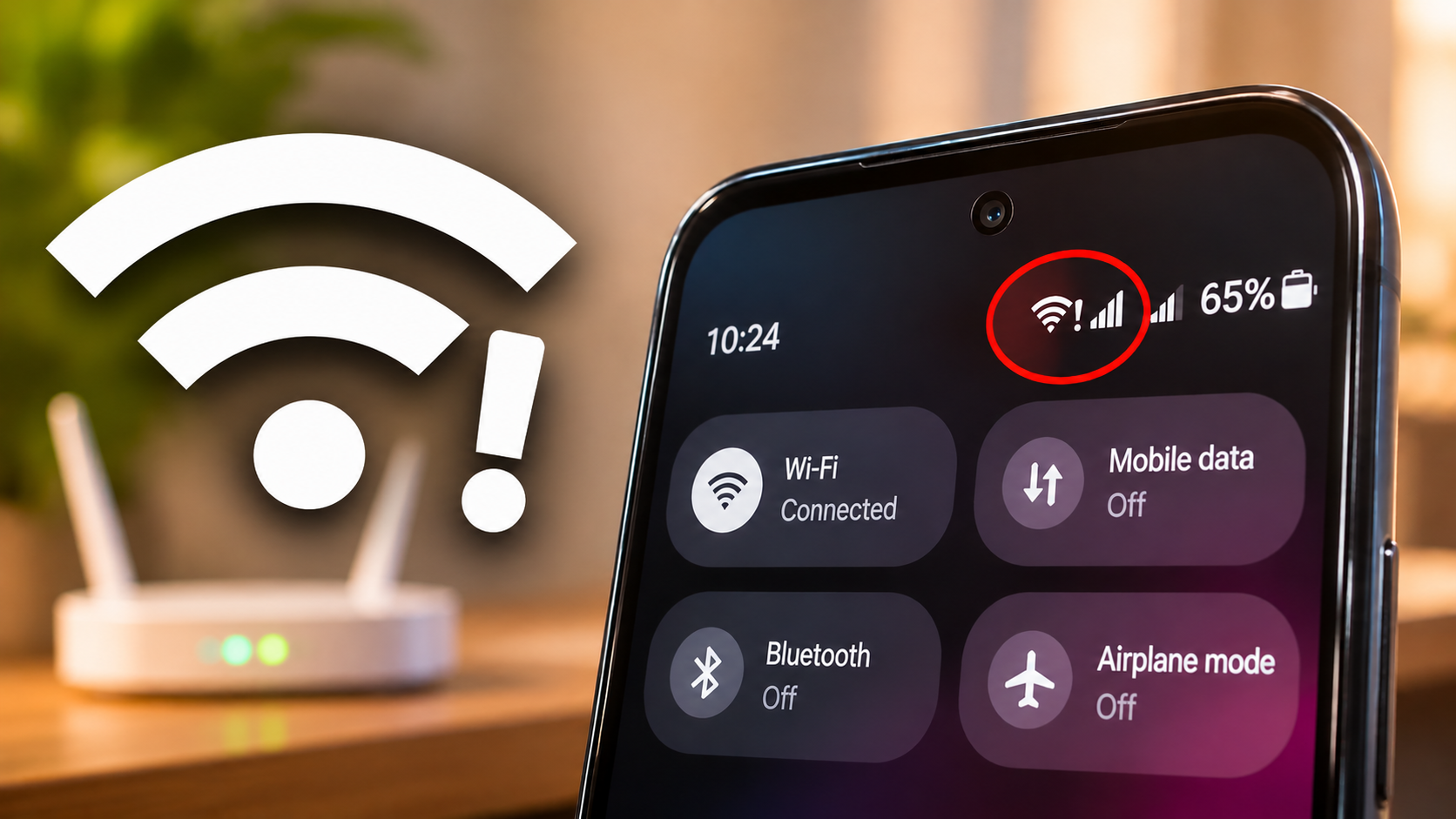
Why There’s an Exclamation Point Next to Your Android Phone’s Wi-Fi Symbol
Seeing an exclamation point next to Wi-Fi symbol icons on your Android screen usually indicates a connection problem. Your phone is connected to your wireless router, but it cannot access the internet.
According to Google’s Android Help documentation, Android uses connectivity checks to determine whether a Wi-Fi network provides internet access. When these checks fail, your device may display an exclamation mark beside the Wi-Fi icon.
Although this alert often indicates a temporary router or internet problem, it can have several causes. These include ISP outages, incorrect network settings, DNS problems, and captive portal login requirements.
Some users also worry about unauthorized devices accessing their Wi-Fi network. However, an exclamation mark does not automatically indicate hacking or network monitoring.
Understanding what this symbol means can help you identify the actual problem. In this guide, we answer five important questions:
- Why is there an exclamation mark next to the Wi-Fi symbol on my phone?
- Why does my Wi-Fi symbol have an exclamation point?
- How do I see if someone is monitoring my Wi-Fi?
- Can someone be connected to your Wi-Fi without you knowing?
- How do I check if my Wi-Fi is being used without my permission?
Why Is There an Exclamation Mark Next to the Wi-Fi Symbol on My Phone?
An exclamation mark next to the Wi-Fi symbol usually means your Android phone has connected to a wireless router but cannot access the internet. Your phone can communicate with the router, but the connection to external websites and online services is unavailable.
Think of it like connecting to a local telephone exchange without getting an active telephone connection. Your device recognizes the network, but internet communication is not working correctly.
Several issues can trigger this warning. Your Internet Service Provider (ISP) might be experiencing an outage. Your broadband connection could also have expired or encountered a technical problem.
Other possible causes include incorrect DNS settings, router configuration errors, and interrupted network authentication. Public Wi-Fi networks at hotels, airports, and restaurants can also display this symbol before you complete their login process.
Importantly, this icon does not necessarily mean your Wi-Fi signal is weak. You can have full signal bars and still have no internet access.


How Android Checks Whether Your Wi-Fi Has Internet Access
Android does more than check whether your phone can communicate with a wireless router. It also performs connectivity checks to determine whether the connected network provides internet access.
These checks typically involve contacting designated servers and checking whether they respond correctly. If the expected response does not arrive, Android may classify the connection as having no internet access.
This explains why your Wi-Fi icon can display an exclamation mark even when the signal strength is excellent. Your phone can communicate with the router, but the network cannot successfully complete its internet connectivity check.
A captive portal can also cause this problem. These login pages are common on public networks that require registration, acceptance of terms, or payment.
To resolve the issue, open your browser and check whether a network login page appears. Complete the required steps and reconnect if necessary.
You can also test another website or application. If everything remains offline, restart your router and check your ISP connection.
Why Does My Wi-Fi Symbol Have an Exclamation Point?
Your Wi-Fi symbol has an exclamation point because your Android phone cannot establish reliable internet connectivity through the connected network. Several hardware, software, and network configuration problems can cause this warning.
One common reason is an ISP outage. Your router might continue broadcasting its wireless signal even when the broadband connection stops working.
A frozen modem or router can also interrupt internet communication. Restarting the equipment often resolves temporary connection problems. Similar connectivity issues can affect smart TVs, especially when they repeatedly disconnect from wireless networks. If your television experiences this problem, check out our guide to why your smart TV keeps losing its Wi-Fi connection.
Incorrect IP configuration is another possibility. An IP address conflict can occur when two devices receive or use the same address on a local network. This can prevent one or both devices from communicating properly.
Other potential causes include incorrect DNS settings, outdated network configurations, and VPN connection problems. Sometimes, your Android phone may also experience a temporary Wi-Fi software glitch.
Start by checking whether other devices can access the internet. If none can connect, investigate your router or ISP before changing your phone’s settings.
Fixing IP Conflicts and Captive Portal Problems
If restarting your router does not remove the exclamation point next to the Wi-Fi symbol, investigate your network configuration. Start by disconnecting your phone from Wi-Fi and reconnecting after a few seconds.
You can also enable Airplane Mode briefly and disable it again. This forces your phone to refresh its wireless connections.
If the problem continues, try these troubleshooting steps:
- Forget the Wi-Fi network: Open Android Settings, select Wi-Fi, choose your connected network, and tap Forget. Reconnect using your password.
- Check captive portals: Open your browser and visit a non-HTTPS website, such as
http://neverssl.com. This may trigger a public Wi-Fi login page. - Temporarily disable your VPN: Disconnect your VPN and check whether internet access returns.
- Restart your router: Unplug the router, wait approximately 30 seconds, and reconnect it.
- Check your IP settings: Make sure your phone uses the router’s recommended automatic IP configuration.
If these steps fail, contact your ISP or check its service status. The problem might be outside your home network.
How Do I See If Someone Is Monitoring My Wi-Fi?
To investigate whether someone is monitoring your Wi-Fi, start by checking your router’s connected devices, security settings, and DNS configuration. However, remember that detecting an unfamiliar device does not automatically prove someone is intercepting your internet traffic.
Wi-Fi monitoring can involve different activities. Someone might simply use your network without permission. In more serious cases, an attacker could attempt to intercept traffic or redirect users through malicious DNS servers.
Start by opening your router’s administration panel. You can usually access it through its gateway address, such as 192.168.1.1 or 192.168.0.1. The exact address depends on your router.
Look for sections named Connected Devices, Traffic Statistics, Security Logs, or DHCP Client List. Review the devices and network activity displayed there.
You can also use network scanning applications, such as Fing, to identify connected devices. These tools help identify unfamiliar hardware, but they cannot independently confirm packet sniffing or sophisticated network surveillance.
Spotting Signs of Active Network Snooping
Identifying active network snooping requires more than checking your internet speed or looking at your router’s activity lights. You should examine your router’s security configuration and look for unexpected changes.
Pay particular attention to your Domain Name System (DNS) settings. DNS translates website names into IP addresses. Unauthorized changes could redirect your internet traffic through untrusted servers.
Check whether your router uses the DNS settings provided by your ISP or another trusted provider. Cloudflare (1.1.1.1) and Google (8.8.8.8) are examples of public DNS services.
Also, review these important security settings:
- Encryption: Use WPA3 when supported, or WPA2-AES if WPA3 is unavailable.
- Router password: Replace default administrator credentials with a strong, unique password.
- Firmware: Install available security updates from your router manufacturer.
- WPS: Disable Wi-Fi Protected Setup if you do not need it.
- DNS configuration: Investigate unexpected changes to your router’s DNS addresses.
If you notice suspicious activity, change your router administrator password and Wi-Fi password. These steps help secure your network against unauthorized access.
Can Someone Be Connected to Your Wi-Fi Without You Knowing?
Yes, someone can connect to your Wi-Fi without your knowledge if they obtain your password or exploit weaknesses in your router’s security. This is possible when a network uses a weak password, outdated encryption, or insecure configuration.
For example, a nearby person might guess a simple Wi-Fi password. Someone could also gain access after you share your password with a visitor who later connects another device.
Once connected, an unauthorized user can consume your available bandwidth. This may reduce internet speeds, increase network congestion, and affect streaming or online gaming.
However, an unfamiliar connection does not always indicate an intruder. Many modern households have numerous connected devices, including smart TVs, printers, security cameras, and smart-home equipment.
Some routers also display generic device names or manufacturer details instead of recognizable names. Therefore, check the device information before assuming someone has accessed your network without permission.
Why Hidden Wi-Fi Connections Often Go Unnoticed
Unauthorized Wi-Fi connections can remain unnoticed because most home routers do not automatically send alerts whenever a new device joins the network. Instead, they quietly allow devices with valid network credentials to connect.
Additionally, modern routers can handle multiple connected devices without noticeable performance problems. Someone using your network for basic browsing might consume very little bandwidth.
This makes it difficult to identify unauthorized users through internet speed alone. A slow connection could also result from ISP congestion, weak signals, or background downloads.
To investigate unfamiliar connections, review your router’s connected-device list regularly. Compare device names, IP addresses, and MAC addresses with the equipment you own.
You should also consider using a strong, unique Wi-Fi password. A longer passphrase containing multiple words, numbers, and symbols provides better protection than a short, predictable password.
Finally, disable WPS if you do not use it. Keeping your router firmware updated also helps reduce the risk of unauthorized network access.
How to Check If Your Wi-Fi Is Being Used Without Your Permission?
To check whether someone is using your Wi-Fi without permission, open your router’s companion application or administration dashboard. Most modern routers provide a connected-device section that displays the devices currently using your network.
Depending on your router, this section might be called Connected Devices, Client List, DHCP Clients, or Network Map.
Review the displayed device names, IP addresses, and MAC addresses. Compare them with your personal devices, including smartphones, laptops, tablets, smart TVs, and other connected equipment.
If you find an unfamiliar entry, do not immediately assume it belongs to an intruder. Some devices appear under manufacturer names or generic identifiers that are difficult to recognize.
You can temporarily disconnect your known devices from Wi-Fi to help identify unfamiliar connections. However, remember that routers may retain offline devices in their recent connection history.
If you confirm unauthorized access, secure your router and change your Wi-Fi password.
Locking Out Unauthorized Wi-Fi Users
If you identify an unauthorized device on your network, take immediate steps to protect your Wi-Fi connection. Start by changing your wireless password to a strong, unique passphrase.
Changing your password forces previously connected devices to authenticate again. Only devices with the new credentials can reconnect.
Follow these additional security steps:
- Change your Wi-Fi password: Use a long, unique passphrase that is difficult to guess.
- Update router credentials: Replace the default administrator username and password.
- Use WPA3 or WPA2-AES: Choose the strongest encryption standard supported by your router and devices.
- Disable WPS: Turn off WPS if you do not require this feature.
- Update firmware: Install the latest security updates provided by your router manufacturer.
- Review connected devices: Check the device list again after changing your credentials.
You can also use your router’s device-blocking or access-control features to restrict specific devices. However, MAC addresses can be spoofed, so MAC filtering should not replace strong encryption and passwords.
If you still suspect unauthorized access, consider restoring your router to factory settings and configuring it again with secure credentials.
Final Tip: An exclamation point next to your Android Wi-Fi symbol usually indicates an internet connectivity problem, not a security breach. Fix the connection first, then inspect your router’s security settings if you suspect unauthorized access.
Conclusion
An exclamation point next to your Android phone’s Wi-Fi symbol usually means your device is connected to the router but cannot access the internet. This problem can result from ISP outages, router issues, incorrect network settings, or DNS errors.
Fortunately, simple troubleshooting steps can often restore your connection. Restart your router, reconnect to the Wi-Fi network, check your internet service, and disable any problematic VPN connections.
If you suspect unauthorized Wi-Fi access, review your connected devices and update your router’s security settings. Use a strong password and WPA2 or WPA3 encryption to protect your network.
Remember: The exclamation mark does not automatically indicate hacking. Identify the actual connection problem first, then take appropriate steps to keep your Wi-Fi network secure.