
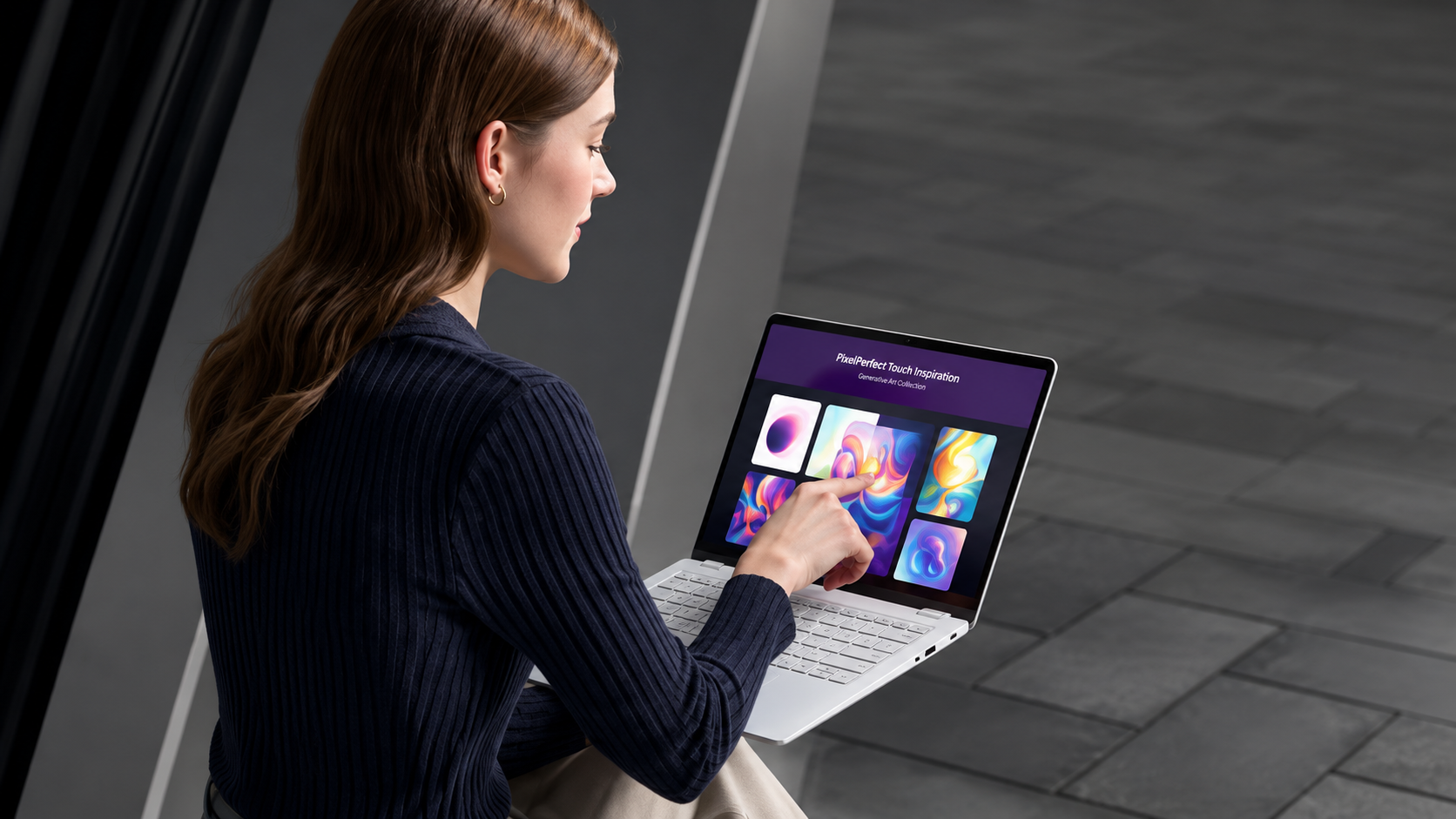
4 Disadvantages of a Touchscreen Laptop You Should Know
Buying a new laptop means comparing features with everyday practicality. Touchscreen displays may look appealing, but they also come with certain drawbacks. Understanding the disadvantages of a touchscreen laptop can help you make a better purchasing decision.
Touch-enabled displays offer convenient navigation and interactive controls. However, they can also increase the purchase price and create additional maintenance concerns. Some models also sacrifice battery life or screen comfort for touch functionality.
Many buyers assume touchscreen functionality automatically improves productivity. However, traditional laptop designs are not always comfortable for extended touch interactions. Reaching across the keyboard to tap a vertical display can cause arm fatigue.
Before spending extra on this feature, consider how you actually use your computer. You might get better value from a faster processor, improved display, or larger battery.
1. Shorter Battery Life
One of the common disadvantages of a touchscreen laptop is its potential impact on battery life. Touch-enabled displays require additional hardware to detect finger movements and gestures. This hardware can consume extra power during operation.
The actual battery difference depends on the laptop’s display technology, processor, brightness settings, and battery capacity. Some modern touchscreen laptops offer excellent battery performance. However, comparable non-touch models may sometimes provide longer runtime. If your laptop experiences unusually fast power loss, understanding why your laptop battery drains so fast can help you identify possible causes.
Screen brightness can also influence power consumption. Many users increase brightness to make fingerprints and reflections less noticeable. This can further reduce battery life.
Consider these factors when evaluating touchscreen laptop battery performance:
-
Additional touch hardware: The digitizer and touch controller require electrical power.
-
Screen brightness: Higher brightness settings generally consume more energy.
-
Display technology: LCD and OLED panels have different power requirements.
-
Battery capacity: Smaller batteries may provide less runtime under similar workloads.
If you frequently travel or work away from power outlets, compare battery test results before purchasing. A non-touchscreen laptop may be a better option if battery longevity is your priority.
2. Fingerprints, Smudges, and Screen Glare
Another disadvantage of a touchscreen laptop is its tendency to collect fingerprints and smudges. Every time you tap, swipe, or zoom, your fingers leave natural oils on the display. These marks become particularly noticeable when viewing dark backgrounds.
Regular cleaning is necessary to maintain a clear screen. Dust, fingerprints, and oily marks can make the display look untidy. They may also distract you while reading documents, watching videos, or working with images.
Screen glare is another common concern. Many touchscreen laptops use glossy display panels to support touch functionality. These surfaces can reflect sunlight, overhead lighting, and nearby objects.
This creates problems when working near windows or outdoors. Reflections may reduce screen visibility and force you to adjust the display angle or brightness.
Here are some common screen-related drawbacks:
-
Fingerprints accumulate through regular touch interactions.
-
Oily marks can make dark backgrounds look messy.
-
Glossy surfaces may reflect sunlight and indoor lighting.
-
Frequent cleaning becomes necessary to maintain screen clarity.
-
Reflections can make outdoor laptop usage less comfortable.
Using a microfiber cloth can help remove fingerprints safely. However, if you prefer a clean, low-maintenance display, a traditional matte-screen laptop may be more suitable.
3. Higher Purchase and Repair Costs
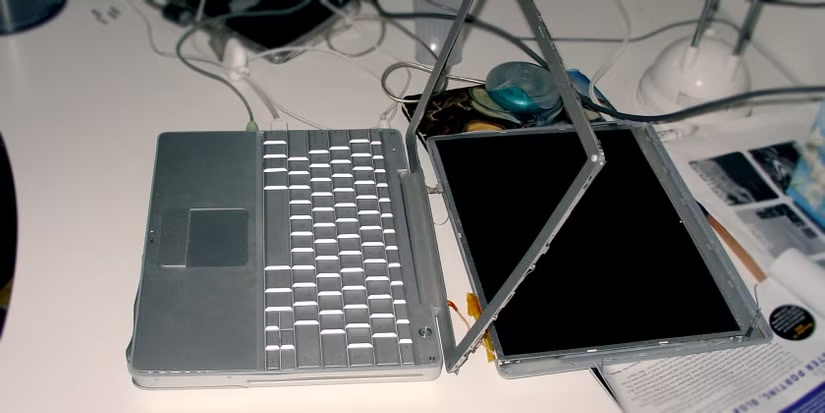

Higher purchase and repair costs are another important disadvantage of touchscreen laptops. Touch-enabled configurations often cost more than comparable non-touch models. Manufacturers need additional components to support touch functionality.
These components include a touch-sensitive digitizer, compatible display hardware, and supporting electronic controllers. Depending on the laptop design, these additions can increase manufacturing costs and retail prices.
Screen replacement can also become expensive. Some touchscreen laptops use integrated display assemblies. These combine the glass, digitizer, and display panel into a single unit.
If the screen cracks or the touch functionality stops working, replacing the complete assembly may be necessary. This can cost considerably more than repairing a conventional laptop display.
Consider these potential expenses before buying:
-
Higher initial price: Touchscreen configurations may cost more than standard versions.
-
Expensive screen replacement: Integrated display assemblies can increase repair expenses.
-
Additional repair complexity: Touch controllers and digitizers introduce extra components.
-
Limited repair options: Some manufacturers use specialized replacement parts.
-
Warranty considerations: Accidental screen damage may not be covered by standard warranties.
Before purchasing, compare touchscreen and non-touchscreen prices. Also check replacement part availability and warranty coverage. You should also consider long-term reliability when selecting a manufacturer. Our guide to the most reliable laptop brands in 2026 can help you compare manufacturers before making your decision. If you rarely use touch functionality, spending extra on this feature may not provide sufficient value.
4. Accidental Touches and Uncomfortable Ergonomics
Accidental screen interactions and uncomfortable positioning are additional disadvantages of touchscreen laptops. Unlike traditional laptops, touchscreen models allow users to interact directly with the display. However, this convenience can sometimes interrupt normal work.
For example, you might accidentally touch the screen while adjusting its viewing angle or cleaning the display. Unintended contact can select icons, move windows, or interrupt your current activity.
Ergonomics is another concern. Most traditional laptops position their displays vertically above the keyboard. Repeatedly reaching forward to tap the screen can strain your arms and shoulders.
This discomfort is sometimes called gorilla arm fatigue. It occurs when users repeatedly hold their arms forward to interact with a vertical display. The problem becomes more noticeable during extended working sessions.
Other potential inconveniences include:
-
Accidental taps while typing or adjusting the screen.
-
Unintended selections when cleaning the display.
-
Arm and shoulder fatigue from repeated reaching.
-
Uncomfortable viewing positions during extended touch interactions.
-
Additional physical effort when using large laptops in tablet mode.
A compatible mouse, trackpad, or stylus can reduce the need for repeated finger interactions. However, if you primarily work at a desk, a traditional laptop may provide a more comfortable experience.
What Are the Disadvantages of a Touchscreen Laptop?
The main disadvantages of a touchscreen laptop include increased power consumption, fingerprints, screen glare, and higher repair expenses. These issues can affect everyday usability, especially during long working sessions.
One common concern is battery life. Touchscreen hardware requires additional power, although modern displays vary in efficiency. The actual difference depends on screen brightness, panel technology, and battery capacity.
Another drawback is screen maintenance. Touch-sensitive displays collect fingerprints and oily marks through regular contact. These marks become particularly noticeable when viewing dark backgrounds or working with detailed content.
Screen reflections can also affect visibility. Many touchscreen laptops use glossy display panels. These surfaces may reflect overhead lights and sunlight, making outdoor usage less comfortable.
Cost is another important consideration. Touchscreen configurations often carry a higher purchase price than comparable standard models. Replacing damaged touch-enabled displays can also require more expensive repairs.
Finally, touchscreen interaction is not always comfortable. Reaching forward repeatedly can cause arm fatigue. This becomes noticeable when using a traditional laptop in desk mode.
However, these disadvantages depend on the device’s design and specifications. Comparing battery performance, display finish, weight, and warranty coverage can help you choose wisely.
What Are the Advantages and Disadvantages of a Touch Screen?
A touchscreen offers convenient navigation, direct interaction, and useful drawing capabilities. However, it also introduces certain disadvantages, including fingerprints, screen reflections, and potential ergonomic discomfort.
One major advantage is intuitive navigation. You can tap icons, swipe through webpages, and zoom into images directly. These interactions can feel more natural than using a trackpad for certain tasks.
Touchscreens are also useful for creative work. Artists and students can use compatible styluses to write notes, draw illustrations, and annotate documents. Convertible laptops provide additional flexibility through their tablet and tent modes. However, if you are considering using a tablet instead of a traditional computer, explore the disadvantages of using a tablet as a laptop replacement before making your decision.
However, these benefits come with practical limitations. Repeatedly reaching toward a vertical screen can cause arm fatigue. This is particularly noticeable during extended working sessions.
Another concern is screen maintenance. Fingerprints and oily marks accumulate quickly, especially with frequent use. Glossy displays can also produce distracting reflections in brightly lit environments.
Repair expenses are worth considering as well. Some touchscreen displays use integrated glass and digitizer assemblies. Damage may require replacing multiple components rather than a single screen layer.
Ultimately, touchscreen functionality is most useful when your daily activities involve drawing, handwritten notes, or frequent direct interaction. Traditional laptops may offer better value for users who primarily type, browse, and work with documents.
What Are Some Common Problems With Touch Screens?
Touchscreen laptops can experience several technical problems during regular use. These issues may affect navigation, responsiveness, and overall productivity. Some problems result from software conflicts, while others involve physical damage or hardware failure.
Here are some common touchscreen problems:
-
Ghost touches: The display registers taps or gestures without physical contact. This can cause applications to open unexpectedly or interfere with navigation.
-
Unresponsive areas: Certain sections of the screen stop detecting touch input. Damaged digitizers or software issues can cause this problem.
-
Delayed responses: The display takes longer than expected to register taps and gestures. Outdated drivers or system performance problems may contribute.
-
Inaccurate touch detection: The screen registers input in the wrong location. Calibration issues or hardware faults can affect accuracy.
-
Moisture-related problems: Water droplets and moisture can interfere with capacitive touch detection.
-
Driver and software issues: Operating system updates or incompatible drivers may affect touchscreen functionality.
Not every touchscreen problem indicates permanent hardware damage. Cleaning the display, restarting the computer, and updating drivers may resolve some issues.
However, persistent ghost touches or unresponsive areas may require professional inspection. Physical cracks or damaged digitizers often need hardware replacement.
Understanding these common problems helps you evaluate the maintenance requirements of touchscreen laptops before purchasing one.
What Are the Advantages of a Touchscreen Laptop?
Touchscreen laptops offer several practical benefits, particularly for users who prefer direct interaction with their devices. Features such as touch navigation, stylus support, and convertible designs can improve convenience during everyday activities.
One major advantage is easy navigation. You can scroll through webpages, zoom into photographs, and select applications using your fingers. This can make certain activities quicker and more intuitive.
Touchscreens are also useful for students and professionals. Compatible styluses allow users to take handwritten notes, highlight documents, and create diagrams. This is particularly helpful during online classes, meetings, and presentations.
Another advantage is the flexibility of convertible laptops. Models with 360-degree hinges can switch between laptop, tablet, tent, and presentation modes. This makes them suitable for different working environments.
Creative professionals may also benefit from direct drawing capabilities. Designers and illustrators can use compatible pens for sketching and digital artwork.
Touch functionality can also improve presentations. Users can interact directly with charts, images, and documents without constantly relying on a mouse.
However, these advantages depend on your requirements. A touchscreen becomes more valuable when you regularly use its interactive features. If you mainly type documents, browse websites, or manage spreadsheets, a traditional display may be sufficient.
Conclusion
Choosing between a touchscreen and non-touchscreen laptop depends on your daily requirements. Although touch functionality offers convenient navigation and creative flexibility, it also introduces several practical disadvantages.
The main disadvantages of a touchscreen laptop include higher purchase prices, fingerprints, potential battery consumption, and expensive screen repairs. Repeatedly reaching toward a vertical display can also cause discomfort during extended use.
However, touchscreen laptops remain useful for students, designers, and professionals who frequently take handwritten notes or use digital drawing tools.
If you rarely interact directly with your display, a traditional non-touch laptop may offer better overall value. You can potentially save money and prioritize battery capacity, processing performance, or display quality.
Before purchasing, compare the specifications, screen finish, battery performance, and repair costs. Choose the laptop that supports your actual workflow rather than paying extra for features you might rarely use. You can explore the available guidance through Microsoft Support.