
What the Cloud Icon Next to My Files Means on Mac
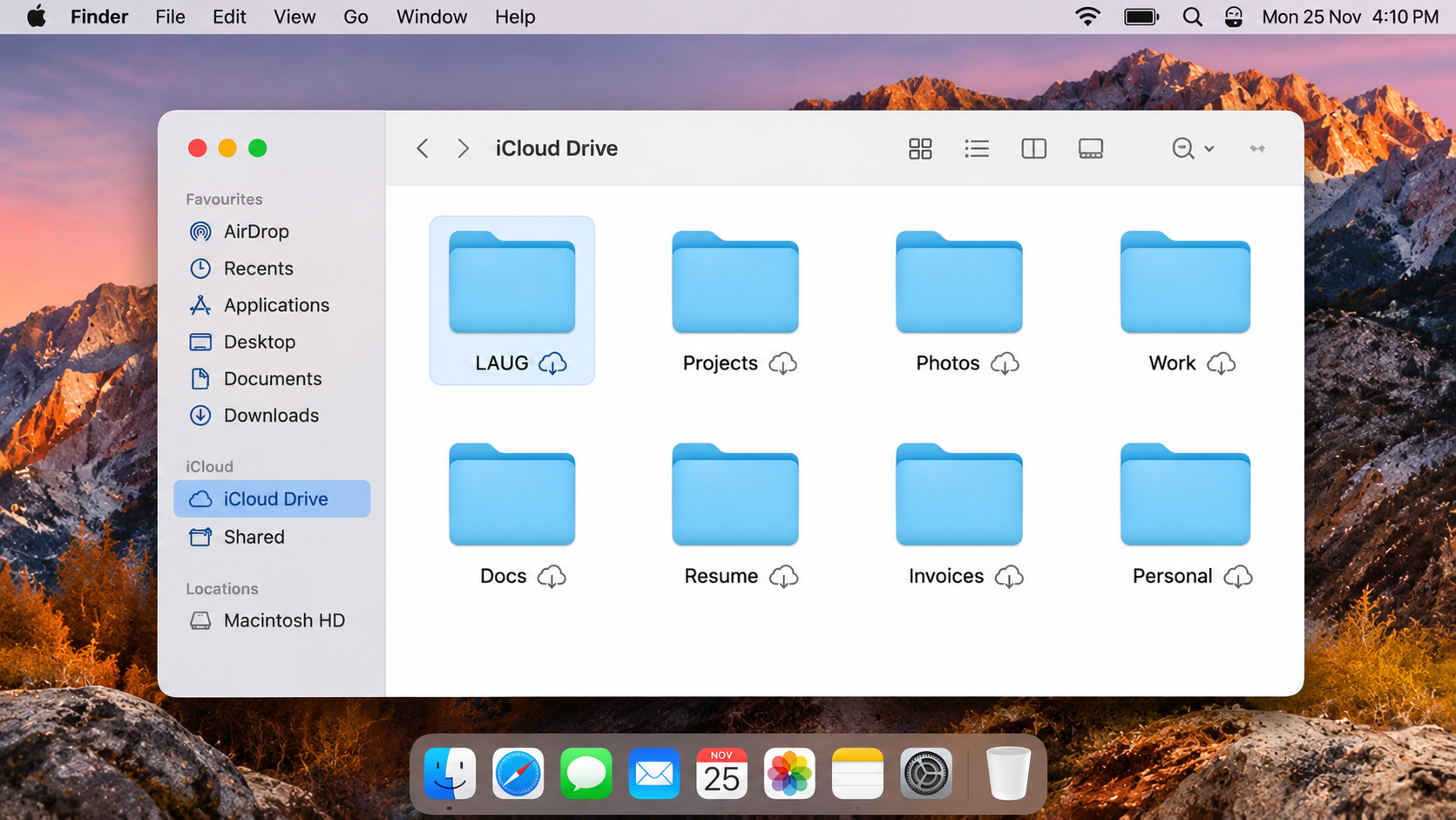
Seeing a small cloud icon next to my files can be confusing when browsing Finder on a Mac. You might click an important document, expecting it to open immediately, but Finder starts downloading it first. This usually happens because macOS keeps the file in iCloud Drive instead of storing a complete copy on your Mac.
Apple uses these visual indicators to communicate file storage and download status. Understanding them helps you manage your Mac’s storage and avoid unexpected delays when working offline.
Managing local storage matters, especially on MacBooks with limited SSD capacity. Knowing which files sit on your Mac and which remain in iCloud helps you make better storage decisions.
In this guide, we’ll explain why the cloud icon appears next to Mac files and what different iCloud symbols mean. We’ll also show you how to download files for offline access, remove cloud symbols from apps, and prevent automatic app offloading.
Why Is There a Cloud Icon Next to My Files on Mac?
A cloud icon appears next to your Mac files when iCloud Drive holds an item without keeping a complete local copy on your computer. This often happens when you enable Optimize Mac Storage. macOS can remove local copies of files when your Mac needs additional storage space. If you’re comparing online storage with physical storage options, explore cloud storage vs external hard drives to understand which solution better suits your needs.
Your Mac keeps these files in iCloud Drive. Finder still displays their names and other available information, so you can browse your documents. However, you need an internet connection to download files that your Mac doesn’t currently store.
This feature helps prevent your startup disk from running out of space. It also lets you access documents across devices that use the same Apple Account.
Managing Automatic Storage Optimization
You can control how your Mac manages iCloud Drive files through System Settings. Follow these steps:
- Open System Settings on your Mac.
- Click your name or Apple Account at the top.
- Select iCloud.
- Open Drive or iCloud Drive.
- Find the Optimize Mac Storage option, if available.
- Turn it off if you prefer keeping more files downloaded locally.
Turning off this option doesn’t automatically download every cloud-only file. You may still need to download those files manually.
macOS also manages local storage according to available disk space. Download important documents before travelling or working somewhere without reliable internet access.
What Is the Cloud Icon Next to My Files?
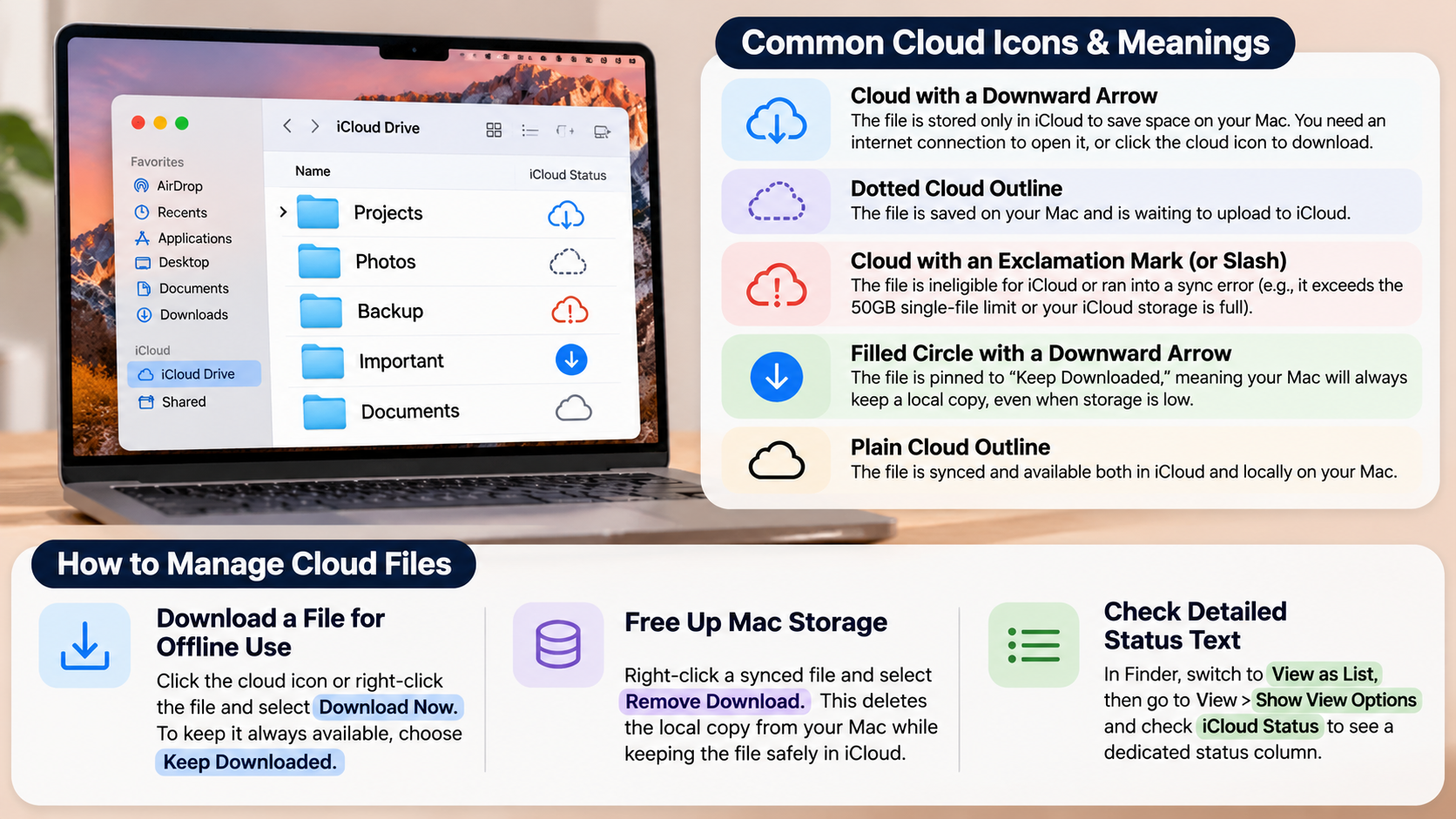
The cloud icon next to my files acts as an iCloud Drive status indicator in Finder. It helps you understand whether your Mac has a local copy of a document or needs to download it. A cloud with a downward arrow usually means iCloud holds the file while your Mac lacks a complete local copy.
Don’t assume this symbol means you’ve lost or deleted your document. Your iCloud account still holds the file, and you can download it whenever you need it. However, if you store important personal documents online, understanding whether your cloud storage is actually secure can help you make informed decisions about protecting your data.
macOS also displays other indicators to communicate syncing activity. For example, a progress indicator can show an ongoing upload or download. These symbols help you identify syncing delays and check your files’ availability.
Understanding these indicators makes managing iCloud Drive much easier.
How to Download Cloud Files Instantly
If you frequently open cloud-only documents, download local copies to avoid waiting each time. Finder makes this process simple.
Follow these steps:
- Open Finder on your Mac.
- Navigate to iCloud Drive.
- Find the document displaying the cloud download icon.
- Click the cloud download icon next to its filename, if available.
- Alternatively, right-click the file and select Download Now, if that option appears.
- Wait until Finder finishes downloading the file.
After the download finishes, your Mac keeps a local copy. You can then open and edit the document without downloading it again.
If you want to keep a file available offline, right-click it and select Keep Downloaded, when your macOS version offers that option. This helps prevent macOS from removing its local copy to free up storage.
What Does the Cloud Icon Mean on Apple?
Across Apple’s ecosystem, a cloud icon generally indicates that content connects to your Apple Account or an online service. However, different Apple applications use this symbol for different purposes.
On a Mac, the cloud download symbol in Finder usually indicates an iCloud Drive file without a complete local copy. In Apple Music, a cloud symbol can indicate that your music library contains a song that you haven’t downloaded to your device. Apple also offers iCloud Photos for storing and accessing pictures across devices. If you want to compare Apple’s photo storage service with Google’s alternative, explore iCloud Photos and Google Photos to understand their differences.
The App Store also uses cloud download icons to identify previously acquired applications. You can download these apps again without purchasing them a second time, provided Apple still offers them and your device supports them.
Therefore, you shouldn’t assume every Apple cloud icon represents the same storage process. Always consider which application displays the symbol.
Benefits of Ecosystem-Wide Cloud Syncing
Apple’s cloud services help you access compatible content across multiple devices. When you use the same Apple Account on your Mac, iPhone, and iPad, iCloud can synchronize supported information between them.
Here are some practical benefits:
- Cross-device access: Open supported documents from different Apple devices.
- Storage management: Keep selected files in iCloud instead of storing everything locally.
- Automatic syncing: Let iCloud synchronize changes to supported files.
- Convenient downloads: Retrieve documents and other content whenever you need them.
- Simpler file management: Access supported information without manually transferring files between devices.
However, cloud syncing depends on your settings, available storage, and internet connection. It doesn’t guarantee that every file remains available offline.
For important documents, download local copies before travelling. This simple step helps you avoid interruptions when you cannot access Wi-Fi.
How to Get Rid of the Cloud Symbol Next to Apps?
The steps for removing a cloud symbol depend on where you see it. On an iPhone or iPad, a cloud icon beside an app usually indicates that iOS or iPadOS has offloaded the application. Your device removes the app itself to save storage but retains its documents and data.
Simply tap the app icon to download and reinstall it. After installation, the cloud symbol should disappear.
In the Mac App Store, the cloud download icon generally indicates a previous app acquisition. Click the icon to download and install the application again.
These situations have different meanings. An offloaded app needs reinstalling, while an App Store cloud icon can simply indicate an eligible previous purchase. Check where the symbol appears before choosing a solution.
Preventing Automatic App Offloading
If your iPhone or iPad repeatedly displays cloud symbols beside applications, check your automatic app offloading settings.
Apple offers an Offload Unused Apps feature that removes applications you rarely use when your device needs storage space. Your device keeps their documents and data, so you can reinstall them later.
Follow these steps to disable automatic app offloading:
- Open Settings on your iPhone or iPad.
- Tap Apps, then open App Store. Older iOS versions may show this option directly in Settings.
- Find Offload Unused Apps.
- Turn off the feature to prevent automatic app removal.
After you disable this setting, iOS won’t automatically offload apps through this feature.
However, disabling automatic offloading doesn’t reinstall applications that your device has already removed. Tap their cloud icons to download those apps again.
Why Do Some Apps Have a Cloud Symbol?
Some applications display a cloud symbol because you previously downloaded them, purchased them, or allowed your device to offload them to save storage space. The symbol’s meaning depends on where you see it.
On an iPhone or iPad home screen, a cloud symbol beside an application usually indicates that your device offloaded it. You must download the application again before you can use it.
In the App Store, however, the same symbol generally indicates that you’ve acquired the application previously. You can download it again without paying for another copy, subject to availability and compatibility.
Apple’s automatic offloading feature helps devices manage limited storage. Instead of removing everything associated with an unused application, iOS retains its documents and data.
This approach makes reinstalling an offloaded application easier when you need it again.
Identifying Offloaded Apps vs. Previous Purchases
Apple uses similar cloud symbols across its applications, but their meanings depend on where they appear. Checking the location helps you understand whether you need to reinstall an app or download a file.
Use these indicators to identify the difference:
- iPhone or iPad home screen: A cloud symbol beside an app name usually means your device offloaded the application and needs to reinstall it.
- Mac App Store: A cloud download icon generally indicates that you’ve previously acquired the application and can download it again.
- Apple Music: A cloud download symbol can indicate that your music library contains a song that you haven’t downloaded locally.
- Mac Finder: A cloud download icon indicates that iCloud Drive holds a file without a complete local copy on your Mac.
These differences help you avoid confusing an app installation issue with an iCloud Drive storage problem.
If you see the symbol beside an application on your iPhone, tap it to reinstall the app. If you see it in Finder, download the corresponding file instead.
Always check which application displays the cloud icon before taking action. This helps you identify the correct solution quickly.
Conclusion
The cloud icon next to your files on Mac doesn’t mean your documents are missing or deleted. It simply shows that iCloud Drive manages the file and your Mac may need to download it before opening. Understanding Apple’s cloud status symbols helps you manage storage and access your documents without unnecessary delays.
If you frequently work offline, download important files and keep local copies on your Mac. You can also adjust your iCloud settings to control storage optimization. For more detailed guidance, visit Apple Support to learn how iCloud Drive works and how to manage your files.
Similarly, check your app offloading settings if cloud symbols appear beside applications on your iPhone or iPad.
Ultimately, understanding these cloud indicators helps you manage your Apple devices, protect access to important documents, and make better use of your available storage.