Should You Disable 2.4 GHz Wi-Fi on Your Router?
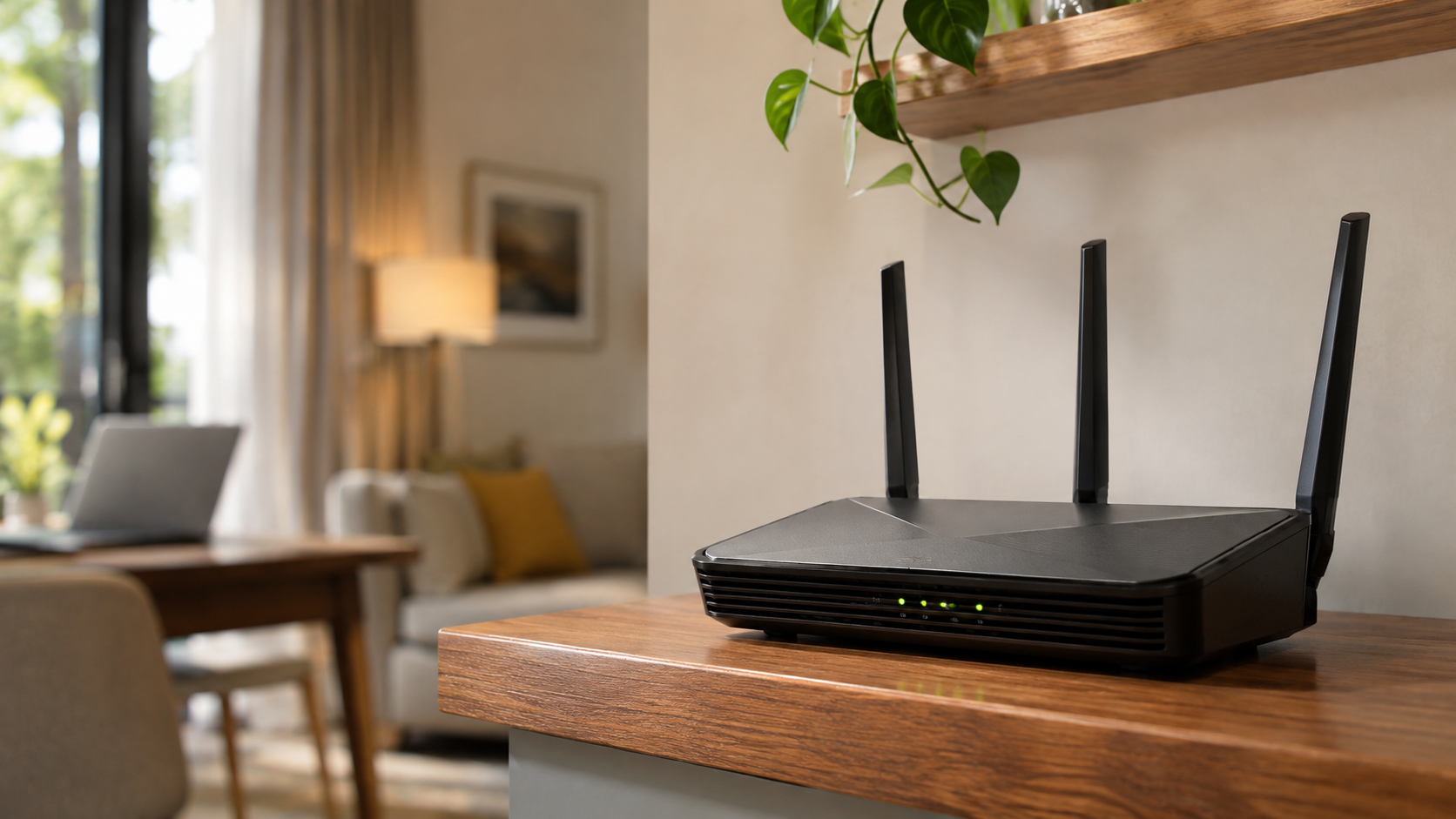
Modern dual-band routers broadcast Wi-Fi signals across two different frequencies: 2.4 GHz and 5 GHz. This often makes homeowners wonder whether they should disable 2.4 GHz Wi-Fi for better internet speeds. Both frequency bands serve different purposes, offering unique advantages in range, speed, and device compatibility.
Choosing the right router settings can prevent dead zones and frustrating connection drops. However, disabling the wrong frequency can disconnect several household devices. Smart plugs, security cameras, printers, and older laptops may only support 2.4 GHz Wi-Fi.
On the other hand, keeping both bands properly configured helps your network handle different connectivity needs. The 5 GHz band supports faster connections, while 2.4 GHz provides better coverage over longer distances.
In this guide, we’ll explain whether disabling 2.4 GHz Wi-Fi is a good idea. You’ll also learn about its disadvantages, switching between Wi-Fi bands, and how devices choose their preferred frequency.
Is It a Good Idea to Disable 2.4 GHz Wi-Fi?
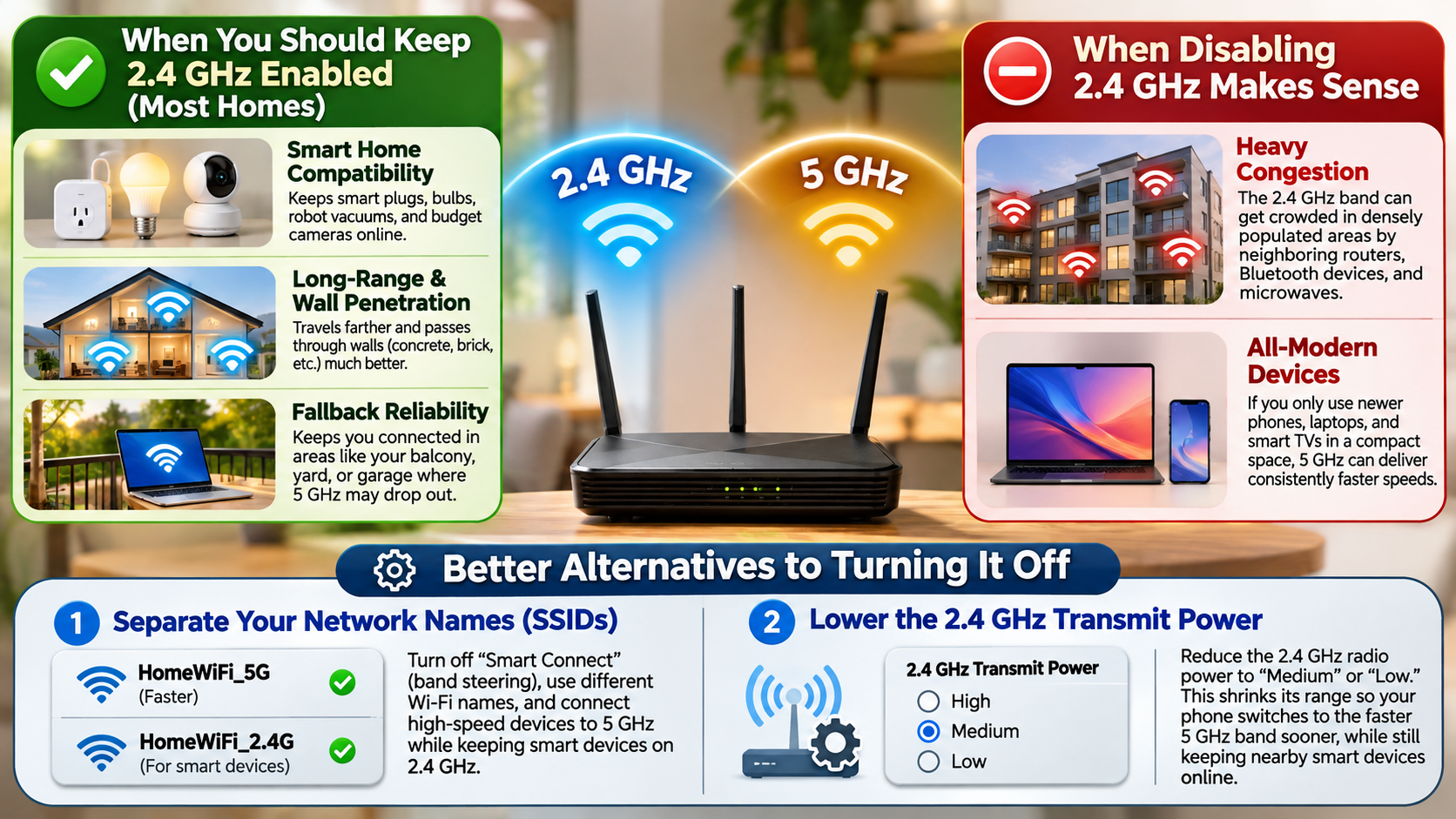
For most households, disabling 2.4 GHz Wi-Fi isn’t recommended. Although switching everything to 5 GHz might seem like an easy way to improve internet speeds, it can create compatibility problems. Many smart home devices, including smart bulbs, video doorbells, and wireless printers, rely exclusively on 2.4 GHz connectivity.
The lower frequency also offers better coverage over longer distances. It generally passes through walls and other obstacles more effectively than 5 GHz. Your router’s antenna design can also influence wireless coverage, so understanding why routers have external antennas can help you make better decisions about your home network.
Disabling 2.4 GHz can leave these devices without a reliable connection. You might also experience coverage problems in rooms farther from your router.
When Turning Off 2.4 GHz Actually Makes Sense
There are situations where disabling the 2.4 GHz band can be reasonable. For example, a small apartment with limited walls might receive strong 5 GHz coverage throughout the property. If other areas of your home struggle with weak signals, you can also consider turning your old router into a Wi-Fi extender to improve wireless coverage.
Consider disabling it only when:
- Every connected device supports 5 GHz or another available frequency.
- You don’t use older smart home devices that require 2.4 GHz.
- Your router provides sufficient coverage without the lower band.
- You have tested the network and confirmed that disabling it improves performance.
However, disabling 2.4 GHz doesn’t automatically eliminate every source of wireless interference. Other nearby networks and electronic devices can still affect your connection.
For most people, keeping both frequencies enabled provides better coverage and compatibility.
Should I Enable Both 2.4 and 5 GHz on My Router?
Yes. Keeping both 2.4 GHz and 5 GHz enabled is generally the best choice for home networks. Dual-band routers are designed to broadcast both frequencies simultaneously. Each band serves devices with different connectivity requirements.
The 5 GHz band offers higher potential speeds and generally experiences less congestion. It’s suitable for activities such as 4K streaming, online gaming, video conferencing, and large file downloads. However, its coverage is usually shorter.
The 2.4 GHz band provides better range and obstacle penetration. It works well for smart plugs, security cameras, printers, and other connected devices.
Running both frequencies allows your household to enjoy faster connections without sacrificing coverage. You don’t need to disable one band to make the other work properly.
Separating vs. Combining Your Network Names
Most modern routers offer two options for managing Wi-Fi bands. You can use one network name or create separate names for each frequency.
Single network name: Both frequencies share the same SSID and password. Your router may use a feature called band steering to encourage compatible devices to connect to the appropriate band.
Separate network names: You create different names, such as HomeWiFi_2.4G and HomeWiFi_5G. This lets you choose which frequency your devices use.
Separate names can help troubleshoot compatibility problems and connect smart home devices. However, a single network name is usually more convenient for everyday use.
Choose the option that best suits your devices and coverage requirements.
What Is the Main Disadvantage of 2.4 GHz Wi-Fi?
The biggest disadvantage of 2.4 GHz Wi-Fi is its limited bandwidth and susceptibility to wireless interference. Compared with 5 GHz, the lower frequency generally supports slower connection speeds. It also shares its spectrum with several household electronics and nearby wireless networks.
Another limitation involves available Wi-Fi channels. In many regions, only three non-overlapping 20 MHz channels are commonly used: channels 1, 6, and 11. Consequently, nearby routers can compete for the same wireless spectrum.
Household devices can also contribute to interference. Microwave ovens, Bluetooth devices, cordless phones, and some baby monitors operate in or near the 2.4 GHz band.
This interference can cause slower connections, unstable performance, and occasional buffering. However, actual performance depends on your router, surroundings, channel selection, and connected devices.
Why Bandwidth Limits Matter Today
Modern internet connections can deliver speeds that older Wi-Fi equipment struggles to handle. For example, a high-speed fibre connection might offer considerably more bandwidth than a congested 2.4 GHz connection can reliably deliver. If you’re considering upgrading your router, understanding the differences between Wi-Fi 6 and Wi-Fi 7 can help you choose the right wireless technology for your needs.
Your actual Wi-Fi speed depends on several factors:
- Router capabilities: Older routers may support lower wireless data rates.
- Network congestion: Multiple nearby networks can compete for available channels.
- Signal strength: Distance and physical obstacles affect connection quality.
- Device compatibility: Older phones and laptops may not support newer Wi-Fi standards.
This doesn’t mean 2.4 GHz is useless. It remains suitable for browsing, messaging, smart home devices, and other everyday activities.
However, if you want faster downloads and smoother high-resolution streaming, 5 GHz is usually the better option when its signal is strong.
What Happens If I Change Wi-Fi From 5 GHz to 2.4 GHz?
Switching your device from 5 GHz to 2.4 GHz changes how it connects to your router. You’ll generally experience a longer wireless range but lower potential connection speeds.
For example, 2.4 GHz can be useful when your bedroom, garage, or backyard is far from the router. Its signals generally travel farther and penetrate walls more effectively than 5 GHz signals.
However, your actual internet speed may decrease. Large downloads could take longer, and demanding applications might perform less smoothly. The difference becomes more noticeable when your internet plan offers high speeds.
Your connection may also become more reliable in areas where 5 GHz coverage is weak. However, this isn’t guaranteed because interference can affect 2.4 GHz performance.
Impact on Latency and Online Gaming
Switching to 2.4 GHz can affect latency, commonly measured as ping. This frequency often experiences more interference because nearby routers and household electronics share its spectrum.
For online gaming, unstable connections can cause noticeable delays, lag, and occasional disconnections. Competitive players may find these problems particularly frustrating.
However, 2.4 GHz doesn’t always produce higher ping. A strong, stable 2.4 GHz connection can perform better than a weak 5 GHz connection.
Consider these differences:
- 2.4 GHz: Better range, but potentially more interference and congestion.
- 5 GHz: Higher potential speeds and often lower interference, but shorter range.
For competitive gaming, use a wired Ethernet connection whenever possible. However, before choosing a wired setup, consider the drawbacks of using Ethernet cables for home internet. Otherwise, choose the Wi-Fi band that provides the most stable connection in your gaming area.
Do Devices Automatically Switch Between 2.4 and 5 GHz?
Yes, many modern smartphones, laptops, and tablets can connect to either frequency automatically. However, switching isn’t always seamless or guaranteed.
When both frequencies use the same network name and password, your router may use band steering to encourage compatible devices to select a suitable band. Your device also evaluates factors such as signal strength, connection quality, and its own network preferences.
For example, your smartphone might connect to 5 GHz when you’re near the router. When you move farther away, it may eventually connect to 2.4 GHz if that provides a better connection.
However, the client device usually controls the final roaming decision. Different manufacturers use different algorithms, so switching behaviour varies between devices.
Keeping both bands enabled generally provides more flexibility. It allows compatible devices to use the frequency that best suits their current connection conditions.
Why Devices Sometimes Get Stuck on 2.4 GHz
Sometimes, your phone or laptop continues using 2.4 GHz even after you move closer to the router. This happens because devices don’t always switch frequencies immediately when signal conditions improve.
Your device may consider its current connection sufficiently stable. As a result, it might not reconnect to 5 GHz until the signal becomes significantly better or the connection is interrupted.
You can try these troubleshooting steps:
- Toggle Wi-Fi: Turn your device’s Wi-Fi off and back on.
- Reconnect manually: Select the 5 GHz network if you’ve created separate network names.
- Restart your router: This can resolve temporary wireless connectivity problems.
- Check band steering: Make sure the feature is enabled if you prefer one network name.
- Update device software: Install available operating system and network driver updates.
Remember that manually switching bands isn’t always necessary. If your current connection is stable and provides sufficient speed, there’s usually no reason to change it.
Conclusion
Deciding whether to disable 2.4 GHz Wi-Fi depends on your internet needs, home layout, and connected devices. Although 5 GHz offers faster speeds, the 2.4 GHz band provides better coverage and supports many older devices and smart home gadgets.
For most households, keeping both Wi-Fi bands enabled offers the best balance of speed, coverage, and compatibility. Before disabling 2.4 GHz, check whether your devices support 5 GHz and whether your router provides sufficient coverage throughout your home.
Ultimately, you don’t need to disable 2.4 GHz Wi-Fi to enjoy faster internet. Properly configuring both frequencies is usually the better solution for a reliable home network. For more information, read Microsoft’s guide on Wi-Fi frequency bands and choosing the right network for your devices.