
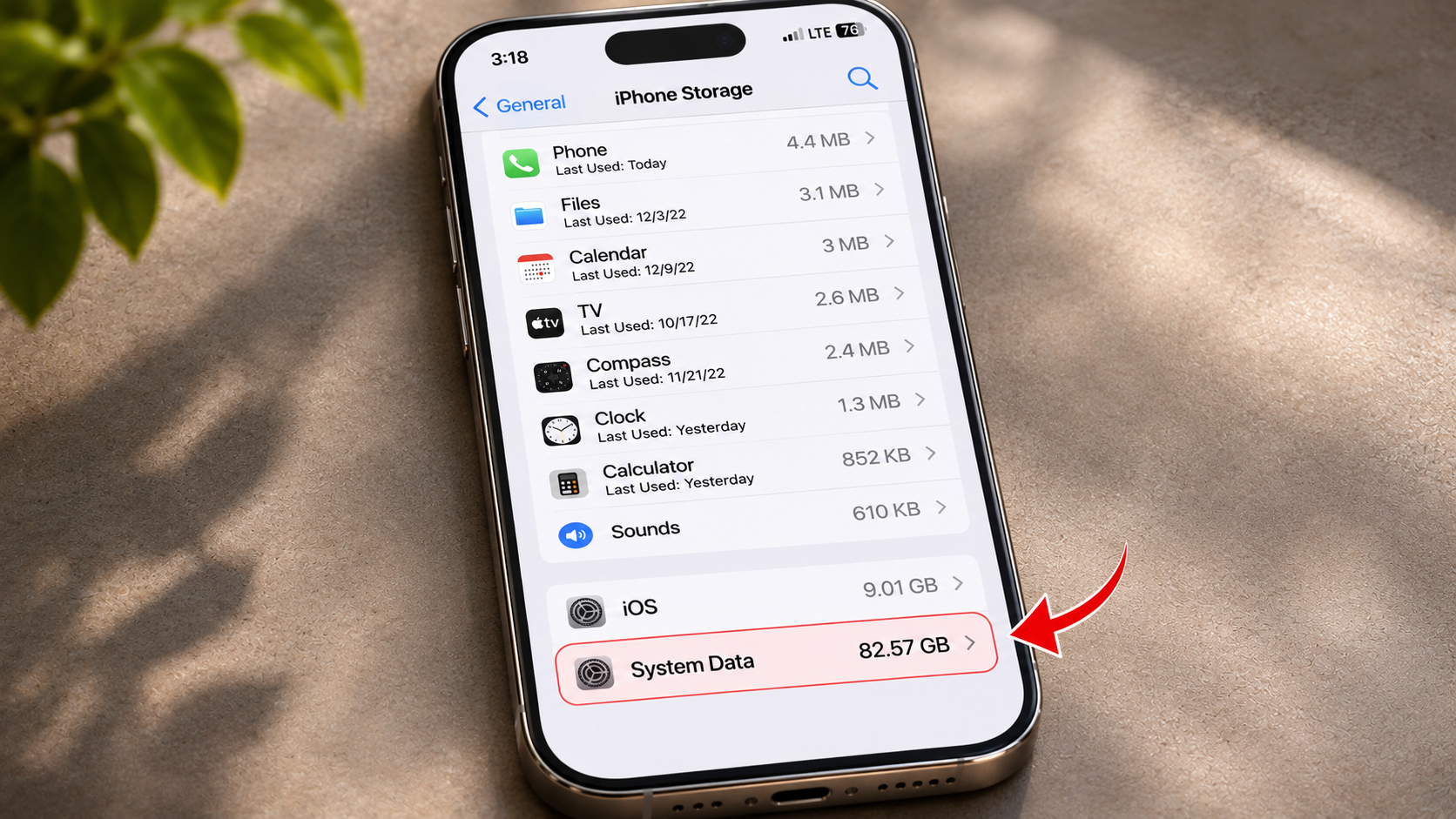
What Is iPhone System Data and How Much Is Normal?
If you have ever checked your iPhone storage, you may have noticed a mysterious category called iPhone System Data. It often appears as a gray section in your storage breakdown. Unlike photos, videos, and apps, you cannot open this category and delete individual files.
According to Apple’s official storage guidelines, system-related storage includes caches, logs, fonts, dictionaries, and other resources. It also contains information that iOS needs to operate correctly.
This category can grow over time and reduce your available storage. As a result, you might struggle to take photos, download apps, or install software updates.
In this guide, we explain what iPhone System Data contains and how much storage it might use. You will also learn how to reduce unnecessary storage, understand iOS 26 storage requirements, and troubleshoot sudden increases.
How Much iPhone System Data Is Normal?
There is no officially confirmed storage limit for iPhone System Data. Its size depends on your iPhone model, installed iOS version, and everyday activities. Some devices may show only a few gigabytes, while others can use considerably more. Therefore, a number between 8 GB and 15 GB should not be treated as a universal standard.
System Data includes temporary files and resources that iOS manages automatically. Its size can change as your device processes information, updates apps, and performs background tasks.
For example, streaming content, browsing websites, and syncing files can create temporary data. iOS may remove some of these files when additional storage becomes necessary.
Rather than focusing on one fixed number, consider your available storage. A consistently growing System Data category that leaves little free space deserves investigation. If your overall phone storage seems to disappear faster than expected, explore why phones are running out of storage faster than ever.
Why Your iPhone Storage Capacity Affects System Data
Your iPhone’s storage capacity does not determine a fixed System Data requirement. However, your device usage can influence how much temporary information it stores. People who regularly stream videos, download files, browse websites, and use demanding applications may generate more cached data.
For example, someone who frequently edits videos or downloads large files may notice different storage usage. Someone who mainly uses their iPhone for calls and messages might generate less temporary data. These differences do not automatically indicate a storage problem.
Other factors can influence the displayed amount:
- iPhone model: Different models may use different system resources.
- iOS version: Updates can change storage requirements and temporary files.
- App activity: Browsing, streaming, and downloads generate cached information.
- Background processes: Indexing and syncing can temporarily increase storage usage.
Check Settings > General > iPhone Storage to understand your current storage situation. Also review your largest apps and available capacity before deleting anything.
Can I Remove System Data From iPhone Storage?
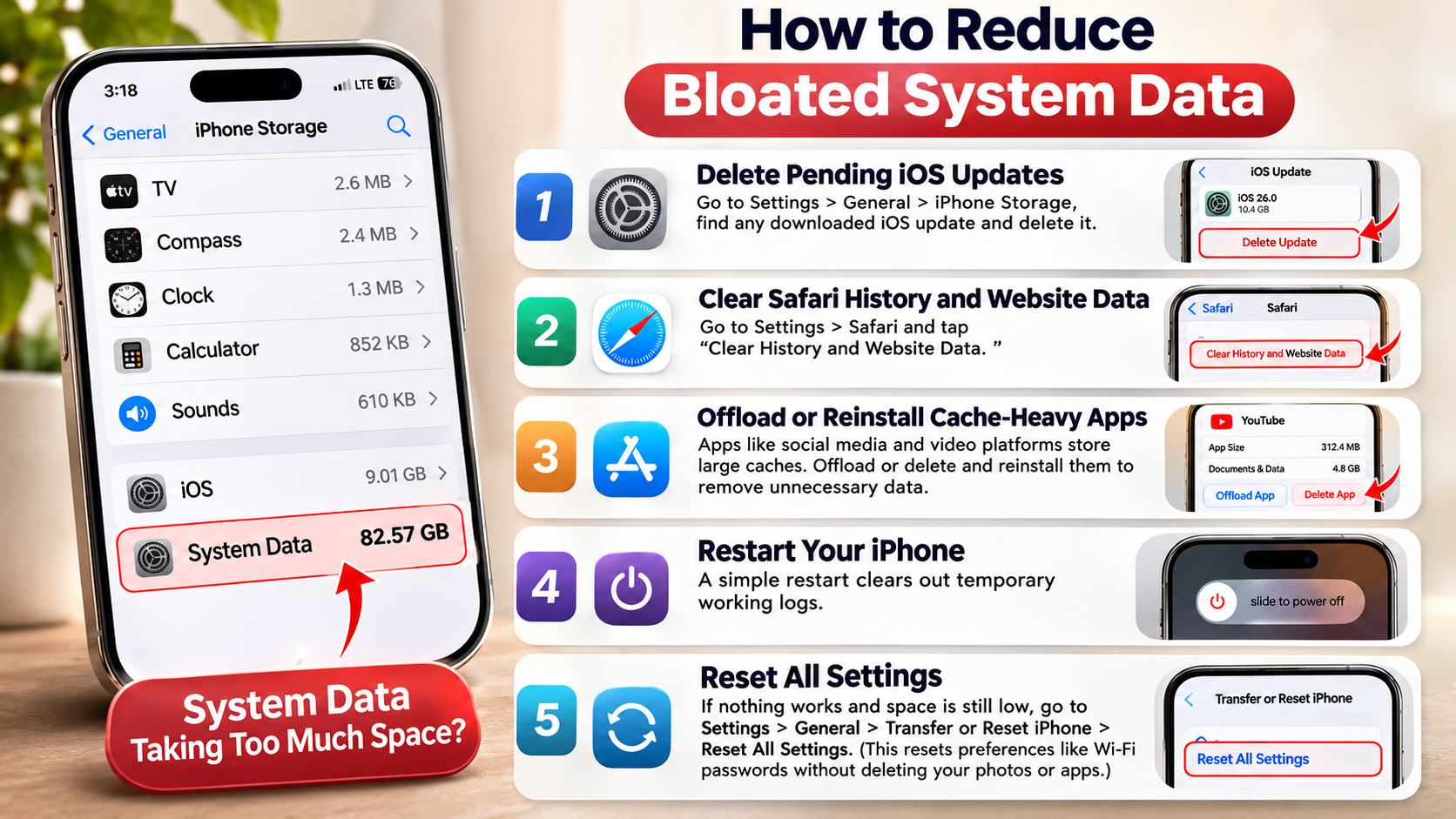
You cannot completely remove iPhone System Data because iOS requires certain files to function correctly. Apple manages these resources to maintain system performance and stability. However, you can reduce some unnecessary data by clearing browser information, reviewing downloads, and managing app storage.
Start by restarting your iPhone. This can resolve temporary software issues, although it does not guarantee a significant reduction. Next, open Settings > Apps > Safari and clear website data if you no longer need it. Menu names may vary between iOS versions.
You can also review large conversations, downloaded media, and unused applications. Remember that deleting app data may remove important information. Check whether an app offers cloud backups before removing its contents.
If System Data remains unusually large, consider backing up your iPhone before exploring more advanced troubleshooting options.
Clearing App Caches Without Deleting Important Data
Applications such as Spotify, YouTube, and TikTok can store temporary files, downloads, and other data. However, these files do not always appear under iPhone System Data. Depending on the application, iOS may count them under Apps or the app’s Documents & Data section.
Start by checking how much storage each application uses. Open Settings > General > iPhone Storage and select an application to review its storage breakdown.
Some applications provide a built-in cache-clearing option. Others require you to remove downloaded content or reinstall the application to clear accumulated data.
Consider these steps before deleting an application:
- Check whether the application offers a Clear Cache option.
- Remove offline videos, music, and unnecessary downloads.
- Review stored documents and other large files.
- Confirm that important account information is backed up.
- Reinstall the application only when necessary.
Important: Offloading an app removes the application itself but keeps its documents and data. Deleting an app removes its associated data as well. Choose carefully if you want to preserve important information.
Does iOS 26 Take More Storage?
iOS 26 requires storage for the operating system, built-in features, and additional resources. However, there is no single storage figure that applies to every iPhone. The exact requirement depends on your device model, software version, and installed features.
When you download a major iOS update, your iPhone may temporarily need extra space. The installation process can involve downloading, preparing, and verifying software files. Consequently, the storage breakdown may change during and after an update.
Your iPhone may also perform background activities after installation. These can include indexing information and processing system resources. Storage usage may fluctuate while these activities continue.
Avoid assuming that every increase indicates a software problem. Give your device time to complete its background processes. If storage remains critically low, review Apple’s storage recommendations and remove unnecessary content.
How to Manage Storage Before Installing an iOS Update
Preparing your iPhone before a major software update can help prevent installation problems. However, there is no universal requirement to keep exactly 15 GB or 20 GB free. The available space needed depends on the update and your particular device.
Before installing iOS 26, check your available storage. Open Settings > General > iPhone Storage and review the recommendations. Remove unnecessary downloads, large videos, and applications you no longer use.
Follow these practical steps:
- Back up your iPhone: Use iCloud or a computer to protect important information.
- Check available storage: Review the space displayed in iPhone Storage.
- Remove unnecessary downloads: Delete offline media and files you no longer need.
- Review large applications: Offload or remove apps that you rarely use.
- Install the update: Follow the instructions displayed on your iPhone.
You can also update through a Mac using Finder or a Windows PC using the Apple Devices app. However, computer-based installation does not guarantee that temporary storage requirements will disappear.
Why Is My iPhone System Data Suddenly So High?
A sudden increase in iPhone System Data can happen when your device creates additional temporary files. Browsing websites, streaming content, downloading files, and performing background activities can affect storage usage. Sometimes, the displayed amount changes because iOS recalculates its storage categories.
Software updates can also temporarily increase storage requirements. Your iPhone may need additional room while downloading and preparing installation files. Background indexing and other processes can further change the storage breakdown.
However, a large System Data figure does not automatically mean your iPhone contains corrupted files. It is important to identify what is consuming storage before attempting aggressive cleanup.
Start by restarting your device and checking its storage again. Review recently downloaded applications, large attachments, and offline media. If the problem continues, install available software updates and follow Apple’s troubleshooting recommendations.
How iCloud Syncing Can Affect Your iPhone Storage
iCloud syncing can change how much local storage your iPhone uses. When you enable iCloud Photos or iCloud Drive, your device may download files, generate previews, and process information. These activities can temporarily increase storage usage. If you are deciding whether cloud services or local copies are better for your files, compare cloud storage with external hard drives before choosing a long-term storage approach.
However, not everything downloaded through iCloud belongs to System Data. Photos, messages, and downloaded iCloud Drive files may appear in their respective storage categories.
If your iCloud Photos library is large, consider enabling Optimize iPhone Storage. This feature keeps smaller versions on your device while storing full-resolution originals in iCloud. Your iPhone can download the original versions when needed.
You can also follow these storage management practices:
- Connect your iPhone to a stable Wi-Fi network.
- Keep your device connected to power during large sync operations.
- Enable Optimize iPhone Storage for a large photo library.
- Review downloaded iCloud Drive files.
- Check whether syncing has completed before troubleshooting further.
Avoid repeatedly switching iCloud syncing on and off. This can interrupt ongoing processes and make storage changes harder to understand.
Why Is My iPhone Storage Still Full After Deleting Everything?
Deleting photos, videos, and applications does not always free up storage immediately. Some deleted items remain in temporary holding areas until you remove them permanently. For example, deleted photos stay in the Recently Deleted album for up to 30 days unless you remove them manually.
Messages can also contain large attachments that consume considerable space. Similarly, downloaded files and offline media may remain stored in different applications.
Another possibility is that your iPhone is still calculating its storage usage. The storage breakdown may take some time to reflect recent changes. Therefore, check the available capacity again after deleting unnecessary content.
Instead of repeatedly deleting random files, identify the largest storage categories first. Open Settings > General > iPhone Storage and review Apple’s recommendations. This approach helps you find unnecessary content without accidentally removing important information.
The Recently Deleted Folder Can Keep Using Your Storage
One commonly overlooked reason for low iPhone storage is the Recently Deleted folder. When you delete a photo or video, it does not immediately disappear from your device. Instead, it remains in Recently Deleted for up to 30 days, giving you an opportunity to recover it.
If you need storage immediately, you can permanently delete items from this folder. However, remember that permanent deletion prevents you from restoring those photos or videos through the folder.
Follow these steps to review deleted photos:
- Open the Photos app.
- Find the Recently Deleted album under Utilities.
- Authenticate if your iPhone requests it.
- Review the deleted photos and videos.
- Select Delete All only if you no longer need those files.
You should also review the Files app’s Recently Deleted folder. Check large message attachments and downloaded content separately. Once you permanently remove unnecessary files, revisit iPhone Storage to confirm how much space you recovered.
Remember: Permanent deletion cannot usually be reversed. Back up important photos, videos, and documents before removing them.
Final Thoughts
iPhone System Data is an essential part of your device’s storage, but its size can change depending on how you use your iPhone. A growing storage figure does not always indicate a problem. However, consistently high usage can reduce available space and affect everyday activities.
The best approach is to manage your storage regularly rather than trying to delete System Data completely. Clear unnecessary Safari data, remove old downloads, review large app files, and keep your iPhone software updated. Also, check your Recently Deleted folder before assuming that deleted files have freed up space.
Most importantly, avoid deleting important data or performing a factory reset without creating a backup first. With a few simple storage management habits, you can keep your iPhone running smoothly and make better use of its available storage.