5 Common SSD Myths That You Should Stop Believing
Solid-state drives (SSDs) have transformed modern computing, but several SSD myths still mislead users about their performance, lifespan, and maintenance. Outdated information about storage technology often creates unnecessary concerns. Some people believe SSDs wear out quickly, require frequent maintenance, or always deliver the same performance regardless of their interface.
These misconceptions can influence purchasing decisions and lead to unnecessary spending. Modern SSDs use advanced controllers, flash memory management, and error correction technologies. These improvements make them more reliable and efficient than older storage devices.
Understanding the truth behind common SSD myths can help you make better purchasing decisions. In this guide, we explain five popular misconceptions about solid-state drives. We also explore gaming storage requirements, factors affecting SSD lifespan, and the disadvantages of flash storage. Let’s separate outdated advice from the facts.
1. Myth: M.2 Drives Are Always NVMe
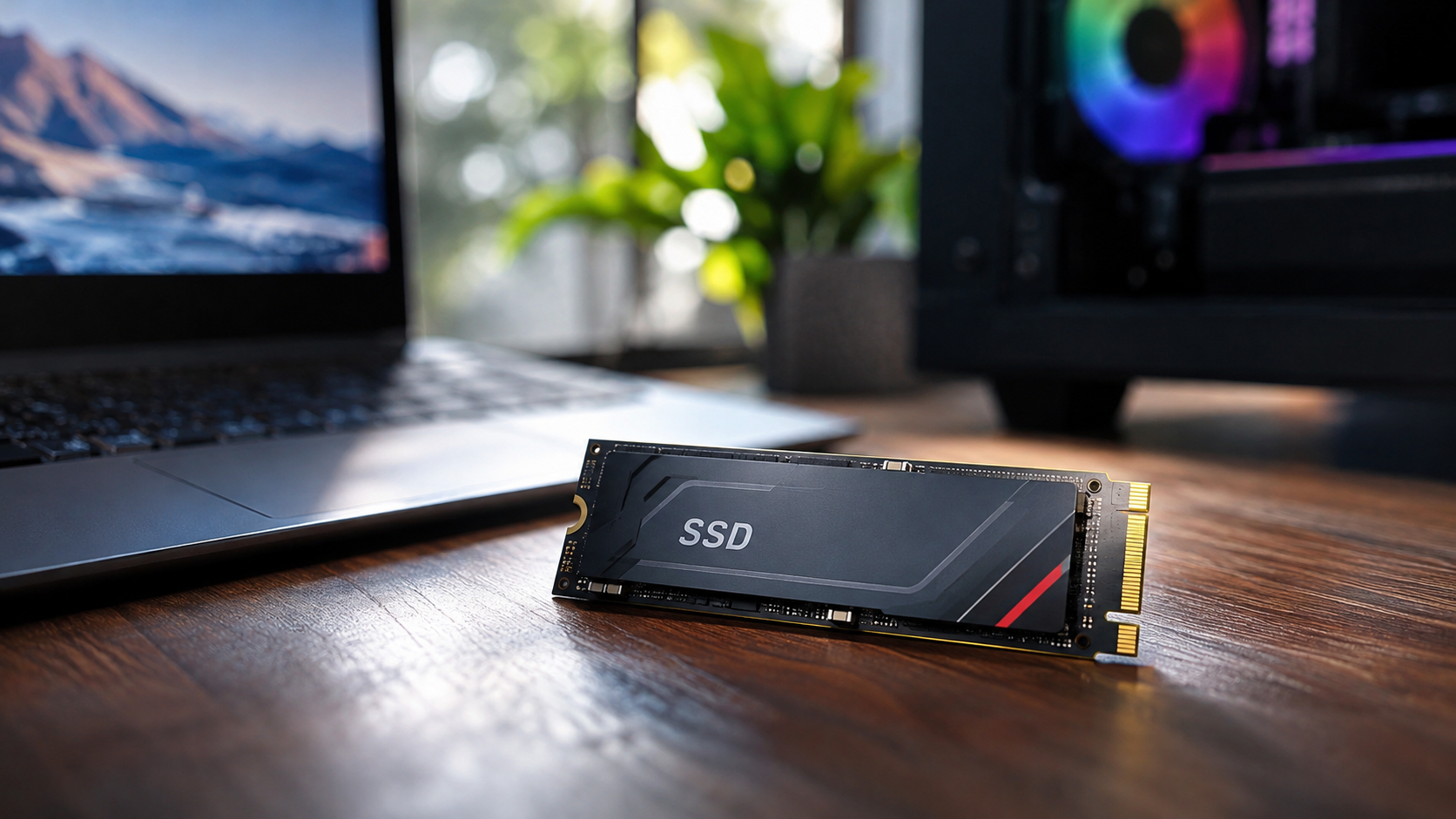
The Reality: M.2 describes an SSD’s physical form factor, not its storage interface or speed.
One of the most common SSD myths involves M.2 drives and NVMe technology. Many users assume every M.2 SSD automatically delivers high-speed performance. However, M.2 only describes the drive’s physical design and connector. These drives can support different storage interfaces, including SATA and PCIe.
An M.2 SATA SSD typically reaches sequential speeds of around 550 MB/s. In comparison, modern PCIe 5.0 NVMe SSDs can approach 15,000 MB/s. If you’re considering a SATA-based drive, explore whether a SATA SSD is still worth buying before choosing your next storage upgrade. Actual speeds depend on the specific model and hardware configuration.
Connector key notches can provide useful identification clues. SATA M.2 drives commonly feature B+M keys, while many NVMe drives use an M key. However, these notches alone do not guarantee compatibility.
Before purchasing an M.2 SSD, check your motherboard specifications. Confirm its supported interfaces, connector types, and PCIe generations. This helps you avoid compatibility issues and choose the right storage device.
2. Myth: You Need to Manually Defrag Your SSD
The Reality: Traditional disk defragmentation is unnecessary for SSDs. Modern operating systems already provide appropriate storage optimization.
Traditional hard drives use spinning magnetic platters and mechanical read heads. When files become fragmented, the read head must move between different physical locations. Defragmentation rearranges these fragments to improve access times.
SSDs work differently because they use electronic flash memory. They can access data without moving mechanical components. Therefore, arranging files into consecutive locations provides little practical performance benefit.
Repeated traditional defragmentation is unnecessary for SSD maintenance. It also creates additional write activity, although modern SSDs can handle substantial workloads. There is no reason to perform this maintenance manually.
Instead, allow your operating system to manage SSD optimization. Windows uses scheduled maintenance and TRIM to help manage deleted data. TRIM informs the SSD which storage blocks are no longer needed. This helps the controller perform garbage collection more efficiently.
For everyday users, automatic optimization is generally sufficient. You do not need to manually defragment your SSD to maintain its performance.
3. Myth: You Should Peel Off the Manufacturer Sticker for Better Cooling
The Reality: Removing an SSD’s manufacturer label does not automatically improve cooling. It may interfere with the manufacturer’s thermal design or warranty conditions.
Some users believe SSD labels trap heat inside the drive. This misconception comes from the thin stickers covering many M.2 NVMe SSDs. However, these labels are not necessarily ordinary plastic stickers.
Certain manufacturers use specialized metallic or thermally conductive label materials. These designs can help transfer heat away from important components. Removing them may interfere with the intended thermal arrangement.
Modern NVMe drives can generate considerable heat during demanding workloads. When temperatures become too high, the controller may activate thermal throttling. This reduces performance to protect the drive from excessive heat.
If your SSD runs hot, consider these practical cooling tips:
- Keep the manufacturer’s label intact unless its instructions say otherwise.
- Install a compatible motherboard M.2 heatsink.
- Maintain proper airflow inside your computer case.
- Monitor SSD temperatures during demanding workloads.
Always follow the manufacturer’s installation instructions. Removing the label without checking these instructions is unnecessary. Proper cooling and airflow are better ways to manage SSD temperatures.
4. Myth: SSDs Will Instantly Lose All Data If Left Unpowered
The Reality: SSDs do not immediately lose stored data when disconnected from power. However, their long-term data retention depends on several factors.
Another widespread misconception is that SSDs lose all their stored information without continuous power. This concern comes from how NAND flash memory stores information. Its memory cells retain data through electrical charge levels.
Over time, these stored charges can gradually leak. This may eventually affect data integrity, particularly in older or heavily worn drives. However, it does not mean files disappear after a few weeks without power.
Several factors influence SSD data retention. These include storage temperature, drive age, and previous write usage. A heavily worn SSD may retain data for less time than a newer, healthier drive.
SSDs are suitable for everyday storage and regular computer use. However, they should not be your only solution for long-term data archiving. If you’re deciding where to keep important files, compare cloud storage and external hard drives to find a suitable backup solution. Keep important files on additional storage devices or reliable cloud services.
The safest approach is to maintain multiple backups. Periodically check archived drives to ensure your important files remain accessible. This reduces the risk of unexpected data loss.
5. Myth: SSDs Have Short Lifespans and Wear Out Quickly
The Reality: Modern SSDs are generally durable and can last many years under normal workloads.
Many users believe SSDs wear out quickly because flash memory has limited write endurance. Unlike traditional hard drives, NAND flash cells have finite write and erase cycles. Repeated writing gradually wears down these cells. However, if you’re comparing long-term storage reliability, understanding which lasts longer, an HDD or SSD, can help you make a more informed decision.
However, modern SSDs include several technologies to manage this limitation. These include wear leveling, error correction, and over-provisioning. Together, they help distribute writes and maintain reliable operation.
Manufacturers measure SSD write endurance using Terabytes Written (TBW). This indicates how much data a drive is rated to handle under its specified endurance conditions. For example, a 700 TBW rating represents approximately 700 terabytes of rated writes.
Actual endurance varies by capacity, NAND type, and drive model. Everyday activities such as browsing, gaming, and office work usually generate relatively modest write workloads.
You should monitor your SSD’s health and follow manufacturer recommendations. However, there is no reason to replace a healthy SSD simply because it has been used for several years. Normal workloads rarely exhaust modern SSD endurance quickly.
Is a 4TB SSD Overkill for Gaming?
A 4TB SSD is not necessarily overkill for gaming. Its value depends on your gaming library, available budget, and storage requirements. Modern AAA games can occupy more than 100GB each. Several large installations, updates, and downloadable content packs can quickly consume available space.
However, buying more storage does not automatically improve gaming performance. A 4TB SSD does not provide higher frame rates simply because it has more capacity. Gaming performance depends on several factors, including your GPU, CPU, memory, and storage characteristics.
For most gamers, a 1TB or 2TB SSD offers a practical balance between price and capacity. A 4TB model makes more sense if you regularly install numerous demanding games.
Consider these factors before choosing your storage:
- 1TB SSD: Suitable for smaller game libraries and everyday computing.
- 2TB SSD: A practical choice for gamers who install several large titles.
- 4TB SSD: Useful for extensive game collections and users who dislike uninstalling games.
Choose capacity based on actual requirements rather than assuming bigger storage means faster gaming. Understanding these SSD myths also helps you avoid paying extra for capacity you might never use.
What Shortens SSD Lifespan?
Several factors can affect SSD lifespan, but repeated write operations and excessive temperatures deserve particular attention. NAND flash memory has a limited number of program and erase cycles. Each write operation contributes to gradual cell wear.
However, ordinary computer activities rarely create enough write activity to become a serious concern. Browsing websites, watching videos, installing applications, and playing games generally produce manageable workloads.
Heavy workloads can consume endurance much faster. Examples include continuous database operations, large-scale video editing, and frequent processing of enormous datasets. These activities generate substantially more writes than everyday computing.
Temperature also plays an important role. Excessive heat can affect flash memory reliability and reduce overall performance. Modern SSDs often use thermal management features to prevent overheating.
To maintain your SSD’s health, follow these practical recommendations:
- Avoid unnecessary continuous write-heavy workloads.
- Maintain proper airflow and cooling.
- Keep sufficient free storage space.
- Monitor drive health using manufacturer software.
- Install firmware updates when recommended.
Remember that normal SSD usage does not automatically cause premature failure. Most users can expect several years of reliable performance. Understanding what actually wears down flash memory is more useful than worrying about outdated SSD myths.
Is 100% Usage of an SSD Bad?
Filling an SSD to 100% capacity can create performance problems. However, the impact depends on the drive’s design, controller, and available over-provisioning.
SSDs need available flash blocks to manage incoming data efficiently. Their controllers use processes such as garbage collection and wear leveling. These processes help organize stored information and distribute write operations.
When an SSD becomes nearly full, fewer empty blocks remain available. The controller may need to reorganize existing data before accepting new writes. This can reduce sustained write performance, especially on drives with limited spare capacity.
A completely full system drive can also create operating system problems. Applications may struggle to save temporary files, install updates, or create necessary working data.
You should avoid keeping your SSD permanently full. A practical approach is to maintain around 10–15% free space when possible. If you’re unsure how much storage to leave unused, check the minimum free space you should leave on an SSD. This is a useful guideline, not a universal technical requirement.
If your drive is running low on space, consider removing unnecessary applications, transferring large files, or upgrading storage capacity. Maintaining reasonable free space helps preserve a smoother computing experience.
What Is the Biggest Drawback of an SSD?
The biggest drawback of an SSD is its relatively high cost per gigabyte compared with traditional hard drives. Although SSDs provide excellent speed and responsiveness, HDDs remain useful for affordable, high-capacity storage.
This difference becomes important when storing large collections of videos, photographs, backups, and archived projects. Buying several terabytes of SSD storage can become expensive. A mechanical hard drive may provide substantially more capacity for the same budget.
Another disadvantage involves data recovery. SSDs use complex controllers, firmware, and flash translation layers. If their controllers fail, recovering stored information can become difficult and expensive. However, recovery possibilities depend on the specific failure and device.
SSDs can also fail without the mechanical warning signs sometimes associated with traditional hard drives. This makes regular backups particularly important.
Despite these limitations, SSDs remain an excellent choice for operating systems, applications, and frequently accessed files. For large archives, combining an SSD with an HDD can offer a practical balance between speed, capacity, and cost. You can also give an unused drive a second life by learning how to turn an old SSD into a portable drive for storing and transferring files.
Understanding the advantages and disadvantages of modern storage also helps put common SSD myths into perspective. The best storage setup depends on your needs. You do not always need to choose between an SSD and an HDD.
Conclusion
Understanding the truth behind common SSD myths helps you make smarter storage decisions and avoid unnecessary concerns. Modern SSDs offer reliable performance, faster data access, and impressive endurance for everyday computing. However, proper maintenance, sufficient free space, and suitable cooling still play important roles in keeping your drive healthy.
Whether you’re choosing an M.2 NVMe SSD, upgrading storage for gaming, or protecting important files, focus on your actual requirements rather than outdated advice. You can also read Microsoft’s guide on optimizing SSDs and storage drives in Windows to understand how Windows manages drive maintenance.
Ultimately, knowing the facts behind SSD myths helps you maintain your drive, choose the right storage capacity, and avoid unnecessary expenses. The best storage setup is one that balances performance, reliability, and affordability according to your needs.