Laptop Camera vs Webcam – Why Might You Need an Upgrade?
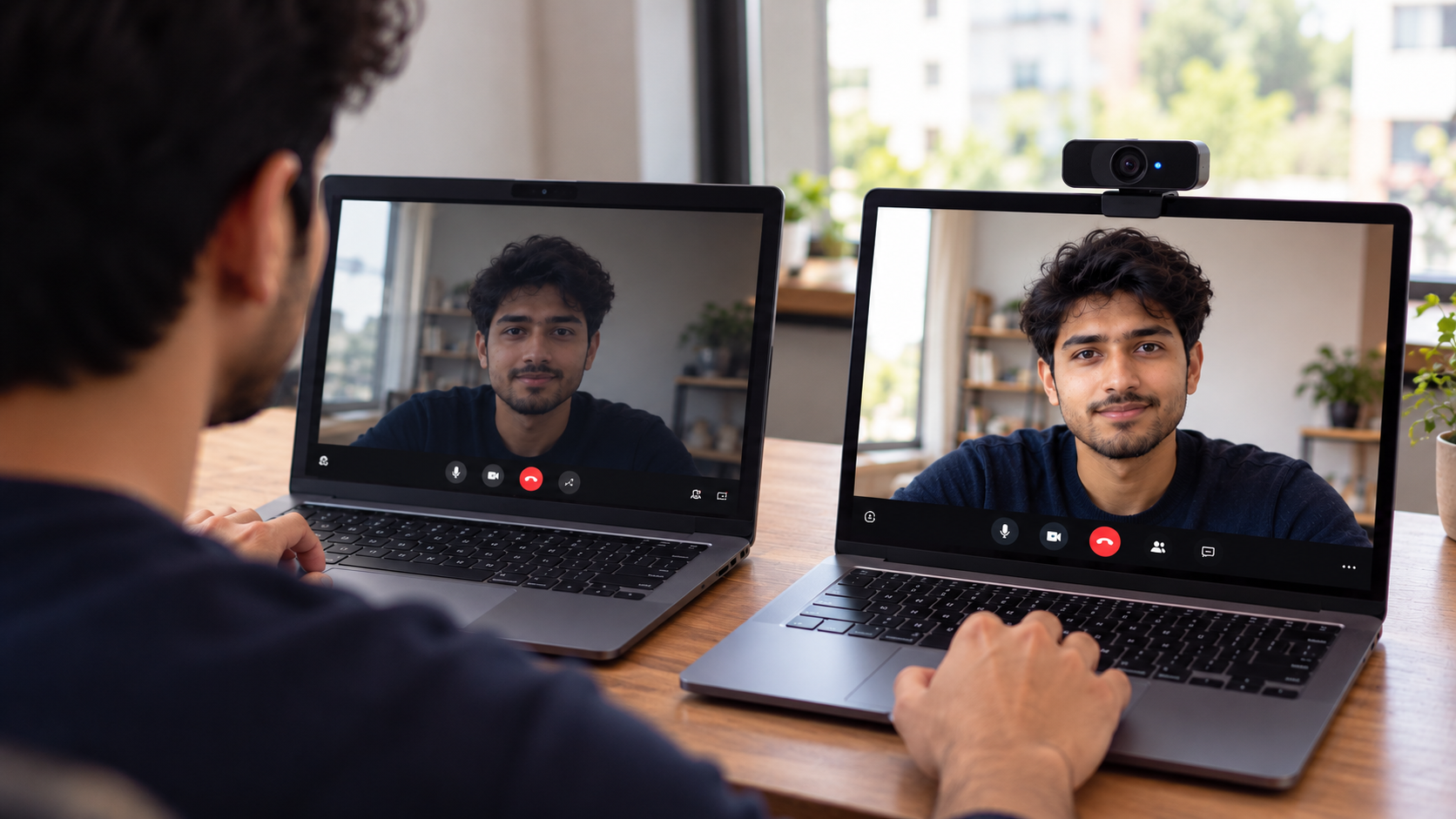
Choosing between a laptop camera vs webcam can make a noticeable difference in your video quality, professional appearance, and overall meeting experience. While most laptops include a built-in camera, its performance may not always meet your expectations. Poor lighting, grainy images, and limited positioning can affect how you appear during video calls, online interviews, and virtual meetings.
An external webcam may solve these problems by offering better image quality, improved autofocus, and flexible placement. However, buying one isn’t always necessary. Some modern laptops already provide excellent cameras for meetings, online classes, and everyday communication.
In this guide, we’ll compare laptop camera vs webcam features, explain their key differences, and explore when upgrading makes sense. You’ll also learn how to improve your existing setup, troubleshoot common camera issues, and protect your privacy during video calls.
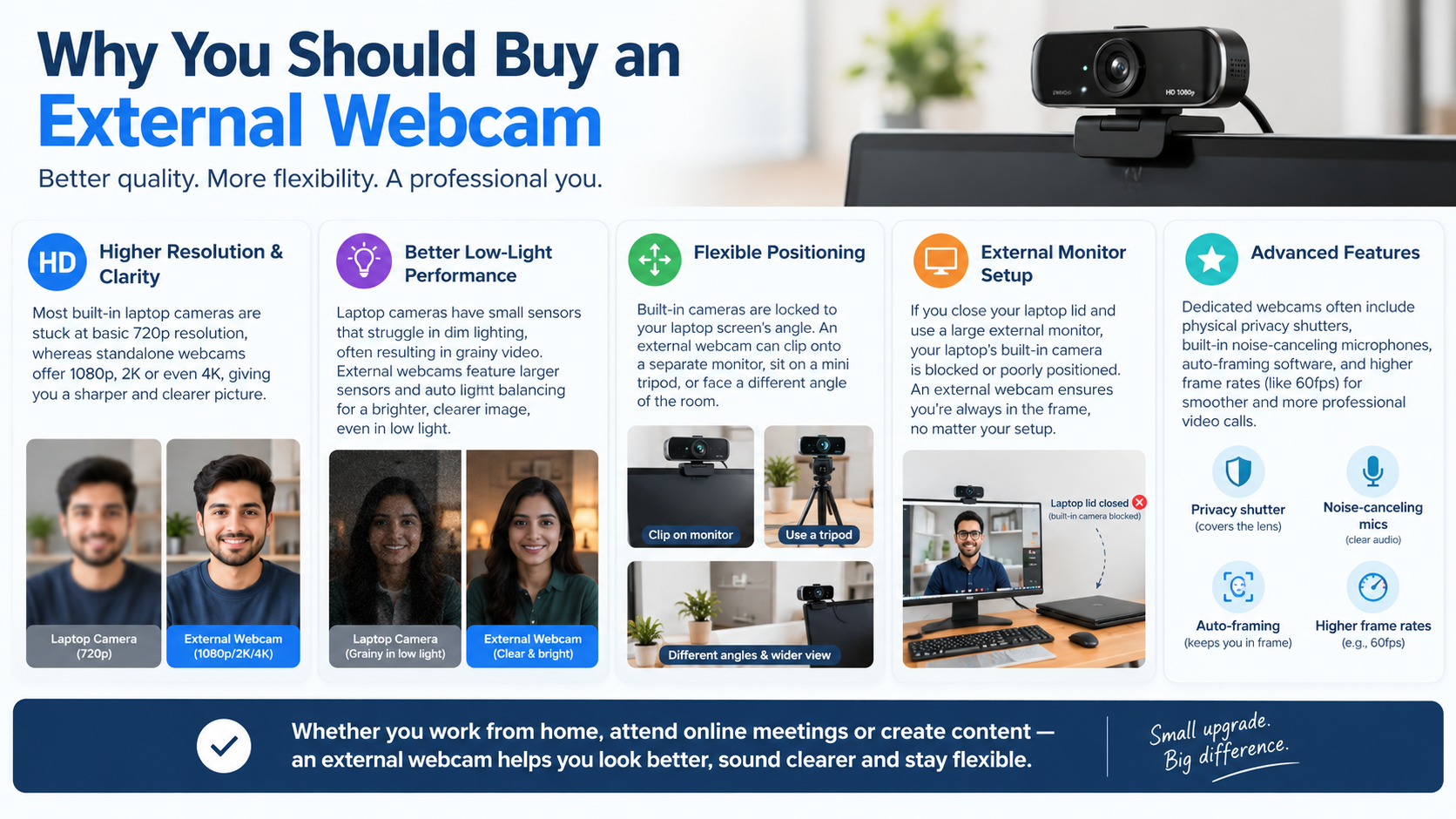
Is a Webcam Better Than a Laptop Camera?
An external webcam can deliver better video quality than a built-in laptop camera, but performance depends on the specific models. Some webcams offer larger sensors, better lenses, improved autofocus, and advanced image processing. These features can produce clearer images during video conferences and recordings.
However, an expensive laptop may already have a high-quality integrated camera. A budget external webcam might provide little improvement or even produce worse results. Resolution alone doesn’t determine image quality. Lighting, sensor performance, lens quality, and image processing also matter.
External webcams offer greater positioning flexibility. You can place one at eye level, adjust its angle, or mount it on a monitor. This can create a more natural appearance during professional meetings. For additional advice on preparing for camera-based interviews, explore these video interview tips for mastering your next job call.
Consider an upgrade if your current camera struggles with low light, produces blurry images, or offers limited framing options. If you only attend occasional meetings, improving your lighting and laptop position might be enough.
Understanding Optical Sensor Differences
The image sensor is one of the main components affecting camera performance. It captures light through the lens and converts it into digital information. Sensor size, sensitivity, and processing capabilities influence image detail and low-light performance.
Many built-in laptop cameras use compact sensors to fit inside thin display bezels. These sensors may struggle in dim rooms, producing grainy images or losing detail. However, sensor size alone doesn’t determine the final result.
Some external webcams use larger or more capable sensors. Combined with quality optics and effective image processing, these components can improve clarity and color reproduction.
When comparing a laptop camera vs webcam, consider these factors:
- Sensor size: Can influence light collection and image quality.
- Lens quality: Affects sharpness, distortion, and clarity.
- Autofocus: Helps maintain focus when your distance changes.
- Lighting: Can significantly improve image quality without replacing your camera.
Compare real-world video samples rather than relying on specifications alone.
Can a Laptop Camera Be Used as a Webcam?
Yes. Your built-in laptop camera already functions as a webcam, so you don’t need an additional device for ordinary video calls. Most modern laptops include integrated camera hardware that works with compatible operating systems and communication applications. For students attending virtual classes, understanding the pros and cons of online learning can also help them make better decisions about their learning setup.
Platforms such as Zoom, Microsoft Teams, and Google Meet can usually detect your camera automatically. You can select it through the application’s video settings and start your meeting. Additional drivers are rarely necessary on supported systems, although troubleshooting may sometimes be required.
The main limitation is positioning. Because the camera is attached to your screen, its angle depends on how you position your laptop. This can create awkward framing when the computer sits below eye level.
Before purchasing an external webcam, try raising your laptop to eye level and placing a light source in front of you. These simple changes can improve your appearance during meetings.
If your camera still produces poor results, an external webcam may be worth considering. Your decision should depend on your video quality requirements, meeting frequency, and budget.
Seamless Plug-and-Play Integration
Most built-in laptop cameras work automatically with supported operating systems. Windows and macOS generally recognize compatible integrated cameras without complicated installation procedures. Once detected, the camera becomes available to supported applications.
Follow these steps to start using your laptop camera:
- Open your preferred video conferencing application.
- Navigate to its camera or video settings.
- Select your built-in camera if multiple devices appear.
- Preview your image and adjust your lighting.
- Join your meeting once the setup looks correct.
If the camera doesn’t appear, check your operating system’s privacy settings. Another application may be using the camera, or access may have been disabled. Some laptops also include a physical privacy shutter or camera function key.
Depending on your device, a driver update may resolve compatibility problems. Download drivers only from your laptop manufacturer’s official website. Avoid unfamiliar websites offering camera utilities or driver packages.
These basic checks can help you determine whether your existing camera needs troubleshooting or replacement.
Does a Laptop Camera Count as a Webcam?
Yes. A built-in laptop camera is a type of webcam because it captures video for computer applications. The primary difference is how the hardware is installed. A laptop camera sits inside the computer, while an external webcam connects separately.
Both devices can support video calls, remote interviews, online classes, and video recording. Compatible applications can usually switch between available cameras through their settings. However, image quality, autofocus, resolution, and other features vary between models.
The word webcam describes a camera used to provide video to a computer or network application. It doesn’t necessarily mean the device must be external. Integrated laptop cameras serve the same basic purpose.
Their connection methods may differ. External webcams commonly use USB, while built-in cameras may use internal interfaces. Operating systems manage these devices through compatible drivers and supported frameworks.
When comparing laptop camera vs webcam options, focus on practical differences rather than terminology. Image quality, positioning, compatibility, and privacy are more important than whether the camera is built in or purchased separately.
Hardware Definitions and Device Classes
Laptop cameras and external webcams perform similar functions, but their hardware connections can differ. External webcams commonly connect through USB, while integrated cameras may use internal interfaces. Operating systems rely on compatible drivers to make these devices available to applications.
Some USB webcams support the USB Video Class standard. This allows compatible operating systems to recognize them without requiring separate manufacturer-specific drivers. However, not every camera follows the same connection or driver architecture.
For everyday users, the important question is whether the camera works reliably with their preferred applications. If your camera appears in your system settings and meeting software, you can generally use it for video communication.
If your camera isn’t working, try these troubleshooting steps:
- Confirm that your operating system recognizes the device.
- Check application permissions and the selected video source.
- Install compatible updates from the manufacturer’s official website.
- Test the camera in another supported application.
These checks can help identify common configuration problems before you spend money on replacement hardware.
Can Hackers See Through a Webcam?
Yes. Attackers can potentially access a laptop camera if they compromise a computer or exploit a security vulnerability. Certain types of malicious software, including remote-access trojans, may allow attackers to control device functions without the owner’s knowledge.
However, this doesn’t mean someone can automatically access your camera through an ordinary website. Unauthorized access depends on factors such as the malware involved, operating system protections, application permissions, and security vulnerabilities.
Modern operating systems include privacy controls that restrict camera access. Keeping your system updated, using reputable security software, and avoiding suspicious downloads can reduce the risk of compromise. If you’re evaluating your security options, learn whether paid antivirus is worth it in 2026 before deciding which protection tools you need. Never open unexpected attachments or install applications from untrusted sources.
If you suspect unauthorized camera access, review your permissions and check for unfamiliar applications. Run a security scan and install relevant updates. If suspicious activity continues, consider disconnecting from the internet while investigating the problem.
For additional protection, use a physical camera cover when the camera isn’t needed. This blocks the lens directly, providing protection even if software security measures fail.
Protecting Your Digital Privacy
A physical privacy shutter or compatible camera cover provides a simple way to block your laptop camera. When it completely covers the lens, software cannot obtain a usable image through that covered lens. This protection works independently of antivirus software and operating system settings.
However, a camera cover doesn’t remove malware or prevent every form of surveillance. If a computer is compromised, attackers may still target files, microphones, or other system resources. Physical protection should complement digital security measures rather than replace them.
Follow these practical precautions:
- Use a camera cover: Close it whenever you aren’t using the camera.
- Review permissions: Allow camera access only to applications that need it.
- Install updates: Keep your operating system and security software current.
- Avoid suspicious downloads: Install applications from trusted sources.
- Secure your accounts: Use strong passwords and multifactor authentication where available.
Choose a cover designed for your laptop. Some thick covers can damage the display or prevent the lid from closing properly.
Combining physical protection with sensible security practices helps protect your privacy during everyday computer use.
How Can I Tell If Someone Is Watching Me Through My Laptop Camera?
There is no single reliable sign that proves someone is watching you through your laptop camera. An illuminated camera indicator may show that the camera is active, but indicator behavior varies by device. Some operating systems also display privacy notifications when applications access the camera.
If your camera activates unexpectedly, investigate before assuming someone has hacked your computer. A legitimate application, browser tab, or background process may be using it. Close applications that could access the camera and review their permissions.
On Windows, check camera permissions through Settings. On macOS, review the camera permissions under Privacy & Security. The exact menus may vary depending on your operating system version.
If you notice unexplained activity, revoke unnecessary permissions, update your system, and run a reputable security scan. Also check for unfamiliar applications and browser extensions.
Remember that an inactive indicator doesn’t guarantee complete security on every device. A physical camera cover provides additional protection when you don’t need video.
Auditing Active System Permissions
Regularly reviewing camera permissions helps you control which applications can access your laptop camera. Both Windows and macOS provide privacy settings for managing camera access, although the available options vary by version and device.
Start by opening your operating system’s privacy settings. Find the camera section and review the applications permitted to use it. Disable access for programs that don’t require video functionality or that you no longer trust.
Next, check your video conferencing applications and browser settings. Websites may request camera access when you join meetings or record content. Remove permissions for unfamiliar websites and avoid granting access without a clear reason.
If an application repeatedly accesses the camera unexpectedly, investigate its purpose before removing it. Update trusted software and scan your computer if you suspect malicious activity. If you notice other unusual behavior, review these warning signs for your laptop to help identify problems that may need further investigation.
For stronger physical protection, close your laptop’s built-in privacy shutter or use a compatible camera cover whenever the camera isn’t needed. Combining permission management with regular security updates helps reduce privacy risks while keeping your video calls convenient.
Conclusion: Laptop Camera vs Webcam – Is an Upgrade Worth It?
Choosing between a laptop camera vs webcam depends on your needs, budget, and video quality expectations. A built-in laptop camera is usually sufficient for everyday video calls, online classes, and virtual meetings. However, an external webcam may offer better image quality, improved autofocus, and more flexible positioning, especially for professional meetings, content creation, and live streaming.
Before investing in a new device, try improving your lighting, adjusting your laptop’s position, and checking your camera settings. You can also follow Microsoft’s official guide to camera settings and troubleshooting in Windows to resolve common camera problems.
If your current camera still struggles to deliver clear images, upgrading to an external webcam could be a worthwhile investment. Also, protect your privacy by reviewing camera permissions, keeping your software updated, and using a physical camera cover when needed.
Ultimately, the best choice is the camera that meets your requirements without unnecessary spending. Compare your existing camera’s performance with your expectations before deciding whether an upgrade is necessary.