What Does the 1 in a Circle Symbol Mean on Google Maps?
The 1 in a circle symbol on Google Maps can be confusing when you first notice it. The meaning depends on where the symbol appears. It may be a notification badge on the Google Maps app icon. It can also be a numbered marker displayed directly on the map.
A number on the app icon usually relates to an unread notification. A numbered circle on the map can identify a destination, search result, or stop on a multi-destination route. These symbols may look similar, but they serve different purposes.
Understanding the 1 in a circle symbol on Google Maps can make the app easier to use. It also helps you determine whether you need to check a notification or follow a map marker.
In this guide, we explain the different meanings of the number one. We also cover notification badges, numbered map markers, small circles, and location accuracy indicators. If you are comparing navigation platforms, understanding Google Maps vs. Waze can also help you choose the right app for different driving needs.
Why Is There a 1 on My Google Maps Icon?
A 1 on the Google Maps app icon usually represents a notification badge. Your phone’s operating system displays this badge when Google Maps has an unread notification or another item that may need your attention. The badge itself does not normally indicate a problem with navigation or your current route.
The exact notification can vary based on your device and Google Maps settings. It may relate to travel information, places, location sharing, contributions, or other account activity. If you contribute information or reviews to Maps, you may also be interested in getting rewarded for contributing to Google Maps. The number simply indicates that something connected with Maps has not been reviewed.
To investigate the badge, open Google Maps and check the available notifications. You can also tap your profile picture and review relevant account activity.
If the badge remains, check your phone’s notification settings. Android and iPhone provide different controls for app badges. Therefore, the steps may vary depending on your device.
The 1 in a circle symbol on Google Maps is therefore best understood by checking its location. If it sits on the app icon, start with your notifications.
How to Clear the Notification Badge
Open Google Maps and tap your profile picture in the upper-right corner. Look for notifications, alerts, or other items that may require your attention. Opening the relevant notification may remove the number from the app icon.
If the badge remains visible, check your phone’s notification settings. Search for Google Maps under the Notifications section. Your device may provide an option for showing or hiding notification badges.
On some phones, dismissing the notification from the notification panel can also remove the badge. If the number still appears, close Google Maps and reopen it. A restart can refresh the notification status displayed by the operating system.
Keep in mind that notification controls differ between Android and iPhone. The menu names and available options may therefore look different.
You do not normally need to change your Google Maps settings simply because a number appears. First, check whether an unread notification is responsible.
If the notification is not important, you can manage the app’s notification permissions. This can reduce unnecessary badges without affecting basic navigation features.
What Is the Symbol for a Circle With 1 Inside?
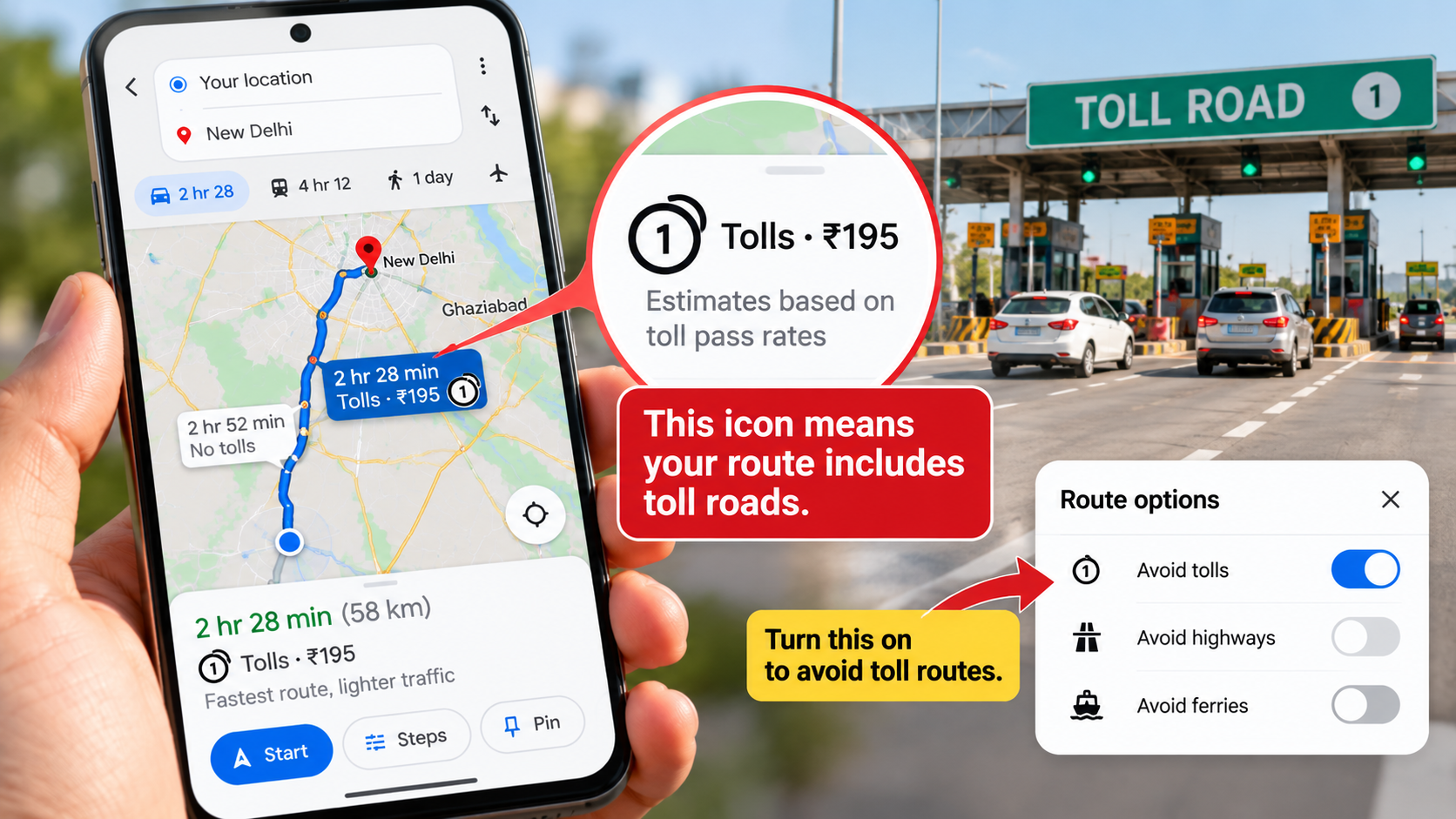
A circle with the number 1 inside does not have one universal meaning throughout Google Maps. Its meaning depends on where the symbol appears and what you are doing in the app. Google Maps uses different visual markers to organize destinations, search results, routes, and other information.
For example, a numbered marker can identify a location from a list of search results. It can also represent the first destination in a route containing multiple stops. In these situations, the number provides context rather than indicating a notification.
The same visual idea can therefore have different meanings. A number on the Google Maps app icon relates to an app notification. A number displayed directly on the map relates to map information.
The easiest way to identify the symbol is to examine its surroundings. Check whether it appears on the app icon, beside a destination, or directly over a location.
This context is more useful than the shape of the symbol alone.
Distinct Roles for Interface and Map Badges
The location of the number is the most useful clue when identifying its purpose. A number displayed over the Google Maps app icon generally functions as a notification badge. It tells you that the app has an unread notification or another pending item.
A numbered circle displayed inside the map has a different role. It can identify a search result, route stop, or another location-related feature. The marker helps you connect a specific place with information shown elsewhere in the interface.
This difference is important because the symbols can look almost identical. Their appearance alone does not tell you what they mean.
If the number appears on your phone’s home screen, check Google Maps notifications first. If it appears over a location on the map, examine the route or search results.
The 1 in a circle symbol on Google Maps should therefore be interpreted according to its position and surrounding information.
Understanding this distinction can prevent unnecessary changes to your notification settings. It also makes numbered map features easier to recognize during navigation.
What Are the Numbers on Google Maps?
Numbers on Google Maps can represent several types of information. Their meaning depends on the feature you are using and where the number appears. For example, numbered markers can identify search results when you search for businesses, restaurants, attractions, or other nearby places. When searching for businesses, you may also wonder how Google Maps knows a business is busy, since Maps can display information about how crowded certain places are.
These numbers help connect locations on the map with entries in the search results. If a list contains several places, the corresponding numbers make it easier to identify each location.
Numbers can also appear when you create a route with multiple destinations. In that situation, the numbers indicate the order of your stops. Number 1 represents the first destination, followed by the next stops in sequence.
Road numbers serve another purpose. Highway shields and road labels identify specific roads or routes. They should not be confused with numbered search markers or destination markers.
Because Google Maps uses numbers in different ways, context matters. Look at the marker’s shape, position, color, and surrounding labels before deciding what it represents.
This approach makes unfamiliar Google Maps symbols easier to understand.
Deciphering Highway Shields and Waypoints
Highway shields identify roads and official route numbers. Their designs vary between countries and road systems. They are different from numbered markers used for destinations or search results.
Waypoints and route stops have another function. When you create a journey with multiple destinations, Google Maps can number the stops according to their order. A marker containing 1 can therefore identify the first destination on the route.
Search results can also use numbered markers. These markers correspond with places shown in the search results list. Selecting a marker can provide more information about that specific location.
The easiest way to distinguish these features is to consider their context. A road shield appears with a road. A search marker relates to a search result. A numbered route stop belongs to a planned journey.
The numbers themselves are not necessarily warnings or notifications. They often provide simple organizational information.
This distinction becomes especially useful when several symbols appear together. Instead of focusing only on the number, look at the entire marker and its surrounding map information.
What Are the Little Circles on Google Maps?
The small circles visible on Google Maps can represent several different map features. Depending on the location and zoom level, they may identify businesses, places, transit facilities, search results, or groups of nearby locations. If you want to understand how Google’s mapping products differ, it can also help to compare Google Maps and Google Earth and their different purposes.
Google Maps changes the amount of information shown as you zoom in and out. A busy area may contain many businesses and landmarks. Showing every individual marker at once could make the map difficult to read.
For this reason, Google Maps can group nearby locations into clusters. Zooming closer can reveal more individual places and markers.
Your current location is normally shown with a blue location dot. A light-blue area around that dot can indicate the estimated accuracy of your location. This area may become larger when your phone has difficulty determining your exact position.
Other circles may represent transit stations or selected map locations. Their appearance can vary based on the feature and map view.
If you are unsure about a circle, tap it. Google Maps will usually provide additional information about the selected feature.
Understanding Concentric Circles and Location Accuracy
A light-blue area surrounding your blue location dot generally represents the estimated accuracy of your current location. It shows the approximate area where Google Maps believes you are located.
A smaller area usually indicates greater location precision. A larger area means Google Maps has less confidence about your exact position. This does not necessarily mean that GPS is broken.
Several factors can affect location accuracy. Buildings, indoor environments, weak satellite signals, and electronic interference can make precise positioning more difficult.
Your phone can use several sources of information to improve location estimates. These may include GPS, Wi-Fi networks, and mobile network information.
If your location appears inaccurate, moving outdoors or into an area with a clearer view of the sky may help. Keeping location services enabled can also provide Maps with the information it needs.
The blue accuracy circle is different from a notification badge. It does not indicate an unread alert or pending message.
Instead, it provides visual information about how precisely Google Maps can determine your current location.
Understanding this difference can help you avoid confusing a location accuracy indicator with the 1 in a circle symbol on Google Maps.
Conclusion
The 1 in a circle symbol on Google Maps does not always have the same meaning. Where you see the symbol is the most important clue. If it appears on the Google Maps app icon, it usually relates to an unread notification. If it appears directly on the map, it may identify a search result, route stop, or another map feature.
Google Maps also uses other circles to communicate location information. For example, the blue dot shows your current location, while the light-blue circle around it indicates the estimated accuracy of that location. Google explains that a smaller circle generally means Maps has greater confidence in your position.
If you want to manage Maps notifications, you can review the official Google Maps notification settings guide. For more information about location accuracy and the blue location circle, see Google’s official Google Maps location accuracy guide.
So, when you notice a 1 in a circle symbol on Google Maps, check its location before assuming it is an error. Identifying whether it is an app badge or map marker will usually tell you exactly what it means. If you are considering another navigation option, comparing Apple Maps and Google Maps can also help you decide which service better fits your needs.