How to Connect Bluetooth Speakers to Your PS5
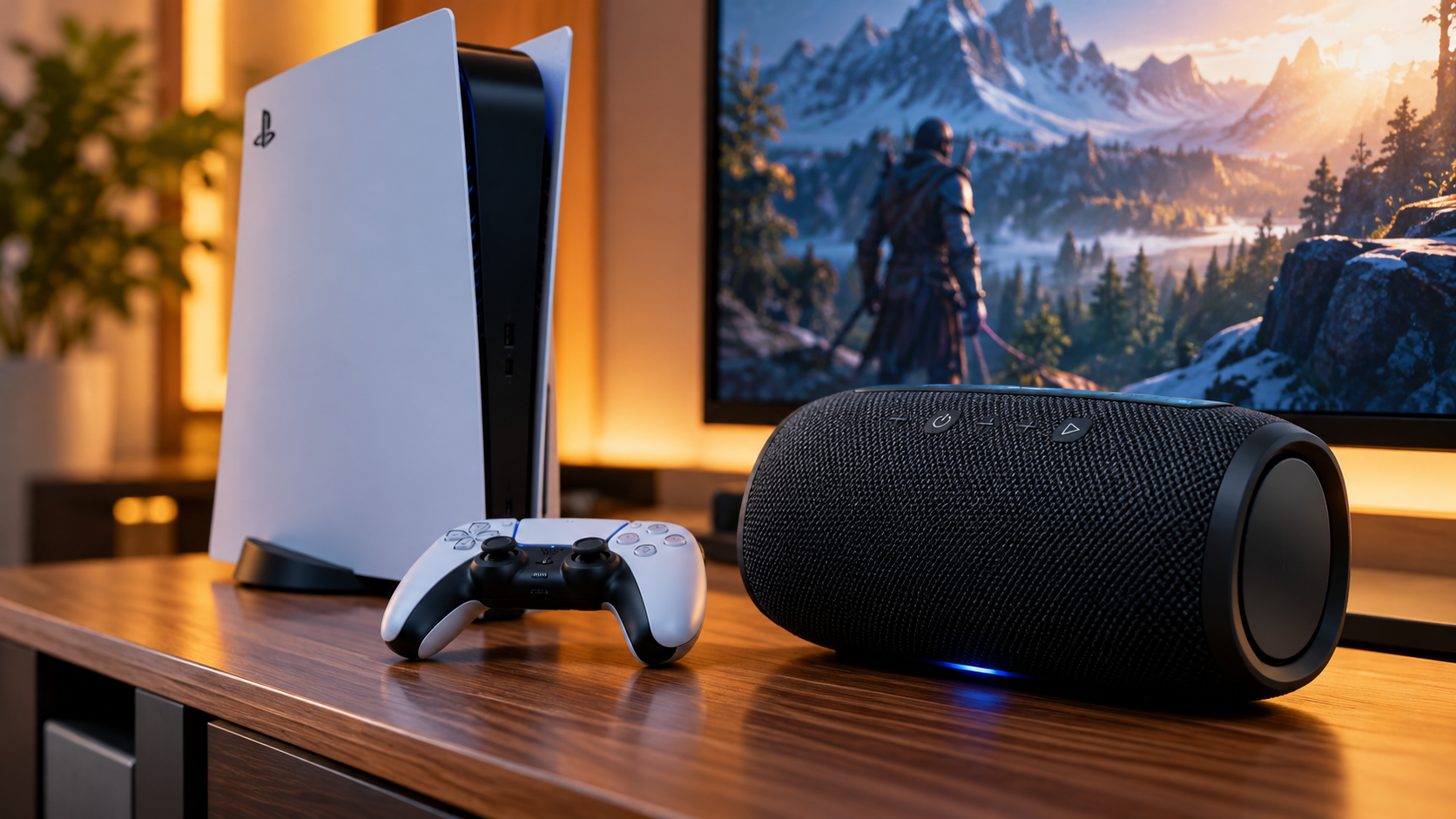
If you want room-filling sound while gaming, learning how to connect Bluetooth speakers to your PS5 can improve your setup. The PlayStation 5 supports several audio output methods, but it does not offer native support for standard Bluetooth speakers. This means you cannot simply open the PS5 Bluetooth settings and pair most wireless speakers like you would with a phone.
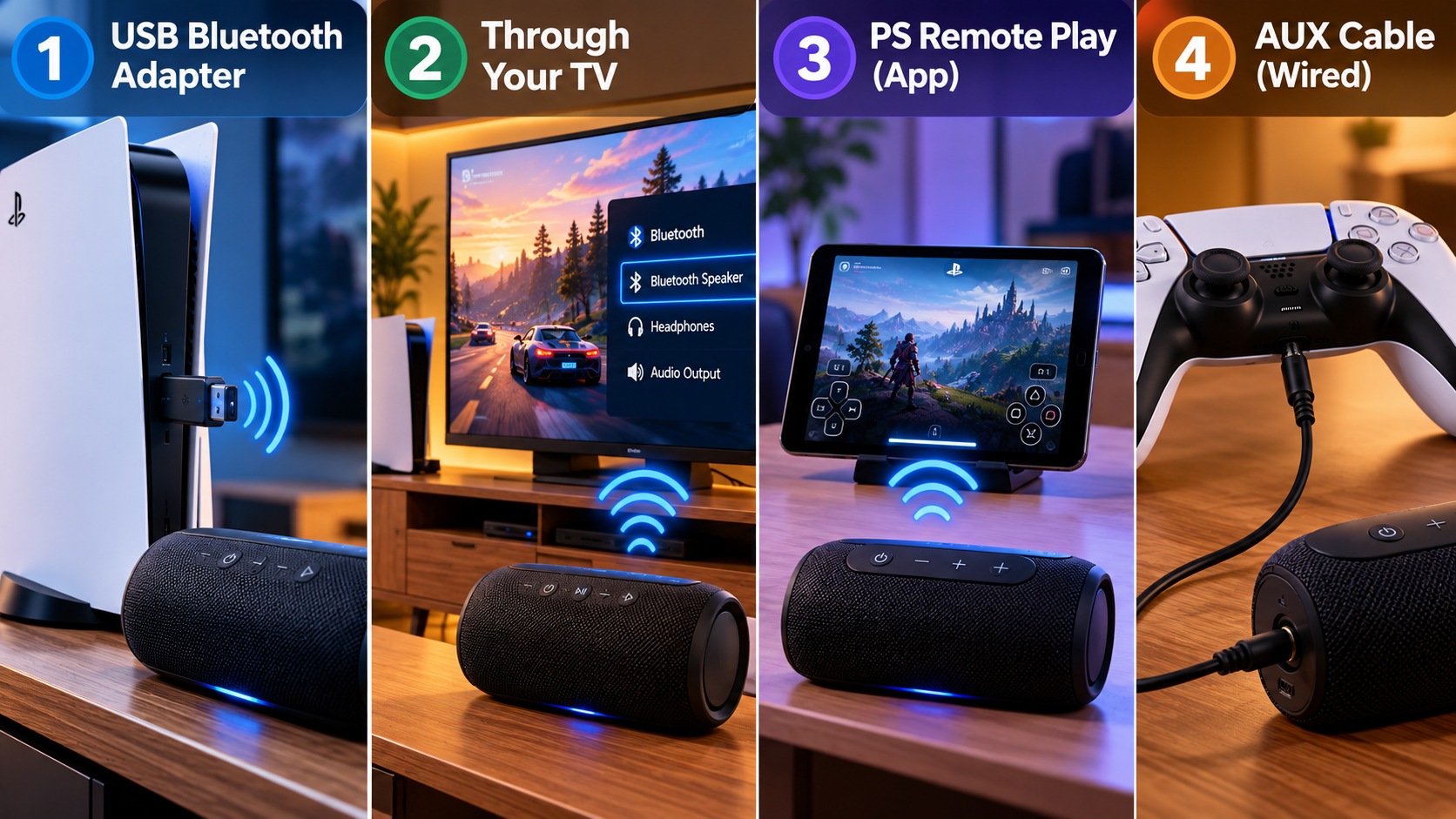
Fortunately, there are several ways to connect Bluetooth speakers to your PS5 without relying on native Bluetooth pairing. You can use a compatible USB Bluetooth transmitter, the DualSense controller’s 3.5mm audio jack, or another supported audio connection. The best method depends on your speaker and the inputs it provides.
In this guide, you will learn how to connect Bluetooth speakers to your PS5 using practical workarounds. We will cover JBL speakers, USB Bluetooth adapters, wired connections, HDMI audio, and external speakers. You will also learn which option can provide the best balance between convenience, sound quality, and low latency.
Can I Pair My PS5 With a Bluetooth Speaker?
If you are wondering how to connect Bluetooth speakers to your PS5, there is one important limitation to understand. You cannot normally pair a standard Bluetooth speaker directly through the PS5’s Bluetooth settings. The console does not provide general Bluetooth audio support for ordinary speakers.
This differs from smartphones and computers, where Bluetooth speakers can usually be selected from the system’s audio settings. On PS5, an unsupported Bluetooth speaker may fail to connect even when it appears during a device search.
Fortunately, this does not mean Bluetooth speakers are unusable. You can introduce compatible external hardware between the PS5 and speaker. A USB Bluetooth audio transmitter is one of the most common solutions.
You can also use the DualSense controller’s 3.5mm audio connection if your speaker has an AUX input. This option is especially useful when you want a simple setup without buying another adapter.
The Role of Dedicated USB Transmitters
A USB Bluetooth audio transmitter can provide a practical way to connect wireless speakers to your PS5. The transmitter plugs into a compatible USB port and handles the Bluetooth connection separately.
Setup is usually simple. Plug the transmitter into the PS5, activate pairing mode, and then put your speaker into Bluetooth pairing mode. Once both devices connect, the transmitter sends the PS5’s audio to your wireless speaker.
However, compatibility matters. Not every USB Bluetooth adapter works with the PS5. Some adapters are designed specifically for computers and may not function correctly with the console.
Before buying one, check for PS5 compatibility and low-latency audio support. Also confirm that the transmitter supports the Bluetooth features used by your speaker.
For most users, this is one of the easiest ways to connect Bluetooth speakers to your PS5 while keeping the setup wireless.
Can I Connect Bluetooth Audio to My PS5?
You can use Bluetooth audio with a PS5, but standard Bluetooth speakers cannot normally connect directly to the console. If your goal is to connect Bluetooth speakers to your PS5, you will generally need compatible external hardware.
A USB Bluetooth transmitter is one practical solution. It receives audio from the PS5 through USB and sends that audio wirelessly to a compatible Bluetooth speaker. This avoids the need for direct Bluetooth pairing through the console.
Another option is the DualSense controller’s 3.5mm headphone jack. If your speaker has an AUX input, connect the speaker to the controller using a suitable audio cable. The controller can then send PS5 audio to the connected speaker.
Bluetooth latency is another factor to consider. Wireless audio can introduce a delay between on-screen actions and the corresponding sounds. This delay varies between the transmitter, speaker, and supported audio technology.
For casual gaming, a small delay may not be noticeable. Competitive players should consider a wired connection or equipment specifically designed for low-latency gaming audio.
Managing Codec Delays and Game Sync
Audio delay can affect the gaming experience when using Bluetooth speakers. You may notice a small gap between an action on screen and its sound. This can become distracting during fast-paced games.
A low-latency Bluetooth transmitter can reduce this problem. However, the transmitter is only one part of the audio chain. Your speaker must also support compatible low-latency technology for the best results.
Do not assume that every Bluetooth speaker will perform identically. Different speakers and transmitters can use different Bluetooth profiles and codecs. Their performance can therefore vary considerably.
If you want to connect Bluetooth speakers to your PS5 for casual gaming, a small amount of latency may be acceptable. For competitive games, however, wired audio is often the safer choice.
Before buying an adapter, check both devices’ specifications. Look for PS5 compatibility, supported Bluetooth features, and low-latency capabilities.
Do JBL Speakers Work on PS5?
Yes, JBL speakers can work with a PS5, although most models cannot connect directly through the console’s Bluetooth settings. If you want to connect Bluetooth speakers to your PS5, the JBL model and its available inputs will determine the best method.
If your JBL speaker has a 3.5mm AUX input, you can connect it to the DualSense controller with a suitable audio cable. This provides a straightforward wired connection without requiring a Bluetooth transmitter.
For wireless playback, you can use a compatible USB Bluetooth transmitter. The transmitter connects to the PS5 and then pairs with the JBL speaker. Always check compatibility before purchasing an adapter.
Some JBL speakers may support additional connection options, but features vary between models. You should therefore check your specific speaker’s specifications before choosing a connection method.
For gaming, a wired AUX connection usually provides lower latency than Bluetooth. A USB transmitter is more convenient if you specifically want a wireless setup.
Using the Auxiliary Cable Workaround
A 3.5mm AUX cable is one of the simplest ways to connect an external speaker to your PS5. It does not require a Bluetooth transmitter or additional wireless hardware.
Connect one end of the 3.5mm audio cable to the DualSense controller. Connect the other end to your speaker’s AUX input. Turn on the speaker and select the correct input if necessary.
The PS5 can then send audio through the controller and into the connected speaker. You can adjust the volume using the appropriate PS5 or speaker controls.
The main advantage is low latency. A wired connection avoids the additional wireless transmission delay associated with Bluetooth.
The main disadvantage is the cable. Your controller must remain connected to the speaker, which may be inconvenient if you want to sit far away from your gaming setup.
For a desktop gaming arrangement, however, this workaround is inexpensive and reliable. It is particularly useful if your Bluetooth speaker already includes an AUX port.
How to Connect External Speakers to PlayStation 5?
If you want to connect Bluetooth speakers to your PS5, Bluetooth is not your only option. The console can work with different external audio setups depending on the equipment you own.
A soundbar can connect through a compatible HDMI setup. You can connect the PS5 to your TV using HDMI and then connect the TV to a soundbar through HDMI ARC or eARC when supported.
An HDMI audio extractor is another option for certain setups. It separates audio from the HDMI signal and can provide outputs such as optical or analog audio. Make sure the extractor supports your required video resolution and refresh rate.
Compatible USB audio devices can also provide another connection method. However, compatibility should always be checked before purchasing an adapter.
If your external speaker has an AUX input, the DualSense controller provides a simple wired alternative. This can be useful when you want reliable audio without Bluetooth latency.
The best method depends on your equipment. Consider sound quality, cable requirements, latency, and convenience before choosing your setup.
Choosing HDMI eARC for Premium Sound
HDMI eARC can be useful for advanced soundbar and home theater setups. However, the connection path is important when using a PS5.
In a typical setup, connect the PS5 to your TV using HDMI. Then connect the TV’s HDMI eARC port to the soundbar’s HDMI eARC port. The television can pass supported audio from the PS5 to the soundbar through this connection.
This setup can provide high-quality digital audio and works well with compatible soundbars. It can also reduce cable clutter around your gaming area.
Your TV, soundbar, and HDMI cables must support the features you want to use. Older equipment may support ARC instead of eARC, which can provide different audio capabilities.
If you are trying to connect Bluetooth speakers to your PS5, HDMI eARC is not a Bluetooth solution. It is better suited to soundbars and home theater systems with HDMI connections.
Check the specifications of your equipment before changing the setup. You should also configure the PS5’s audio settings correctly for your chosen output.
Do Any Speakers Work With PS5?
Many external speakers can work with a PS5, but not every speaker can connect directly. The key factor is the speaker’s connection method rather than its brand.
Powered desktop speakers can work through compatible USB or analog connections. Soundbars can use supported HDMI configurations. Bluetooth speakers can work through appropriate external transmitters or other compatible audio paths.
If you want to connect Bluetooth speakers to your PS5, remember that ordinary Bluetooth pairing is not normally available. You will generally need a compatible transmitter or another supported connection method.
Before buying an adapter, check your speaker’s available inputs. Common options include:
- 3.5mm AUX: Useful with the DualSense controller.
- USB audio: Available on some compatible speaker systems.
- HDMI ARC/eARC: Common on modern soundbars.
- Optical: Useful with compatible audio extractors.
- Bluetooth: Requires an appropriate transmitter for PS5 use.
Matching the speaker’s available input with a compatible PS5 output method can prevent unnecessary troubleshooting. It also helps you avoid purchasing an adapter that your equipment cannot use.
Checking Input Connections Before Setup
Before purchasing anything, check the connection options on your speaker. This simple step can prevent compatibility problems and unnecessary spending.
Look at the back or side of the speaker and identify its available ports. Check for a 3.5mm AUX port, USB audio input, HDMI input, optical input, or Bluetooth support.
Then choose a PS5-compatible connection method. An AUX-equipped speaker can connect through the DualSense controller. A Bluetooth-only speaker may require a compatible USB transmitter.
If you plan to buy an adapter, check its specifications carefully. A Bluetooth adapter designed for computers may not work correctly with the PS5. Look specifically for PS5 compatibility and supported audio features.
For HDMI equipment, check the supported standards across your PS5, TV, soundbar, and cables. This is especially important when using advanced audio or high-resolution gaming features.
Taking a few minutes to check these connections can save time later. It also helps you choose the simplest way to connect Bluetooth speakers to your PS5.
Conclusion
Learning how to connect Bluetooth speakers to your PS5 is easier once you understand the console’s Bluetooth limitations. The PS5 does not normally support direct Bluetooth audio connections with standard wireless speakers. For official information about supported PS5 audio and peripheral options, check the PlayStation Support Guide.
A USB Bluetooth transmitter is a practical choice if you want wireless audio. If your speaker has an AUX input, connecting it to the DualSense controller is simpler and can reduce audio latency. For soundbars and home theater systems, HDMI ARC or eARC can provide a higher-quality audio setup.
Before choosing a method, check your speaker’s available inputs and confirm adapter compatibility with the PS5. This can help you avoid connection problems and unnecessary purchases.
Whether you use a JBL speaker, desktop speakers, or a soundbar, the right connection method can improve your gaming setup. Choose the option that best fits your equipment, gaming style, and preferred audio quality.
If you are also comparing your console’s graphics performance with PC hardware, you can explore our guide to the Nvidia GPU equivalent to PlayStation 5.