
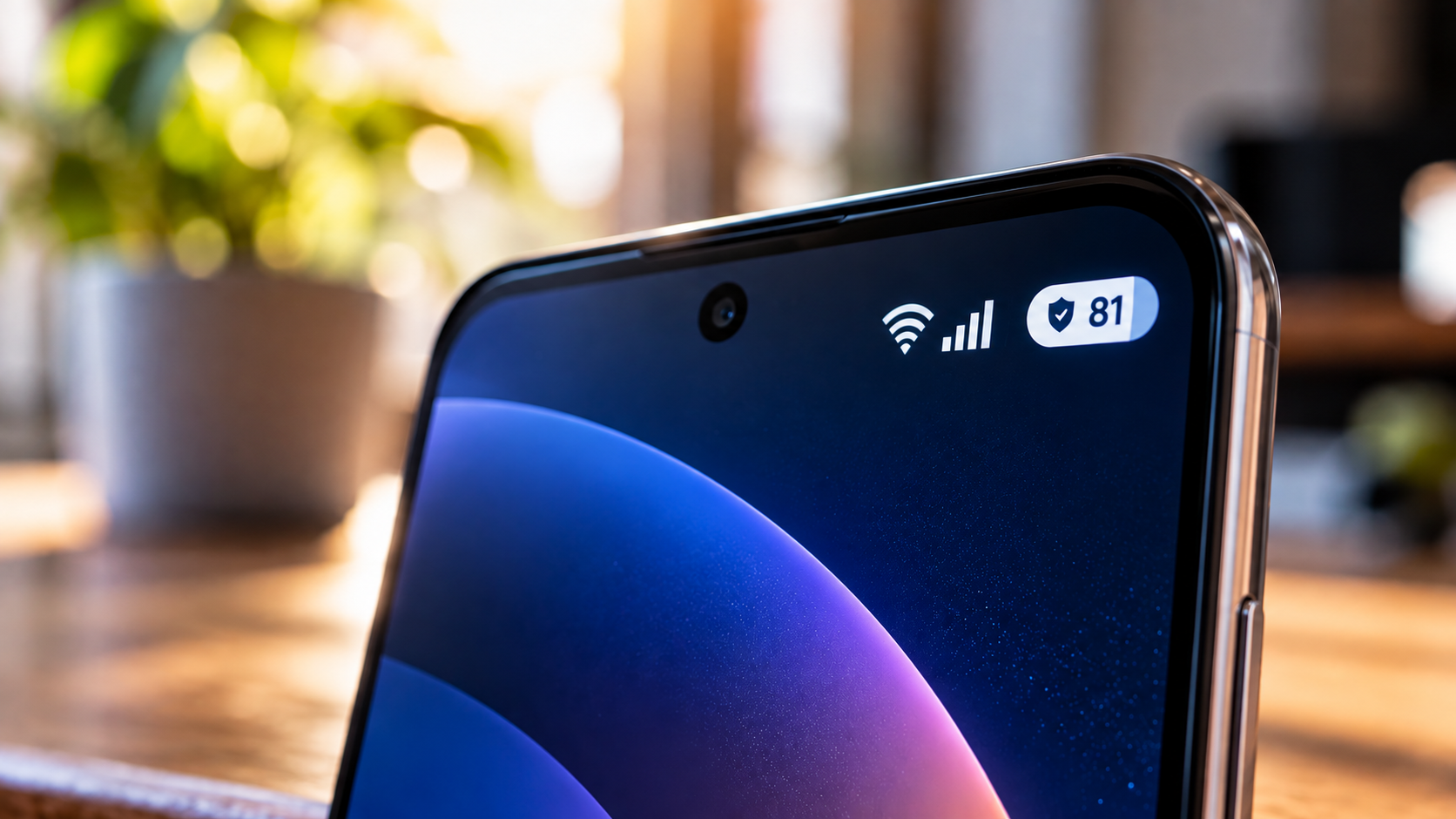
What Does The Shield In The Battery Icon Mean On A Samsung Phone?
Seeing a new symbol in your Galaxy status bar can be confusing. If you notice a shield in the battery icon, it usually relates to Samsung’s battery protection feature. It does not, by itself, mean that your phone has malware or a security problem.
Samsung uses Battery Protection to manage charging and reduce the time your battery spends at high charge levels. Depending on your Galaxy model and One UI version, the feature can stop charging at a set level or adjust charging around your sleep schedule. Samsung says these features are designed to help reduce battery wear over time.
Samsung also provides guidance on battery protection and charging behavior for Galaxy devices. The available settings can differ depending on your phone model and One UI version, so checking Samsung’s official Battery Protection guide can help you identify which options are available on your device.
The exact icon and charging behavior can vary between devices. This guide explains what the shield in the battery icon means, why it appears, and how to manage Battery Protection. It also explains why other shield symbols may appear elsewhere on your Samsung phone.
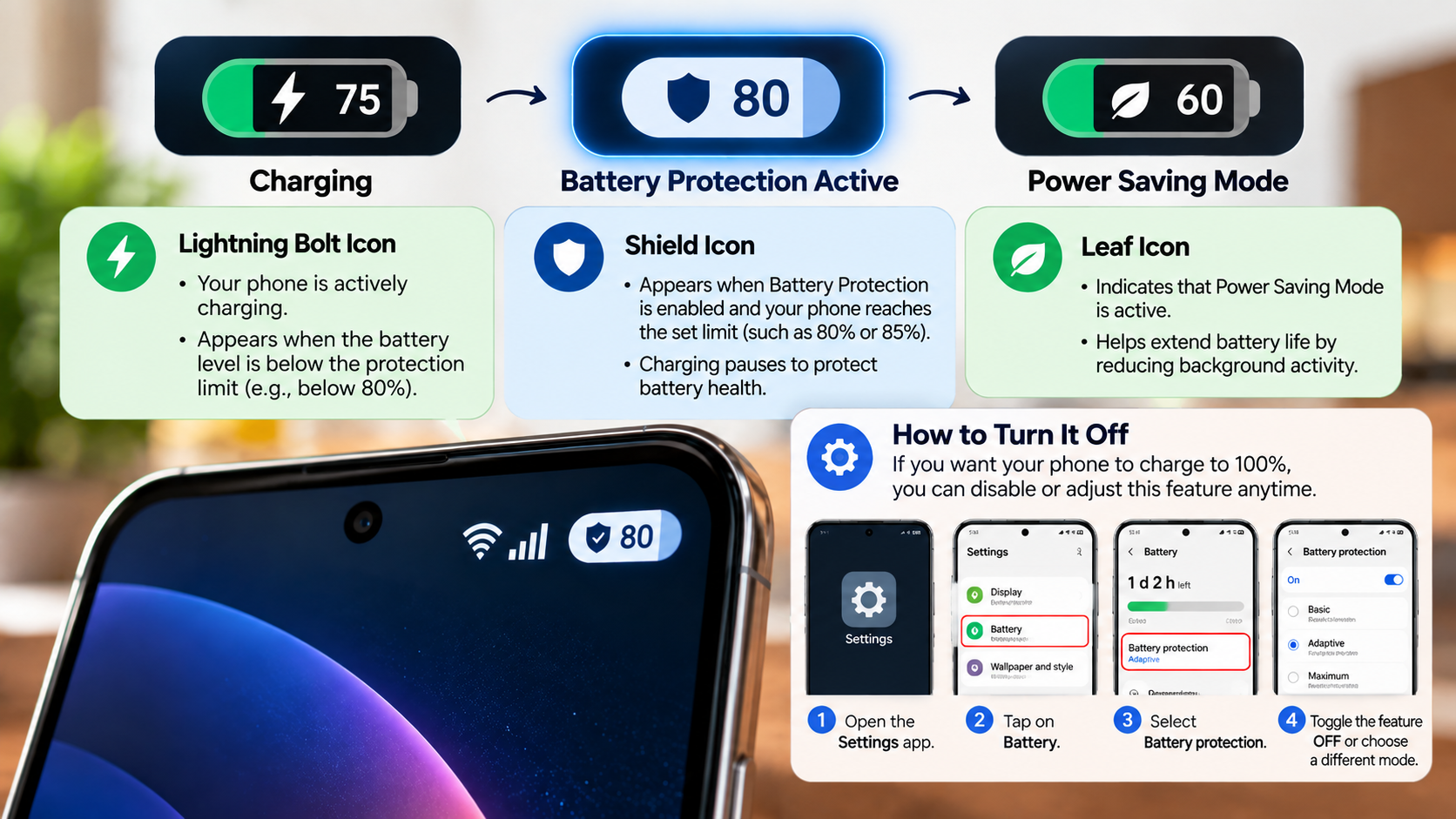
Why Is There a Shield on My Battery Icon?
A shield on your battery icon usually indicates that Battery Protection is active. Samsung displays battery protection information in places such as the status bar, lock screen, Always On Display, notifications, and Battery settings.
The feature manages charging to help protect the battery from prolonged high charge levels. On supported Galaxy phones, the available options can include Basic, Adaptive, and Maximum. Their exact behavior depends on your phone and One UI version.
For example, on devices running One UI 6.1, Maximum mode stops charging at 80%. Adaptive mode uses a higher protection level while you sleep and switches back before you wake. Basic mode allows charging to 100%, then pauses charging until the battery drops to about 95%.
Older Galaxy devices may instead use a simple 85% charging limit. Samsung also changed some battery protection options in newer One UI releases.
How Software Updates Can Trigger This Symbol
A One UI update can change how Samsung displays battery and charging information. It can also introduce newer Battery Protection options on supported Galaxy devices. This may make a shield or another battery indicator appear after an update. Similar changes can also affect how much power other Samsung features use, such as the Always-On Display.
However, an update does not necessarily mean Samsung has secretly activated the feature. Battery settings can vary by model, software version, region, and device configuration. Samsung specifically notes that battery charging features can differ between Galaxy models.
If the shield appeared after updating your phone, first check your Battery settings. Open Settings > Battery and look for Battery protection. On some devices, the option may also appear through Device care.
You can then check which protection mode is selected. If your phone uses Maximum mode, charging may stop at the configured limit. Newer Samsung software can also provide additional charging limits, depending on the device.
This makes the shield a useful status indicator rather than an error message. If your phone charges normally according to the selected protection mode, there is usually no reason to treat the icon as a fault.
What Is the Protect Battery Feature on Samsung?
Samsung’s Battery Protection feature is software that manages how your Galaxy phone charges. Its purpose is to reduce battery wear by changing how the phone handles charging, especially when the device would otherwise remain at a high charge level for long periods.
The available modes depend on your Galaxy model and One UI version. On supported devices running One UI 6.1, Samsung introduced Basic, Adaptive, and Maximum options. Maximum mode stops charging at 80%, while Adaptive mode adjusts charging around your estimated sleep schedule. Basic mode charges to 100% and then pauses until the level falls to about 95%.
Older devices may have a simpler Protect Battery setting that limits charging to 85%. Newer software can provide more flexible limits.
Battery Protection does not repair an old battery. Instead, it changes charging behavior to help reduce unnecessary battery stress over time.
Protecting Battery Health Over Long Ownership
Keeping a lithium-ion battery at a very high charge level for long periods can contribute to battery aging. Samsung therefore provides charging controls that can reduce the amount of time a Galaxy battery remains fully charged. If you want to understand another common charging concern, see whether fast charging can ruin your phone battery.
The benefit depends on how you use your phone. Someone who regularly charges overnight may prefer an adaptive or maximum protection setting. Someone who needs maximum battery capacity throughout the day may prefer a less restrictive mode.
Samsung’s newer Battery Protection system gives users several choices:
- Basic: Charges to 100%, then pauses until the battery falls to about 95%.
- Adaptive: Uses stronger protection during sleep and resumes normal charging before the expected wake-up time.
- Maximum: Stops charging at the selected protection limit on supported versions.
The available limits can differ by software version. Samsung’s current guidance also notes that newer One UI versions can offer selectable limits such as 80%, 85%, 90%, or 95% in Maximum mode.
This means there is no single Battery Protection setting that fits every Galaxy owner. Your charging habits should determine which option is most useful.
What Is the Little Shield on the Icon?
The little shield on the battery icon is generally connected with Samsung’s Battery Protection indicator when it appears as part of the battery status display. Samsung says Battery Protection information can appear directly in the status bar while charging is limited. Understanding other charging technologies can also help explain why some phones use different power-management features, including bypass charging.
The important detail is the shield’s location. A shield connected to the battery indicator can relate to charging protection. A shield shown somewhere else may have a completely different purpose.
Samsung uses different status indicators for features such as security, VPN connections, power saving, data saving, and other system functions. The meaning depends on the icon design and where it appears. Samsung also notes that available status icons can vary by device and service provider.
Therefore, do not assume that every shield-shaped symbol on a Galaxy phone means Battery Protection. Check the surrounding icon and your current settings before changing anything.
If the shield appears with a charging limit, check Settings > Battery > Battery protection. That should help confirm whether charging protection is responsible for the indicator.
Recognizing Different System Status Badges
Status bar icons provide quick information about what your Samsung phone is doing. However, similar-looking symbols can represent different functions.
For example, Samsung’s indicator guide includes icons for battery charging, battery level, Power saving mode, Data saver, VPN connections, mobile hotspots, and other services. Some indicators only appear after opening the notification panel. The exact appearance can also differ between Galaxy models.
Use the icon’s position and context to identify it correctly. A symbol attached to the battery indicator is more likely to relate to battery status. A symbol near the network or connection indicators may represent another service.
If you are unsure, open the notification panel and check for a related notification. You can also review Battery settings to see whether Battery Protection is enabled.
This approach is safer than disabling random settings. The shield itself is normally informational. If the phone is charging according to the selected protection mode, the icon does not indicate a battery failure.
Why Is There a Shield Icon on My App?
A shield icon displayed on or near an app does not necessarily have the same meaning as the shield in your battery icon. On Samsung phones, shield-style indicators can relate to security features, managed applications, or protected environments. The exact meaning depends on where the symbol appears and which software feature created it.
For example, Secure Folder uses Samsung Knox security technology to protect content and applications placed inside the protected environment. Work or school devices can also have management features that add security-related indicators.
This means you should not assume that every app with a shield is inside Secure Folder. The same visual idea can be used for different security functions.
If you see a shield on a specific application, check whether that app is inside Secure Folder or whether your device has a work profile or management system enabled. These features can keep certain data or applications separate from the rest of the phone.
The battery shield and an app-related shield should therefore be treated as separate indicators unless your device specifically connects them.
How Samsung Knox Isolates Your Personal Data
Samsung Knox provides security features that help protect sensitive information on compatible Galaxy devices. One example is Secure Folder, which creates a protected space for selected applications and personal content. Samsung’s broader ecosystem also includes features designed to extend the useful life of its devices, including guidance on replacing a Samsung tablet battery when its battery has significantly degraded.
You can place supported apps and files inside Secure Folder and protect access using an authentication method. This can help keep those items separate from your normal phone environment.
The exact features available depend on your Galaxy model and software. Secure Folder is also different from Battery Protection. Battery Protection manages charging behavior, while Knox-related features focus on device and data security.
That distinction matters when troubleshooting a shield icon. If the symbol appears beside the battery indicator, first investigate Battery Protection. If it appears alongside an application or protected workspace, investigate Secure Folder or another security feature instead.
You should also avoid removing security features simply because you see a shield. A security indicator does not automatically mean something is wrong. In many cases, it confirms that a protection feature is active.
Checking the relevant settings is the easiest way to identify what the shield represents before making changes.
How Do I Remove the Shield Icon?
If the shield in your battery icon is connected to Battery Protection, you can usually change or disable the feature from your Battery settings. Open Settings, tap Battery, and then select Battery protection. Depending on your Galaxy model, you may see a switch or several charging options. If your phone has a physical charging problem instead, such as a loose charging port, the solution will be different.
If you turn Battery Protection off, your phone can charge to 100% when supported by the device. Samsung confirms that disabling the feature allows full charging on models where the protection setting limits charging.
Keep in mind that menu names and available options vary between Galaxy models and One UI versions. Some devices may show Protect battery instead of Battery protection.
If the shield belongs to an app or protected environment, disabling battery settings will not remove it. You may instead need to check Secure Folder, a work profile, or another device-management feature.
Restoring Your Standard Full-Capacity Charging
If you need the maximum available battery capacity for a long day, you can change the Battery Protection setting. Go to Settings > Battery > Battery protection and select the charging behavior available on your device.
On some Galaxy phones, turning the feature off allows charging to 100%. On others, you can select a less restrictive protection mode instead. The available choices depend on the One UI version and device model.
Before disabling protection permanently, consider how you normally charge your phone. If your phone spends many hours connected to a charger, a protection mode may better match Samsung’s battery-care approach.
You can change the setting whenever your needs change. For example, you might use a higher protection level during normal days and choose a less restrictive setting before extended travel.
If the shield remains after changing Battery Protection, restart the phone and check the setting again. If the icon still appears, confirm whether it is actually part of the battery indicator. It may represent another status feature.
The key point is simple: the shield in the battery icon usually indicates battery protection, not malware or a damaged battery.