How to Tell If Your MacBook Has a MagSafe Charging Port
Learning how to tell if your MacBook has a MagSafe charging port can help you choose the right charger and cable. Apple has changed its Mac charging standards across different generations. To identify the ports on your specific Mac, check Apple’s official guide to identifying the ports on your Mac.
MagSafe uses a magnetic connector instead of relying on a tight friction fit. Apple introduced the technology, removed it from several models, and later brought it back.
This guide explains how to identify a MagSafe port and charger. You will also learn which MacBooks support MagSafe. We cover USB-C charging, fast charging, sleep versus shutdown, and MagSafe’s history.
How to Check for a MagSafe Charger?
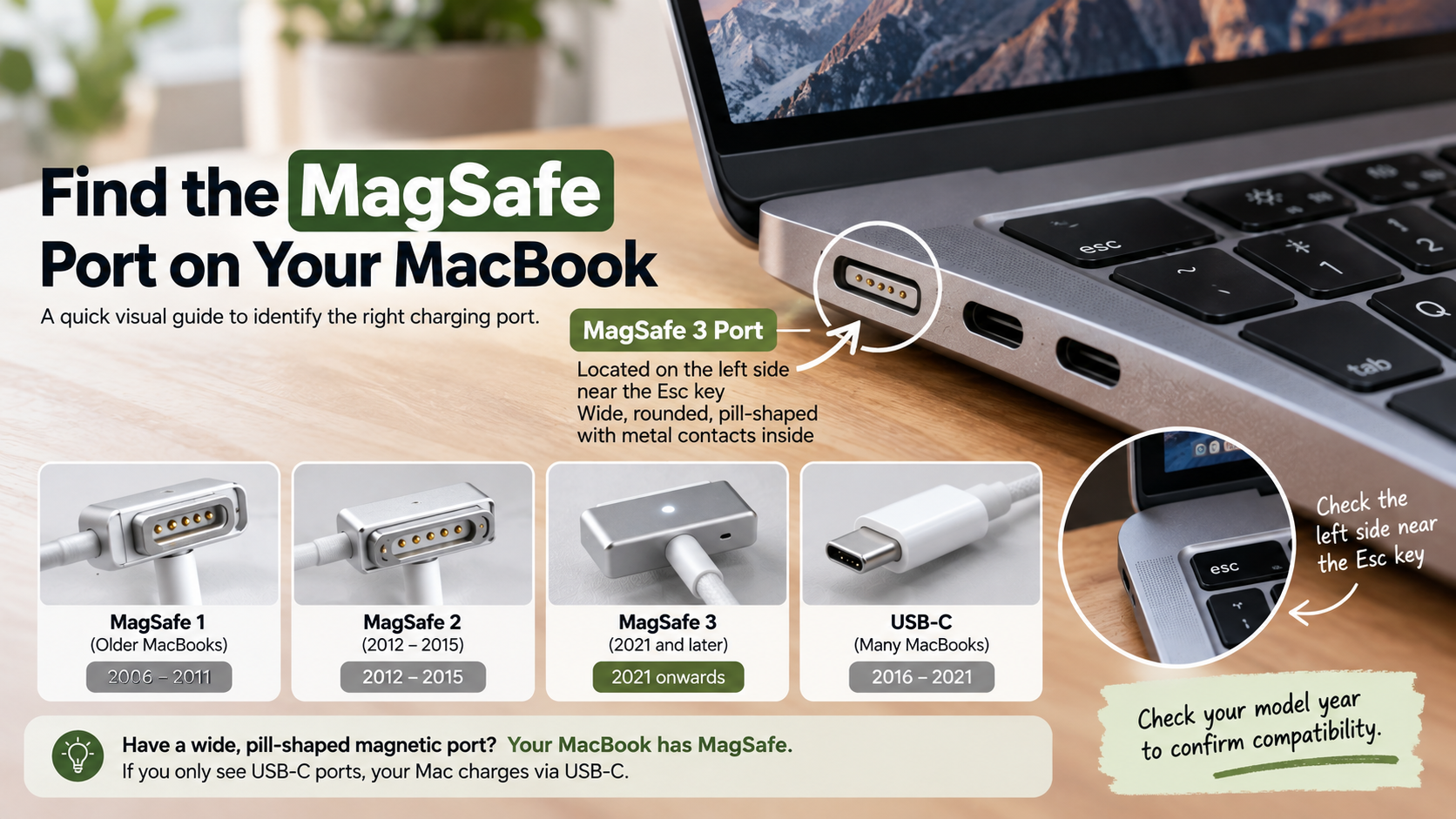
You can identify a MagSafe charger by checking its connector and physical design. The connector attaches magnetically to the MacBook instead of sliding into a standard USB-C port. If you have noticed a larger block on your laptop charging cable, you can also learn why laptop chargers have a box in the middle of the cable.
Older MagSafe 1 connectors have a thicker, T-shaped design. MagSafe 2 is thinner and wider. MagSafe 3 uses a slimmer connector with a detachable USB-C-to-MagSafe cable.
The light shows the charging status when connected to a compatible MacBook.
Look at the charging port on your MacBook’s side. A MagSafe port has a dedicated magnetic opening. USB-C ports are rounded rectangles and accept many different accessories.
You can also check your MacBook model in macOS. Open Apple menu > About This Mac and note the model name and year. Then compare it with Apple’s specifications.
When checking a charger, look for these features:
- Magnetic attachment to the MacBook.
- A dedicated MagSafe connector.
- A charging-status LED on MagSafe 3.
- The correct wattage for your MacBook model.
- A compatible Apple or certified replacement cable.
If you are unsure, checking the exact model is the safest way to tell if your MacBook has a MagSafe charging port.
Are All MacBook Chargers MagSafe?
No, not all MacBook chargers use MagSafe. Apple has used both proprietary magnetic connectors and USB-C charging across different MacBook generations.
The 12-inch MacBook introduced USB-C charging without a separate MagSafe port. Later MacBook Air and MacBook Pro models also moved to USB-C charging. If you want to understand how USB-C fits into the wider USB standard, you can explore why some USB ports are color-coded and USB-C isn’t.
Apple later brought magnetic charging back with newer MacBook models. However, some MacBooks still charge through USB-C alone. This means the charger you own does not always identify your MacBook’s charging system.
The easiest way to tell if your MacBook has a MagSafe charging port is to inspect the chassis. Look for a dedicated magnetic charging slot separate from the USB-C or Thunderbolt ports.
You can also identify your exact model through About This Mac. Apple lists the model name and other hardware information there.
Remember these key differences:
- MagSafe: Uses a magnetic charging connector.
- USB-C: Uses a standard reversible physical connector.
- Thunderbolt: Can support charging, data, and display connections.
- MagSafe 3: Appears on several newer Apple silicon MacBooks.
Therefore, verify your specific MacBook model before buying a replacement charger.
Should You Shut Down a Mac Every Night?
You generally do not need to shut down your Mac every night. Modern macOS systems are designed to enter low-power sleep states when you stop using them.
Sleep lets you quickly return to your previous workspace. Your Mac can also perform certain background tasks while sleeping. This makes sleep more convenient for normal daily use.
A full shutdown is still useful in certain situations. Restarting or shutting down can help after software problems or system updates. It can also be useful when you will not use the Mac for an extended period.
For everyday use, choose sleep when you plan to return soon. Shut down the Mac when it will remain unused for a longer period.
A simple approach is:
- Sleep: Use it between normal work sessions.
- Restart: Use it after updates or when troubleshooting.
- Shut down: Use it before extended storage or travel.
- Long-term storage: Shut down and follow Apple’s storage guidance.
There is also no need to shut down solely to protect the battery. Battery health depends more on charging habits, temperature, and usage patterns.
Keeping your Mac plugged in constantly is not automatically harmful either. Modern macOS includes battery-management features designed to reduce unnecessary charging.
Is It Better to Charge With MagSafe or USB-C?
Neither charging method is universally better. The right choice depends on how you use your MacBook and which ports you need. Your charging routine can also affect long-term battery care, so it is worth understanding the 80-20 rule for rechargeable batteries.
MagSafe has one major advantage: its magnetic connector can detach when pulled. This reduces the chance of dragging the MacBook off a desk. It also leaves the USB-C or Thunderbolt ports available for other accessories.
MagSafe 3 can support high charging power on compatible MacBook Pro models. The exact charging speed depends on the MacBook model, adapter, cable, and battery conditions.
USB-C offers greater flexibility. You can use compatible chargers, docks, displays, power banks, and other USB-C accessories.
Consider these differences:
- MagSafe: Convenient magnetic attachment and breakaway protection.
- USB-C: Broad compatibility with modern accessories.
- MagSafe 3: Supports fast charging on compatible models.
- USB-C: Can combine charging with data and display connections.
You can often use either method on MacBooks that support both. However, the supported power level varies by model.
If you want a dedicated magnetic connection, MagSafe can be convenient. USB-C remains useful when you want one charger for several devices.
Why Was MagSafe Discontinued?
Apple removed MagSafe from several MacBook models as it moved toward USB-C and Thunderbolt connectivity. The change became especially visible when redesigned MacBooks adopted USB-C ports for charging and other functions.
USB-C offered more than power delivery. A single port could support charging, data transfer, and external displays. This gave Apple greater flexibility when designing thinner notebooks with fewer dedicated connections.
The change also created trade-offs. Users lost the magnetic breakaway feature that could disconnect the charger during an accidental pull.
Apple eventually brought magnetic charging back. In 2021, the redesigned MacBook Pro introduced MagSafe 3. The MacBook Air also returned to MagSafe charging with newer designs.
MagSafe 3 combines the familiar magnetic connection with a modern charging system. It does not replace USB-C completely. Instead, compatible MacBooks can offer both charging options.
The history can be summarized simply:
- Earlier MacBooks: Used MagSafe 1 or MagSafe 2.
- USB-C transition: Several models switched to USB-C charging.
- 2021 onward: Apple began restoring MagSafe with MagSafe 3.
- Current designs: Some MacBooks offer both MagSafe and USB-C charging.
This history explains why MacBook charging ports differ between generations. Checking the exact model remains the safest way to identify the correct charger.