
Understanding the Clear Cache and Clear Data Difference on Your Smartphone
When your smartphone slows down or runs low on storage, app settings can help. Two options often appear together: Clear Cache and Clear Data. They sound similar, but they perform very different tasks.
Understanding the clear cache and clear data difference helps you troubleshoot apps safely. Cache files contain temporary information that helps apps load faster. App data stores settings, accounts, databases, and other information needed for normal use.
Choosing the wrong option can create unnecessary problems. Clearing cache is usually a safe first step for minor issues. Clearing data is much more powerful and can reset an app completely.
According to Google Support, managing app storage correctly can resolve unexpected app crashes and performance bottlenecks.
This guide explains what happens when you clear cache and data. It also covers when to clear storage, how app data differs from cache, and whether either option can delete your personal files.
What Happens If I Clear Data and Cache?
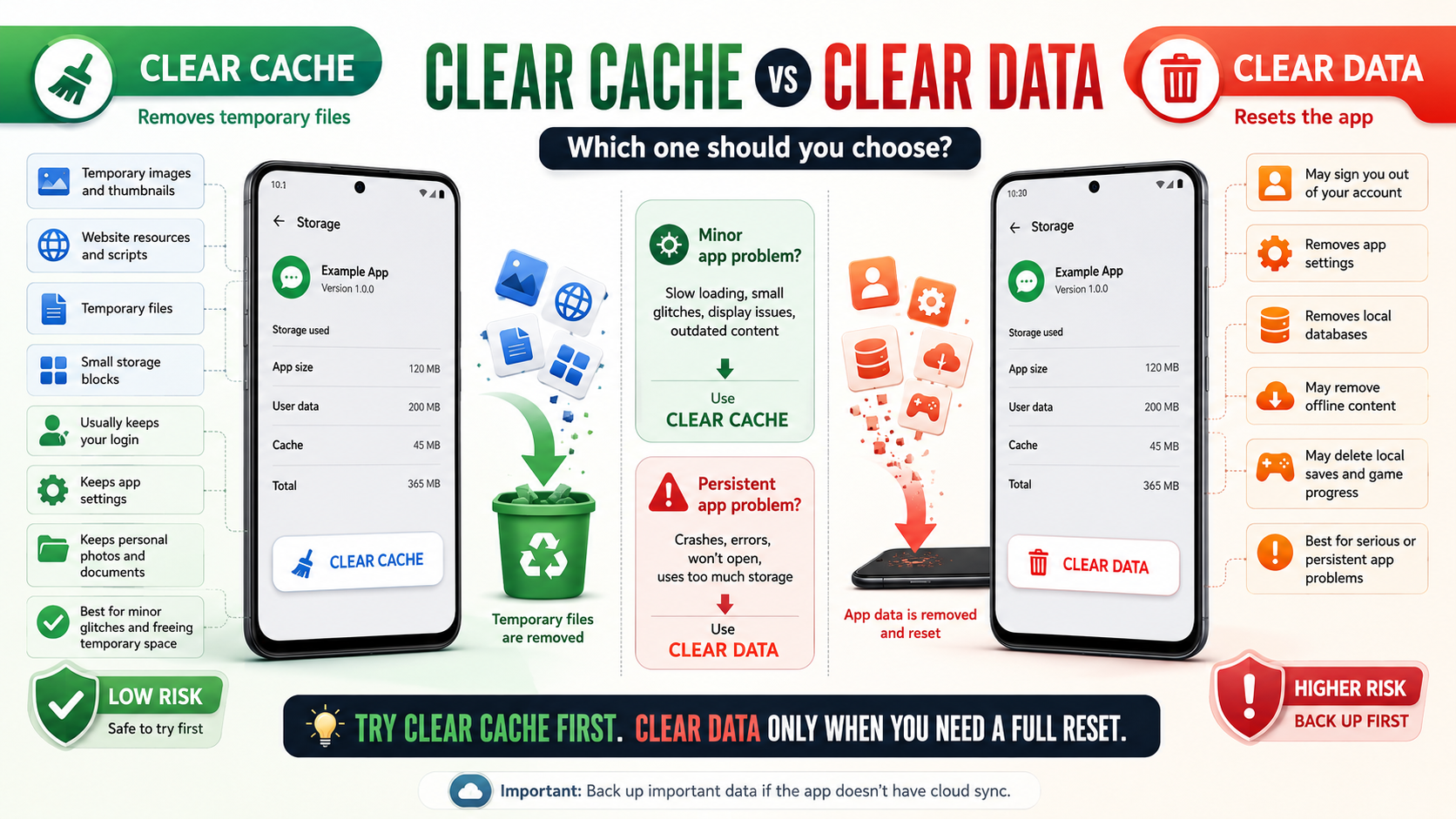
Clearing cache and clearing data affect an app in different ways. Clearing cache removes temporary files, while clearing data removes information stored by the app for your personal setup.
Cache may include thumbnails, temporary images, scripts, and other files. These files help an app load content faster. Removing them does not normally delete your photos, documents, or downloaded files.
Clearing data is much more extensive. It can remove your account settings, preferences, local databases, and offline content. The app itself usually remains installed, but it returns to a fresh state.
After clearing data, you may need to:
- Sign in to your account again.
- Restore personal settings and preferences.
- Re-download offline content.
- Restore locally stored game progress, if no backup exists.
For this reason, clear cache is the safer first option when troubleshooting minor app problems. Use clear data only when a deeper reset is necessary.
Why Temporary Files Quickly Rebuild Themselves
Cache files naturally return after you use an app. That happens because applications create temporary files to improve performance and reduce loading times.
For example, a video app may cache thumbnails and frequently accessed images. A browser may store temporary website resources. Removing these files does not stop the app from creating them again.
This means clearing cache provides a temporary storage boost, rather than a permanent storage solution. The available space may increase immediately after the cleanup. However, the cache can grow again as you continue using the app.
You do not need to clear cache regularly just because it exists. Modern Android devices generally manage temporary storage automatically. Manual cache clearing is more useful when an app behaves incorrectly or its cache becomes unusually large.
Clearing cache can help when you notice:
- Slow loading inside one specific app.
- Display problems or outdated content.
- Minor app glitches.
- Unexpected app behavior after an update.
- Unusually large temporary storage usage.
If the same problem continues after clearing cache, a deeper reset may be appropriate. That is where clearing app data becomes useful.
Which Is Better, Clear Storage or Clear Cache?
The better option depends on the problem you are trying to solve. Clear cache is designed for temporary files, while clear storage or clear data resets the app’s stored information.
If an app freezes, crashes, loads incorrectly, or behaves strangely, clearing its cache is usually the best first step. It removes temporary files without normally affecting your account or personal settings.
Clear storage is more aggressive. It removes the app’s stored data and returns it to a near-fresh state. This can solve persistent problems that cache clearing cannot fix.
Choose clear cache when you want to:
- Remove temporary files.
- Troubleshoot minor app problems.
- Free a small amount of storage.
- Keep your account and preferences intact.
Choose clear storage when you need to:
- Reset an app completely.
- Remove corrupted local data.
- Fix persistent app problems.
- Reclaim substantial app storage.
Before clearing storage, check whether important information is backed up. Local game saves, offline files, and app-specific settings may not be recoverable afterward, making how to safely upgrade to Windows 11 without losing data a related example of why backups matter before making major changes.
Choosing Full Resets for Persistent App Glitches
If clearing cache does not solve an ongoing app problem, clearing storage can provide a deeper reset. This process removes the app’s locally stored information and restores its initial setup state.
You may need to sign in again after the reset. You may also need to change preferences, download offline content, or recreate custom settings.
Clearing storage can help when an app:
- Crashes every time you open it.
- Remains stuck after an update.
- Uses an unusually large amount of storage.
- Shows persistent errors.
- Continues behaving incorrectly after cache removal.
However, clearing storage should not be your first response to every minor glitch. It can remove useful local information, so use it carefully.
Before choosing this option, look for cloud backups or account synchronization. Some apps automatically store important information online. Others keep certain files only on your device.
The clear data option is essentially an app reset. It does not normally uninstall the application itself. Instead, it removes the information the app has accumulated for your account and local configuration.
What Is Clear Cache and Clear Data?
Clear cache and clear data are Android storage-management options. They control different types of information saved by individual applications.
Clear cache removes temporary files created during normal app use. These files can include cached images, temporary resources, and other data used to speed up loading.
Clear data removes the app’s stored information. Depending on the application, this can include preferences, local databases, account information, downloaded content, and saved states.
The exact information removed depends on the app. Some applications store important content online, while others keep certain information locally.
A simple way to remember the difference is:
- Clear cache = remove temporary files.
- Clear data = reset stored app information.
Clearing cache is generally the lower-risk troubleshooting option. It can help resolve small performance or display issues without changing your app setup.
Clearing data is more drastic. It can make an app behave as though you are opening it for the first time.
Always check what an app stores locally before clearing its data. This is especially important for games, messaging apps, note-taking tools, and apps with offline content.
The Permanent Impact of Erasing App Databases
App data contains the information that allows an application to remember your preferences and local activity. Removing that data can therefore have a much larger impact than clearing cache.
Depending on the app, stored data may include local databases, account settings, offline maps, downloaded content, chat history, saved preferences, or game progress.
Once this information is removed, recovery may not be possible. That depends on whether the app synchronizes your information with a cloud account or another backup service, so understanding how hackers steal data can also help you recognize why protecting stored information matters.
Before clearing app data, consider these steps:
- Confirm that important information is backed up.
- Check whether the app syncs with an online account.
- Make sure you remember your login details.
- Check whether offline content can be downloaded again.
- Verify that important game progress is synchronized.
The app package itself usually stays installed. However, its locally stored information is reset.
This makes clear data useful for serious troubleshooting, but it also makes it a higher-risk option. If you only need to remove temporary files, clearing cache is usually enough.
Is Clear App Data the Same as Clear Cache?
No. Clear app data and clear cache are not the same function. Both options manage information stored by an application, but they remove different types of files.
Clearing cache targets temporary information. Apps can recreate these files when needed. That is why cache clearing usually has little effect on your personal setup.
Clearing app data removes information that the application uses to remember your configuration. This may include preferences, local databases, saved sessions, downloads, and other app-specific information.
The easiest comparison is to think of cache as temporary workspace. App data is closer to the application’s personal storage for your account and settings.
Clearing cache is generally suitable for minor problems. Clearing data is better suited to persistent problems that require a full reset.
Neither option is exactly the same as uninstalling the app. When you clear data, the application remains installed on your phone. However, it may behave like a newly configured app.
Because the consequences differ, do not select clear data simply because an app is using storage. Check what information the app stores first. This can help prevent accidental loss of local content.
Understanding How Storage Buttons Affect App Memory
Understanding how Android storage works makes the clear cache and clear data difference easier to remember. Apps typically use several types of storage for different purposes.
Cache contains temporary resources. These files help apps load frequently used content faster. They can usually be removed safely because the app can recreate them.
App data is more important. It can contain user preferences, databases, downloaded resources, login information, and other local files. Removing this information can reset the application’s behavior.
The amount of storage used by each category can vary greatly. A streaming app may build a large cache, while a productivity app may store more permanent data.
Before clearing either category, check the storage breakdown in your phone’s settings. This can show whether the problem comes from temporary files or stored app information.
A practical approach is simple:
- Check the app’s storage usage.
- Clear cache if temporary files are the main issue.
- Test the app again.
- Clear data only if the problem continues.
- Restore backups or settings when necessary.
This approach limits unnecessary data loss while still giving you a useful troubleshooting path.
Is It Better to Clear Data or Cache?
For most minor app problems, clearing cache is the better first choice. It removes temporary files while preserving most of the app’s important information.
Cache clearing can help when an app feels slow or displays outdated content. It can also help resolve minor glitches caused by corrupted temporary files.
Clearing data is appropriate when the problem is more serious. It resets the app and removes locally stored information. You may then need to sign in again and configure the app from scratch.
Use cache clearing when you want a light cleanup. Use data clearing when you need a complete app reset.
A simple decision guide can help:
- App is slightly slow: Try clearing cache.
- App displays incorrect temporary content: Try clearing cache.
- App keeps crashing: Clear cache first, then consider data.
- App will not open correctly: Consider clearing data after checking backups.
- App uses excessive storage: Review its cache and data before deleting anything.
- You want a complete reset: Clear data after confirming important information is backed up.
The safest approach is to start with the least destructive option. If cache clearing does not help, move to a deeper reset only when necessary.
When Deep Resets Outperform Simple Cache Cleanups
A deep reset can be useful when an app continues to malfunction after simpler troubleshooting steps. Clearing data removes the app’s locally stored information and gives it a fresh configuration.
This can help when corrupted settings or local databases are causing repeated crashes. It may also help when an app becomes unusually large because of accumulated local content.
However, clearing data comes with trade-offs. You may lose local settings, offline files, downloaded content, or game progress. You may also need to sign in again.
Before performing a deep reset, confirm that important information is synchronized or backed up. If the app supports cloud storage, make sure the latest version of your information has synced.
After clearing data, open the app and configure it again. Sign in when required, restore settings, and download necessary offline content.
Think of the process as a troubleshooting ladder:
- Restart the app.
- Check for updates.
- Clear the cache.
- Test the app again.
- Back up important information.
- Clear data if the issue remains.
This method avoids unnecessary resets. It also gives you a safer way to resolve stubborn application problems.
Frequently Asked Questions About Clear Cache and Clear Data
What does clearing cache do to my photos or downloads?
Clearing your cache does not touch personal photos, downloaded files, or saved documents. It only deletes temporary internet files and cached interface assets designed to speed up loading times. Your personal media remains completely safe and untouched during a cache wipe.
Do I need to log back in after clearing cache?
You do not need to log back into your accounts after clearing the cache. Your session tokens and login cookies stay active because they are stored separately from temporary cache files. You can clear cache freely without disrupting your active app logins.
Will clearing app data delete my game progress?
Clearing app data will erase local game progress if the game does not back up your saves to the cloud. Modern games linked to Google Play Games, Apple Game Center, or external servers restore your progress automatically after logging back in.
How often should I clear my app cache?
You should clear your app cache only when your phone runs low on storage or specific apps start lagging. Operating systems manage temporary files automatically, so routine manual cache clearing is rarely necessary for modern smartphones to function well.
Conclusion
Understanding the clear cache and clear data difference helps you manage smartphone storage without unnecessary data loss. The two options may appear together, but they serve very different purposes.
Clearing cache removes temporary files. It is usually the safer choice for minor glitches, slow loading, or outdated app content. Your personal settings and account information generally remain intact.
Clearing data provides a deeper reset. It removes locally stored app information, which can include preferences, databases, offline content, and saved progress. Because this process can cause data loss, confirm your backups before using it.
A simple rule can make the choice easier: clear cache first, and clear data only when a deeper reset is needed.
Use these options based on the problem you are trying to solve. This approach can help you free storage, troubleshoot apps, and avoid accidental loss of important local information.