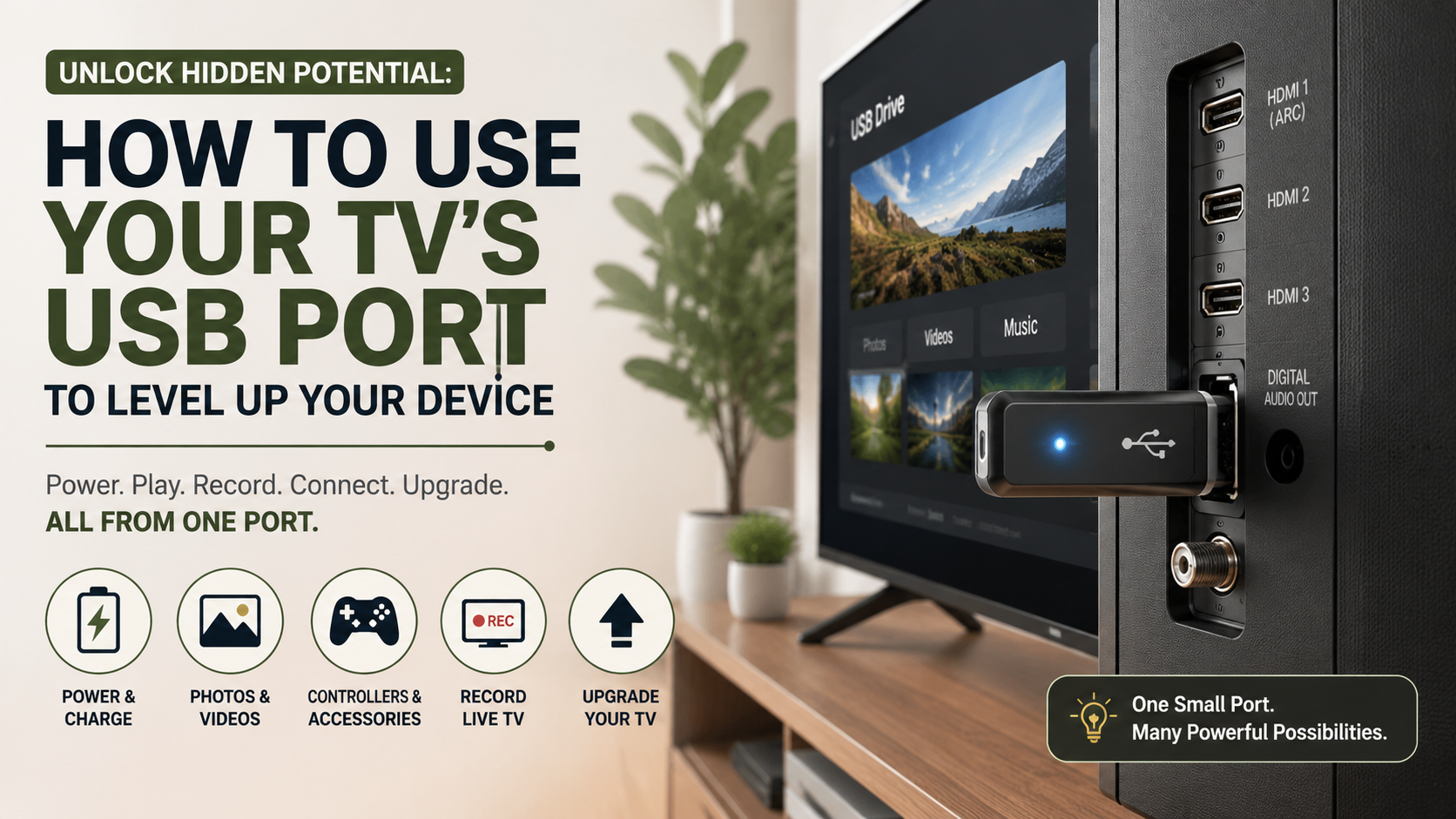
Unlock Hidden Potential: How to Use Your TV’s USB Port to Level Up Your Device
Have you ever looked at the back or side of your television and wondered what that small slot is for? Most people either use it to charge a device or ignore it completely. However, your TV’s USB port can offer several useful features for your home entertainment setup.
Depending on the television model, a USB connection can play media, provide power, support firmware updates, or connect compatible accessories. It can also help reduce cable clutter when powering certain streaming devices.
You can watch movies from a flash drive, browse photos, play music, or connect supported storage devices. Some televisions also support recording or time-shifting when compatible external storage is connected.
Modern TVs can pack several useful functions into their USB connections. Consumer Reports also covers the expanding capabilities found in modern televisions and their connections.
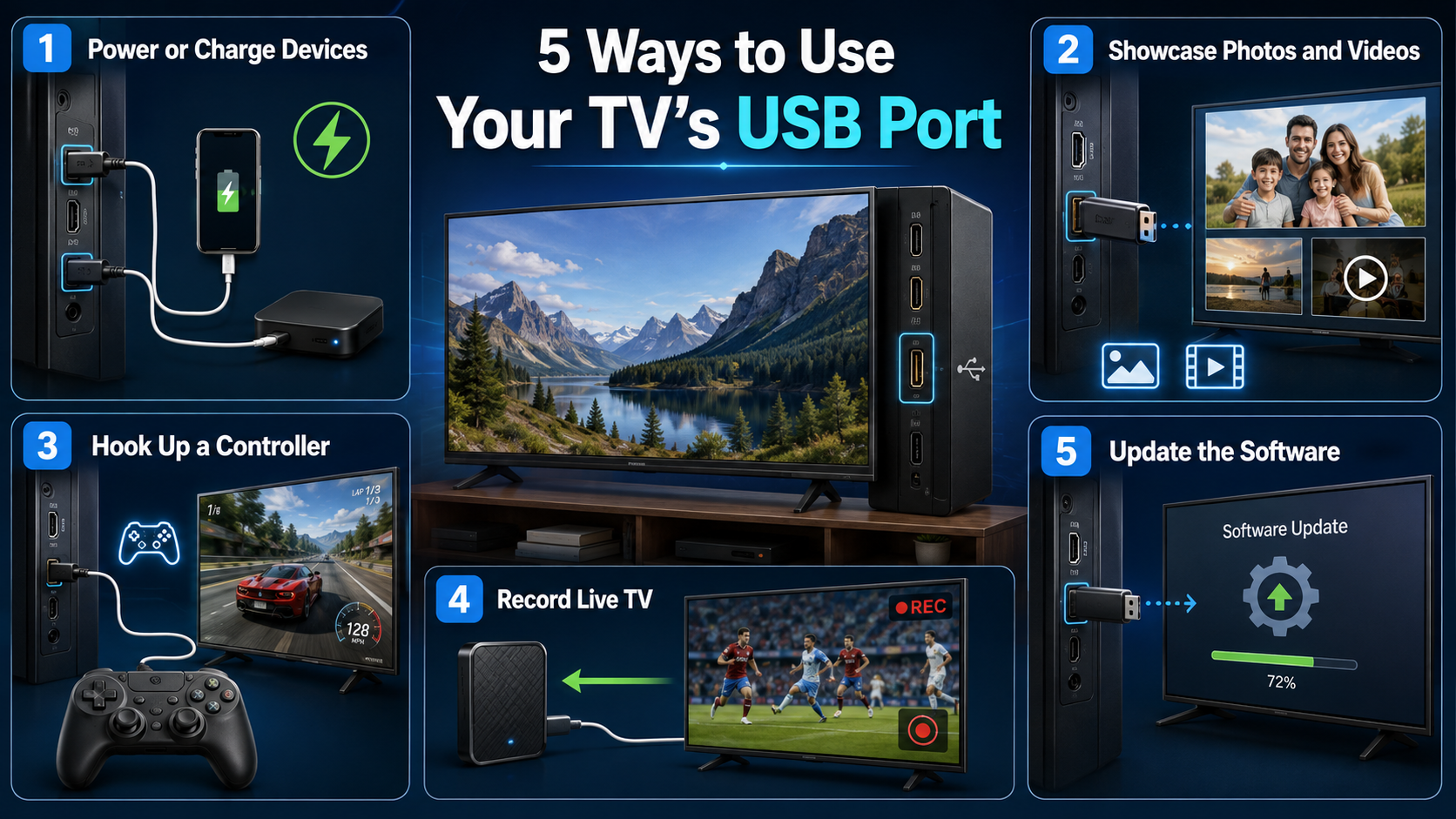
This guide answers five common questions about TV USB ports. You’ll learn how to use them, expand available connections, choose suitable storage formats, and power accessories. You’ll also discover how USB can support an upgrade for an older television.
1. Power or Charge Devices
One of the simplest uses for a TV’s USB port is supplying power. Many televisions can provide power to compatible low-power devices through their USB connections. This can help reduce the number of cables running to a nearby wall outlet.
You may be able to use the port for devices such as streaming accessories, LED lighting, or other USB-powered equipment. You can also connect some smartphones and other small devices for basic charging.
However, TV USB ports usually provide less power than dedicated wall chargers. Charging speeds can therefore be much slower.
USB power output also varies between television models. Some ports provide enough power for an accessory, while others may not.
Before powering a device, check its required voltage and current. If the device needs more power than the TV can provide, use its supplied wall adapter instead.
Never assume that every USB port on your TV provides the same output. The manufacturer’s specifications are the safest guide.
2. Showcase Photos and Videos
Your TV’s USB port can turn a simple flash drive into a convenient media library. If your television supports USB media playback, you can display photos and play compatible videos directly on the big screen.
Start by copying your photos or videos to a compatible USB drive. Insert the drive into the TV, then select the USB or media option using your remote.
Your TV should display supported folders and files. Select a photo to view it or choose a compatible video to start playback.
File compatibility depends on your television. The TV may support specific file systems, video containers, codecs, and audio formats.
For example, many TVs support common formats such as MP4 and H.264. However, support varies, so check your model’s specifications before transferring a large collection.
This feature can be especially useful for showing vacation photos, family videos, presentations, or downloaded media. It also eliminates the need to connect a laptop or other media player for basic playback.
3. Hook Up a Controller
Some modern televisions support USB controllers and gaming accessories. If your TV has compatible software or built-in gaming features, you may be able to connect a wired controller directly through its USB port.
Simply plug the compatible controller into the television’s USB connection. Your TV may recognize it automatically, or you may need to select an input or enable the accessory through its settings.
Compatibility varies considerably between television brands and operating systems. Some TVs support only specific controllers or USB accessories.
You can also use compatible USB keyboards and mice on certain smart TVs. These peripherals can make searching, browsing, and navigating apps easier.
If you plan to use a controller for cloud gaming or another gaming service, check whether your TV supports that controller. The gaming platform may also have its own compatibility requirements.
A USB connection can make your setup simpler by avoiding wireless pairing. However, a wired controller needs to remain connected to the TV while you use it.
Always check your TV’s supported accessories before purchasing a new controller.
4. Record Live TV
Some televisions can use a USB port for recording live TV. This feature allows you to connect compatible external storage and save supported broadcasts for later viewing.
The exact recording options depend on your TV, tuner, region, and broadcast system. Some models may support recording, pausing, or rewinding live television.
If your TV supports this feature, you may need to connect a USB flash drive or external hard drive. The television may also require you to format the storage device before recording.
Formatting can erase existing files, so back up important data first. Some TVs may also require a minimum storage capacity or a specific type of drive.
Recording restrictions can apply as well. Certain broadcasts may prevent recording because of copyright or broadcast protection rules.
Check your TV’s manual for supported storage devices and recording features. Do not assume that every USB port can record live TV.
When supported, USB recording can be useful for watching programs later. It can also provide convenient time-shifting features without requiring a separate recorder.
5. Update the Software
A TV’s USB port can also help install firmware or software updates. This can be particularly useful when your television cannot download an update through an internet connection.
Some manufacturers provide firmware files that can be copied to a USB drive. You then connect the drive to the TV and follow the on-screen update instructions.
The process differs between manufacturers. You must use the correct firmware version for your exact TV model.
Never install software intended for a different television model. Using an incorrect update can cause serious software problems.
You should also avoid turning off the television or removing the USB drive while an update is running. Interrupting the process could prevent the TV from starting correctly.
Before updating, read the manufacturer’s instructions carefully. Use a compatible USB drive and follow the required folder and file structure.
USB firmware updates are less common for everyday users than automatic online updates. Still, they provide a useful backup option when internet-based updating is unavailable.
Once the update finishes, remove the USB drive only when the TV tells you it is safe to do so.
How Do I Use the USB Port on My TV?
Using the USB port on your TV is usually simple once you know what the connection supports. Start by checking your television’s manual or specifications. Different models can assign different functions to their USB ports.
If your TV supports media playback, copy compatible movies, photos, or music to a USB flash drive. Insert the drive into the USB port, then press the Source, Input, or Home button on your remote.
Select the USB or media option from the available sources. Your television should then display folders and supported files. Select a file to start playback and use your remote to control it.
The supported file system and media formats vary by television. Some models support FAT32, exFAT, or other formats, while others have more limited compatibility.
USB ports can also support firmware updates or accessories on certain models. Always check the manual before connecting an unfamiliar device. This helps you avoid compatibility problems and ensures you use the port correctly.
Safely Ejecting Your Storage Device
Before removing a USB flash drive, stop playback and exit the media application. If your television provides an eject or unmount option, use it before disconnecting the drive.
Removing a storage device while it is actively reading or writing data can sometimes cause file corruption. It may also make the drive harder to access on another device.
A safe removal process only takes a few seconds. It is especially useful when your USB drive contains important photos, videos, or other files.
If your television does not provide an eject function, wait until playback has stopped before removing the drive. Avoid unplugging it while a file is loading or being transferred.
This simple habit helps protect your stored content and reduces unnecessary problems with the USB drive.
How to Increase USB Ports on TV?
Most televisions provide only one or two USB ports. That can become inconvenient when you want to connect several accessories at once. You might need a storage drive, LED lighting, or another compatible USB device.
A USB hub can potentially expand the number of available connections. However, your television must support USB hubs for this solution to work properly.
A powered USB hub can be useful when connected devices require more power. Instead of drawing all available electricity from the TV, the hub receives power from a separate wall outlet.
This setup can provide more stable power for compatible accessories. It can also reduce the need to repeatedly unplug devices from the television.
When choosing a hub, check your TV’s specifications first. USB 3.x can offer faster data transfer than older USB standards, but the TV and connected devices must support those speeds.
A hub also does not automatically give every connected device full functionality. The television’s operating system determines which accessories it can recognize.
For the best results, choose a compatible hub with enough ports and suitable power output. A powered model may be preferable for several connected accessories.
Choosing the Right USB Hub
Choosing the right USB hub for your TV depends on your television and connected devices. First, confirm that the TV supports USB hubs. Some models may recognize only specific accessories or may not support hubs at all.
A multi-port hub can be useful when you regularly connect several low-power devices. If your accessories require significant power, a powered hub is generally more practical.
Individual power switches can also make a hub easier to manage. You can turn specific accessories off without removing their cables.
Before buying, consider these factors:
- Compatibility: Check whether your TV supports USB hubs.
- Power: Choose enough power for your connected accessories.
- USB standard: USB 3.x may provide faster data transfers.
- Port count: Select enough connections for your setup.
- Cable length: Make sure the hub can reach your TV comfortably.
Remember that a hub cannot overcome limitations built into your television. If the TV does not support a particular USB device, adding a hub will not necessarily make it compatible.
What USB Format Should I Use for Watching Movies on My TV?
Choosing the right USB format for watching movies on your TV is important. Your television must recognize the drive before it can access your media files.
FAT32 is widely supported, but it has a major limitation. Individual files cannot exceed about 4 GB. This can make FAT32 inconvenient for large high-definition or 4K video files.
exFAT supports much larger individual files and works with many newer televisions. However, you should not assume that every TV supports exFAT. Compatibility varies between manufacturers and models.
Always check your television’s specifications before formatting a USB drive. Formatting usually erases the existing contents, so back up important files first.
The drive’s file system is only one part of media compatibility. Your TV must also support the video’s container, codec, and audio format.
MP4 with H.264 video and AAC audio is widely supported, but compatibility still varies. Some televisions also support MKV, HEVC/H.265, or other formats.
For reliable playback, check your TV’s supported formats before transferring your movie collection. This can prevent frustrating playback errors and unnecessary file conversions.
Checking Video Codec Compatibility
Even when your television recognizes the USB drive, a movie may still fail to play. The problem can come from an unsupported video codec, container, or audio format.
A file such as MP4 describes the container. The actual video and audio inside that container use separate codecs. Your TV needs to support both the video and audio formats.
H.264 is widely supported across many televisions. Newer models may also support H.265, also called HEVC. However, support can vary based on resolution, bitrate, audio format, and television model.
If a movie produces an error message, check your TV’s media specifications first. Converting the file to a supported combination can resolve compatibility problems.
Do not assume that every MP4 file will play automatically. Two MP4 files can use different codecs and produce different playback results.
For the smoothest experience, use formats listed in your television’s official specifications. This approach is more reliable than converting every file unnecessarily.
What Is the USB Port on the Back of My TV For?
The USB port on the back of your TV can serve several purposes. Its exact function depends on the manufacturer, model, and port label.
Some USB ports support media playback. You can connect a flash drive and play compatible movies, photos, or music directly through the television.
Other ports provide power to compatible accessories. Certain streaming devices, LED lighting products, and other low-power equipment may work through a TV USB connection.
USB ports can also support firmware updates. Some televisions allow users to install software updates from a flash drive when an internet connection is unavailable.
Certain models support external storage for features such as recording or time-shifting live broadcasts. These features depend on the TV’s software, tuner, region, and manufacturer restrictions.
Check the labels beside your TV’s USB connections. A port marked Service Only may be intended for maintenance or diagnostics rather than media playback.
Never assume that every USB port on the same television performs the same function. Your owner’s manual remains the best source for model-specific information.
Powering Smart Streaming Accessories
Using your TV’s USB port to power a streaming device can help create a cleaner entertainment setup. It may remove the need for a separate power adapter and reduce cable clutter.
However, USB power output varies between televisions. Some ports provide more power than others, so you should check the TV’s specifications before relying on USB power.
The streaming device must also support the available power level. If the connection cannot provide enough power, the device may restart, shut down, or behave unpredictably.
For this reason, do not assume that every streaming stick can run reliably from every TV USB port. Follow the streaming device manufacturer’s power requirements.
If the TV cannot provide sufficient power, use the supplied wall adapter instead. Stable power is especially important during demanding tasks, such as high-resolution streaming.
A USB-powered setup can be convenient, but reliability should come before cable management. Check both devices’ specifications before making the connection.
Can I Turn Any Smart TV Into a Smart TV?
The wording of this question can be confusing. You cannot turn a standard or non-smart TV into a smart TV using USB alone. USB primarily handles data and power rather than the high-definition video connection required for a streaming interface.
However, many older televisions can be upgraded with an HDMI streaming device. Connect the streaming device to an available HDMI input on the TV. If supported, use the nearby USB port to provide power.
This combination can give an older display access to modern streaming services and applications. The exact services available depend on the streaming device and your region.
A compatible HDMI connection is essential. USB power cannot replace the HDMI connection because the two ports perform different jobs.
An external streaming device can also improve an older smart TV. If the built-in software feels slow or no longer receives useful updates, an external device may offer a faster interface.
Before buying anything, check your television’s HDMI inputs and the streaming device’s power requirements. Some older displays may also need additional adapters for compatibility.
Maximizing Older Display Hardware
Pairing an HDMI streaming device with your TV’s USB port can make an older display more convenient. The HDMI connection carries the picture and sound, while USB may provide power when supported.
This setup can reduce cable clutter, especially when the television is wall-mounted. It can also help you avoid relying on outdated built-in TV software.
External streaming devices often provide their own interfaces and app ecosystems. Their available services and features depend on the specific device and software.
Before connecting one, check that your TV has a compatible HDMI input. Then verify whether its USB port provides enough power for the streaming device.
If the TV USB port cannot supply sufficient power, use the included power adapter. This can prevent unexpected restarts and other performance issues.
An external streaming device will not change the physical display capabilities of your television. However, it can add modern streaming features to a compatible older screen.
This makes the USB port a useful supporting connection rather than a replacement for HDMI.
Frequently Asked Questions
Can I charge my smartphone using my TV’s USB port?
Yes, you can plug your smartphone charging cable into a TV USB port to draw power, but it will charge much slower than a dedicated wall adapter. Most television USB ports output around 0.5 to 1.0 amps, whereas modern wall chargers push much higher wattage. It works well in a pinch, but do not expect fast charging speeds.
Why won’t my TV recognize my USB flash drive?
If your television refuses to read your flash drive, the issue usually stems from an incompatible file system format or partition style. Televisions typically cannot read drives formatted in NTFS or Apple’s APFS. Reformatting your flash drive to exFAT or FAT32 on a computer will usually resolve the recognition problem instantly.
Can I connect a USB mouse and keyboard to my TV?
Many modern smart televisions support basic USB mice and keyboards for easier web browsing and typing in search fields. You can plug a wired USB peripheral or a wireless USB dongle directly into the port. However, compatibility varies by manufacturer and operating system, so check your specific user manual for confirmation.
Do all TV USB ports support playing movies?
No, not all TV’s USB port are built for media playback. Some budget televisions feature USB ports labeled as “Service Only,” which are strictly reserved for factory diagnostics and firmware updates. These specific ports lack the internal hardware drivers necessary to read media files, photos, or movies from an external storage drive.
Conclusion
Unlocking the full potential of your display comes down to understanding the versatile capabilities hidden right on the back panel. Throughout this guide, we explored how to use your TV’s USB port to play local media, expand connections with powered hubs, format storage drives correctly, power streaming hardware, and modernize older screens. By leveraging these techniques, you can enhance your home entertainment setup without spending extra money on new equipment. Take a moment today to check your television inputs, organize your media libraries, and apply these practical tips to enjoy a smoother viewing experience.
For an even better home entertainment setup, your TV can benefit from the features already available on your home network. Your Wi-Fi router can help manage connected devices, improve coverage, and even support network storage for sharing media across compatible devices. For more ideas, check out our guide on cool things your Wi-Fi router can do.