How To Get More Out Of Your Graphics Card Without Overclocking
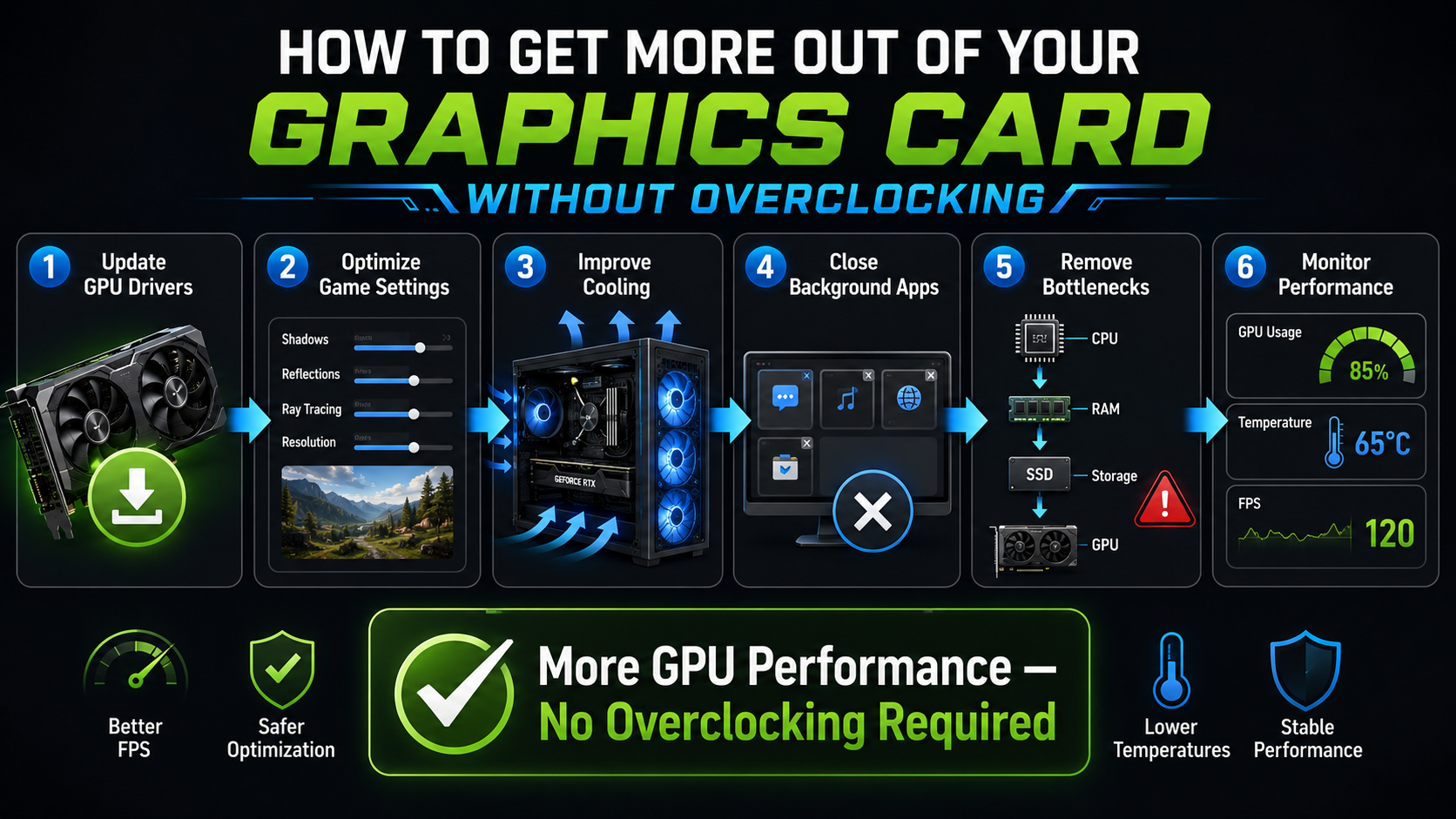
Many PC gamers and creators want to get more from their GPU without overclocking. Pushing hardware beyond factory settings can cause instability and extra heat. Fortunately, you can improve performance through safer software and maintenance techniques, as also supported by guidance from the NVIDIA Driver Downloads page and official optimization notes in the AMD Software Support resources. For broader graphics considerations, integrated and discrete graphics can also affect how a system handles demanding creative workloads.
Keeping your graphics drivers updated can provide game optimizations, bug fixes, and performance improvements. Good airflow also helps your GPU maintain its normal boost behavior under sustained workloads.
This guide explains how to improve graphics performance without manually increasing clock speeds or voltage. It also answers common questions about GPU utilization, temperatures, bottlenecks, and frame rates.
You will learn how to:
- Optimize in-game graphics settings.
- Keep GPU drivers current.
- Improve cooling and airflow.
- Reduce CPU and system bottlenecks.
- Monitor temperatures and utilization.
- Avoid unnecessary clock and voltage changes.
These practical steps can help you achieve smoother gaming and creative workloads. They also let your hardware operate closer to its intended performance without unnecessary tuning risks.
Is GPU 90% Bad?
A 90% GPU usage reading is usually normal during demanding games or creative workloads. High utilization means your graphics card is using much of its available processing capacity. It does not automatically indicate a problem.
In fact, high usage can be a positive sign during gaming. When the GPU is the main performance limit, it is working efficiently to produce as many frames as possible.
The more important factors are temperature, stability, clock behavior, and performance consistency. A GPU running at 90% utilization with safe temperatures is generally operating as intended.
Problems can appear when high usage combines with excessive temperatures, poor airflow, driver issues, or unstable hardware. Your GPU may then reduce its clock speed through thermal or power management.
Monitoring Thermal Limits During High Loads
Monitor GPU temperature while playing demanding games or running intensive applications. Most modern graphics cards are designed to manage high workloads automatically.
Avoid treating a single temperature number as a universal safety limit. Different GPUs have different thermal specifications, so check your manufacturer’s documentation.
Watch for:
- Unusually high temperatures.
- Sudden clock-speed reductions.
- Performance drops during long sessions.
- Excessive fan noise.
- Unexpected crashes or graphical artifacts.
Good case airflow and clean heatsinks help maintain stable temperatures. High utilization alone is not a reason to reduce GPU usage.
How to Avoid Overclocking a GPU?
You can avoid GPU overclocking by leaving clock speeds, voltage, and power settings at their default values. Modern graphics cards already use sophisticated boost algorithms within their designed operating limits.
Start by checking your GPU control software. Make sure manual frequency adjustments are disabled. Also review any automatic tuning features that may change performance settings.
Third-party utilities can be useful for monitoring temperatures and fan speeds. However, avoid automated overclocking modes if your goal is to keep the card at stock settings.
Keeping factory settings does not mean leaving performance on the table. Driver updates, game-specific optimizations, cooling improvements, and background-process management can improve real-world performance without changing clock targets.
You should also avoid increasing voltage simply to gain performance. Voltage changes can increase power consumption and heat while adding little practical benefit.
Sticking To Factory Default Settings
Restoring your GPU software to default settings is a simple way to prevent accidental tuning. Most graphics utilities provide a reset option for performance controls.
After resetting the settings, check that core and memory clocks use their normal automatic behavior. You can still customize safe options such as fan curves when supported.
Factory settings provide a reliable baseline for troubleshooting. If a game becomes unstable, you can investigate drivers, temperatures, software conflicts, or hardware issues without wondering whether an overclock caused the problem.
This approach also makes performance comparisons easier. You can measure changes after updating drivers or adjusting game settings while keeping the GPU configuration consistent.
How Do I Get More Out of Your Graphics Card?
The safest way to get more performance from your graphics card is to optimize everything around it. Start with your graphics driver and make sure you use a current, stable release.
Next, review the games or applications that you use most. Settings such as shadows, reflections, volumetric effects, and anti-aliasing can have a significant performance impact.
You do not always need to lower every setting. Instead, identify the options that consume the most GPU resources. A small reduction in demanding effects can produce smoother frame rates while preserving overall image quality.
Cooling also matters. Clean dust filters and unobstructed airflow help your GPU maintain its normal boost behavior. For better overall thermal management, air cooling vs liquid cooling is an important consideration when choosing a cooling approach. Thermal paste should only be replaced when there is a clear reason, such as aging paste or unusually high temperatures.
Optimizing In-Game Graphics Settings
Start by lowering settings that have a high performance cost. Shadows, reflections, volumetric effects, and ray tracing can significantly increase GPU workload.
Resolution scaling and upscaling technologies can also provide major performance gains. Supported features such as DLSS, FSR, or XeSS can improve frame rates while maintaining good image quality. Choosing the right display also matters, so learning how to choose the perfect gaming monitor can help you match resolution and refresh rate to your GPU’s capabilities.
Try changing one setting at a time. This approach helps you identify which option provides the best performance improvement.
For example, reducing shadow quality may provide a noticeable frame-rate increase with minimal visual impact. Lowering texture quality may have less benefit when your GPU has sufficient video memory.
Aim for a balance between image quality and responsiveness. You do not need maximum settings to enjoy a high-quality gaming experience.
How to Make a GPU Run 100%?
You should not try to force your GPU to reach 100% utilization at all times. Utilization depends on the application, resolution, frame-rate target, CPU performance, and graphics settings.
If your GPU usage remains low during a demanding game, investigate possible bottlenecks. A CPU limit, frame-rate cap, background process, or power-management setting may prevent higher utilization.
In CPU-limited games, faster system memory can sometimes improve performance. Enabling a supported XMP or EXPO memory profile may also help your system reach its rated memory speed, provided the configuration remains stable. Your processor can also influence overall gaming performance, making Intel Core Ultra processors relevant when evaluating CPU-related bottlenecks.
Fast storage mainly improves loading and asset-streaming behavior. It does not automatically increase GPU rendering performance.
You can increase resolution or graphical quality when your goal is to place more load on the GPU. However, this is useful only when you actually want higher image quality rather than simply higher frame rates.
Eliminating System Bottlenecks For Full Power
A GPU cannot perform at its maximum potential if another component limits the workload. This situation is known as a system bottleneck.
CPU limitations are common in games with high frame rates, large simulations, or complex game worlds. In these situations, GPU utilization may remain below 100% because the processor cannot prepare frames quickly enough.
System memory can also influence performance. Running compatible RAM at its rated speed may improve performance in CPU-bound workloads.
Storage has a different role. An NVMe SSD can reduce loading times and improve some asset-streaming scenarios, but it does not directly increase GPU processing power. If you’re considering faster storage, NVMe SSDs and their benefits, speed, and uses are worth understanding before upgrading.
Use monitoring software to identify the actual limitation before upgrading anything. Check CPU usage, GPU usage, temperatures, memory usage, and frame-time behavior.
Once you understand the bottleneck, you can make targeted improvements. This is more effective than changing settings without knowing what limits performance.
Is 100% GPU Usage Bad?
100% GPU usage is not inherently bad. During a demanding game, rendering workload, or GPU-accelerated application, maximum utilization can be completely normal.
High utilization often means the graphics card is being fully used. This can happen when you run a game at high resolution or aim for the highest possible frame rate.
The important factors are temperature, stability, power behavior, and performance. Modern GPUs include thermal and power-management protections that can reduce performance when operating conditions require it.
You should investigate the situation if maximum utilization comes with crashes, graphical artifacts, severe overheating, or unexpected performance drops. These symptoms may indicate cooling problems, driver issues, or hardware instability.
Good airflow is especially important during sustained workloads. Keep vents clear and remove accumulated dust from filters and heatsinks.
Understanding Hardware Self-Protection Mechanisms
Modern graphics cards use built-in safeguards to manage temperature, power, and operating conditions. These systems can reduce clock speeds or power consumption when necessary.
Thermal management is one reason a GPU can safely handle demanding workloads without manual intervention. The card continually monitors operating conditions and adjusts performance within its designed limits.
However, these protections do not make excessive heat harmless. Repeated operation near thermal limits can increase fan activity and may reduce sustained performance through throttling.
For that reason, monitoring remains important. Check your GPU temperature and clock behavior during the workloads you actually use.
If temperatures suddenly become higher than usual, inspect the fans, airflow, dust levels, and ambient temperature. A properly designed PC case for air and liquid cooling can also help maintain effective airflow and thermal performance. Driver or software changes can also affect power and performance behavior.
The goal is not to avoid high GPU usage. Instead, maintain stable temperatures and consistent performance while allowing the hardware to work as designed.
FAQ SECTION
What causes unexpected frame rate drops during gaming?
Frame rate drops typically occur due to thermal throttling, outdated display drivers, or background applications consuming critical system resources. Monitoring your hardware temperatures and closing unnecessary background tasks helps maintain steady performance. Keeping your operating system and graphics drivers updated resolves most sudden stuttering issues.
How often should I clean dust out of my computer?
You should inspect your computer system and clean internal dust filters every three to six months. Dust accumulation restricts airflow, causing internal temperatures to rise and forcing components to throttle performance. Regular cleaning ensures optimal cooling efficiency and extends overall hardware lifespan.
Does RAM speed affect graphics card performance?
System memory speed directly influences frame rate stability, especially in CPU-bound games and open-world titles. Faster memory and enabled XMP profiles reduce stuttering and ensure data reaches your rendering hardware without delays. Upgrading slow memory provides a noticeable boost to overall system responsiveness.
Are third-party tuning utilities safe to use?
Reputable software tools are generally safe if used cautiously to monitor temperatures and adjust fan curves. However, utilizing automated overclocking features within these applications can introduce instability and system crashes. Sticking to manual monitoring and fan profile adjustments is recommended for everyday users.
Conclusion
Optimizing your hardware does not require risky clock adjustments or voltage changes. You can get more from your GPU by improving the software and conditions around it.
Start with current graphics drivers and optimized game settings. Then check airflow, dust levels, temperatures, and background processes.
High GPU utilization is not automatically a warning sign. A GPU running near 100% can be working exactly as intended during demanding workloads.
Likewise, 90% utilization is generally normal when temperatures and performance remain stable. Focus on actual symptoms rather than utilization percentages alone.
System bottlenecks also deserve attention. CPU limitations, memory configuration, and other system factors can prevent your GPU from reaching higher utilization.
The safest approach is simple: keep factory clock and voltage settings, maintain effective cooling, and optimize software intelligently. These steps can improve frame rates and responsiveness without unnecessary hardware tuning.
With regular maintenance and sensible configuration, your graphics card can deliver reliable performance for gaming, rendering, and other demanding workloads.