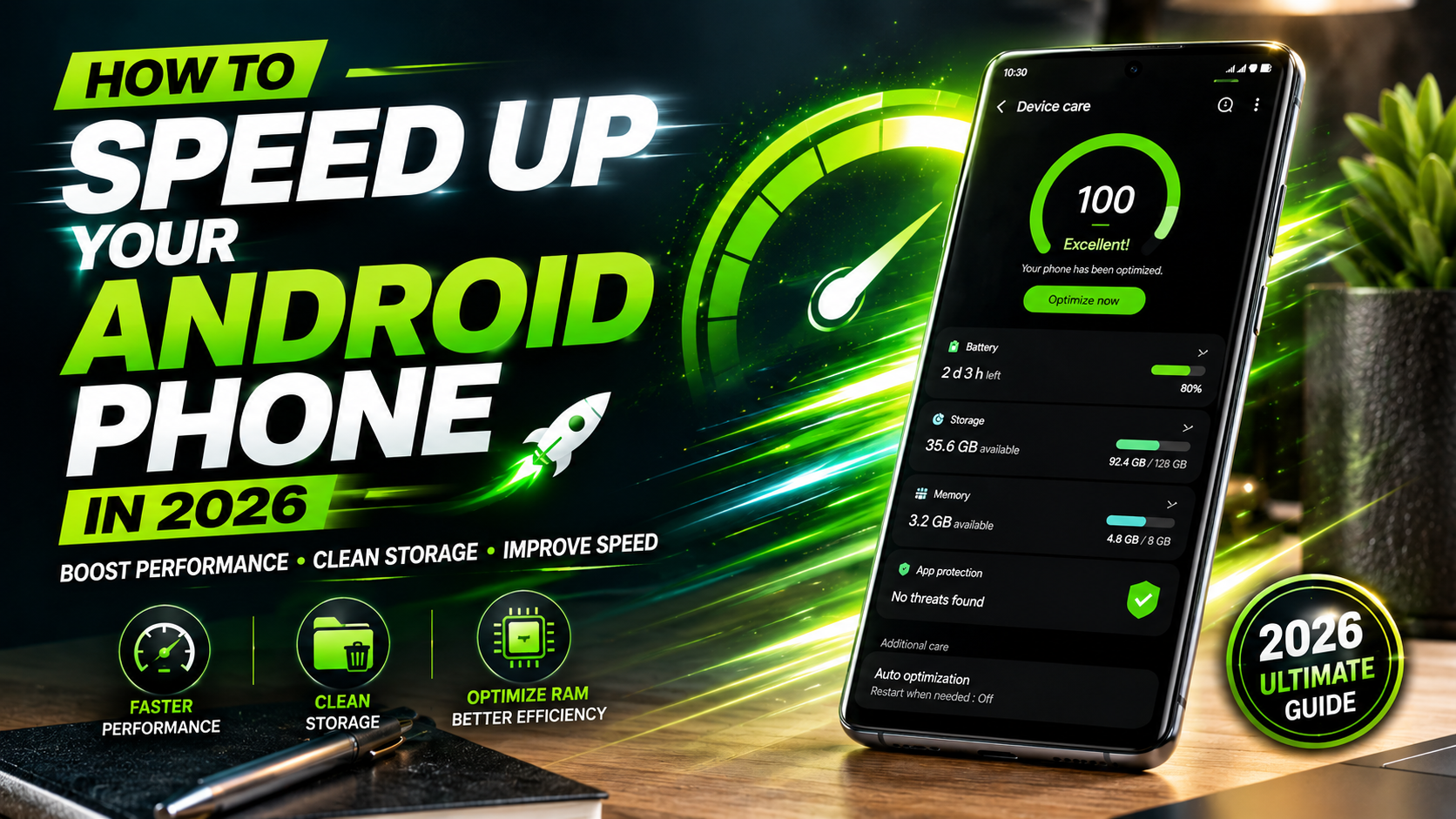
How to Speed Up Your Android Phone in 2026
If you want to speed up your Android phone without deleting your files, changing a few system settings and improving storage management can make a noticeable difference. A slow Android phone can quickly turn simple daily tasks into frustrating experiences. Whether you are opening applications, browsing websites, taking photos, or switching between different tasks, performance issues can make your device feel outdated. However, in most cases, you do not need to replace your smartphone or perform a factory reset to solve these problems. Modern Android devices are designed to manage resources efficiently, but over time, unnecessary files, background activities, and poorly optimized applications can affect overall speed.
Many users assume that their phone becomes slower because the hardware becomes weaker. In reality, smartphone processors and memory components usually continue working at the same capability they had when the device was new. Instead, software-related issues are often responsible for slow performance. For example, temporary files, unused apps, excessive background processes, and limited storage space can prevent Android from operating smoothly. If you are experiencing performance issues, following this guide to Speed up a slow Android device can help you free up storage and improve your phone’s responsiveness.
Fortunately, you can restore much of your phone’s original performance by making a few smart adjustments. By cleaning unnecessary data, controlling background activity, improving storage management, and adjusting hidden system settings, you can make your Android phone feel faster again. Furthermore, these methods allow you to keep your personal photos, apps, and files without removing everything through a factory reset.
This guide explains the most effective ways to speed up your Android phone in 2026 while keeping your important data safe.
Understanding Why You Need to Speed Up Your Android Phone
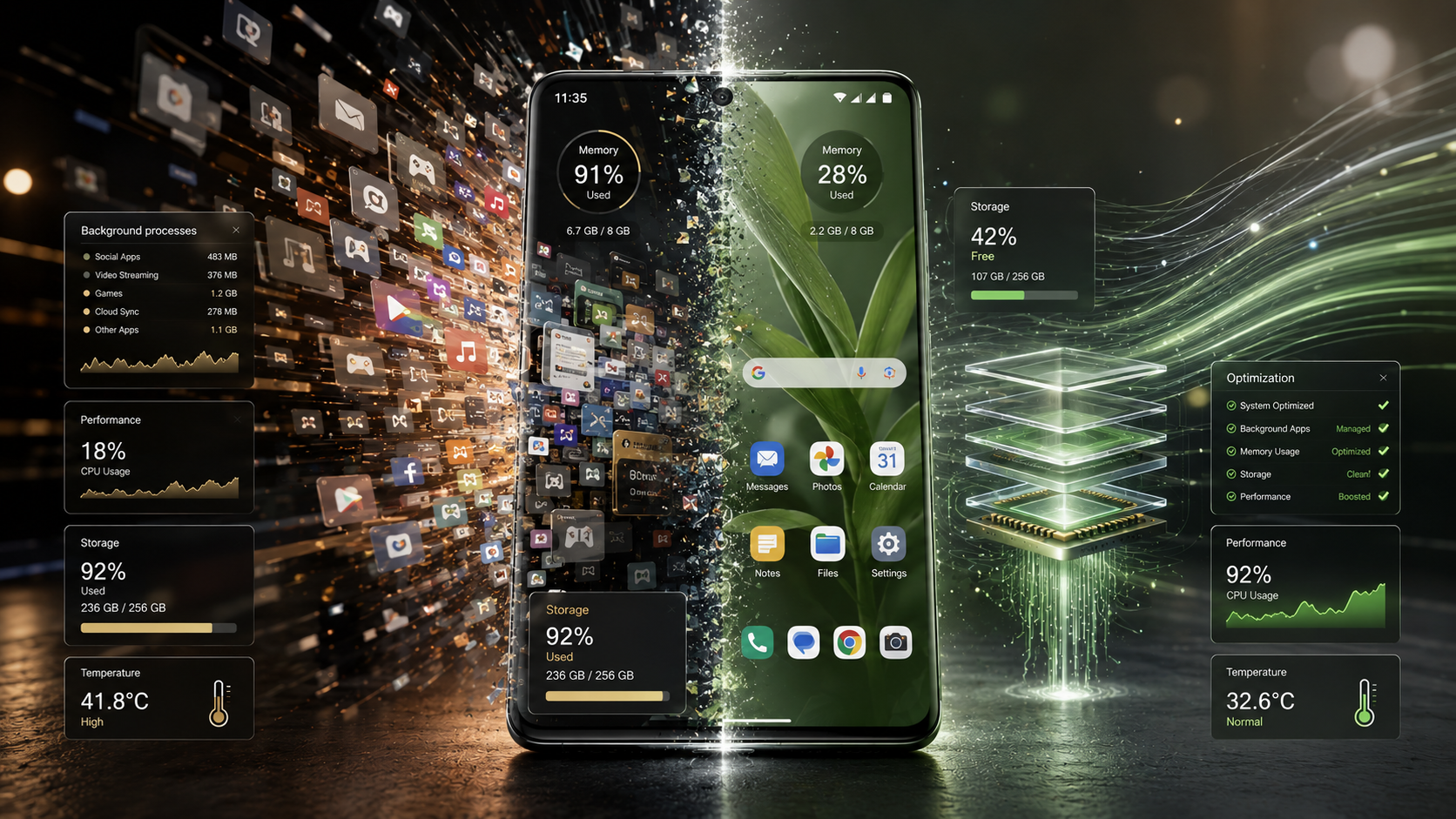
Before applying performance improvements, it is important to understand why Android devices slow down in the first place. A smartphone does not usually become slow because the processor suddenly loses power. Instead, performance problems typically develop because the operating system has to handle more tasks than before.
Every application installed on your phone requires storage space, memory, and processing power. Over time, many apps continue running background services even when you are not actively using them. As a result, your device may spend resources syncing data, checking notifications, downloading updates, or collecting information in the background.
Additionally, storage space plays a major role in Android performance. When your internal storage becomes almost full, the operating system has less room to create temporary files and manage system operations. Therefore, apps may take longer to open, animations may feel delayed, and multitasking can become slower.
Another common reason is outdated software. Although updates are usually created to improve security and performance, older applications may not always work efficiently with newer Android versions. Consequently, compatibility issues can create lag, crashes, or battery drain.
Moreover, visual effects, widgets, live wallpapers, and heavy launchers can increase the workload on your phone’s processor. While these features make your device look attractive, they may reduce responsiveness on older or budget smartphones.
The good news is that these problems are usually reversible. With proper optimization, your Android phone can regain speed and provide a smoother experience.
Practical Ways to Speed Up Your Android Phone
You do not need to perform a frustrating factory reset to get your performance back. Use these highly effective, non-destructive expert strategies instead.
1. Clear Cache Files to Speed Up Your Android Phone
One of the easiest and safest ways to speed up an Android phone is by clearing unnecessary cached data. Cache files are temporary files created by applications to help them load information faster. For example, social media apps store images, videos, and website elements in cache so they can appear quickly the next time you open them.
However, while cache files are useful, they can become excessive over time. Large amounts of outdated cache data may occupy valuable storage space and sometimes create conflicts with newer app versions. As a result, applications may become slower, freeze unexpectedly, or consume more system resources than necessary.
To clean cached data, open your Android device settings and go to Settings > Storage. From there, you can review unnecessary files and remove temporary data. Additionally, if a specific application is causing problems, you can clear its individual cache by visiting:
Settings > Apps > Select App > Storage > Clear Cache
This process does not delete your personal information. Your photos, messages, accounts, and login details remain untouched. Instead, Android simply removes temporary files that the application can rebuild when needed. Clearing cache is one of the safest ways to speed up your Android phone because it removes temporary files without deleting your personal data.
2.Remove Unused Apps and Files to Improve Android Speed
Another effective way to improve Android performance is by removing applications and files that you no longer use. Many users install apps for temporary purposes but forget to uninstall them later. Although these apps may appear inactive, they can still create background processes, receive updates, store data, and consume valuable storage space.
When your phone storage becomes crowded, Android has less available space for important system operations. The operating system requires free storage to manage temporary files, app updates, and internal processes. Therefore, keeping your storage clean allows your device to respond faster.
Start by reviewing your installed applications. Open your app drawer and identify programs that you have not used recently. If an app has been untouched for several weeks or months, uninstalling it can immediately free space and reduce background activity.
Additionally, check your Downloads folder because it often contains forgotten files such as old documents, duplicate images, videos, installation packages, and compressed files. These items may not seem important, but together they can occupy several gigabytes of storage. Regularly removing unused apps is a simple habit that helps you speed up your Android phone and maintain better long-term performance.
3.Update Apps and Software to Speed Up Your Android Phone
Keeping your Android applications and system software updated is one of the most important steps for maintaining smooth performance. Many people delay updates because they believe new versions only add features or change the appearance of apps. However, updates often include important improvements that directly affect speed, stability, security, and resource management.
Application developers regularly release updates to fix bugs, improve compatibility, and optimize how their software uses memory and processing power. For example, an older version of an application may contain unnecessary background activities that slow down your device. After an update, those issues may be resolved, allowing the app to run more efficiently.
Similarly, Android system updates often include performance improvements from manufacturers and Google. These updates can improve battery management, memory handling, and overall system responsiveness. Therefore, keeping your phone updated helps ensure that your hardware and software continue working together properly.
To update your applications, open the Google Play Store, tap your profile icon, and select Manage apps & device. From there, choose Update all to install available updates. Additionally, check your phone’s system updates by opening:
Settings > System > System Update
However, updating alone is not enough. It is also a good idea to remove apps that are no longer supported or maintained. Old applications may become inefficient over time because they are not optimized for newer Android versions.
By combining regular updates with proper app management, you can prevent performance problems before they appear. As a result, your Android phone stays faster, safer, and more reliable without requiring a factory reset.
4.Restart Your Device Regularly for Faster Android Performance
Many Android users keep their phones running continuously for weeks or even months without restarting them. Although modern smartphones are designed to operate for long periods, occasional restarts can significantly improve system responsiveness. A simple reboot helps clear temporary memory issues, refresh background processes, and close applications that may have become stuck.
When you use your phone every day, different apps open and close repeatedly. Sometimes, applications do not completely release the memory or resources they were using. Over time, these small issues can accumulate and cause slower performance, delayed responses, or unexpected app crashes.
Restarting your phone gives Android a clean working environment. During the reboot process, temporary files stored in active memory are removed, background services restart properly, and the operating system reorganizes its processes. Consequently, your phone often feels smoother immediately after turning back on.
For better maintenance, consider restarting your device once every week. This simple habit requires only a few seconds but can prevent many common performance problems. Furthermore, restarting can help identify whether an issue is caused by software rather than hardware.
To restart your phone, press and hold the power button, then select the restart option. Some newer devices may require holding the power button and volume key together.
Although a restart is not a permanent solution for every issue, it is an easy and effective method for keeping your Android phone running efficiently over time.
5.Use Developer Options to Speed Up Your Android Phone Instantly
Android includes a hidden set of advanced tools called Developer Options. Originally created for developers and technicians, these settings allow users to control certain system behaviors. When adjusted carefully, some of these options can make your phone feel significantly faster without changing your personal files.
To activate Developer Options, open:
Settings > About Phone
Then tap the Build Number seven times. After entering your security verification, a message will appear confirming that Developer Options have been enabled.
Next, go to:
Settings > System > Developer Options
One of the most useful adjustments is changing animation settings. Android uses animations when opening apps, switching screens, and moving through menus. These effects look smooth, but they also require processing power. By reducing them, your phone can respond more quickly.
Find these options:
- Window animation scale
- Transition animation scale
- Animator duration scale
Change each setting from 1x to 0.5x. Alternatively, you can disable them completely for an even faster interface.
You can also adjust the Background process limit. This setting controls how many applications remain active in the background. Reducing the limit can help older phones with limited RAM by preventing too many apps from running simultaneously.
However, avoid changing unknown developer settings because some options can affect system behavior. When used properly, Developer Options can make your phone feel faster, smoother, and more responsive without risking your data.
6.Use Lightweight Apps and Web Versions Whenever Possible
Heavy applications are one of the biggest reasons older Android phones become slow. Many popular apps now include advanced features such as automatic video playback, artificial intelligence tools, animations, and constant background syncing. While these features improve the user experience, they also require more RAM, storage, and processing power.
A simple way to improve performance is to switch to lightweight alternatives. Many companies offer simplified versions of their applications that use fewer resources. These lighter apps usually remove unnecessary features while keeping the essential functions you need.
For example, instead of installing a large application, you can sometimes use a mobile website through your browser. Modern browsers support Progressive Web Apps (PWAs), which allow websites to behave almost like installed applications. You can simply open a website in Chrome and choose the option to add it to your home screen.
This approach saves storage space and reduces background activity. Additionally, browser-based versions often receive updates automatically without requiring large downloads.
Another advantage is improved battery life. Since lightweight apps use fewer system resources, your phone does not need to work as hard throughout the day. As a result, you may notice better speed, longer battery performance, and fewer slowdowns.
Therefore, replacing unnecessary heavy apps with simpler alternatives is a practical way to extend the useful life of your Android phone.
7.Remove Heavy Widgets and Live Wallpapers
Your home screen may look attractive with multiple widgets and animated wallpapers, but these features can quietly reduce your phone’s performance. Widgets are constantly updating elements that display information such as weather, news, calendar events, or social media updates. Although they seem simple, many widgets regularly connect to the internet and refresh data in the background.
Live wallpapers also require continuous processing power because they create animations and visual effects every time you unlock your device. On powerful smartphones, the impact may be small. However, on older phones or devices with limited RAM, these extra processes can contribute to lag.
Removing unnecessary widgets can immediately reduce background activity. Start by reviewing your home screen and keeping only the widgets you actually use. For example, if you rarely check a weather widget, removing it can save resources without affecting your daily routine.
Similarly, replacing animated wallpapers with a simple static image can reduce GPU usage and improve battery efficiency. Your phone will spend less energy creating visual effects and more resources on important tasks.
Additionally, a cleaner home screen can make navigation faster because Android does not need to load as many visual elements. Therefore, simplifying your interface is a small but effective optimization technique.
By reducing unnecessary visual features, you can make your Android experience smoother while still maintaining a clean and personalized appearance.
8.Manage Auto-Sync Accounts to Reduce Background Usage
Automatic synchronization is a useful Android feature that keeps your information updated across different services. For example, your phone can automatically sync emails, contacts, calendars, cloud files, and application data. However, having too many accounts syncing at the same time can quietly consume system resources.
Every active sync service requires internet access, battery power, and processing capability. If multiple accounts are connected, your phone may constantly check for new information even when you are not using those services. As a result, your device may experience slower performance, faster battery drain, and increased background activity.
To improve efficiency, review the accounts connected to your phone. Go to:
Settings > Passwords & accounts
Here, you can see which accounts are active and what information they synchronize. If you find old email accounts, unused cloud services, or apps that you no longer rely on, you can disable their synchronization.
Additionally, consider reducing the sync frequency for applications that do not require real-time updates. For example, not every service needs instant notifications. A longer sync interval can reduce the workload on your device.
Furthermore, managing synchronization improves privacy because fewer apps continuously exchange data in the background. Therefore, this simple adjustment benefits both performance and security.
By controlling automatic syncing, you allow Android to focus its resources on the apps and tasks that matter most. This helps your phone feel faster and more responsive throughout the day without removing important accounts or personal information.
9.Optimize Battery Settings and Restrict Resource-Hungry Apps
Battery management and performance are closely connected on Android devices. When certain applications consume excessive power, they are often using a large amount of processing power in the background. Therefore, identifying and controlling these apps can significantly improve your phone’s speed.
Many applications continue running after you close them. They may refresh content, track location, send notifications, or perform background tasks. Although these features can be useful, poorly optimized apps can overload your system resources.
To check which apps are causing problems, open:
Settings > Battery > Battery Usage
This section shows which applications are consuming the most energy. If you notice an app using an unusually high amount of battery, consider limiting its background activity.
Android provides options such as:
- Background restriction
- Battery optimization
- Adaptive Battery
Adaptive Battery uses your usage patterns to decide which applications should receive priority. As a result, frequently used apps stay responsive while rarely used apps receive fewer resources.
Additionally, restricting unnecessary background activity reduces CPU workload. This means your processor spends less time handling hidden tasks and more time responding to your actions.
However, be careful with important apps such as messaging tools or alarms because restricting them too aggressively may delay notifications.
By regularly reviewing battery usage and controlling resource-heavy apps, you can achieve better speed, improved battery life, and a smoother Android experience.
10.Reset App Preferences Without Losing Personal Data
Sometimes Android performance problems are caused by incorrect application settings rather than the apps themselves. Over time, users change permissions, disable important services, or modify default app settings. These changes can create conflicts that affect how the system operates.
Fortunately, Android includes an option called Reset App Preferences. This feature restores default settings for applications without deleting your personal files, accounts, or installed apps.
To access this option, go to:
Settings > Apps > See all apps
Then tap the menu icon and choose:
Reset app preferences
This process restores several settings, including:
- Disabled applications
- Default app selections
- Background permission settings
- Notification restrictions
For example, if an important system service was accidentally disabled, resetting preferences can bring it back to normal operation.
Moreover, this method is useful when your phone feels unusually slow but you cannot identify the cause. Instead of performing a factory reset and losing everything, you can first try this safer solution.
However, remember that some customized settings may return to their original state. You might need to adjust certain app permissions again afterward.
Overall, resetting app preferences is a powerful troubleshooting method. It fixes hidden configuration problems while preserving your personal data, making it an excellent option for improving Android performance.
Frequently Asked Questions
How do I increase the speed of my Android phone?
You can increase your phone’s speed by freeing up local storage space, updating your apps, and restarting your device regularly. Additionally, clearing cached data from heavy apps like social media platforms prevents system bottlenecks. For an immediate boost, turn on Developer Options and lower your animation scales to 0.5x. This makes your phone transition between screens much faster.
What does *#9900# do to your phone?
The *#9900# code opens the SysDump menu, which is a hidden diagnostic tool on Android devices. Selecting the “Delete dumpstate/logcat” option within this menu clears out old system logs and error reports. This safely frees up internal storage space without deleting any personal user data. It is an excellent way to resolve sudden, unexplained system sluggishness.
How do I make my phone 10x faster?
To achieve maximum speed improvements, go to Developer Options and change the window, transition, and animator scales to 0.5x or off. Next, restrict the background process limit to a maximum of three apps to optimize RAM usage. Finally, remove bloated widgets from your home screen and uninstall heavy apps that run constantly in the background.
Why is Android so laggy and slow?
Android phones generally experience lag when their internal storage capacity is nearly full, which leaves little room for virtual memory. Furthermore, having too many apps running background services drains your RAM and battery resources. Over time, corrupt system cache files and unoptimized software updates can also degrade your hardware’s processing efficiency.
Will clearing cache delete my personal photos?
No, clearing your app or system cache will not delete personal photos, videos, or documents. Cache files are simply temporary files that apps use to load information a bit faster. Deleting them is completely safe and helps resolve performance bugs.
Conclusion
Learning how to speed up your Android phone does not require advanced technical skills or a risky factory reset. By clearing hidden log files using diagnostic codes, optimizing your device storage, and adjusting animation scales, you can instantly revive an old device. These simple adjustments reduce the heavy burden on your phone’s processor and RAM. Commit to restarting your phone once a week and keeping your storage clean to maintain peak performance. Try these adjustments today to enjoy a faster, lag-free mobile experience.
If you also want to improve your computer’s performance and make your PC run faster, check out our guide on how to increase CPU speed and boost PC performance for more optimization tips.