
How to Delete Your Siri AI Conversations History
If you want to delete your Siri AI conversations history, your iPhone provides several privacy controls to manage stored conversations and voice requests. These settings help you remove unwanted interactions and control how Apple processes your personal information.
Siri makes everyday tasks easier, but your voice requests can raise privacy concerns. You might not want previous questions, voice transcripts, or AI interactions stored longer than necessary.
Apple provides separate controls for Siri conversations, Dictation history, and optional data sharing. Understanding these differences helps you manage your information more effectively.
This guide explains how to delete Siri conversations, clear request history, disable voice assistance, and manage privacy settings. Follow these steps to maintain better control over your personal data.
How do I delete my AI history on my iPhone?
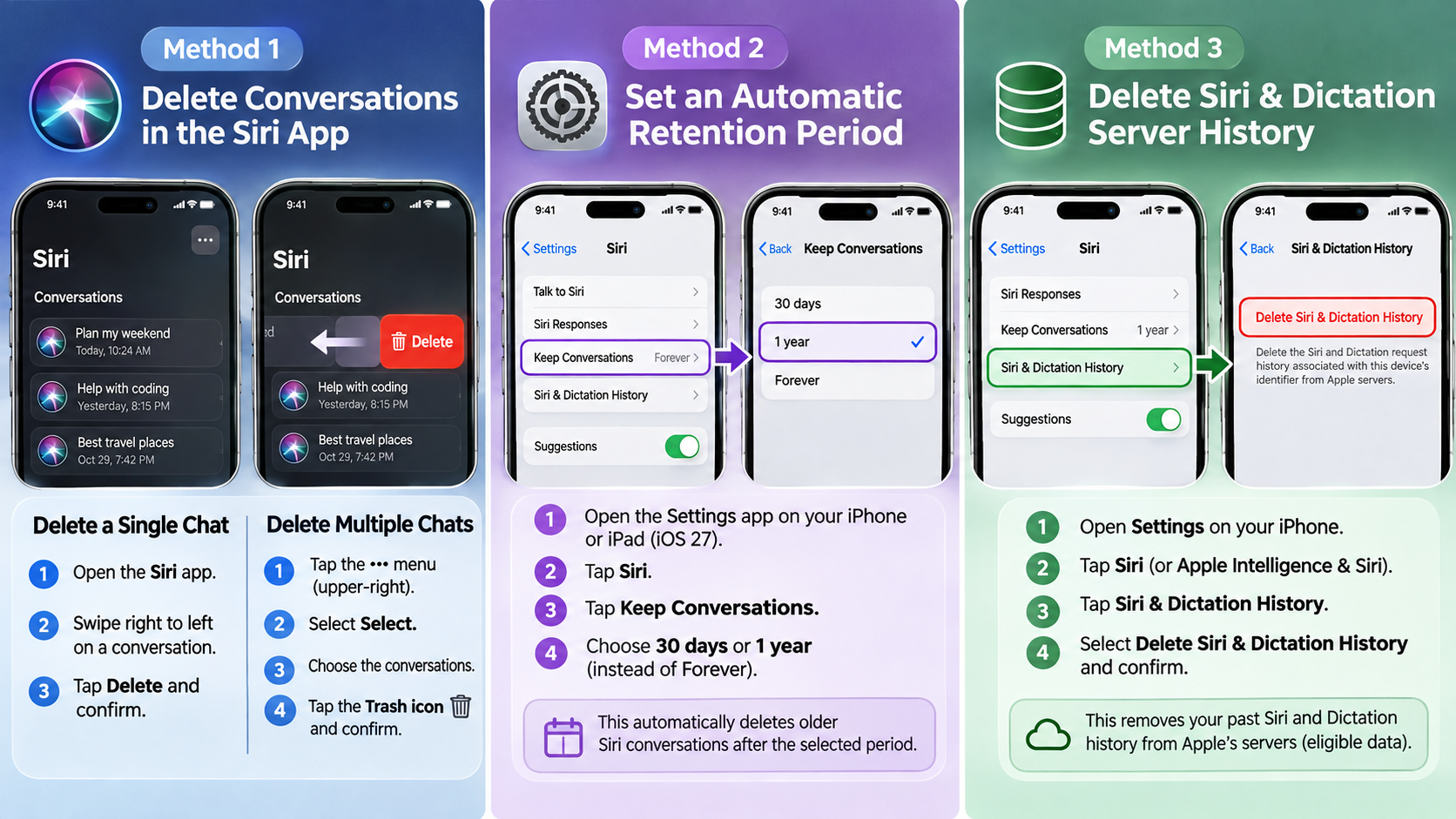
You can delete your Siri AI conversations history directly through the Siri app. Open the Siri app on your iPhone and access your conversation history. Find the conversation you want to remove and touch and hold it. Select Delete and confirm your choice.
To remove multiple conversations, follow these steps:
- Open the Siri app on your iPhone.
- Access your conversation history.
- Tap the Options button in the upper-right corner.
- Select the conversations you want to delete.
- Tap the Trash button.
- Confirm your selection.
These steps remove conversations from your Siri app history. They are separate from the controls for Siri and Dictation request history.
Your available options may vary depending on your iOS version. You can also review Apple’s Siri and Dictation privacy documentation for additional information.
Clearing Connected Third-Party AI Data
Deleting Siri conversations does not automatically remove information stored by third-party AI services. Apps such as ChatGPT and Claude manage their conversation histories separately.
If you have used these services through Siri integrations, review their individual privacy settings. You may need to delete conversations directly within each application.
Here are some additional privacy steps:
- ChatGPT: Open Settings and review Data Controls and chat management options.
- Claude: Open Settings and review privacy and conversation management options.
- Other AI apps: Check account settings for conversation deletion and data retention controls.
You should also review whether an application uses your conversations for model improvement. Disable optional training or data-sharing settings when available.
Remember that deleting an in-app conversation and deleting previously processed server data are not always identical. Check each provider’s privacy policy to understand its retention practices.
How do I delete Siri history?
You can manage traditional Siri and Dictation request history through your iPhone settings. However, the exact controls depend on your iOS version.
On supported versions that provide the Siri & Dictation History option, follow these steps:
- Open the Settings app on your iPhone.
- Tap Siri or Apple Intelligence & Siri.
- Find Siri & Dictation History.
- Tap Delete Siri & Dictation History, if available.
- Confirm your selection.
This control deletes eligible Siri and Dictation request history associated with your device-generated identifier.
On newer software versions, Apple may provide different controls. Its privacy documentation also describes turning off Siri as a way to delete locally stored request transcripts.
Importantly, deleting your history does not guarantee that every previously reviewed or older server record disappears. Review Apple’s official privacy information before assuming complete deletion.
Confirming Server Log Deletion
Deleting Siri history does not mean every historical record is immediately erased from Apple’s systems.
Apple associates eligible request history with a random identifier that rotates multiple times per hour. This identifier is not directly linked to your Apple Account or email address.
Apple states that certain request information may remain for up to two years. A small number of previously reviewed interactions may remain longer.
Additionally, requests older than six months and previously reviewed samples may not be removed through identifier-based deletion.
Therefore, distinguish between clearing your device’s conversation history and deleting eligible server-associated data.
You should also avoid assuming that a new identifier guarantees complete anonymity. Apple still processes certain information to provide and improve its services.
How to remove AI Siri?
If you no longer want to use Siri, you can disable its voice activation through your iPhone settings. This prevents Siri from responding to your usual activation commands. However, if you only want to stop Siri from reading notifications through your AirPods, you don’t need to disable Siri completely. Follow this AirPods notification settings guide instead.
Follow these steps:
- Open the Settings app.
- Tap Siri or Apple Intelligence & Siri.
- Select Talk to Siri or Talk & Type to Siri.
- Choose Off to disable voice activation.
- Turn off Press Side Button for Siri, if available.
You can also disable Dictation separately:
- Open Settings.
- Select General.
- Tap Keyboard.
- Turn off Enable Dictation.
Disabling Siri and Dictation also removes locally stored request transcripts used to personalize your experience, according to Apple’s privacy documentation.
Remember that disabling Siri does not automatically disable every Apple Intelligence feature. Manage those features separately if you want to restrict additional AI functionality.
Turning Off Advanced System Intelligence
Apple Intelligence includes several features beyond traditional Siri voice assistance. These features can include writing assistance, notification summaries, image tools, and other intelligent functions.
If you want to restrict these capabilities, follow this guide to disable Apple Intelligence on your iPhone and learn how to manage individual AI features through your device settings.
Depending on your iOS version and device compatibility, you may find a master switch for Apple Intelligence.
Follow these general steps:
- Open Settings.
- Select Apple Intelligence & Siri.
- Find the Apple Intelligence controls.
- Turn off the available features you no longer want to use.
Disabling Apple Intelligence does not necessarily delete existing Siri conversations or third-party AI histories. You must manage those separately.
Also, some features may remain available through individual applications or services. Review their settings if you want additional control over AI processing and personal information.
Does Siri keep your history?
Yes. Apple maintains certain Siri and Dictation request information, but its retention practices depend on your settings and the type of request.
Apple stores information such as request transcripts, interaction categories, device specifications, and performance statistics. This information helps improve Siri, Dictation, Search, and related language-processing features.
By default, Apple does not retain audio recordings of Siri interactions. However, additional audio and transcript collection can occur if you opt into Improve Siri & Dictation or Improve Siri & Apple Intelligence.
Apple associates eligible request history with a random, device-generated identifier. This identifier rotates multiple times per hour and is not directly connected to your Apple Account.
Apple may retain eligible request information for up to two years. A small subset of reviewed interactions may remain longer.
Understanding these differences helps you make informed privacy decisions without confusing audio storage, transcripts, and conversation history.
Understanding the Identifier Rotation Cycle
Apple uses randomly generated identifiers to separate Siri request information from your Apple Account.
These identifiers rotate multiple times per hour. This means Apple does not directly associate standard Siri request history with your account email address or personal account identity.
However, an anonymous identifier does not mean that no information is collected. Apple can still process request details, device information, and other contextual data.
For users who enable additional data sharing, the collected information may also include audio recordings and transcripts.
Apple explains that certain request information can remain for up to two years. Previously reviewed samples may remain longer.
Deleting your Siri history helps manage eligible records associated with your identifier. However, it should not be treated as a guarantee that every historical record has been permanently erased.
You can review Apple’s current retention practices in its privacy documentation.
Are Siri conversations private?
Apple uses several privacy protections when processing Siri requests. These include on-device processing, random identifiers, and Private Cloud Compute for supported Siri AI requests.
Many routine requests can be processed directly on your iPhone. Other requests may require communication with Apple’s servers to provide relevant information.
For supported Apple Intelligence requests, Private Cloud Compute processes information without retaining it or making it accessible to Apple.
However, not every Siri request follows the same processing method. Some Search requests and related interaction information may still be stored and used to improve Apple’s services. If you want to reduce unnecessary data sharing, explore these ways to protect your Siri AI privacy and review additional security settings.
Apple also states that Siri request history is not used to build marketing profiles or sold to advertisers.
If you use third-party applications through Siri, their own privacy policies also apply. Therefore, review both Apple’s settings and the permissions granted to connected applications.
Opting Out of Human Grading
If you want to prevent additional Siri interaction data from being collected for improvement, review Apple’s optional data-sharing settings.
Apple provides an option called Improve Siri & Dictation. Depending on your device and software version, you may also see Improve Siri & Apple Intelligence.
To disable the available setting:
- Open Settings on your iPhone.
- Tap Privacy & Security.
- Select Analytics & Improvements.
- Find Improve Siri & Dictation or Improve Siri & Apple Intelligence.
- Turn off the relevant option.
When enabled, these settings allow Apple to collect additional interaction data. This can include audio recordings, transcripts, and related request information.
Turning them off prevents future optional contributions under that setting. It does not necessarily erase information previously collected.
You can also review Apple’s data-sharing explanation for details about audio review and retention.
Final Thoughts
Learning how to delete your Siri AI conversations history is an important step toward protecting your digital privacy. Start by deleting unwanted conversations from the Siri app and reviewing your Siri and Dictation history controls.
You should also check optional data-sharing settings and disable features you no longer need.
Remember that deleting conversations, disabling Siri, and stopping optional data collection are separate actions. Review each control carefully to understand what it actually removes.
By regularly checking these settings, you can better manage your iPhone’s stored conversations and keep your personal information more secure.