How to Lock and Unlock Aadhaar Biometrics Using the mAadhaar App
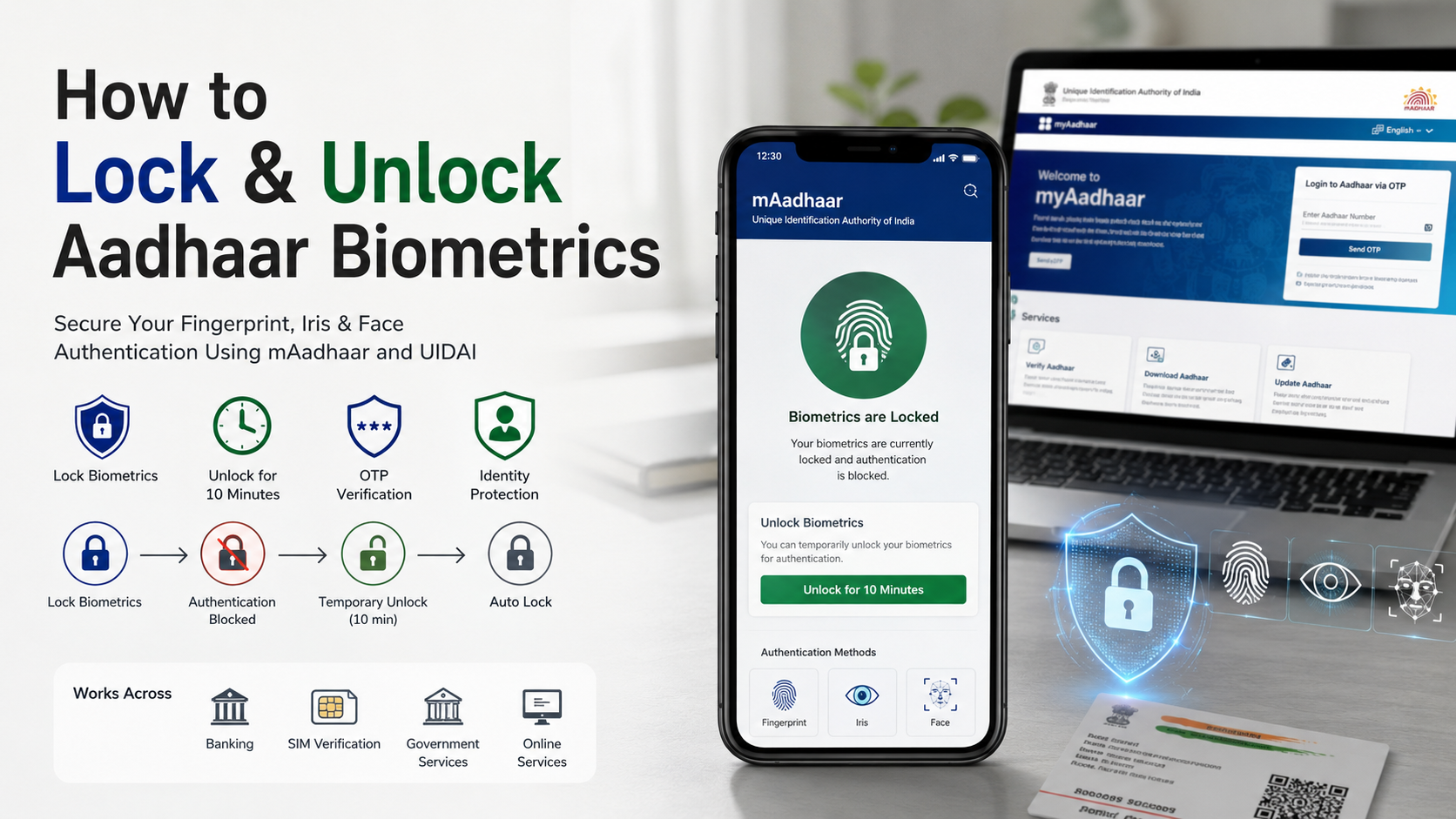
Locking and unlocking Aadhaar biometrics is a security feature that helps protect your fingerprint, iris, and facial biometric data from unauthorized use. UIDAI allows Aadhaar holders to disable biometric authentication whenever they do not need it and temporarily unlock it when verification is required. This prevents misuse of biometric details for identity verification, banking services, SIM activation, and other Aadhaar-based services. In this guide, you will learn how to lock and unlock Aadhaar biometrics using the mAadhaar app and the official UIDAI portal, along with benefits, steps, and common questions.
Your biometric information is one of the most sensitive parts of your digital identity because it is unique to you and cannot be changed like a password. Enabling biometric locking gives you better control over when your Aadhaar details can be used for authentication.
Before managing your biometric settings, make sure your Aadhaar is linked with your registered mobile number. You can also access other Aadhaar-related online services through the official UIDAI website, which provides secure tools and information for Aadhaar holders.
Using the mAadhaar app, you can easily manage how to lock and unlock Aadhaar biometrics, enable biometric locking, temporarily unlock your biometrics when required, and maintain stronger protection against unauthorized verification attempts. This makes Aadhaar biometric security management simple and convenient from your smartphone.
How to lock biometrics in mAadhaar app?
Locking biometric authentication in the mAadhaar app is a simple way to protect your Aadhaar identity details from unauthorized use. This security feature allows you to disable biometric authentication temporarily, preventing anyone from using your fingerprint or iris data for verification.
To start, open the official mAadhaar application on your registered mobile device. Enter your four-digit PIN to access your profile dashboard. Select the biometric lock option available under the security settings section.
Review the confirmation message and approve the request using your app credentials. Once activated, your biometric data becomes unavailable for authentication until you unlock it again. This added protection helps reduce the risk of misuse if your Aadhaar details are exposed.
Using the biometric lock feature regularly can improve your overall digital identity security. It gives you better control over when your biometric information can be used.
Steps to activate your biometric protection securely
Activating biometric protection through the mAadhaar app requires only a few simple steps. Before starting, make sure your device has a stable internet connection and your registered mobile number is active.
Follow these steps to enable biometric locking:
- Open the mAadhaar app and log in with your security PIN.
- Select your Aadhaar profile from the dashboard.
- Open the biometric settings section.
- Choose the option to lock biometrics.
- Confirm your request after reviewing the security notification.
After successful activation, you will receive a confirmation message from the system. Your biometric authentication will remain disabled until you manually unlock it.
Keeping biometrics locked when not required is a useful security practice. It limits unnecessary access attempts and provides an extra layer of protection for your Aadhaar identity.
How can I unlock my Aadhar card biometrics lock?
Knowing how to unlock Aadhaar card biometrics lock helps you complete important identity verification processes without delays. You may need to unlock biometrics when using banking services, telecom services, or government platforms that require biometric authentication.
To unlock your biometrics, open the mAadhaar application and enter your security PIN. Access your Aadhaar profile and navigate to the biometric settings area. Your current biometric status will appear as locked.
Select the unlock option and confirm your choice. Depending on your requirement, you may choose a temporary unlock or permanently disable the lock. A temporary unlock is useful when you need authentication for a specific task.
Once the request is processed, your biometric authentication becomes available again. After completing your verification, it is recommended to lock your biometrics again to maintain better security.
Choosing between temporary and permanent biometric unlock options
Selecting the correct biometric unlock option helps you balance convenience and security. The mAadhaar app provides flexibility by allowing users to choose between temporary and permanent unlocking based on their needs.
A temporary biometric unlock activates authentication for a limited period. After the selected duration ends, the biometric lock is automatically enabled again. This option is helpful when you only need verification for a single service or transaction.
A permanent unlock keeps biometric authentication active until you manually enable the lock again. This may be suitable for users who regularly require biometric verification.
Before choosing an option, consider how often you use Aadhaar-based authentication services. Temporary unlocking is generally safer for occasional requirements because it reduces the time your biometrics remain available.
Always check your biometric status after completing any verification activity.
How do I unlock my biometrics?
Understanding how to unlock my biometrics is important when you need Aadhaar authentication for official services. Users may need to change their biometric status when completing applications, financial procedures, or identity verification tasks.
To unlock your biometrics, open the verified mAadhaar app and access your Aadhaar profile. Find the biometric lock management section and check your current security status. Select the unlock option and enter your PIN when prompted.
The application will process your request and synchronize the updated status with the Aadhaar system. After successful completion, authorized biometric devices can verify your identity again.
For better protection, avoid keeping your biometrics unlocked longer than required. Once your verification is complete, enable the biometric lock again through the app.
Regularly managing your biometric settings helps protect your Aadhaar information and reduces the possibility of unauthorized identity verification attempts.
Best practices for managing your Aadhaar biometric status
Maintaining proper control over your Aadhaar biometric settings is an important part of digital security. Good security habits can help prevent misuse and keep your identity information protected.
Follow these best practices:
- Lock your biometrics when you are not using Aadhaar authentication.
- Use only official Aadhaar services for managing biometric settings.
- Keep your mAadhaar app updated to the latest version.
- Avoid sharing your security PIN with anyone.
- Check confirmation messages after changing biometric settings.
You should also avoid accessing Aadhaar services through unknown links or unofficial applications. Phishing websites may attempt to collect sensitive information.
Managing your biometric status regularly gives you more control over your digital identity. Simple actions, such as locking biometrics after use, can improve your overall Aadhaar security.
How to unlock biometric without mAadhaar app?
If you cannot access the mAadhaar app, you can still manage your biometric settings through official Aadhaar online services. Knowing how to unlock biometric without mAadhaar app is useful when your application is unavailable, outdated, or removed from your device.
Visit the official Aadhaar website using a secure browser. Enter your Aadhaar number and complete the required captcha verification. After that, verify your identity using the OTP sent to your registered mobile number.
Once you access your account dashboard, find the biometric lock management option under authentication settings. Follow the instructions to unlock your biometric status.
Always use official Aadhaar platforms instead of third-party websites. This reduces the risk of phishing attempts and protects your personal information.
Using the web portal provides a reliable alternative when mobile access is not possible. It allows you to manage biometric security settings without installing the mAadhaar application.
Using official web portals for Aadhaar biometric management
The official Aadhaar web portal acts as a backup option for managing identity settings when mobile services are unavailable. It provides users with access to important security features through a desktop or mobile browser.
Before entering your details, confirm that you are using the official government website. Avoid suspicious links, emails, or third-party platforms requesting Aadhaar information.
The online portal requires secure verification through your registered mobile number. This ensures that only authorized users can change biometric settings connected to their Aadhaar profile.
Using official channels helps maintain privacy and reduces the chances of identity misuse. Whether you manage your biometric lock through the mAadhaar app or the web portal, regularly reviewing your settings is a smart security practice.
Keeping your Aadhaar biometrics protected gives you greater control over your personal information and helps create a safer digital identity experience.
What happens if Aadhaar biometric is locked?
When you lock your Aadhaar biometrics, fingerprint and iris authentication become unavailable until you unlock them. This prevents anyone from using your biometric details for Aadhaar authentication without your permission.
For example, services that require fingerprint verification, such as some banking or government services, may not work while your biometrics are locked. In such cases, you need to temporarily unlock your biometrics before completing authentication.
Biometric locking does not disable your Aadhaar number. You can still use Aadhaar services that rely on OTP-based verification or other available authentication methods.
The feature gives you greater control over your identity. It is useful when you want to prevent unnecessary biometric usage while keeping your Aadhaar active.
Effect on Daily Authentication and Transactions
Before locking your biometrics, consider the services you use regularly. Some platforms require fingerprint or iris verification for authentication.
If you frequently use biometric-based services, temporary unlocking can help you complete transactions without permanently disabling the security feature.
Benefits of biometric locking include:
- Protection against unauthorized biometric authentication.
- Better control over Aadhaar usage.
- Reduced risk from misuse of biometric verification.
- Easy unlocking whenever required.
Checking authentication requirements before important transactions can help avoid delays. Planning ahead ensures that your Aadhaar services continue smoothly while your biometric information remains protected.
How to Lock and Unlock Aadhaar Biometrics Using the mAadhaar App
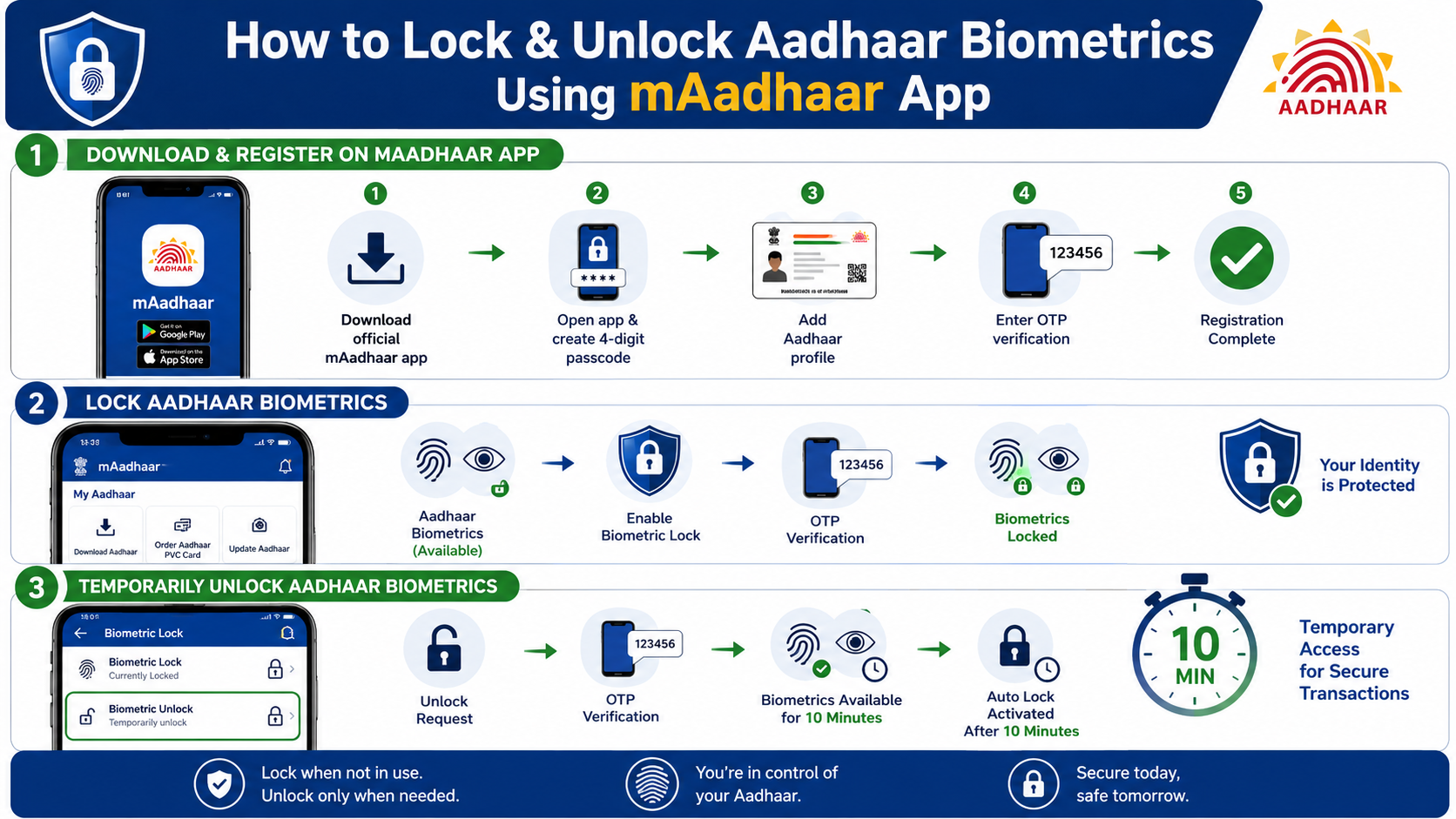
The mAadhaar app allows users to manage Aadhaar biometric security settings directly from their smartphones. Before locking your biometrics, make sure your Aadhaar is linked with your registered mobile number.
Step 1: Download and Register on the mAadhaar App
Follow these steps to set up the app:
- Download the official mAadhaar app from the Google Play Store or Apple App Store.
- Open the application and allow necessary permissions.
- Create a secure 4-digit passcode.
- Add your Aadhaar profile using your Aadhaar number and registered mobile number.
- Enter the OTP received on your registered mobile number.
- Complete the registration process.
Step 2: How to Lock Aadhaar Biometrics
To enable biometric locking:
- Open the mAadhaar app.
- Enter your 4-digit passcode to log in.
- Select your Aadhaar profile.
- Open the My Aadhaar section.
- Select the Biometric Lock option.
- Read the instructions and choose Enable Biometric Lock.
- Enter the captcha code and OTP received on your registered mobile number.
- Select Verify to complete the process.
Your Aadhaar biometrics will now be locked.
Once locked, fingerprint or iris authentication attempts will fail until you temporarily unlock your biometrics.
Step 3: How to Temporarily Unlock Aadhaar Biometrics
You may need to unlock your biometrics when completing services that require biometric verification.
Follow these steps:
- Open the mAadhaar app.
- Log in using your passcode.
- Select Biometric Unlock.
- Enter the captcha code.
- Verify using the OTP sent to your registered mobile number.
- Tap Unlock.
Your biometrics will remain unlocked temporarily for 10 minutes. After this period, the biometric lock automatically activates again.
Frequently Asked Questions About Aadhaar Biometric Locking
What happens after locking Aadhaar biometrics?
When you lock Aadhaar biometrics, UIDAI blocks fingerprint, iris, and facial authentication requests linked to your Aadhaar number. As a result, no one can use your biometric details for verification until you unlock them through the mAadhaar app or UIDAI portal. This security feature helps prevent unauthorized biometric authentication attempts and protects your digital identity.
Does biometric locking stop Aadhaar OTP authentication?
No, biometric locking does not stop OTP-based Aadhaar authentication. Your registered mobile number will continue receiving OTPs, and you can use services that require mobile verification. However, biometric-based verification will remain unavailable until you unlock your biometric settings.
How long does Aadhaar biometric unlock remain active?
Aadhaar biometric unlock remains active temporarily for 10 minutes. After this period, UIDAI automatically activates the biometric lock again. Therefore, you can complete your required fingerprint or iris verification during this short window without manually locking your biometrics afterward.
Can I unlock Aadhaar biometrics without my registered mobile number?
No, you cannot unlock Aadhaar biometrics without access to your registered mobile number. UIDAI sends an OTP to your linked phone number to confirm your identity during the unlock process. Therefore, you must update your mobile number through an Aadhaar enrolment centre if you no longer use your registered number.
Is there any charge for locking or unlocking Aadhaar biometrics?
No, UIDAI provides Aadhaar biometric locking and unlocking services free of charge. You can manage your biometric settings through the mAadhaar app or official UIDAI portal without paying any service fee.
What happens if someone tries biometric authentication while my Aadhaar biometrics are locked?
If someone attempts biometric authentication while your Aadhaar biometrics remain locked, UIDAI rejects the request. Therefore, the person cannot complete verification using your fingerprint, iris, or facial biometric data. This protection helps reduce the risk of unauthorized Aadhaar-based authentication.
Can I permanently unlock Aadhaar biometrics?
Yes, Aadhaar users can disable biometric locking through UIDAI services whenever they want. However, keeping your biometrics locked when you do not need authentication provides an additional layer of identity protection and helps secure your Aadhaar information.
Conclusion
Locking and unlocking Aadhaar biometrics is a simple way to improve the security of your digital identity. By using the mAadhaar app or UIDAI portal, you can control when your fingerprint, iris, and facial authentication data can be used. Keeping biometrics locked when not required reduces the risk of unauthorized verification attempts. Check your Aadhaar biometric settings regularly and use this security feature whenever you want greater control over your identity information.
As digital identity solutions continue to evolve, technologies like secure digital wallets may further change how people manage personal information online. You can also explore how digital identity systems are developing in the future by reading our guide on how Google Wallet could solve digital identity.
Check your Aadhaar biometric settings regularly and use this security feature whenever you want greater control over your identity information.